
1. Introduction
This manual provides detailed instructions for the installation, operation, and maintenance of your ZOSI 16-Channel 4K PoE NVR Security System. This system is designed to provide reliable surveillance for your home or business, featuring high-resolution cameras, efficient video compression, and remote access capabilities.

Image 1.1: Overview of the ZOSI 16-Channel PoE Security Camera System.
2. Package Contents
Verify that all items listed below are included in your package. If any items are missing or damaged, please contact ZOSI customer support.
- 1 x 16-Channel PoE NVR with 4TB Hard Drive
- 6 x 5MP PoE IP Dome Cameras
- 6 x 60ft Ethernet Cables
- 1 x 6.6ft HDMI Cable
- 1 x 48V 2.5A NVR Power Supply
- 1 x USB Mouse
- 1 x Mounting Screw Bag
- 1 x Mounting Template
- 1 x Quick Start Guide
- 6 x Warning Stickers

Image 2.1: All components included in the ZOSI 16-Channel PoE Security System package.
3. Setup Instructions
Follow these steps to set up your ZOSI PoE NVR security system.
3.1 NVR and Camera Connection
- Connect the included USB mouse to a USB port on the NVR.
- Connect the NVR to a monitor using the provided HDMI cable.
- Connect the NVR to your router using an Ethernet cable for network access.
- Connect each PoE camera to an available PoE port on the NVR using the provided Ethernet cables.
- Connect the 48V 2.5A power adapter to the NVR and plug it into a power outlet.
- Turn on the NVR using the power switch. The system will initialize and display the camera feeds on the connected monitor.

Image 3.1: Rear panel of the NVR illustrating various connection ports.
3.2 Video Setup Guides
For a visual guide on setting up your ZOSI PoE NVR system, please refer to the videos below:
How to Set Up Your ZOSI NVR
Video 3.2.1: This video demonstrates the step-by-step process of connecting the PoE cameras, NVR, monitor, mouse, and power, then powering on the system.
ZOSI 16CH PoE Dome Camera System - Setup and Unboxing
Video 3.2.2: This video provides an unboxing experience and a comprehensive guide to setting up the 16-channel PoE dome camera system, including app configuration.
4. Operating Instructions
4.1 Remote Access via ZOSI Smart App
The ZOSI Smart App allows you to view live feeds, playback recordings, and receive alerts on your mobile device from anywhere with an internet connection.
- Download the ZOSI Smart App from your device's app store.
- Create an account and log in.
- Tap the '+' icon or 'Add Device' to add your NVR.
- Scan the QR code located on your NVR or enter the device ID manually.
- Follow the on-screen prompts to complete the device setup and name your NVR.
- Once added, you can access live views and playback features.

Image 4.1: Remote access to the security system via various devices using the ZOSI Smart App.
4.2 Motion Detection and Alerts
Configure motion detection zones and alert preferences to receive notifications for specific events.
- Access the NVR's menu or the ZOSI Smart App settings.
- Navigate to the 'Motion Detection' or 'Alarm' settings.
- Select the camera you wish to configure.
- Draw specific motion detection zones to minimize false alerts from irrelevant areas.
- Enable push notifications to your mobile device and/or email alerts.
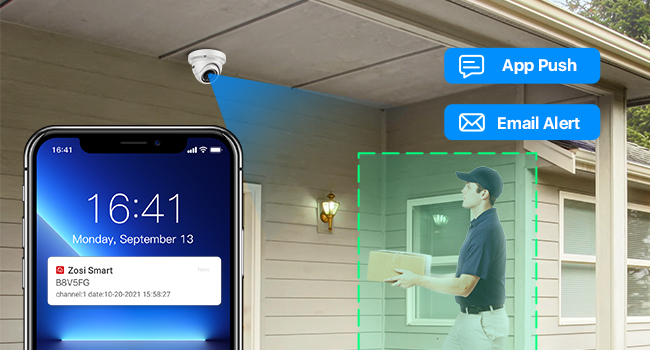
Image 4.2: Example of motion detection alerts received on a smartphone.
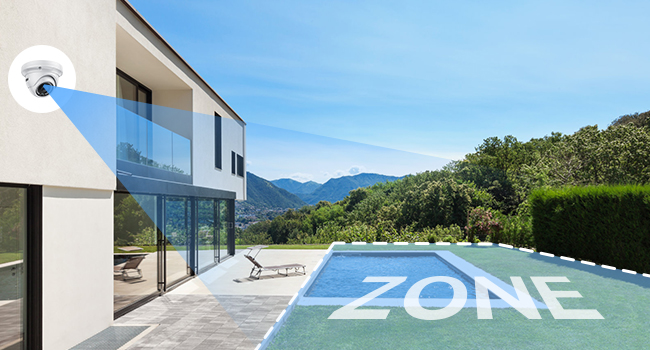
Image 4.3: Customizing motion detection zones for targeted surveillance.
4.3 Continuous Recording and Playback
The NVR supports 24/7 continuous recording to the pre-installed 4TB HDD. You can easily review recorded footage.
- On the NVR, use the mouse to access the playback menu.
- Select the desired date and time to review recordings.
- On the ZOSI Smart App, navigate to the 'Playback' section for the selected device.
- Choose the camera and time range for playback.

Image 4.4: The system provides 24/7 video recording capabilities.
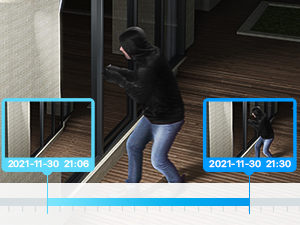
Image 4.5: Playback interface for reviewing crucial moments.
5. Maintenance
Regular maintenance ensures optimal performance and longevity of your security system.
- Clean Cameras: Periodically clean the camera lenses with a soft, damp cloth to remove dust and dirt that may obscure the view.
- Check Cables: Inspect all Ethernet cables for wear, damage, or loose connections. Ensure they are securely connected to both the cameras and the NVR.
- Firmware Updates: Check the ZOSI website or app for available firmware updates for your NVR and cameras. Keeping firmware updated can improve performance and security.
- Hard Drive Health: The NVR's 4TB HDD is designed for continuous recording. Monitor its health through the NVR's system settings.
- Environmental Protection: While cameras are weatherproof, ensure they are installed in locations that minimize direct exposure to extreme weather conditions where possible, to extend their lifespan.
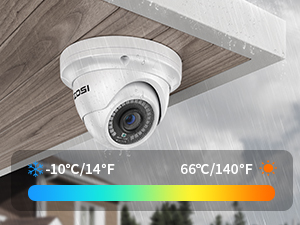
Image 5.1: ZOSI cameras are designed for all-weather protection.
6. Troubleshooting
Here are solutions to common issues you might encounter:
- No Video Output:
- Check HDMI/VGA cable connections to the monitor and NVR.
- Ensure the NVR is powered on.
- Verify the monitor input source is correctly selected.
- No Camera Image:
- Check the Ethernet cable connection between the camera and the NVR's PoE port.
- Ensure the camera is receiving power (check NVR PoE port status lights).
- Restart the NVR.
- Remote Access Issues:
- Ensure the NVR is connected to the internet (check network cable to router).
- Verify your mobile device has a stable internet connection.
- Check if the ZOSI Smart App is updated to the latest version.
- Restart both the NVR and your router.
- Motion Detection Not Working:
- Ensure motion detection is enabled for the specific camera in the NVR settings or app.
- Adjust sensitivity settings.
- Verify that detection zones are correctly configured.
7. Specifications
| Feature | Detail |
|---|---|
| Brand | ZOSI |
| Model Number | 16DK-4295W6-40-US |
| Connectivity Technology | Wired (PoE) |
| Video Capture Resolution | 5MP (Cameras), 8MP/4K (NVR support) |
| Number of Channels | 16 |
| Memory Storage Capacity | 4 TB HDD (Built-in) |
| Power Source | PoE (Power over Ethernet) |
| Compatible Devices | Cameras, Personal Computers, TV |
| Night Vision | Infrared Night Vision (up to 80ft), Color Night Vision (above 3.0 Lux) |
| Recording Mode | Motion Detection, Continuous Recording |
| Signal Format | Digital |
| Item Dimensions | 15 x 12 x 11 inches (NVR) |
| Video Compression | H.265+ |
| Camera Type | 5MP Weatherproof Dome IP Cameras |
8. Warranty and Support
ZOSI products come with a standard manufacturer's warranty. For specific warranty details, please refer to the warranty card included in your package or visit the official ZOSI website. If you encounter any issues or require technical assistance, please contact ZOSI customer support through their official channels.
You can find additional resources and contact information on the ZOSI Store on Amazon.


