
Introduction
This manual provides detailed instructions for the setup, operation, and maintenance of your MEDION P85027 Internet Radio. Please read this manual thoroughly before using the device to ensure proper functionality and to maximize your listening experience. The MEDION P85027 offers a wide range of audio options including Internet Radio, DAB+, FM radio, Bluetooth streaming, Spotify Connect, and USB/AUX playback.
Safety Information
- Ensure the device is placed on a stable, flat surface.
- Do not expose the device to moisture, rain, or extreme temperatures.
- Avoid blocking ventilation openings to prevent overheating.
- Use only the provided power adapter.
- Do not attempt to open or repair the device yourself. Refer all servicing to qualified personnel.
Package Contents
Verify that all items are present in the package:
- MEDION P85027 Internet Radio (MD 88069)
- Remote control (with batteries)
- Power adapter
- User manual (this document)
- Warranty certificate
Product Overview
Familiarize yourself with the main components and controls of your MEDION P85027 Internet Radio.

Image: Front view of the MEDION P85027 Internet Radio, showcasing the color display, control knobs, and front panel buttons for mode, info, alarm, navigation, and favorites.
Front Panel Controls
- Power Button: Turns the device on/off.
- Mode Button: Switches between different audio sources (Internet Radio, DAB+, FM, Bluetooth, USB, AUX).
- Info Button: Displays additional information about the current station or track.
- Alarm Button: Accesses alarm settings.
- NAV/OK Knob: Rotates to navigate menus and presses to confirm selections.
- Volume Knob: Adjusts the volume level.
- FAV/Star Button: Saves or recalls favorite stations.
- Menu Button: Accesses the main menu.
- Sleep Button: Sets the sleep timer.
- Snooze Button: Snoozes an active alarm.
Display

Image: A close-up view of the 2.8-inch color TFT display, showing icons for Internet Radio, Podcasts, Spotify, Music Player, DAB Radio, FM Radio, Bluetooth, and AUX.
The 2.8-inch (7.1 cm) color TFT display (320 x 240 pixels) provides clear visual feedback for navigation, station information, and settings. All functions and modes are easily accessible and displayed on this screen.
Rear and Side Connections
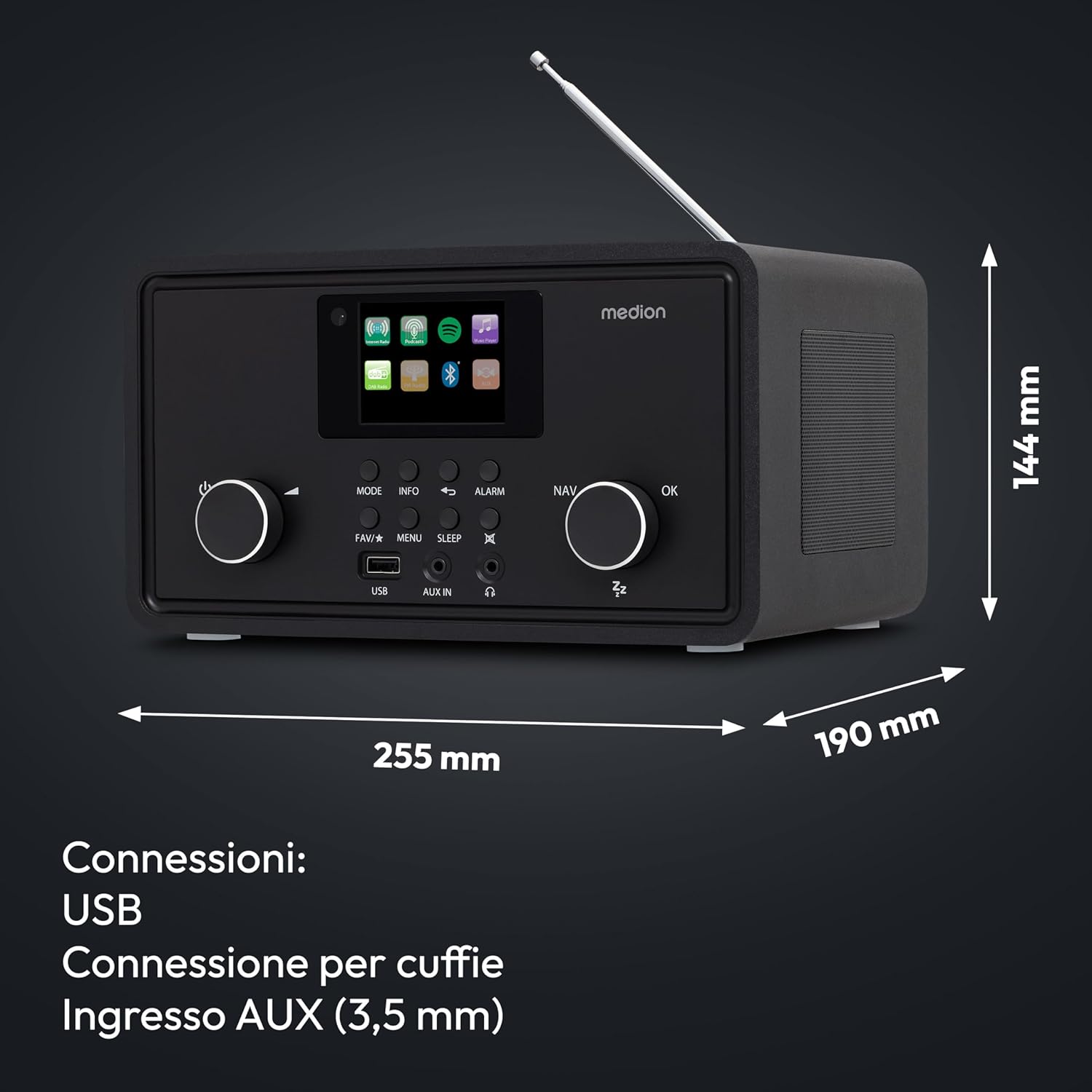
Image: Side view of the MEDION P85027 Internet Radio, illustrating its dimensions (255mm width, 190mm depth, 144mm height) and highlighting the USB port, headphone connection, and AUX In (3.5mm) port.
- USB Port: For playing audio files from a USB storage device.
- AUX In (3.5mm): Connect external audio devices.
- Headphone Jack (3.5mm): For private listening.
- Power Input: Connect the provided power adapter.
- Antenna: Extend for optimal DAB+ and FM reception.
Setup
Initial Power On
- Connect the power adapter to the DC IN port on the back of the radio and then to a wall outlet.
- Extend the telescopic antenna for better radio reception.
- Press the Power button to turn on the radio.
- The display will light up, and the device will guide you through the initial setup wizard.
Network Configuration (WLAN)
To access Internet Radio and Spotify Connect, the device requires a Wi-Fi connection.
- During the initial setup, select your preferred language.
- The radio will scan for available Wi-Fi networks. Select your network from the list.
- Enter your Wi-Fi password using the NAV/OK knob to select characters and confirm.
- Once connected, the radio will confirm the successful connection.
- If connection fails, verify your password and network settings, or try moving the radio closer to your Wi-Fi router.
Operating Instructions
Internet Radio
Access over 25,000 Internet radio stations and numerous podcasts from around the world.
- Press the Mode button until "Internet Radio" is selected.
- Use the NAV/OK knob to browse categories, locations, or search for specific stations.
- Press NAV/OK to select a station and begin playback.
- To save a station as a favorite, press the FAV/Star button.
DAB+ Radio
Enjoy digital radio with enhanced sound quality.
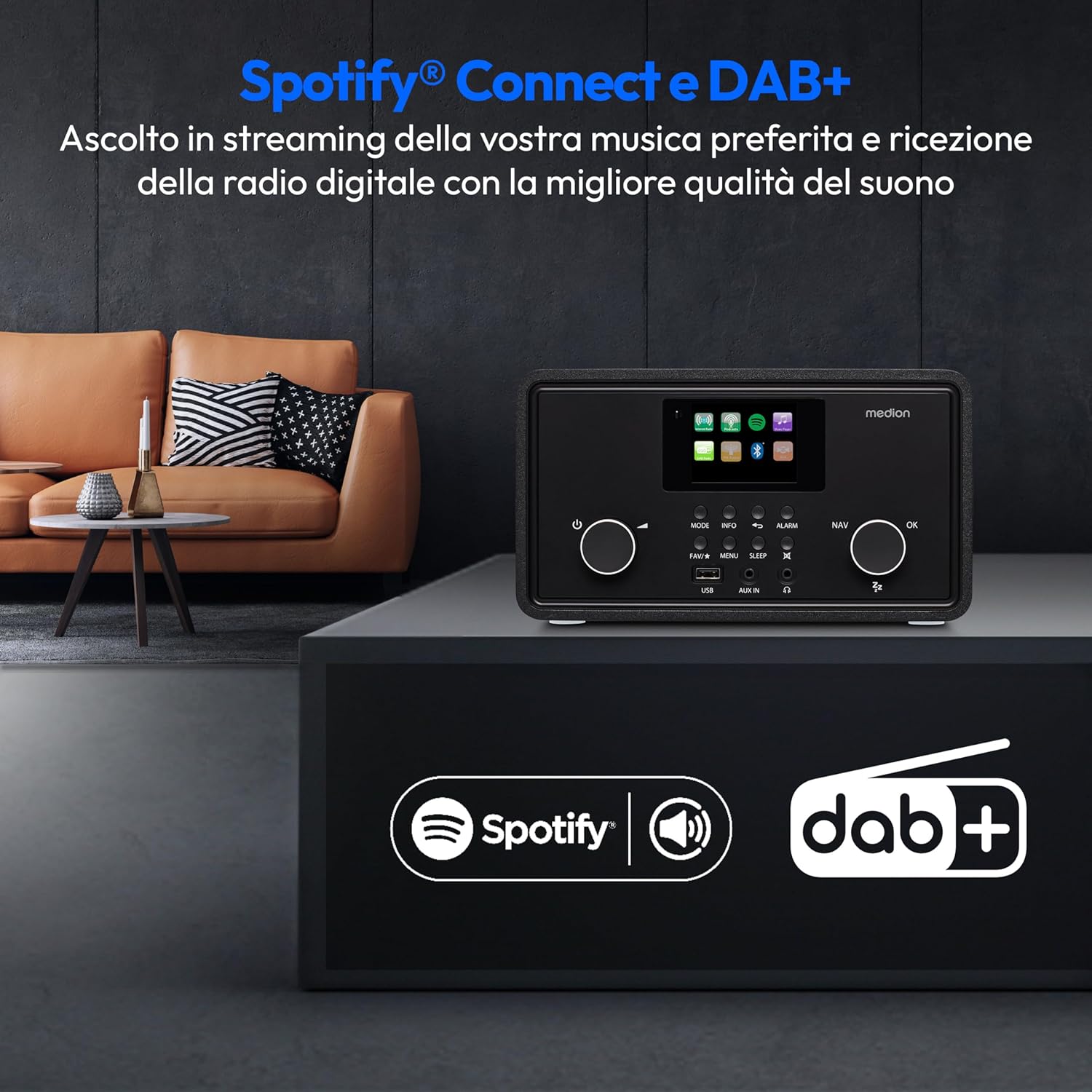
Image: The MEDION P85027 radio on a surface, with Spotify and DAB+ logos prominently displayed, indicating support for these services.
- Press the Mode button until "DAB Radio" is selected.
- The radio will automatically scan for available DAB+ stations.
- Use the NAV/OK knob to scroll through the list of found stations.
- Press NAV/OK to select a station.
FM Radio
Tune into traditional FM broadcasts.
- Press the Mode button until "FM Radio" is selected.
- Use the NAV/OK knob to manually tune to a frequency or press and hold to auto-scan for the next available station.
- To save an FM station, press the FAV/Star button.
Bluetooth Streaming
Connect your smartphone or other Bluetooth-enabled device to stream audio wirelessly.

Image: The MEDION P85027 radio positioned next to a smartphone displaying a music player interface, illustrating wireless music streaming via Bluetooth 5.0.
- Press the Mode button until "Bluetooth" is selected. The radio will enter pairing mode.
- On your Bluetooth device, search for "MEDION P85027" in the Bluetooth settings and select it to pair.
- Once paired, you can play audio from your device, and it will stream through the radio.
Spotify Connect
Control your music directly from the Spotify app on your smartphone or tablet.
- Ensure your MEDION P85027 is connected to the same Wi-Fi network as your device running the Spotify app.
- Open the Spotify app on your smartphone or tablet.
- Play a song and tap the "Devices Available" icon (usually a speaker or computer icon).
- Select "MEDION P85027" from the list of available devices.
- The music will now play through your radio, controlled by the Spotify app.
USB Playback
Play audio files directly from a USB storage device.
- Insert a USB flash drive containing audio files into the USB port on the front panel.
- Press the Mode button until "USB" or "Music Player" is selected.
- Use the NAV/OK knob to browse folders and select tracks.
- Press NAV/OK to start playback.
AUX Input
Connect external audio sources using a 3.5mm audio cable.
- Connect one end of a 3.5mm audio cable to the AUX IN port on the radio.
- Connect the other end to the headphone jack or audio output of your external device.
- Press the Mode button until "AUX In" is selected.
- Control playback and volume from your external device.
Alarm Function
Set up to two individual alarms with snooze and sleep timer functions.

Image: The MEDION P85027 radio on a bedside table next to a person sleeping, illustrating its alarm and sleep timer capabilities.
- Press the Alarm button to enter the alarm settings menu.
- Use the NAV/OK knob to select Alarm 1 or Alarm 2.
- Configure the alarm time, source (buzzer, Internet radio, DAB+, FM), volume, and frequency (daily, weekdays, weekends, once).
- Confirm settings by pressing NAV/OK.
- When an alarm sounds, press the Snooze button to temporarily silence it.
Sleep Timer
Set the radio to turn off automatically after a specified period.
- Press the Sleep button.
- Use the NAV/OK knob to select the desired sleep duration (e.g., 15, 30, 60, 90 minutes).
- The radio will automatically turn off after the selected time.
Equalizer Settings
Adjust the audio output to your preference using the built-in equalizer.

Image: A screenshot of the MEDION P85027's display showing various equalizer presets such as Normal, Flat, Jazz, Rock, Movie, Classic, Pop, News, and a custom 'My EQ' option.
- Access the main menu and navigate to "Equalizer" or "Sound Settings".
- Choose from preset options like Normal, Flat, Jazz, Rock, Classic, Pop, or create a custom equalizer setting.
- Adjust bass and treble levels as desired.
Remote Control
The included remote control provides convenient access to all functions from a distance.

Image: The black remote control for the MEDION P85027 Internet Radio, featuring various buttons for power, mode, volume, navigation, presets, and alarm functions.
Refer to the remote control diagram in the quick start guide for specific button functions. Ensure batteries are correctly inserted.
MEDION LifeStream 2 App
Control your radio using the MEDION LifeStream 2 app on your smartphone or tablet.

Image: A hand holding a smartphone displaying the MEDION LifeStream 2 app interface, with "Download on the App Store" and "Get it on Google Play" logos, indicating app availability for remote control.
- Download the "MEDION LifeStream 2" app from the App Store (iOS) or Google Play Store (Android).
- Ensure your smartphone/tablet is connected to the same Wi-Fi network as your radio.
- Open the app, and it should automatically detect your MEDION P85027 radio.
- You can now control all major functions of the radio directly from the app.
Maintenance
Cleaning
- Always unplug the device from the power outlet before cleaning.
- Use a soft, dry cloth to wipe the exterior surfaces.
- Do not use liquid cleaners, aerosols, or abrasive materials, as these may damage the finish.
Storage
- If storing the device for an extended period, unplug it and store it in a cool, dry place.
- Keep it away from direct sunlight and extreme temperatures.
Troubleshooting
| Problem | Possible Cause | Solution |
|---|---|---|
| No power | Power adapter not connected or faulty outlet. | Check power connections. Try a different outlet. |
| No sound | Volume too low, mute activated, or incorrect source selected. | Increase volume. Check if mute is active. Ensure correct audio source is selected. |
| Cannot connect to Wi-Fi | Incorrect password, out of range, or network issue. | Verify Wi-Fi password. Move radio closer to router. Restart router. |
| Poor DAB+/FM reception | Antenna not extended or weak signal. | Fully extend the telescopic antenna. Reposition the radio for better signal. |
| Bluetooth pairing fails | Device not in pairing mode, or too far. | Ensure radio is in Bluetooth pairing mode. Keep devices within range (approx. 10m). |
| Remote control not working | Dead batteries or obstructed sensor. | Replace batteries. Ensure clear line of sight to the radio's sensor. |
Specifications
- Model: MEDION P85027 (MD88069)
- Display: 2.8-inch (7.1 cm) Color TFT (320 x 240 pixels)
- Radio Tuners: Internet Radio, DAB+, FM
- Connectivity: WLAN (Wi-Fi), Bluetooth 4.2, USB, AUX In (3.5mm), Headphone Out (3.5mm)
- Output Power: 10 Watts (RMS)
- Power Supply: 220 Volt (via power adapter)
- Dimensions (W x D x H): 25.5 x 19 x 14.4 cm
- Weight: 2.25 kg
- Additional Features: Spotify Connect, Dual Alarm, Snooze, Sleep Timer, Equalizer
- Material: Plastic
Warranty and Support
Your MEDION P85027 Internet Radio comes with a warranty certificate included in the package. Please refer to this document for detailed information regarding warranty terms and conditions.
For technical support, troubleshooting assistance, or service inquiries, please visit the official MEDION support website or contact their customer service. Contact information can typically be found on the warranty certificate or the MEDION website.
Online Support: www.medion.com/gb/service/ (Example link, please verify official support page for your region)


