1. Introduction
The Apple TV 4K (3rd Generation) is a powerful streaming device designed to deliver an immersive entertainment experience. Featuring the A15 Bionic chip, it supports 4K Dolby Vision and HDR10+ for stunning picture quality and Dolby Atmos for three-dimensional, theater-like sound. This manual provides essential information for setting up, operating, and maintaining your Apple TV 4K.
Key Features:
- 4K Dolby Vision and HDR10+: For vivid picture quality.
- Dolby Atmos: For three-dimensional, theater-like sound.
- A15 Bionic chip: Provides incredible power and performance.
- Siri Remote: Precise control with a touch-enabled clickpad.
- Integrated Services: Access Apple TV+, Apple Arcade, Apple Fitness+, Apple Music, and more.
- AirPlay: Share content from your iPhone, iPad, and Mac.
- Home Hub: Acts as a home hub to connect and control smart home accessories.
2. What's in the Box
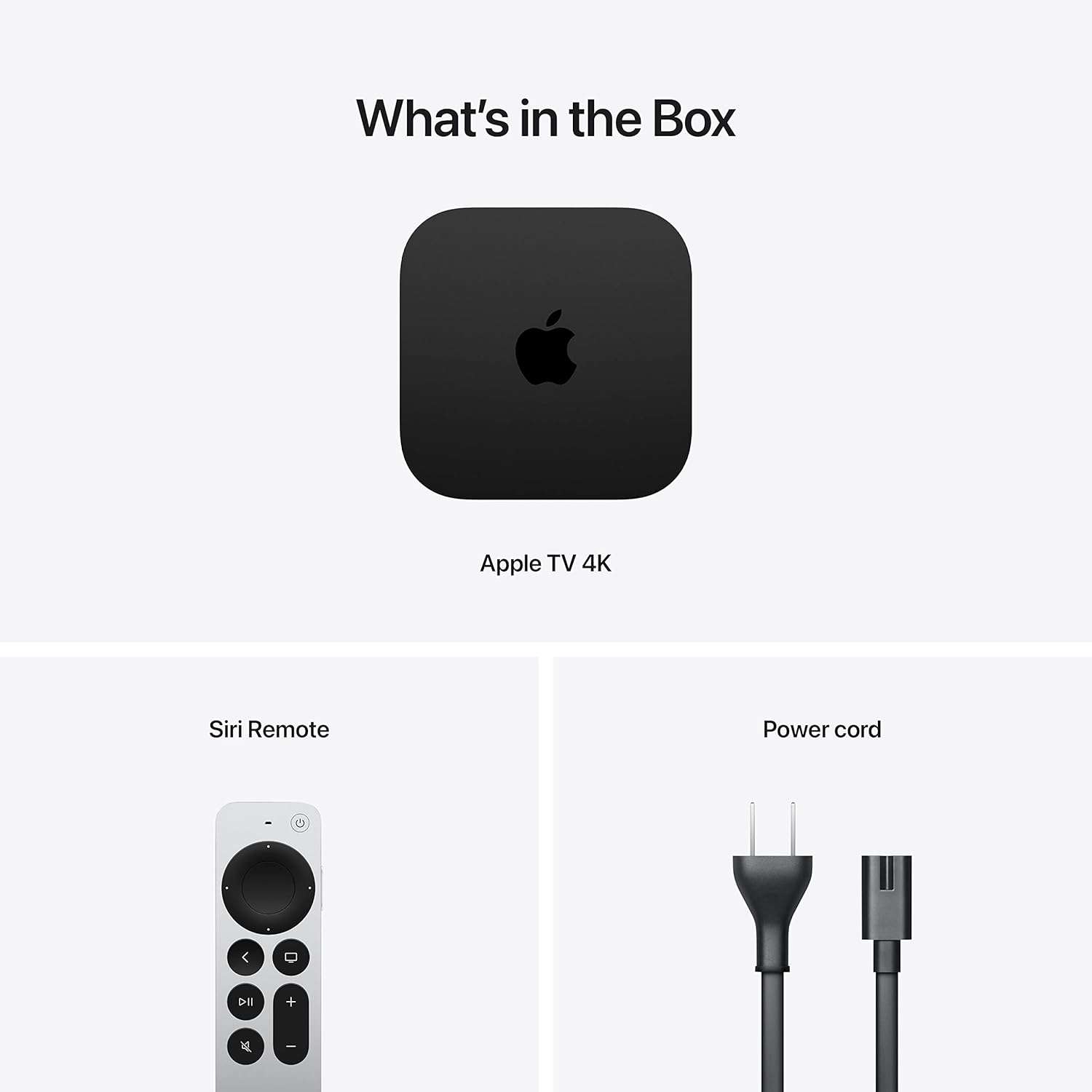
Image: The contents of the Apple TV 4K package, showing the Apple TV unit, the Siri Remote, and the power cord. These are the primary components included with your purchase.
Upon opening your Apple TV 4K package, you should find the following items:
- Apple TV 4K unit
- Siri Remote
- Power cord
- Documentation (Quick Start Guide, Safety Information)

Image: The Apple TV 4K streaming box and its accompanying Siri Remote, displayed together. The Apple TV unit is a compact black square, and the Siri Remote is a sleek silver and black device.
3. Setup
3.1 Connecting Your Apple TV 4K
- Positioning: Place your Apple TV 4K on a stable, flat surface near your television and a power outlet. Ensure adequate ventilation around the device.
- HDMI Connection: Connect one end of an HDMI 2.1 cable (not included) to the HDMI port on the back of your Apple TV 4K. Connect the other end to an available HDMI input on your television.

Image: A close-up view of the rear of the Apple TV 4K unit, highlighting the power input port on the left and the HDMI 2.1 output port on the right. This illustrates where to connect the power cord and HDMI cable.
- Power Connection: Connect the included power cord to the power input on the back of your Apple TV 4K, then plug the other end into a wall outlet.
- Turn On TV: Turn on your television and select the correct HDMI input that your Apple TV 4K is connected to.
3.2 Initial Setup and Pairing the Siri Remote
When you first power on your Apple TV 4K, it will guide you through the initial setup process on your television screen. The Siri Remote should automatically pair with your Apple TV. If it doesn't, follow these steps:
- Ensure the Siri Remote is charged.
- Point the Siri Remote at the Apple TV 4K and press any button.
- If pairing fails, press and hold the Menu button and the Volume Up button simultaneously for 5 seconds.
Follow the on-screen instructions to connect to your Wi-Fi network, sign in with your Apple ID, and configure other settings such as HomeKit integration and content preferences.
4. Operating Your Apple TV 4K
4.1 The Siri Remote

Image: A detailed view of the Siri Remote, highlighting its touch-enabled clickpad at the top, surrounded by buttons for power, menu/back, TV/Control Center, play/pause, volume up, volume down, and mute. The microphone button for Siri is on the right side.
The Siri Remote is your primary interface for navigating and controlling your Apple TV 4K. It features a touch-enabled clickpad for intuitive navigation and dedicated buttons for various functions.
| Button/Feature | Function |
|---|---|
| Clickpad (Touch Surface) | Swipe to navigate, click to select. |
| Power Button | Turns Apple TV and connected devices on/off. |
| Back / Menu Button | Go back to the previous screen; long press to return to Home screen. |
| TV / Control Center Button | Go to the Apple TV app; long press for Control Center. |
| Play/Pause Button | Play or pause content. |
| Volume Up/Down Buttons | Adjust volume of your TV or receiver. |
| Mute Button | Mute audio. |
| Siri Button (Side) | Press and hold to activate Siri for voice commands. |
4.2 Navigating tvOS
The Apple TV 4K runs on tvOS, Apple's operating system for television. You can download apps from the App Store, stream content from various services, play games, and access Apple's ecosystem services.
- Home Screen: Displays all your installed apps. You can rearrange apps by holding down on an app icon until it wiggles, then dragging it.
- App Store: Browse and download new apps, games, and streaming services.
- Settings: Access system settings, network configurations, audio/video preferences, and user accounts.
- Siri: Use voice commands to search for content, open apps, control playback, and get information.
5. Maintenance
5.1 Cleaning Your Apple TV 4K and Siri Remote
- Unplug the Apple TV 4K before cleaning.
- Use a soft, lint-free cloth to wipe the exterior of the Apple TV unit and the Siri Remote.
- Avoid using abrasive cloths, towels, paper towels, or similar items.
- Do not use aerosol sprays, solvents, or abrasives.
- Do not spray cleaners directly onto the device.
5.2 Software Updates
Apple regularly releases software updates for tvOS to improve performance, add new features, and enhance security. It is recommended to keep your Apple TV 4K updated.
- Go to Settings > System > Software Updates.
- Select Update Software.
- If an update is available, follow the on-screen instructions to download and install it.
5.3 Siri Remote Battery
The Siri Remote has a built-in rechargeable battery. To charge it, connect the remote to a USB-C power adapter (not included) using a USB-C to Lightning cable (not included, but typically comes with Apple devices) or a USB-C to USB-C cable (if your remote has a USB-C port). A full charge typically lasts for several months with normal use.
6. Troubleshooting
If you encounter issues with your Apple TV 4K, try the following troubleshooting steps:
| Issue | Solution |
|---|---|
| No picture or sound |
|
| Siri Remote not responding |
|
| Wi-Fi connectivity issues |
|
| App crashes or freezes |
|
6.1 Factory Reset
If other troubleshooting steps fail, you may need to factory reset your Apple TV 4K. This will erase all data and settings and restore the device to its original factory state.
- Go to Settings > System > Reset.
- Choose Reset (to reset settings) or Reset and Update (to reset and install the latest software).
- Confirm your choice and wait for the process to complete.
7. Specifications
| Feature | Detail |
|---|---|
| Model Name | Apple TV 4K (3rd Generation) |
| Model Number | MN873LL/A |
| Storage Capacity | 64GB |
| Processor | A15 Bionic chip |
| Video Output | 4K Dolby Vision, HDR10+ |
| Audio Output | Dolby Atmos, Dolby Digital 7.1, Dolby Digital 5.1 |
| Connectivity | Wi‑Fi 6 (802.11ax) with 2x2 MIMO, Bluetooth 5.0 |
| Ports | HDMI 2.1 |
| Dimensions (H x W x D) | 1.2 x 3.66 x 3.66 inches (31 x 93 x 93 mm) |
| Weight | 7.3 ounces (208 g) |
| Siri Remote Battery | Rechargeable Lithium Ion (included) |
8. Warranty and Support
Your Apple TV 4K is covered by Apple's standard limited warranty. For detailed warranty information, please refer to the documentation included with your product or visit the official Apple support website.
8.1 Apple Support
For technical assistance, troubleshooting, or service, please contact Apple Support. You can find support resources, including articles, forums, and contact options, on the official Apple Support website:
Before contacting support, it is helpful to have your Apple TV's serial number ready. You can find the serial number in Settings > General > About.


