
Product Overview
The StarTech.com 4-Slot PCIe Expansion Chassis is designed to extend the I/O capabilities of your desktop computer or server by providing additional PCIe slots externally. This robust enclosure supports four PCIe x1 add-on cards, offering a combined bandwidth of up to 10Gbps. It connects to your host system via a dedicated PCIe x2 USB-C adapter card and a secure locking USB Type-C cable.
The chassis is constructed from SECC galvanized steel, ensuring durability in various operating environments. Its vented design facilitates passive cooling, contributing to quiet operation. This expansion solution is ideal for IT professionals, system testers, and engineers who require flexible and expandable I/O options without performing costly system upgrades.

Figure 1: Front and side view of the StarTech.com 4-Slot PCIe Expansion Chassis.

Figure 2: Side view of the expansion chassis, highlighting its compact design.
Included Components
Before beginning installation, ensure all components are present:
- 4-Slot PCIe Expansion Chassis
- PCIe x2 Host Adapter Card
- 5.9ft (1.8m) Locking USB Type-C Cable
- Universal DC Power Adapter (12V 3A) with regional power cords
- Low-profile bracket for host card
- Mounting brackets and hardware

Figure 3: All components included with the StarTech.com 4-Slot PCIe Expansion Chassis.
Setup
1. Installing the PCIe Host Adapter Card
The proprietary PCIe x2 Host Adapter Card must be installed into an available PCIe slot on your desktop computer or server. If your system is a small form factor (SFF), use the included low-profile bracket for compatibility.

Figure 4: The PCIe x2 Host Adapter Card installed in a desktop computer's expansion slot.
2. Connecting the Expansion Chassis to the Host System
Connect the expansion chassis to the installed PCIe Host Adapter Card using the provided 5.9ft (1.8m) locking USB Type-C cable. The screw-locks on the cable ensure a secure connection, preventing accidental disconnections.

Figure 5: The locking USB Type-C cable, designed for secure connections.

Figure 6: Overview of the expansion chassis connected to a desktop system.
3. Powering the Expansion Chassis
The expansion chassis can be powered using one of the following methods:
- Via USB Type-C Cable: Power can be delivered from the PCIe Host Adapter Card through the USB Type-C cable (5VDC or 12VDC).
- DC Power Adapter: Use the included 12V 3A DC power adapter.
- Terminal Block: Connect a 12 to 24VDC, 3A power source to the terminal block port.

Figure 7: Rear panel of the expansion chassis with power input options.
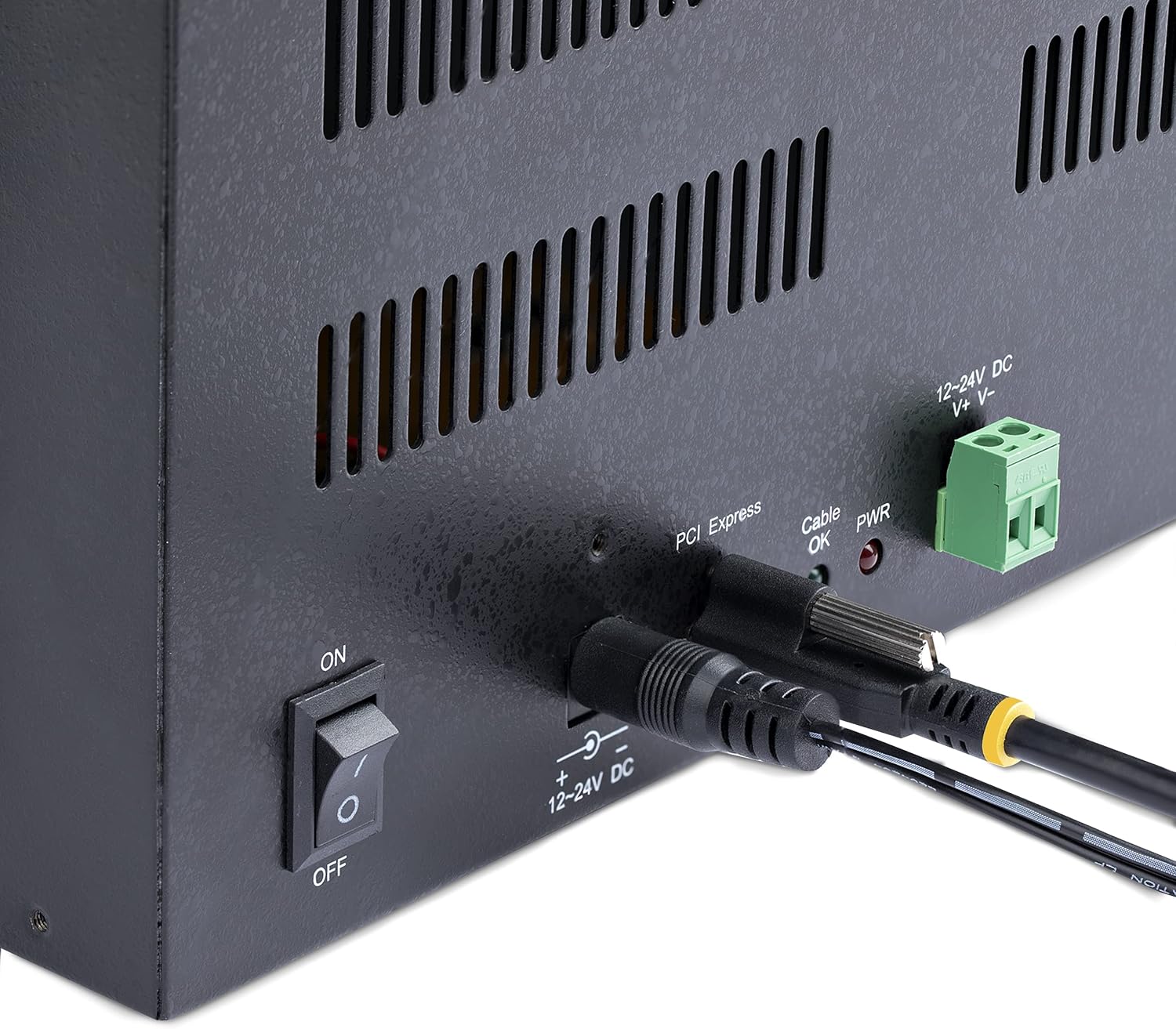
Figure 8: Close-up view of the power input ports and the terminal block connection.
Operating the Chassis
1. Installing Add-on Cards
The chassis supports 4 PCIe x1 add-on cards. Carefully insert your desired PCIe cards into the available slots within the chassis. The internal PCB is designed to accommodate these cards.

Figure 9: Front view of the chassis, revealing the four PCIe slots for add-on cards.

Figure 10: Internal view of the chassis, showing the main PCB with PCIe slots.

Figure 11: Example of PCIe cards installed within the expansion chassis.
2. Power Control and Indicators
The chassis features an easily accessible ON/OFF button to control the power state of the connected PCIe cards. Integrated LED lights provide visual feedback:
- PWR LED (Red): Indicates power status.
- Cable OK LED (Green): Indicates correct USB Type-C cable orientation. A solid green light means the cable is correctly oriented. If the light is off, the cable is not in the correct orientation.
Video 1: An overview of the StarTech.com PCIe and PCI External Expansion Chassis, demonstrating its features and connectivity options.
Maintenance
The expansion chassis is designed for minimal maintenance due to its robust SECC galvanized steel construction and vented design for passive cooling. Ensure the vents are not obstructed to maintain optimal airflow and quiet operation. Periodically inspect cables for secure connections.
Warning: Always ensure the unit is powered off and disconnected from the host system before performing any internal maintenance or card installation/removal.

Figure 12: Important safety warnings and environmental considerations.
Troubleshooting
- Device Not Recognized: Ensure the PCIe Host Adapter Card is correctly seated in your computer's PCIe slot and the USB Type-C cable is securely connected to both the host card and the expansion chassis. Check the 'Cable OK' LED on the chassis.
- Installed Card Issues: While the expansion chassis is OS independent and does not require drivers, the specific add-on cards installed within the chassis may require their own drivers. Refer to the documentation for your installed PCIe cards for driver installation instructions and supported operating systems.
- Power Issues: Verify that the power adapter is correctly connected and providing power. Check the 'PWR' LED on the chassis. If using the terminal block, ensure correct voltage (12-24VDC) and amperage (3A) are supplied.
Specifications
| Feature | Specification |
|---|---|
| Brand | StarTech |
| Model Number | 4PCIE-PCIE-ENCLOSURE |
| PCIe Slots | 4 x PCIe x1 |
| Host Interface | PCIe 2.0 x2 (via USB-C adapter card) |
| Total Bandwidth | Up to 10Gbps |
| Operating System Compatibility | OS Independent (Windows, Linux, macOS supported) |
| Construction Material | SECC Galvanized Steel |
| Operating Temperature | 0°C to 60°C (32°F to 140°F) |
| Power Options | USB Type-C (5V/12VDC), DC Adapter (12V 3A), Terminal Block (12-24VDC 3A) |
| Item Weight | 5.07 pounds |
| Product Dimensions (LxWxH) | 16.2 x 5.6 x 5.4 inches |
Warranty and Support
The StarTech.com 4-Slot PCIe Expansion Chassis is backed by a two-year warranty. StarTech.com also provides free lifetime 24/5 multi-lingual technical assistance for this product. For support, please visit the official StarTech.com website or contact their technical support team directly.


