
1. Introduction
This manual provides essential information for the proper setup, operation, and maintenance of your NEDIS BSCN1D100BK 1D Laser Barcode Scanner. Please read these instructions carefully before using the device to ensure optimal performance and safety.
The NEDIS BSCN1D100BK is a high-performance 1D laser barcode scanner designed for efficient data capture. It features advanced laser technology, enabling reliable scanning even in challenging lighting conditions. With a scanning speed of up to 100 scans per second, it offers quick and accurate barcode recognition. The scanner is compatible with major operating systems, including Windows, Mac OS, and Android, ensuring broad usability.

Image 1.1: Side view of the NEDIS BSCN1D100BK 1D Laser Barcode Scanner, showing its ergonomic design and trigger button.
2. Setup
Follow these steps to set up your barcode scanner:
- Unpack the Device: Carefully remove the scanner and its USB cable from the packaging.
- Connect the USB Cable: Insert the smaller end of the USB cable into the port at the base of the scanner. Connect the standard USB-A end of the cable to an available USB port on your computer or compatible device.
- System Recognition: Your operating system (Windows, Mac OS, or Android) should automatically detect and install the necessary drivers for the scanner. This process may take a few moments.
- Test the Scanner: Open a text editor or a compatible application on your device. Point the scanner at a 1D barcode and press the trigger button. The barcode data should appear in your application.

Image 2.1: The NEDIS BSCN1D100BK barcode scanner shown alongside its detachable USB connection cable.
3. Operating Instructions
The NEDIS BSCN1D100BK scanner is designed for straightforward operation:
- Power On: The scanner powers on automatically when connected to a USB port.
- Scanning a Barcode: Hold the scanner with the laser window facing the barcode. Ensure the barcode is within the scanner's field of view.
- Activate Scan: Press and hold the trigger button. A red laser line will emit from the scanner.
- Confirm Scan: Position the laser line across the entire barcode. A successful scan is typically indicated by an audible beep and/or a visual indicator (e.g., a green light). The scanned data will be transmitted to your connected device.
- Scanning Speed: The scanner can process up to 100 scans per second, allowing for rapid data entry.
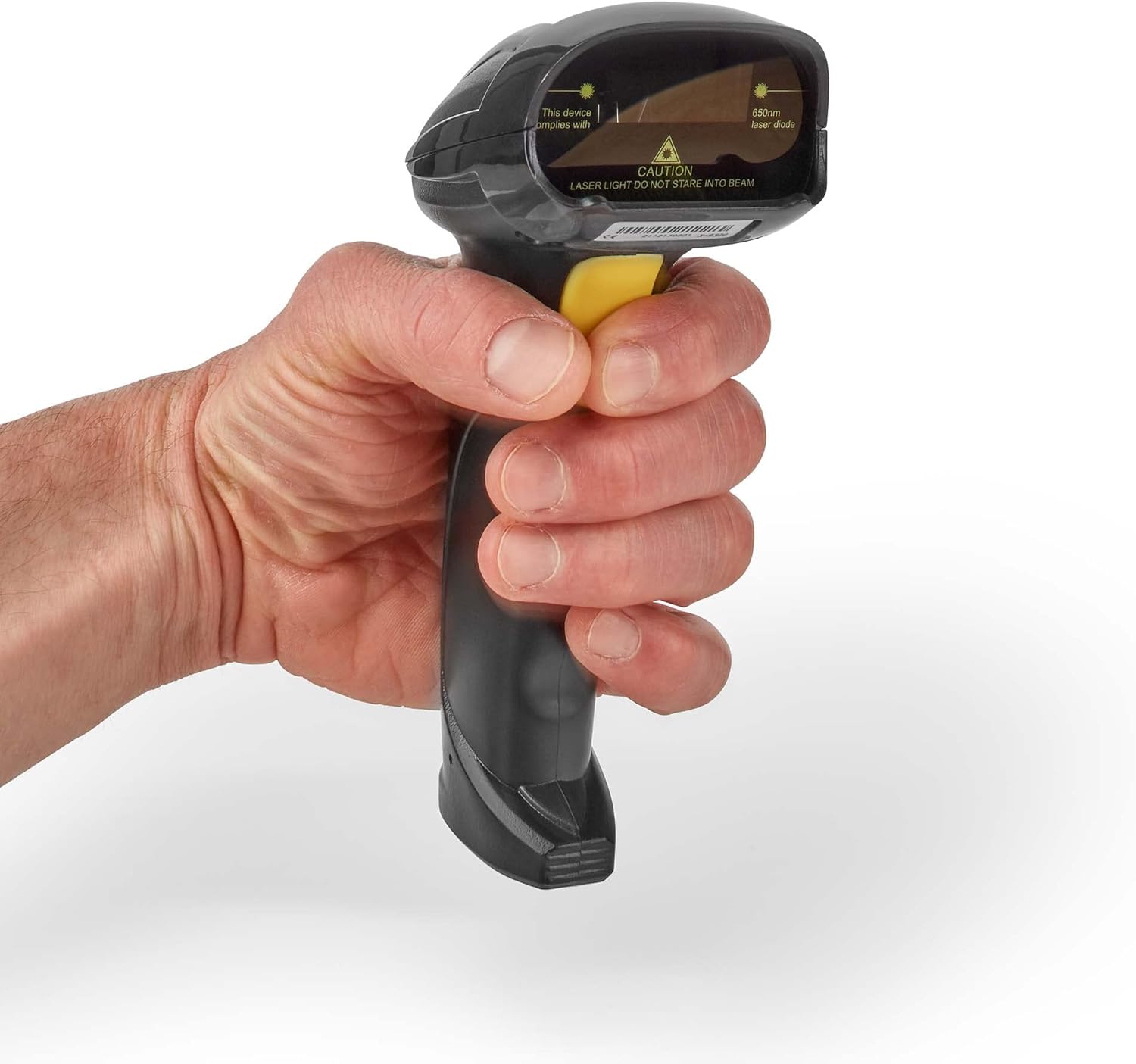
Image 3.1: A hand demonstrating the proper grip for operating the NEDIS BSCN1D100BK barcode scanner.
4. Maintenance
Proper maintenance ensures the longevity and performance of your scanner:
- Cleaning: Use a soft, dry, lint-free cloth to clean the scanner's exterior. For the laser window, use a lens cleaning cloth and a mild, non-abrasive cleaning solution if necessary. Avoid harsh chemicals or abrasive materials.
- Storage: Store the scanner in a clean, dry environment away from extreme temperatures, direct sunlight, and excessive dust.
- Cable Care: Avoid bending or twisting the USB cable excessively, as this can damage the internal wires.
Safety Warning:

Image 4.1: Top view of the scanner, highlighting the laser diode and the caution label: "LASER LIGHT DO NOT STARE INTO BEAM".
This device uses a 650nm laser diode. CAUTION: LASER LIGHT. DO NOT STARE INTO BEAM. Direct exposure to the laser beam may cause eye injury. Do not attempt to open or modify the scanner, as this may expose you to hazardous laser radiation and will void the warranty.
5. Troubleshooting
If you encounter issues with your scanner, refer to the following common troubleshooting steps:
- Scanner Not Responding:
- Ensure the USB cable is securely connected to both the scanner and the host device.
- Try connecting the scanner to a different USB port on your device.
- Restart your computer or host device.
- No Data Output After Scanning:
- Verify that the application you are using (e.g., text editor, POS software) is active and ready to receive input.
- Ensure the barcode is clean, undamaged, and clearly visible.
- Check the distance and angle between the scanner and the barcode. Try adjusting your position.
- Confirm the scanner emits a laser line when the trigger is pressed. If not, check connections.
- Incorrect Data Scanned:
- Ensure you are scanning a 1D barcode. This scanner is not designed for 2D barcodes (like QR codes).
- The barcode might be damaged or poorly printed. Try scanning a different, known good barcode.
- Scanner Beeps Continuously or Emits Error Tone:
- This may indicate a configuration error or a hardware issue. Disconnect and reconnect the scanner.
- Consult the manufacturer's website for specific error code meanings if applicable.
If these steps do not resolve the issue, please contact customer support for further assistance.
6. Specifications
| Brand | NEDIS |
| Model Number | BSCN1D100BK |
| Connectivity Technology | USB |
| Compatible Devices | Smartphone, PC (Windows, Mac OS, Android) |
| Scan Rate | 100 images per second |
| Power Source | Cable Electric (USB powered) |
| Barcode Type | 1D Barcodes |
| Laser Diode | 650nm |
| International Article Code | 05412810405800 |
7. Warranty and Support
Specific warranty information for the NEDIS BSCN1D100BK is not provided in this document. Please refer to the warranty card included with your product or visit the official NEDIS website for detailed warranty terms and conditions.
For technical support, troubleshooting assistance beyond what is covered in this manual, or inquiries regarding spare parts, please contact NEDIS customer service. Contact information can typically be found on the product packaging or the official NEDIS website (www.nedis.com).
