
Grandstream WP825
Grandstream WP825 IP Phone User Manual
Model: WP825
1. Introduction
The Grandstream WP825 is a portable Wi-Fi IP phone designed for various enterprise and vertical market applications. It features integrated dual-band Wi-Fi, advanced roaming support, and Bluetooth connectivity. This manual provides essential information for setting up, operating, and maintaining your WP825 IP Phone.
1.1 Key Features
- Dual-band Wi-Fi with efficient antenna design and advanced roaming support.
- Supports 2 SIP accounts and 2 lines.
- HD voice and dual MIC design with Acoustic Echo Cancellation (AEC) and Noise Shield Technology.
- Integrated Bluetooth for connecting headsets.
- Rechargeable 2000mAh battery providing 8 hours talk time and 200 hours standby.
- Configurable button for push-to-talk functionality.
- Micro USB port and 3.5mm headset jack.
- Ruggedized design: waterproof, dustproof, and drop safe from 2.5m.
1.2 Package Contents
Verify that all items are included in your package:
- Cordless Wi-Fi IP Phone (WP825)
- Universal Power Supply
- Charger Cradle
- Belt Clip
- 1 x Li-Ion Battery
- Quick Start Guide
2. Setup
2.1 Battery Installation and Charging
Before first use, ensure the battery is properly installed and fully charged.
- Open the battery compartment cover on the back of the phone.
- Insert the provided Li-Ion battery, ensuring the contacts align correctly.
- Close the battery compartment cover securely.
- Connect the universal power supply to the charger cradle.
- Place the WP825 phone into the charger cradle. The charging indicator on the phone will illuminate.
- Allow the phone to charge completely before initial use. A full charge typically takes several hours.

Figure 2.1: Front view of the WP825 IP Phone in its charging cradle, displaying the screen with an active call.
2.2 Network Connection (Wi-Fi)
The WP825 connects to your network via Wi-Fi.
- Power on the phone.
- Navigate to the phone's settings menu.
- Select 'Wi-Fi' and enable it.
- Choose your desired Wi-Fi network from the list of available networks.
- Enter the Wi-Fi password if prompted.
- Once connected, the Wi-Fi icon will appear on the phone's status bar.
2.3 SIP Account Configuration
SIP account configuration is typically performed via the phone's web user interface (Web UI) for advanced settings. Basic setup might be possible directly on the phone.
- Obtain the IP address of your WP825 from the phone's status menu.
- Open a web browser on a computer connected to the same network.
- Enter the phone's IP address into the browser's address bar.
- Log in using the default administrator credentials (refer to the Quick Start Guide for default credentials).
- Navigate to the 'Account' settings to configure your SIP accounts with the provided credentials from your VoIP service provider.
3. Operation
3.1 Making and Receiving Calls
- Making a Call: Dial the desired number using the keypad and press the 'Send' or 'Call' button.
- Receiving a Call: When the phone rings, press the 'Answer' button to accept the call.
- Ending a Call: Press the 'End Call' button.
3.2 Audio Features
The WP825 features HD voice and a dual microphone design with Acoustic Echo Cancellation (AEC) and Noise Shield Technology for clear communication.
- Volume Adjustment: Use the volume buttons on the side of the phone during a call to adjust the earpiece or speaker volume.
- Speakerphone: Press the speakerphone button to toggle between handset and speakerphone mode.
3.3 Bluetooth Connectivity
The integrated Bluetooth allows you to connect wireless headsets for hands-free communication.
- Navigate to the phone's settings menu and select 'Bluetooth'.
- Enable Bluetooth.
- Put your Bluetooth headset into pairing mode.
- Select your headset from the list of available devices on the phone and follow the pairing instructions.
3.4 Push-to-Talk (PTT)
The WP825 has a configurable button that can be assigned for Push-to-Talk functionality, allowing for instant communication within a group.
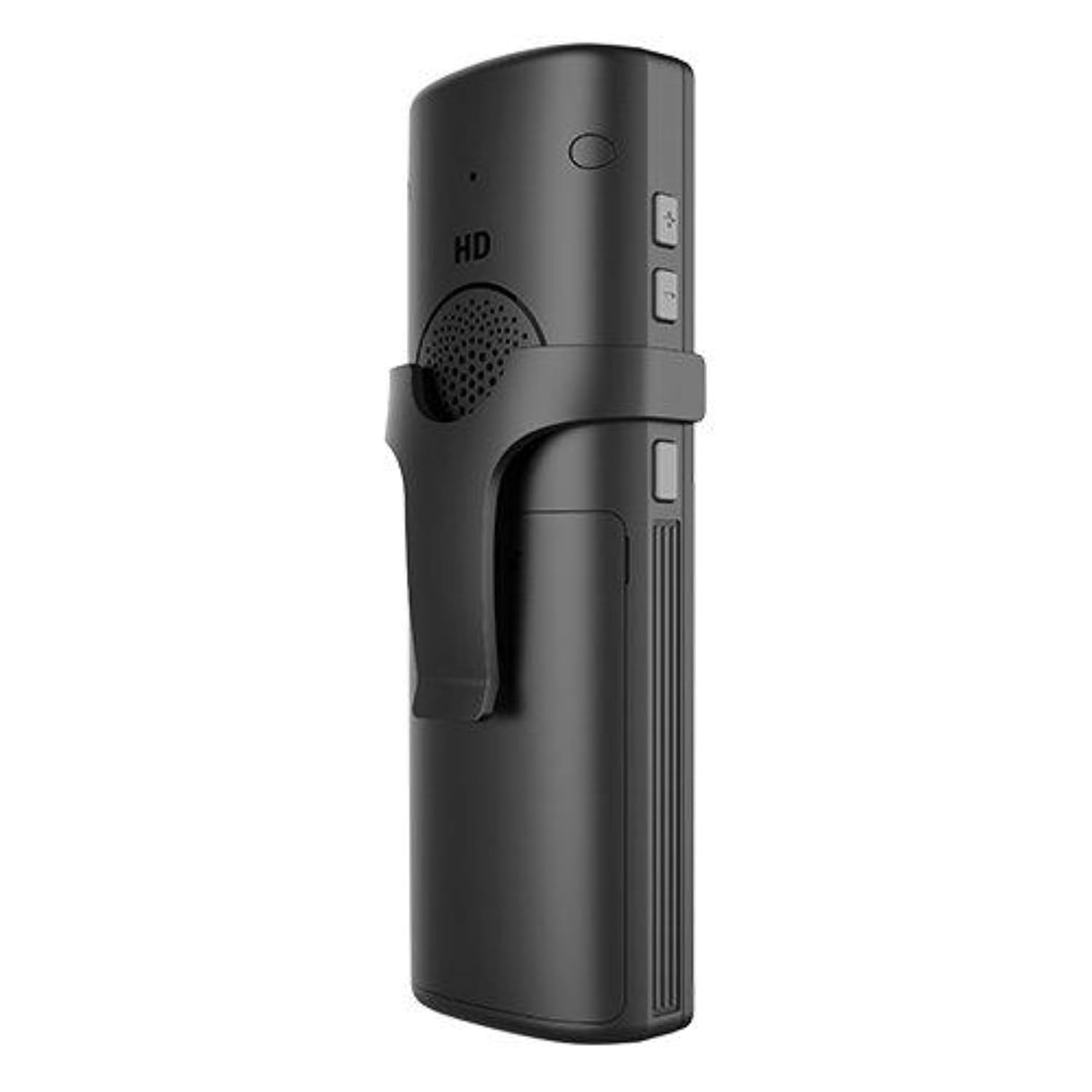
Figure 3.1: Side view of the WP825 IP Phone with the detachable belt clip attached, highlighting its portability.
4. Maintenance
4.1 Cleaning
To clean your WP825, use a soft, dry, or slightly damp cloth. Avoid using harsh chemicals, solvents, or abrasive cleaners, as these can damage the phone's surface.
4.2 Battery Care
- To maximize battery life, avoid exposing the phone to extreme temperatures.
- Charge the battery regularly. While the phone has a 2000mAh battery with long standby and talk times, consistent deep discharges can reduce overall battery lifespan.
- If the phone will not be used for an extended period, store it with a partial charge (around 50%) in a cool, dry place.
4.3 Ruggedized Design
The WP825 is designed to be rugged, offering waterproof, dustproof, and drop-safe protection from up to 2.5 meters. While durable, avoid intentionally subjecting the device to harsh conditions beyond its specifications.

Figure 4.1: Rear view of the WP825 IP Phone in its charging cradle, showing the back panel and speaker grille.
5. Troubleshooting
This section addresses common issues you might encounter with your WP825 IP Phone.
- Phone not powering on: Ensure the battery is correctly installed and charged. Connect the phone to the charger cradle and verify the power supply is working.
- Cannot connect to Wi-Fi: Double-check your Wi-Fi password. Ensure the phone is within range of your Wi-Fi network. Try restarting both the phone and your Wi-Fi router.
- Cannot make/receive calls: Verify that your SIP accounts are correctly configured and registered. Check your internet connection. Contact your VoIP service provider if the issue persists.
- Poor audio quality: Ensure you are in an area with good Wi-Fi signal strength. Check for any physical obstructions. If using a Bluetooth headset, ensure it is properly paired and charged.
- Battery life is shorter than expected: Battery performance can vary based on usage patterns and network conditions. Ensure the phone is fully charged. If the issue persists after prolonged use, the battery may need replacement.
6. Specifications
| Feature | Specification |
|---|---|
| Model Number | WP825 |
| Product Dimensions | 1 x 2.3 x 6.5 inches |
| Item Weight | 0.48 Pounds (7.68 ounces) |
| Batteries | 1 Lithium Polymer battery required (included) |
| Telephone Type | Cordless IP Phone |
| Color | Black |
| Power Source | AC Adapter |
| Dialer Type | Software-based dialer |
| Manufacturer | GRANDSTREAM |
| First Available Date | January 14, 2023 |
7. Warranty and Support
The Grandstream WP825 IP Phone comes with a manufacturer's warranty. For specific warranty terms and conditions, please refer to the warranty information provided with your product or visit the official Grandstream website.
7.1 Technical Support
For technical assistance, troubleshooting, or further inquiries, please contact Grandstream support through their official website or the contact information provided in your product documentation. Ensure you have your product model number (WP825) and serial number ready when contacting support.
Related documentsWP825


Ask a question about this manual
Ask about setup, troubleshooting, compatibility, parts, safety, or missing instructions. Manuals+ will review the question and use this page’s manual context to help answer it.