
Intel 21P02J00BA
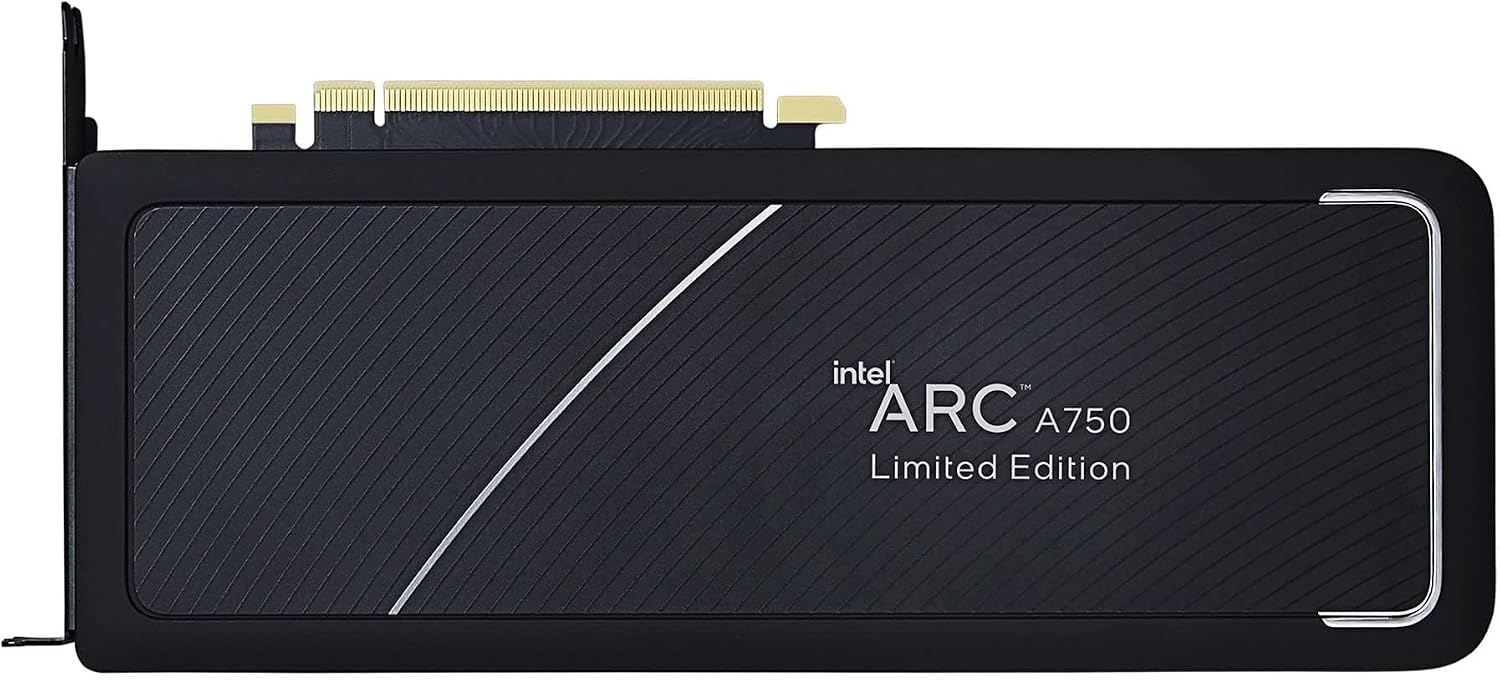
Intel Arc A750 Limited Edition Graphics Card User Manual
Model: 21P02J00BA
Introduction
This manual provides essential information for the installation, operation, maintenance, and troubleshooting of your Intel Arc A750 Limited Edition 8GB PCI Express 4.0 Graphics Card. Please read this manual thoroughly before using the product to ensure optimal performance and longevity.
Package Contents
Verify that all items are present in your product packaging:
- Intel Arc A750 Limited Edition 8GB PCI Express 4.0 Graphics Card
- Documentation (this user manual)

System Requirements
Before installation, ensure your system meets the following minimum requirements:
- PCI Express 4.0 Slot: A motherboard with an available PCI Express 4.0 x16 slot is required for optimal performance. While compatible with PCIe 3.0, performance may be reduced.
- Resizable BAR (ReBAR) Support: For best performance, your system's motherboard and CPU should support and have Resizable BAR enabled in the BIOS/UEFI.
- Power Supply Unit (PSU): A minimum 700W power supply is recommended, especially for 4K gaming or demanding workloads, to ensure stable operation.
- Operating System: Windows 10 (64-bit) or Windows 11 (64-bit).
- Processor: Compatible Intel or AMD processor.
- Memory (RAM): 8GB system memory or more.
Setup
1. Physical Installation
- Prepare Your System: Power off your computer and unplug all cables. Open your computer case.
- Locate PCIe Slot: Identify an available PCI Express 4.0 x16 slot on your motherboard. Remove any expansion slot covers that block the slot.
- Install the Graphics Card: Carefully align the graphics card with the PCIe slot. Press down firmly and evenly until the card is securely seated in the slot and the retention clip engages.
- Secure the Card: Secure the graphics card to the computer case using the screws from the expansion slot covers.
- Connect Power Cables: Connect the necessary PCIe power cables from your power supply to the graphics card. The Intel Arc A750 typically requires one 8-pin and one 6-pin PCIe power connector. Ensure they are fully seated.
- Close Case and Connect Peripherals: Close your computer case, reconnect all cables (monitor, keyboard, mouse, power), and power on your system.

2. Driver Installation
After physical installation, you must install the latest graphics drivers for your Intel Arc A750 card. This is crucial for proper functionality and performance.
- Download Drivers: Visit the official Intel support website (www.intel.com/support/arc) to download the latest drivers for your Intel Arc A750.
- Install Drivers: Run the downloaded installer and follow the on-screen instructions. It is recommended to perform a clean installation if prompted.
- Restart System: Restart your computer after the driver installation is complete.
- Intel Arc Control Software: The driver package typically includes the Intel Arc Control software, which allows you to monitor performance, update drivers, and customize settings.
Operating the Graphics Card
The Intel Arc A750 is designed to deliver strong performance for gaming and content creation. Key features include:
Intel Xe Super Sampling (XeSS)
XeSS is an AI-enhanced upscaling technology that leverages machine learning to deliver high-performance, high-fidelity gaming experiences. It reconstructs images with sub-pixel details, enabling higher frame rates while maintaining visual quality.
Real-time Ray Tracing Support
The Intel Arc A750 supports hardware-accelerated ray tracing, allowing for more realistic lighting, shadows, and reflections in supported games and applications. This technology enhances visual immersion by simulating the physical behavior of light.
Intel Arc Control Software
The Intel Arc Control software provides a centralized hub for managing your graphics card. Features include:
- Performance Monitoring: View real-time statistics such as GPU utilization, temperature, and clock speeds.
- Driver Updates: Easily check for and install the latest graphics drivers.
- Game Optimization: Optimize game settings for the best balance of performance and visual quality.
- Creator Features: Access tools for streaming and content creation, including virtual camera setup.
Maintenance
Proper maintenance ensures the longevity and stable performance of your graphics card:
- Keep Drivers Updated: Regularly check for and install the latest graphics drivers from the Intel support website. Driver updates often include performance improvements, bug fixes, and compatibility enhancements.
- Dust Removal: Periodically clean dust from the graphics card fans and heatsink using compressed air. Ensure the system is powered off and unplugged before cleaning. Dust buildup can impede cooling and lead to overheating.
- Ensure Proper Airflow: Make sure your computer case has adequate airflow to prevent heat buildup. Ensure no cables or other components are obstructing the graphics card's fans.
Troubleshooting
This section addresses common issues you might encounter with your Intel Arc A750 graphics card.
| Problem | Possible Cause / Solution |
|---|---|
| No display or black screen after installation. |
|
| Low frame rates or poor performance in games. |
|
| Screen flickering or intermittent black screens. |
|
| Fans are excessively loud or vibrating. |
|
Specifications
| Feature | Detail |
|---|---|
| Brand | Intel |
| Model Number | 21P02J00BA |
| Graphics Coprocessor | Intel Arc A750 |
| Graphics Card RAM Size | 8 GB |
| GPU Clock Speed | 2050 MHz |
| Video Output Interface | DisplayPort |
| Item Weight | 2 pounds |
| Product Dimensions (LxWxH) | 17.3 x 11.1 x 0.1 inches |
| PCI Express Version | 4.0 |
Warranty and Support
The Intel Arc A750 Limited Edition Graphics Card typically comes with a 1-year limited warranty. For detailed warranty information, technical support, or to register your product, please visit the official Intel support website:
You can also find frequently asked questions (FAQs) and community forums on the Intel support page, which can be valuable resources for troubleshooting and optimizing your experience.
Related documents21P02J00BA


Ask a question about this manual
Ask about setup, troubleshooting, compatibility, parts, safety, or missing instructions. Manuals+ will review the question and use this page’s manual context to help answer it.