
Introduction
Thank you for choosing the Nulea Wireless Ergonomic Keyboard. This 2.4G split keyboard is designed to provide a comfortable and natural typing experience, reducing strain on your wrists and palms with its arched design and cushioned support. This manual will guide you through the setup, operation, maintenance, and troubleshooting of your new keyboard.

Image: The Nulea Wireless Ergonomic Keyboard, showcasing its split design and integrated wrist rest.
Setup
Follow these steps to set up your Nulea Wireless Ergonomic Keyboard:
- Insert Batteries: Locate the battery compartment on the underside of the keyboard. Insert two (2) AAA batteries (not included), ensuring correct polarity.
- Locate USB Dongle: The 2.4G USB dongle is typically stored within the battery compartment for safekeeping. Carefully remove it.
- Connect Dongle: Plug the USB dongle into an available USB port on your computer (Windows, Mac, or Linux).
- Power On: Locate the On/Off switch on the rear of the keyboard and slide it to the 'On' position.
- Automatic Connection: The keyboard should automatically connect to your computer. No additional drivers are typically required for basic functionality.
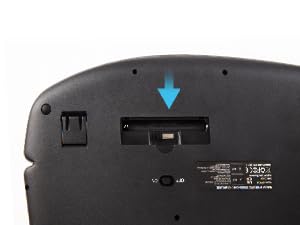
Image: Location of the USB dongle storage compartment on the keyboard's underside.

Image: The keyboard connected wirelessly to a desktop setup, indicating a stable 2.4G connection.
Operating Instructions
The Nulea Ergonomic Keyboard is designed for comfort and efficiency. Familiarize yourself with its key features:
Ergonomic Design
- Split Layout: The keyboard features a split key layout that helps keep your hands in line with your forearms and shoulders, promoting a more natural and relaxed typing posture.
- Cushioned Wrist and Palm Support: An integrated, soft-touch palm rest provides continuous support, reducing pressure on your wrists during extended typing sessions.
- Adjustable Palm Lift: The keyboard includes adjustable feet that allow you to modify the angle of the palm rest, ensuring a comfortable angle for various typing postures.

Image: Diagram illustrating the split layout of the Nulea keyboard compared to a traditional keyboard, highlighting improved hand alignment.

Image: A user's hands resting comfortably on the keyboard's cushioned palm rest while typing.

Image: Side view of the keyboard demonstrating the adjustable palm lift feature, showing different angle options.
Key Functions and Indicators
- Standard Keys: All standard alphanumeric, symbol, and navigation keys are present.
- Media Keys: Dedicated media keys provide quick access to functions like volume control, play/pause, and track skipping.
- Function Key: A central round button acts as a function key, enabling additional shortcuts.
- Indicator Lights: LEDs for Num Lock, Caps Lock, and Function Lock are present. Note that these indicator lights will turn off approximately 5 seconds after the last keystroke to conserve battery life. This is normal operation.
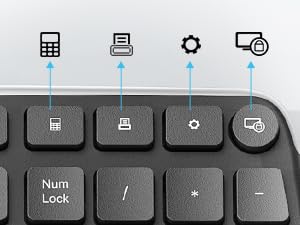
Image: Close-up view of the keyboard's shortcut keys, including calculator, print, settings, and lock functions.
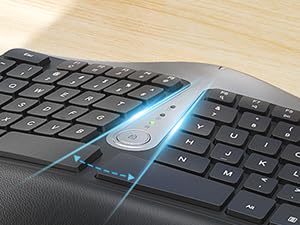
Image: Close-up of the keyboard's central indicator lights, showing their location and illumination.
Maintenance
Proper care will extend the life of your keyboard:
- Cleaning: Use a soft, dry cloth to wipe down the keyboard surface. For deeper cleaning, a slightly damp cloth can be used, ensuring no liquid enters the key switches. Avoid harsh chemicals.
- Battery Replacement: When the keyboard's performance degrades or it stops responding, replace the AAA batteries. Always use fresh batteries and dispose of old ones responsibly.
- Storage: When not in use for extended periods, turn off the keyboard using the power switch to conserve battery life. Store in a cool, dry place away from direct sunlight and extreme temperatures.
Troubleshooting
If you encounter issues with your keyboard, refer to the following common solutions:
- Keyboard Not Responding:
- Ensure the keyboard is powered on.
- Check if the USB dongle is securely plugged into your computer's USB port. Try a different USB port.
- Replace the batteries with fresh AAA batteries.
- Restart your computer.
- Typing Errors (e.g., double letters, incorrect keys):
- The ergonomic layout may require an adjustment period. Continue practicing to adapt to the new hand placement.
- Ensure the keyboard is on a stable, flat surface.
- Indicator Lights Turn Off:
- This is normal behavior. The Num Lock, Caps Lock, and Function Lock indicator lights are designed to turn off after approximately 5 seconds of inactivity to conserve battery power. They will illuminate again upon key press.
Specifications
| Feature | Detail |
|---|---|
| Brand | Nulea |
| Model | 999 |
| Connectivity Technology | 2.4G Wireless (USB Dongle) |
| Compatible Devices | Laptop, Desktop PC |
| Operating Systems | Windows Vista, Windows 2000, Linux, Mac |
| Special Features | Ergonomic Design, Split Keyboard, Cushioned Wrist Rest, Adjustable Palm Lift |
| Power Source | Battery Powered (2 x AAA batteries, not included) |
| Material Type | Synthetic Leather (for wrist rest) |
| Number of Keys | 108 |
| Item Dimensions | 46.74 x 25.4 x 5.71 cm |
| Item Weight | 1.2 kg |
Warranty Information
Specific warranty details for the Nulea Wireless Ergonomic Keyboard are not provided in this manual. Please refer to the product packaging, the seller's website, or contact Nulea customer support for comprehensive warranty information.
Customer Support
For further assistance, technical support, or inquiries regarding your Nulea Wireless Ergonomic Keyboard, please contact the seller or the manufacturer directly through their official support channels. Refer to the product packaging or the Nulea brand website for contact details.


