
1. Introduction
This manual provides detailed instructions for the setup, operation, and maintenance of your CUPEISI Android 14 Tablet, Model Q2S. Please read this manual thoroughly before using your device to ensure proper functionality and to maximize its lifespan.
The CUPEISI Q2S is a 7-inch tablet featuring the Android 14 operating system, a 1.6GHz Quad-core processor, 8GB RAM (4GB fixed, 4GB virtual), 32GB internal storage expandable up to 1TB, a 1024x600 IPS touch screen, and dual cameras.
2. Package Contents
Verify that all items listed below are present in your product packaging:
- CUPEISI Android 14 Tablet (Model Q2S)
- Type-C USB Cable
- User Manual (this document)
If any items are missing or damaged, please contact customer support.
3. Device Overview
Familiarize yourself with the physical components of your tablet.
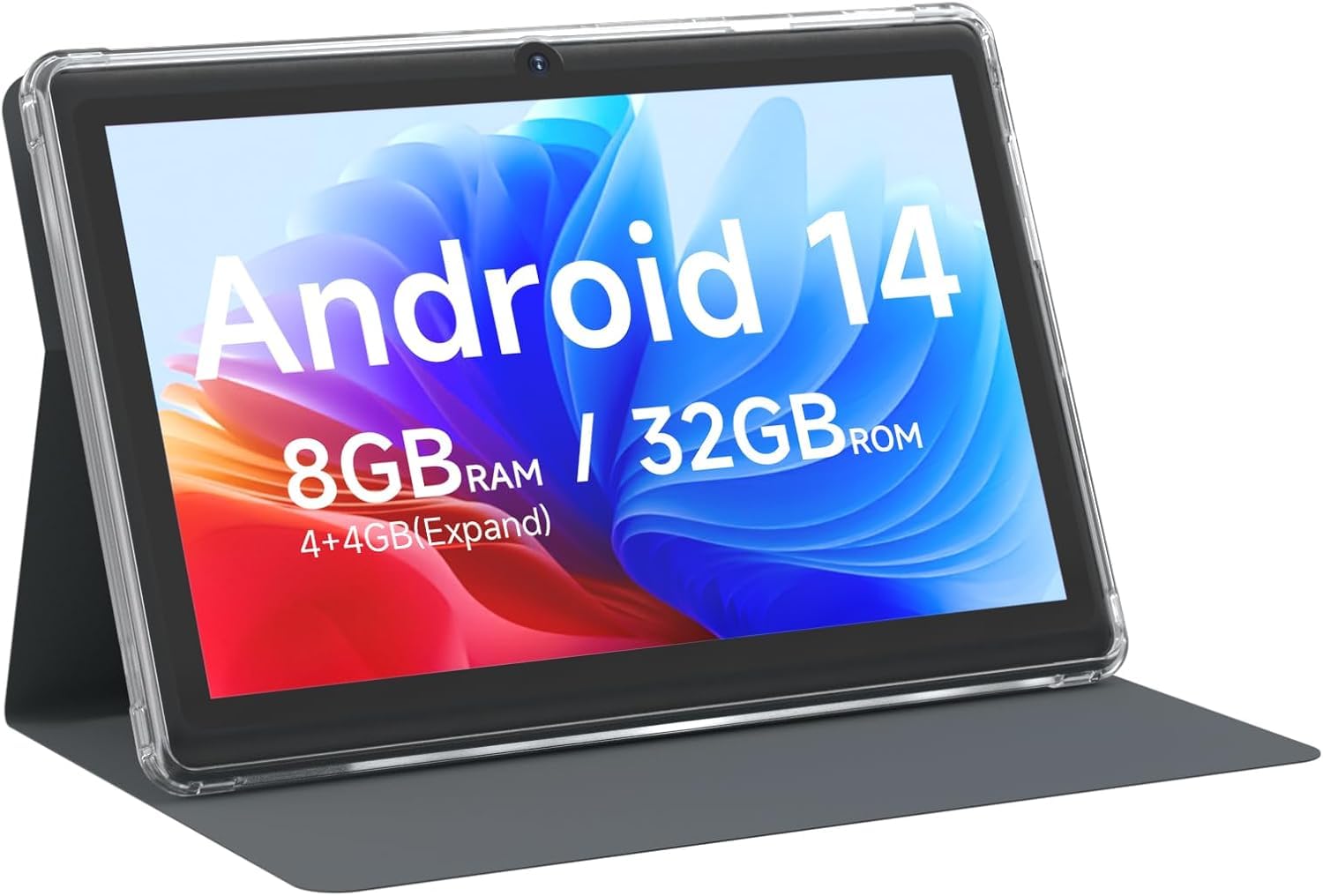
Figure 3.1: Front view of the CUPEISI Q2S Tablet, showing the display with various application icons.

Figure 3.2: Front and back views of the CUPEISI Q2S Tablet, highlighting its compact design and textured rear panel.

Figure 3.3: The 7-inch IPS screen of the CUPEISI Q2S Tablet, showcasing its display quality.
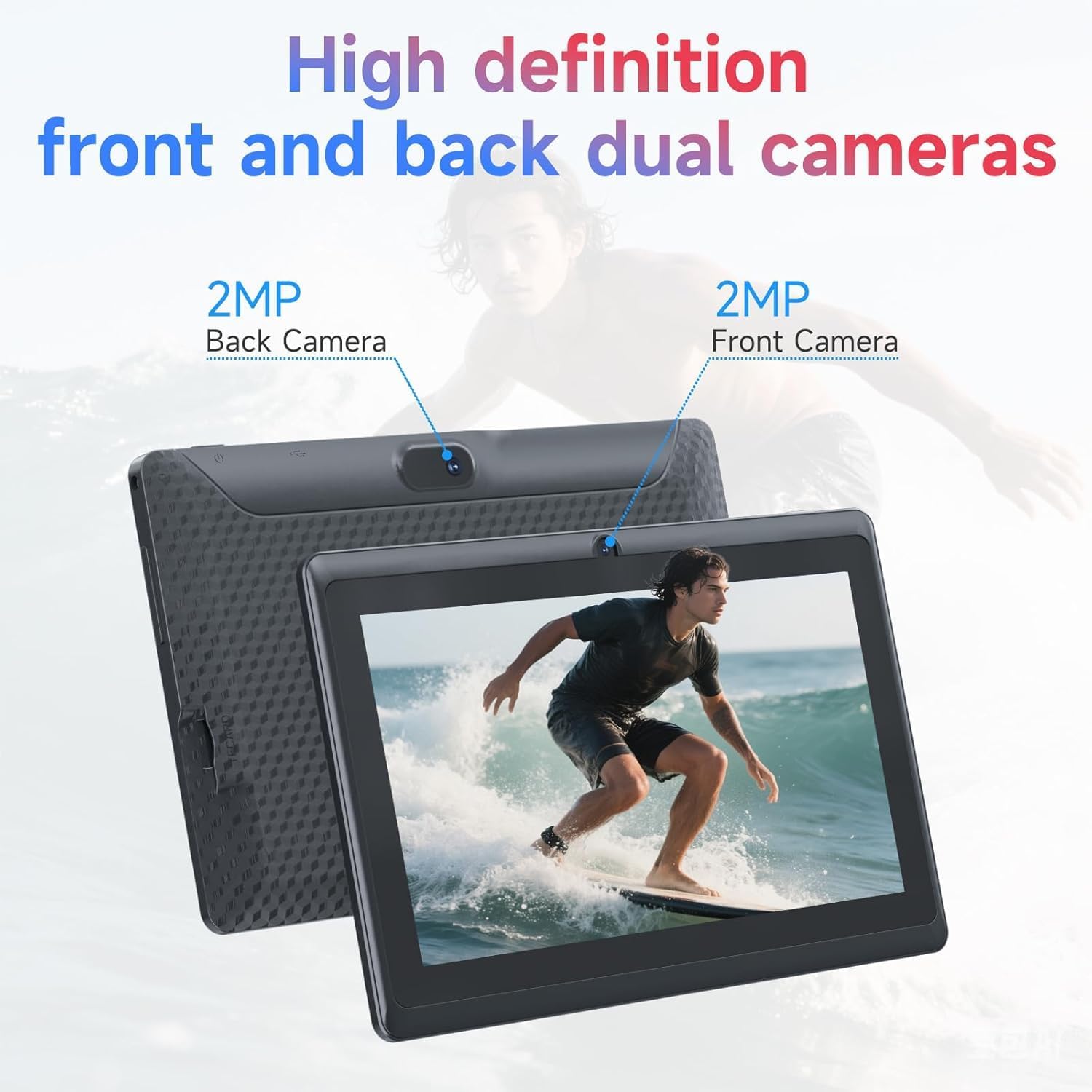
Figure 3.4: Illustration of the CUPEISI Q2S Tablet's front and rear camera locations.
3.1 Buttons and Ports
- Power Button: Press and hold to turn the tablet on or off. Press briefly to sleep or wake the screen.
- Volume Buttons: Adjust the audio volume.
- USB Type-C Port: For charging the tablet and connecting to a computer for data transfer.
- MicroSD Card Slot: Insert a microSD card for expanded storage.
- Front Camera: Located on the front bezel, used for video calls and selfies.
- Rear Camera: Located on the back panel, used for taking photos and videos.
- Speaker: Audio output.
4. Setup
4.1 Charging the Tablet
Before first use, fully charge the tablet. Connect the provided Type-C USB cable to the tablet's charging port and the other end to a compatible USB power adapter (not included) or a computer's USB port. The battery indicator on the screen will show charging status.
4.2 Powering On/Off
- To Power On: Press and hold the Power button until the CUPEISI logo appears.
- To Power Off: Press and hold the Power button until the power options menu appears. Select "Power off" and confirm.
- To Restart: From the power options menu, select "Restart" and confirm.
4.3 Initial Setup Wizard
Upon first power-on, the tablet will guide you through an initial setup process:
- Language Selection: Choose your preferred language.
- Wi-Fi Connection: Connect to an available Wi-Fi network. This is essential for downloading apps and accessing online services.
- Google Account: Sign in with your Google account or create a new one. This allows access to Google Play Store, Gmail, and other Google services.
- Date & Time: Set the correct date and time, or allow the network to set it automatically.
- Screen Lock: Set up a PIN, pattern, or password for screen security.
5. Operating Instructions
5.1 Basic Navigation
- Touch Gestures: Tap to select, swipe to scroll, pinch to zoom.
- Home Screen: The central hub for your apps and widgets.
- Notification Panel: Swipe down from the top of the screen to access notifications and quick settings.
- App Drawer: Swipe up from the bottom of the screen to view all installed applications.
5.2 Installing and Managing Apps
You can download and install applications from the Google Play Store. The tablet is GMS certified, ensuring compatibility with Google services.
- Install Apps: Open the Play Store app, search for your desired app, and tap "Install".
- Uninstall Apps: Press and hold an app icon on the home screen or app drawer, then drag it to "Uninstall" or select the uninstall option. Alternatively, go to Settings > Apps > See all apps, select the app, and tap "Uninstall".
6. Connectivity
6.1 Wi-Fi Connection
To connect to a Wi-Fi network:
- Go to Settings > Network & internet > Wi-Fi.
- Toggle Wi-Fi On.
- Select your desired network from the list of available networks.
- Enter the password if prompted and tap Connect.
The tablet supports 2.4G/5G WiFi 6 for faster and more stable connections.
6.2 Bluetooth Pairing
To pair with a Bluetooth device (e.g., headphones, speakers):
- Go to Settings > Connected devices > Connection preferences > Bluetooth.
- Toggle Bluetooth On.
- Ensure your Bluetooth device is in pairing mode.
- Tap Pair new device and select your device from the list.
- Follow any on-screen prompts to complete pairing.
7. Camera Usage
Your tablet is equipped with a 2MP front camera and a 5MP rear camera.
- Open the Camera app.
- Tap the camera icon to switch between front and rear cameras.
- Tap the shutter button to take a photo.
- Select video mode to record videos.
8. Storage Management
The tablet comes with 32GB of internal storage. You can expand this storage up to 1TB using a microSD card.

Figure 8.1: Tablet screen illustrating available storage space (8GB RAM, 32GB ROM).
8.1 Inserting a MicroSD Card
- Locate the microSD card slot on the side of the tablet.
- Carefully insert the microSD card into the slot until it clicks into place.
- The tablet will detect the new storage. You may be prompted to format the card for optimal use with the tablet.
8.2 Managing Storage
To view and manage your storage, go to Settings > Storage. Here you can see how much space is used by apps, photos, videos, and other files, and manage your microSD card.
9. Maintenance
9.1 Cleaning the Tablet
- Use a soft, lint-free cloth to clean the screen and body of the tablet.
- For stubborn smudges, slightly dampen the cloth with water or a screen cleaner designed for electronics.
- Avoid using harsh chemicals, abrasive cleaners, or aerosol sprays.
9.2 Battery Care
- Avoid exposing the tablet to extreme temperatures (hot or cold).
- Do not allow the battery to fully discharge frequently. Charge it before it drops below 20%.
- Use only the provided Type-C cable for charging.
9.3 Software Updates
Periodically check for software updates to ensure optimal performance and security. Go to Settings > System > System update.
10. Troubleshooting
This section addresses common issues you might encounter with your tablet.
10.1 Tablet Does Not Turn On
- Ensure the tablet is sufficiently charged. Connect it to a power source and wait a few minutes before attempting to power it on again.
- Press and hold the Power button for at least 10-15 seconds to perform a forced restart.
10.2 Slow Performance or Apps Crashing
- Close unnecessary background applications.
- Clear the cache of frequently used apps (Settings > Apps > See all apps > [App Name] > Storage & cache > Clear cache).
- Ensure you have sufficient free storage space. Uninstall unused apps or move large files to a microSD card.
- Restart the tablet.
10.3 Wi-Fi Connection Issues
- Ensure Wi-Fi is enabled on the tablet (Settings > Network & internet > Wi-Fi).
- Restart your Wi-Fi router.
- Forget the network and reconnect (Settings > Network & internet > Wi-Fi, tap the network, then Forget).
10.4 Battery Drains Quickly
- Reduce screen brightness.
- Disable Wi-Fi, Bluetooth, and GPS when not in use.
- Close background apps that consume significant power.
- Check battery usage in Settings > Battery to identify power-hungry apps.
11. Specifications
Detailed technical specifications for the CUPEISI Android 14 Tablet Q2S.
| Model Name | Q8MPRO |
| Item Model Number | Q2S |
| Operating System | Android 14 |
| Processor | 1.6 GHz Quad-core (ARM) |
| RAM | 8GB (4GB fixed, 4GB virtual) |
| Internal Storage | 32 GB Flash Memory |
| Expandable Storage | Up to 1TB via MicroSD card |
| Screen Size | 7 Inches |
| Screen Resolution | 1024 x 600 pixels IPS HD Touch Screen |
| Rear Camera | 5 MP |
| Front Camera | 2 MP |
| Wireless Type | 802.11g (2.4G/5G WiFi 6) |
| Bluetooth | BT 5.0 |
| Average Battery Life | 6 Hours |
| Item Weight | 13.4 ounces |
| Product Dimensions | 7.5 x 0.3 x 4.3 inches |
12. Safety Information
- Do not expose the tablet to water or excessive moisture.
- Avoid dropping or subjecting the tablet to severe impacts.
- Do not attempt to disassemble or repair the tablet yourself. This may void the warranty and cause damage.
- Use the tablet in well-ventilated areas.
- Keep the tablet away from strong magnetic fields.
- Dispose of the tablet and its battery responsibly according to local regulations.
13. Warranty and Support
For warranty information and customer support, please refer to the documentation provided with your purchase or visit the official CUPEISI website. If you encounter any issues not covered in this manual, please contact CUPEISI customer service for assistance.