
1. Product Overview
The Giecy Wired Headset Microphone, Model WC0001, is designed for clear voice amplification in various settings. Its lightweight and flexible design ensures comfort during extended use, making it suitable for teachers, trainers, presenters, and seniors. This microphone connects via a standard 3.5mm jack, compatible with most voice amplifiers and devices with a microphone input.
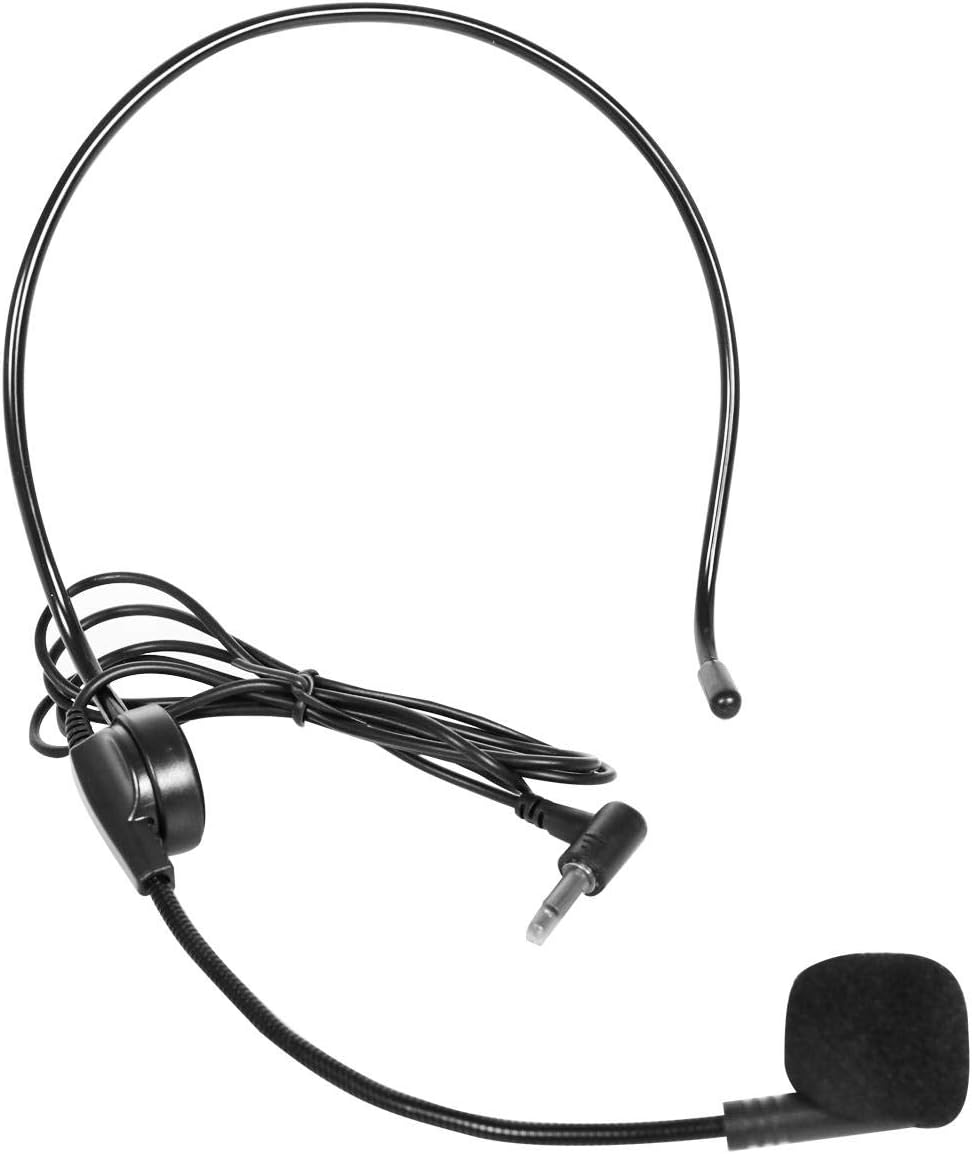
Image 1: Overview of the Giecy Wired Headset Microphone.
Key Features:
- Wired Connectivity: Ensures a stable and reliable audio connection.
- Flexible Design: The microphone boom can be rotated and bent to adjust the speaking position for optimal voice pickup.
- Lightweight and Comfortable: Designed for easy wear on the head or neck, freeing your hands during use.
- Durable Material: Constructed from high-quality ABS material to protect internal wires.
- Wide Application: Ideal for classrooms, presentations, meetings, and other public speaking engagements.
2. Setup Instructions
2.1 Wearing the Headset Microphone
- Gently place the headset frame over your head, ensuring the ear hooks rest comfortably behind your ears.
- Position the microphone boom so that the microphone capsule is near your mouth, typically 1-2 inches away, for optimal voice capture.
- Adjust the flexible boom to achieve the desired angle and distance from your mouth.

Image 2: Proper placement of the headset microphone for effective use.
2.2 Connecting to a Voice Amplifier or Device
- Locate the 3.5mm microphone input jack on your voice amplifier or compatible device. This is typically labeled as 'MIC' or has a microphone icon.
- Insert the 3.5mm plug of the headset microphone firmly into the microphone input jack. Ensure it is fully seated to prevent poor contact.
- If your device requires a 2-section or 3-section interface, ensure you are using the correct microphone type. The Giecy WC0001 features a standard 3.5mm jack.
Video 1: This video demonstrates the features and connection process of the headset microphone, including its flexible design and 3.5mm jack compatibility.
Video 2: This video illustrates the connection of a similar microphone to a voice amplifier, showing the insertion of the 3.5mm jack.
Video 3: This video highlights different connector types, which can be useful for ensuring compatibility with your specific device.
3. Operating Instructions
3.1 Adjusting for Optimal Sound
- Once connected, turn on your voice amplifier or device.
- Speak into the microphone at a normal volume. Adjust the microphone's position using its flexible boom until your voice is clear and adequately amplified without distortion.
- Avoid placing the microphone directly in front of your mouth to prevent plosive sounds (P, B) and breath noises. A slight angle is often best.
- Adjust the volume on your amplifier or device to a comfortable listening level for your audience.

Image 3: The flexible design allows for precise positioning of the microphone.
4. Maintenance
- Cleaning: Use a soft, dry cloth to wipe the microphone and cable. Do not use harsh chemicals or abrasive cleaners.
- Storage: Store the microphone in a cool, dry place away from direct sunlight and extreme temperatures. Avoid tightly coiling the cable to prevent damage.
- Microphone Windscreen: The foam windscreen can be gently removed and cleaned if necessary. Ensure it is dry before reattaching.
- Cable Care: Avoid pulling on the cable or the connector when unplugging. Always grasp the plug itself.
5. Troubleshooting
5.1 No Sound or Low Volume
- Check Connection: Ensure the 3.5mm plug is fully inserted into the microphone input jack of your amplifier/device.
- Volume Levels: Verify that the volume on your amplifier/device is turned up.
- Device Power: Confirm that your voice amplifier or device is powered on.
- Correct Port: Make sure the microphone is plugged into a microphone input port, not an audio output or headphone jack.
5.2 Distorted or Unclear Sound
- Microphone Position: Adjust the microphone's distance and angle from your mouth. It should not be too close or too far.
- Volume Adjustment: Reduce the volume on your amplifier/device if the sound is overdriven or distorted.
- Interference: Move away from other electronic devices that might cause interference.
- Windscreen: Ensure the foam windscreen is properly attached and not damaged.
6. Specifications
| Feature | Specification |
|---|---|
| Brand | Giecy |
| Model Number | WC0001 |
| Microphone Form Factor | Headset |
| Connectivity Technology | Auxiliary (Wired) |
| Connector Type | 3.5 mm Jack |
| Material | Acrylonitrile Butadiene Styrene (ABS) |
| Polar Pattern | Unidirectional |
| Audio Sensitivity | 52 Decibels |
| Signal-to-Noise Ratio | 60 dB |
| Cable Length | 105cm (approximately 3.4 feet) |
| Operating Voltage | 2.0V |
| Impedance | 2.2kΩ |
| Frequency Range | 100-16kHz |
| Item Weight | 30 Grams (1.06 ounces) |
| Compatible Devices | Amplifier, Laptop (with appropriate microphone input) |
7. Warranty and Support
For information regarding warranty coverage and customer support, please refer to the documentation included with your purchase or contact the retailer where the product was acquired. Specific warranty terms may vary by region and retailer.