
1. Introduction
Thank you for choosing the DEKCO 5MP Outdoor Security Camera. This manual provides detailed instructions for setting up, operating, and maintaining your camera to ensure optimal performance and security for your home or outdoor space. This camera features 5MP Ultra HD video, 360° pan-tilt view, smart motion tracking, two-way audio, full-color night vision, and IP66 weatherproof certification.

Figure 1: DEKCO 5MP Outdoor Security Camera
2. What's in the Box
- DEKCO 5MP Outdoor Security Camera
- Power Adapter
- Mounting Screws
- Positioning Sticker
- User Manual (this document)
3. Setup and Installation
Follow these steps to set up and install your DEKCO security camera. For a visual guide, please refer to the official installation video below.
3.1 Official Installation Video
Video 1: DC5P Installation and Network Distribution Guide. This video provides a step-by-step walkthrough for setting up your camera and connecting it to your network.
3.2 Powering On and App Download
- Plug the camera into a power outlet using the provided adapter.
- Download the "CloudEdge" app from your mobile device's App Store (iOS) or Google Play Store (Android).
- Register for an account and log in.
3.3 Wi-Fi Connection (2.4GHz Only)
The DEKCO camera supports 2.4GHz Wi-Fi networks only. It does NOT support 5GHz Wi-Fi. Ensure your mobile device is connected to a 2.4GHz Wi-Fi network during setup.
- In the CloudEdge app, select "Add Device" and choose "Power Plug Camera" or "Smart Camera (WiFi)" as appropriate.
- Follow the in-app instructions to connect the camera to your 2.4GHz Wi-Fi network. You will be prompted to scan a QR code displayed on your phone with the camera lens.
- Wait for the camera's indicator light to turn blue, signifying a successful connection.

Figure 2: Easy Setup Steps

Figure 3: 2.4GHz Wi-Fi Support
3.4 Physical Installation
Choose a suitable outdoor location for installation, ideally 7-10 feet high for optimal coverage. The camera is IP66 weatherproof, suitable for various outdoor conditions.
- Use the positioning sticker to mark the drill holes on the wall.
- Drill holes at the marked positions.
- Insert the plastic anchors into the drilled holes.
- Align the camera's mounting base with the holes and secure it with the provided screws.
- Route the power cable through the designed groove on the mounting base to protect it from weather elements.

Figure 4: IP66 Weatherproof Design
4. Operating Instructions
4.1 Pan-Tilt 360° View
Control the camera's pan (horizontal 350°) and tilt (vertical 90°) movements remotely via the CloudEdge app to monitor all-round without blind spots.

Figure 5: Pan & Tilt Functionality
4.2 Smart Motion Tracking & Detection
The camera can detect objects in motion and automatically record and track them. You will receive instant alerts on your mobile device via the app when motion is detected.
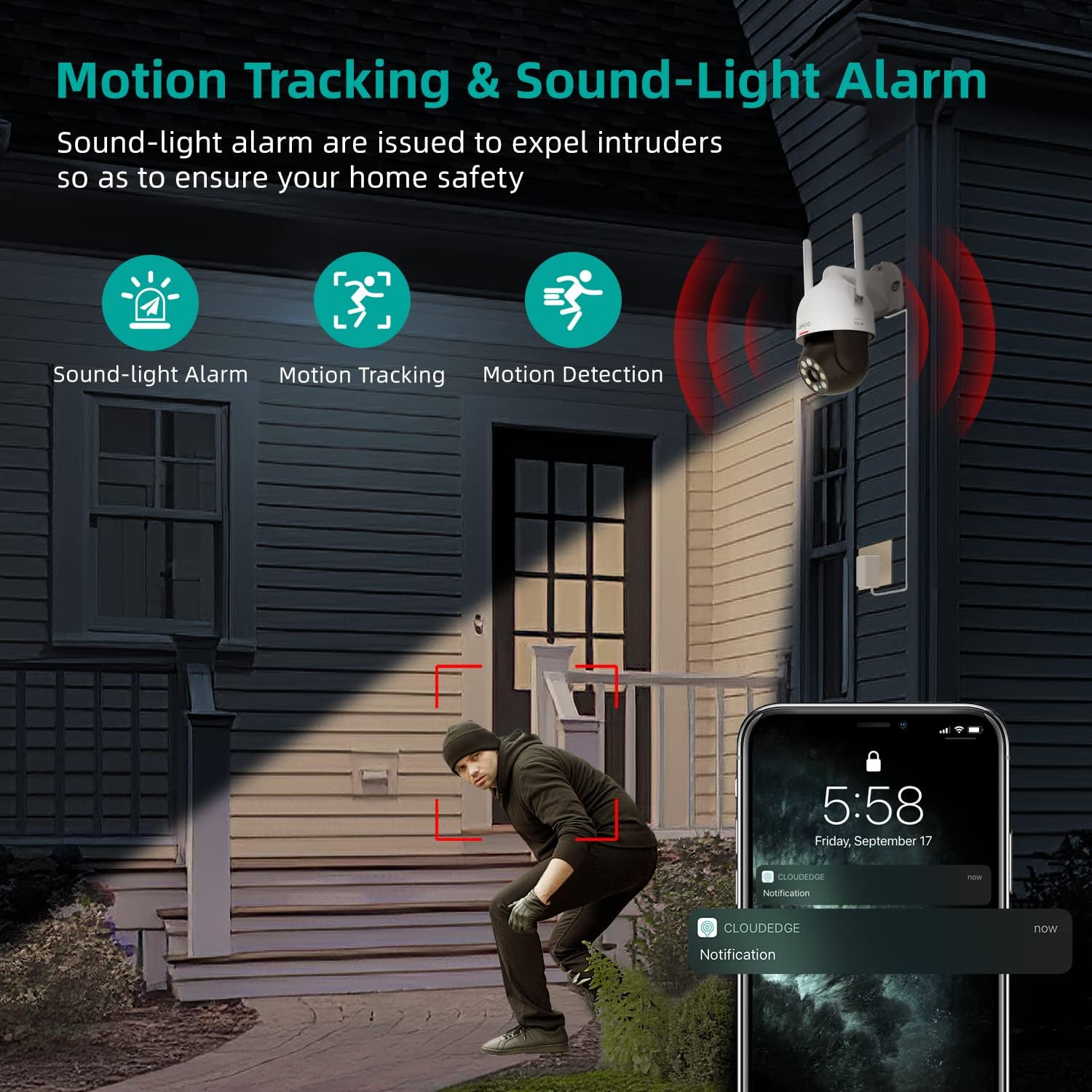
Figure 6: Motion Tracking & Sound-Light Alarm
4.3 Two-Way Audio
With a built-in microphone and speaker, the camera allows for real-time two-way communication. You can speak through the app to visitors or deter unwanted individuals.

Figure 7: Two-Way Audio Communication
4.4 Full-Color Night Vision
The 5MP ultra-high-definition picture quality provides clear images even in dark environments. The camera supports infrared, full-color, and auto (smart) night vision modes for customized night viewing.
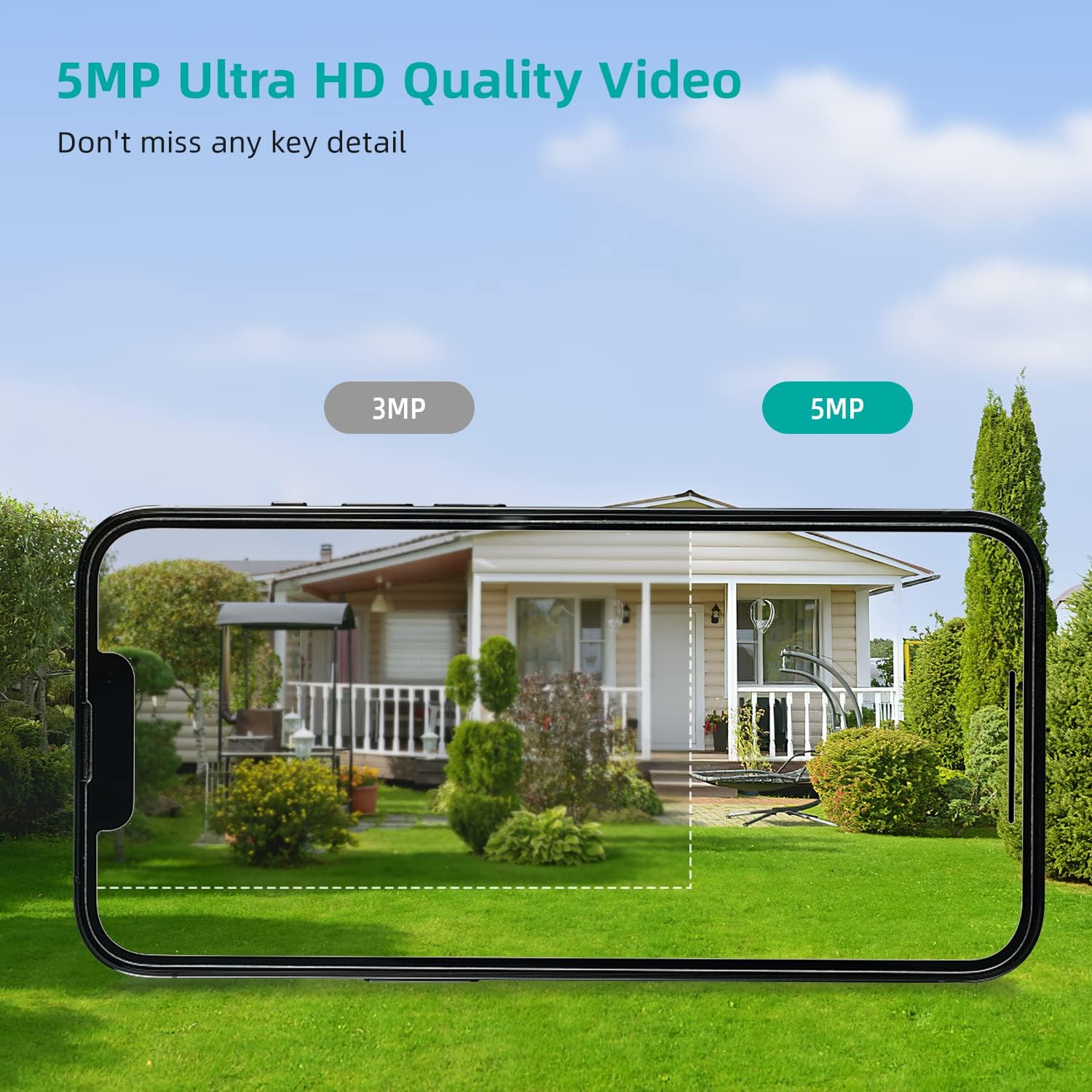
Figure 8: 5MP Ultra HD Video Quality

Figure 9: Three Night Vision Modes
5. Storage Options
The DEKCO camera offers flexible storage solutions for your recordings:
- Micro SD Card: The camera has a built-in SD card slot supporting up to 128GB (Micro SD card not included).
- Cloud Storage: Encrypted secure cloud storage is also supported for convenient access to your footage.

Figure 10: 24/7 Recording and SD Card Slot

Figure 11: Cloud and Local Storage
6. Specifications
| Feature | Specification |
|---|---|
| Model Name | DC5P Camera |
| Effective Still Resolution | 5 MP |
| Video Capture Resolution | 1920p |
| Indoor/Outdoor Usage | Outdoor |
| Connectivity Protocol | Wi-Fi (2.4GHz only) |
| Controller Type | CloudEdge App |
| Pan/Tilt Angle | Horizontal 350°, Vertical 90° |
| Night Vision | Full Color, Infrared, Auto (Smart) |
| Audio | 2-Way Audio |
| Water Resistance Level | IP66 Waterproof |
| Storage | Micro SD (up to 128G), Cloud Storage |
| Power Source | Corded Electric (12 Volts) |
| Item Dimensions L x W x H | 5 x 8 x 5 inches |
| Item Weight | 1.32 pounds |
7. Troubleshooting
- Camera not connecting to Wi-Fi: Ensure your router is broadcasting a 2.4GHz Wi-Fi signal. The camera does not support 5GHz Wi-Fi. Move the camera closer to the router during initial setup.
- No power: Check that the power adapter is securely plugged into both the camera and a working power outlet.
- Poor video quality: Ensure your Wi-Fi signal is strong. Check for obstructions between the camera and the router.
- Motion detection issues: Adjust the motion detection sensitivity settings in the CloudEdge app. Ensure the camera's view is clear of moving objects that might cause false alarms (e.g., tree branches in windy conditions).
- Camera offline: Check your internet connection. If the camera was recently moved or power cycled, it might take a few minutes to reconnect. If issues persist, try resetting the camera (refer to the app for reset instructions).
8. Maintenance
- Cleaning: Periodically clean the camera lens with a soft, damp cloth to ensure clear image quality. Avoid abrasive cleaners.
- Weather Protection: While IP66 weatherproof, ensure the power connection is protected from direct heavy rain or snow to prevent damage.
- Firmware Updates: Regularly check the CloudEdge app for available firmware updates to ensure your camera has the latest features and security enhancements.
9. Support
For any questions or further assistance, please feel free to contact the "DekcoCare" Online Support Team. We offer lifetime support for DEKCO brand products.
Visit the DEKCO Store on Amazon: DEKCO Store


