
Eufy T87B2
Anker Eufy Security SmartTrack Card for iPhone User Manual
Model: T87B2
1. Product Overview
The Eufy Security SmartTrack Card is a slim, card-shaped item tracker designed to help you locate your belongings. It integrates with Apple's "Find My" network, allowing iPhone, iPad, and Mac users to pinpoint the location of lost items. Its ultra-thin design (approximately 2.4mm) allows it to fit easily into wallets or card cases. It also features a separation alert to notify you if you leave your item behind.

Image: Eufy Security SmartTrack Card placed in a wallet, with a smartphone screen showing the card's location on a map. This illustrates the item finding capability.

Image: The slim Eufy SmartTrack Card being inserted into a wallet and shown with an included metal clip for attachment to passports or document cases.
2. Setup
- Download the Eufy Security App: Search for "Eufy Security" in the Apple App Store and download the application to your iPhone.
- Add SmartTrack Card: Open the Eufy Security app and follow the on-screen instructions to add your SmartTrack Card. This typically involves pressing a button on the card to put it into pairing mode.
- Enable Location Services: For full functionality, ensure that Location Services are enabled for the Eufy Security app and set to "Always" in your iPhone's privacy settings. This allows for accurate location tracking and separation alerts.
- Integrate with Apple Find My: The SmartTrack Card is compatible with Apple's "Find My" network. Once set up in the Eufy Security app, it should automatically appear in your Apple Find My app, allowing you to track it alongside your other Apple devices.

Image: The Eufy SmartTrack Card displaying compatibility with Apple Find My, shown next to an iPhone screen tracking the card's location.
3. Operating Instructions
3.1 Finding Your Items
- Using Apple Find My: Open the "Find My" app on your iPhone, iPad, or Mac. Select your SmartTrack Card from the list of items. You can view its last known location on a map. If it's nearby, you can play a sound to help locate it.
- Using Eufy Security App: Open the Eufy Security app. Select your SmartTrack Card. If within Bluetooth range, you can make the card ring to find it. The app will also show its last known location.

Image: A person using their smartphone to locate an item, with a wallet containing the SmartTrack Card visible in the foreground, demonstrating the item finding function.
3.2 Finding Your Phone
If your phone is misplaced, you can press the button on your SmartTrack Card to make your phone ring. This feature is available when your phone is within Bluetooth range (approximately 10-15 meters indoors). This function requires the Eufy Security app to be running and location permissions set to "Always".
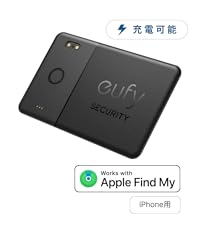
Image: A hand pressing the button on the SmartTrack Card, with an iPhone displaying a notification indicating an incoming call, illustrating the phone-finding feature.
3.3 Separation Alert
The SmartTrack Card features a separation alert. If you leave your item behind and move out of Bluetooth range, your iPhone will receive an alert notification. This helps prevent accidental loss. Ensure location permissions for the Eufy Security app are set to "Always" for this feature to function correctly.

Image: The SmartTrack Card in a wallet left on a surface, with a person walking away in the background and an iPhone showing a notification for a separation alert.
3.4 Lost Mode and QR Code
If your SmartTrack Card is lost, you can enable "Lost Mode" in the Eufy Security app. This allows anyone who finds your card to scan the QR code on its back. Upon scanning, they will be able to see your contact information (if provided) to return the item. This feature requires registration in the Eufy Security app and enabling Lost Mode.

Image: The reverse side of the SmartTrack Card showing its QR code, alongside an iPhone screen displaying contact details after the QR code has been scanned by a finder.
4. Maintenance
- Battery Life: The Eufy Security SmartTrack Card has a non-replaceable battery designed to last approximately 3 years. There is no need for charging or battery replacement during its lifespan.
- Cleaning: Wipe the device with a soft, dry cloth. Avoid using harsh chemicals or abrasive materials.
- Storage: Store the device in a cool, dry place away from direct sunlight and extreme temperatures.
5. Troubleshooting
-
Card not found in app:
- Ensure Bluetooth is enabled on your iPhone.
- Make sure the SmartTrack Card is within Bluetooth range of your iPhone.
- Check if the card's battery is depleted (after approximately 3 years of use).
- Restart the Eufy Security app or your iPhone.
-
Sound not playing:
- Ensure the card is within Bluetooth range.
- Check your iPhone's volume settings.
- Note that the sound volume from the card may be low if it's deep inside a bag or wallet.
-
Separation alert not working:
- Verify that Location Services for the Eufy Security app are set to "Always" in your iPhone's privacy settings.
- Ensure the Eufy Security app is running in the background.
6. Specifications
| Feature | Detail |
|---|---|
| Brand | Eufy |
| Model Number | T87B2 |
| Dimensions (L x W x H) | 8.5 cm x 5.4 cm x 0.2 cm |
| Weight | 0.04 pounds |
| Compatible Devices | iPhone (iOS devices only for Apple Find My) |
| Battery Type | 1 Product-specific battery (included), non-replaceable |
| Average Battery Life | 3 years |
| Control Method | App (Eufy Security App, Apple Find My App) |
| Sound Range | Up to 10 meters (indoors) |
| UPC | 194644114398 |

Image: A comparison table showing different Eufy SmartTrack models, highlighting their battery life, thickness, and OS compatibility.

Image: A table detailing the compatible functions of the Eufy SmartTrack Card with both the Apple Find My app and the Eufy Security app.
7. Warranty and Support
Eufy provides a standard 18-month product warranty from the date of purchase. In case of a defect, a replacement or repair will be provided. Additionally, Anker members receive an extended 6-month support, totaling 24 months of support.
For further assistance, please refer to the official Eufy website or contact customer support. You can also find additional user guides and manuals in PDF format:

Image: Visual representation of the 18-month standard support and an additional 6-month extended support for Anker members, totaling 24 months.
8. Privacy Considerations
The Eufy Security SmartTrack Card is designed with privacy in mind. Location information and history are encrypted, ensuring that individuals cannot be identified. Your data is protected.

Image: A graphic depicting a house within a shield, symbolizing privacy-conscious design where location information and history are encrypted.
Related documentsT87B2


Ask a question about this manual
Ask about setup, troubleshooting, compatibility, parts, safety, or missing instructions. Manuals+ will review the question and use this page’s manual context to help answer it.