
1. Introduction
Thank you for choosing the ciciglow Mini HD Digital Voice Recorder. This compact and versatile device is designed for high-quality audio recording, featuring HD noise reduction and MP3 player capabilities. Its portable design makes it ideal for various applications, from capturing lectures and meetings to interviews and personal notes.

The ciciglow voice recorder is suitable for use in diverse environments such as lectures, meetings, interviews, and classrooms.

The device's mini shape and lightweight design allow for easy portability in a pocket, key bag, or wallet.
2. Package Contents
- Digital Voice Recorder
- USB Charging Cable
- Earphones
- User Manual
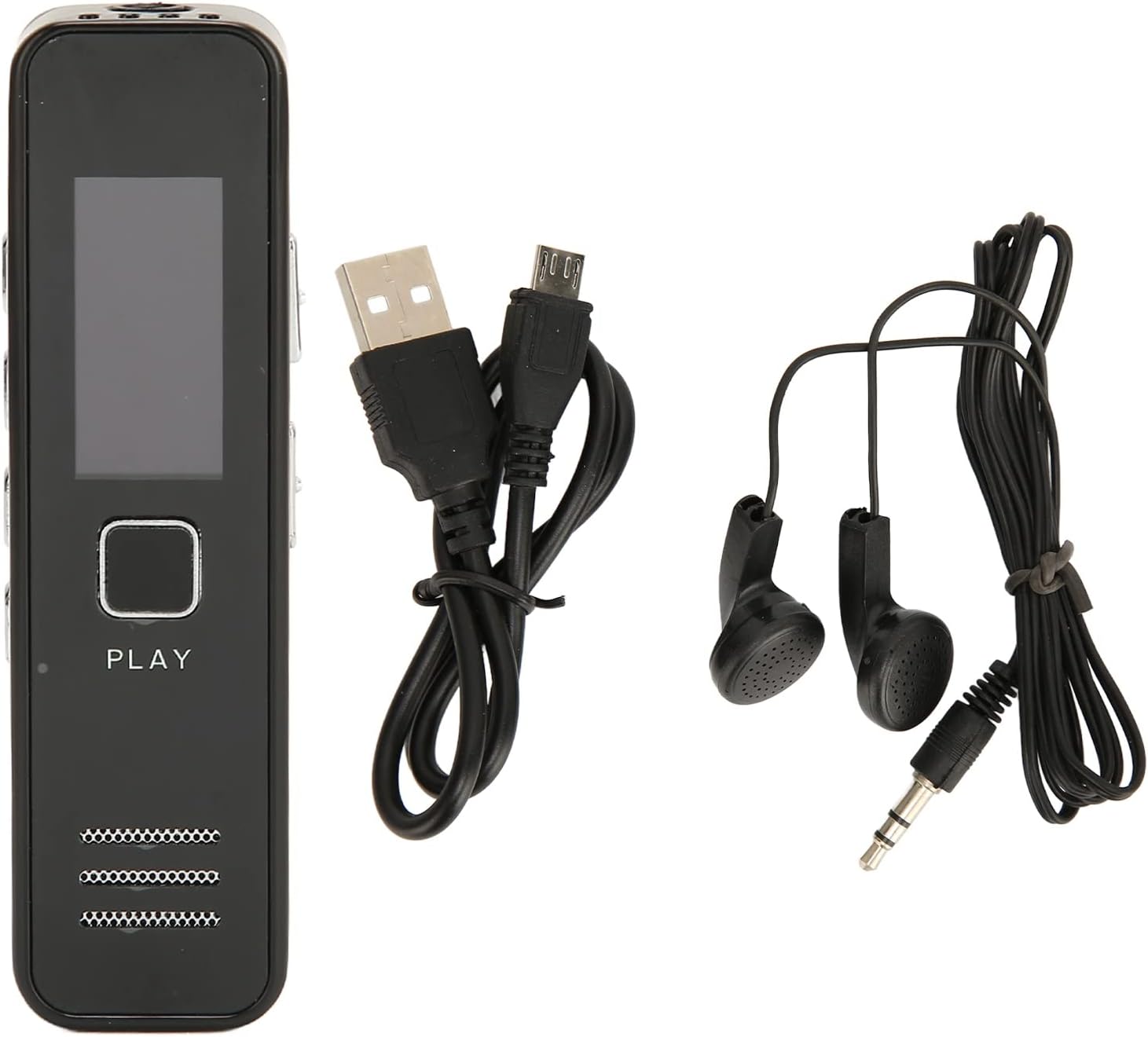
Image showing the digital voice recorder along with its included accessories: a USB charging cable and earphones.
3. Setup
3.1 Charging the Device
Before first use, fully charge the device. Connect the recorder to a computer's USB port or a USB wall adapter (not included) using the provided USB cable. The battery indicator on the screen will show charging status.
3.2 Inserting a MicroSD Card
The device supports an external MicroSD memory card up to 32GB (not included). Locate the MicroSD card slot on the side of the recorder. Gently insert the card until it clicks into place. Ensure the card is inserted correctly to avoid damage.

The device features an external slot for a MicroSD card, supporting up to 32GB of additional storage.
3.3 Power On/Off
To power on the device, slide the ON/OFF switch to the 'ON' position. To power off, slide it to the 'OFF' position.
4. Operating Instructions
4.1 Basic Navigation
Use the navigation buttons (UP, DOWN, MENU) to browse through the device's menu options displayed on the screen. The 'PLAY' button typically confirms selections or initiates playback.

The device's screen shows various menu options for operation.
4.2 Recording Audio
- Start Recording: With the device powered on, navigate to the "Recording" option in the menu. Select it to enter the recording state. The device will begin recording, and the recording interface will be displayed.
- Pause/Resume Recording: During recording, briefly press the "PLAY" button to pause the recording. Press it again briefly to resume recording.
- Save Recording: To save the current recording, slide the REC/SAVE switch to the 'SAVE' position. The machine will automatically save the file.

Detailed steps for recording audio, including starting, pausing, and saving recordings.
4.3 Playback
- Playing Recordings: Navigate to the 'Recordings' or 'Files' section in the menu. Select the desired audio file and press the 'PLAY' button to start playback.
- Using External Speaker: The device features a built-in external speaker. No headphones are required for playback.
- Using Earphones: For private listening, connect the included earphones to the earphone jack.

The device includes an external speaker for convenient audio playback without earphones.
4.4 MP3 Player Function
The device can also function as an MP3 player. Transfer MP3 audio files to the device's internal storage or MicroSD card. Navigate to the 'Music' or 'MP3' section in the menu to browse and play your music files.

The device features MP3 player functionality, allowing you to play music files.
4.5 HD Noise Reduction
The recorder incorporates HD noise reduction technology to capture clear audio by minimizing background interference. This feature is automatically active during recording to enhance sound quality.

The HD noise reduction feature helps to capture clear audio by filtering out background noise.
5. Maintenance
- Cleaning: Use a soft, dry cloth to clean the device. Avoid liquid cleaners or abrasive materials.
- Storage: Store the device in a cool, dry place away from direct sunlight and extreme temperatures.
- Battery Care: To prolong battery life, avoid fully discharging the battery frequently. Charge the device regularly, even if not in use for extended periods.
6. Troubleshooting
| Problem | Possible Solution |
|---|---|
| Device does not power on. |
|
| Cannot record audio. |
|
| No sound during playback. |
|
| Device not recognized by computer. |
|
7. Specifications
| Feature | Detail |
|---|---|
| Brand | ciciglow |
| Model Number | ciciglowg2w1sap4md2304 |
| Memory Storage Capacity | Supports up to 32 GB (external MicroSD card, not included) |
| Digital Media Format | MP3 audio, WAV, WMA |
| Microphone Form Factor | Integrated |
| Hardware Interface | Memory Card, Earphones |
| Compatible Devices | Personal Computer |
| Manufacturer | ciciglow |
| Country of Origin | China |
8. Warranty and Support
Specific warranty details and direct support contact information are not available in the provided product data. Please refer to the retailer's return policy or contact the seller directly for warranty claims and technical assistance.