
1. Introduction
This manual provides detailed instructions for the KiiBoom Phantom 81 75% Mechanical Keyboard. Please read this guide thoroughly to ensure proper setup, operation, and maintenance of your device.
Package Contents
- KiiBoom Phantom 81 Mechanical Keyboard
- USB Type-C Cable
- 2.4G Wireless Receiver
- Keycap Puller
- Switch Puller
- Extra Switches

Image: KiiBoom Phantom 81 Transparent Mechanical Gaming Keyboard with RGB backlighting.

Image: Contents of the KiiBoom Phantom 81 keyboard package, including the keyboard, USB-C cable, switch puller, keycap puller, and extra switches.
2. Setup
Connectivity Modes
The KiiBoom Phantom 81 supports three connectivity modes: Wired (USB Type-C), Bluetooth 5.0, and 2.4GHz Wireless. A switch located on the back of the keyboard allows you to select your preferred mode.
- Wired Mode: Connect the keyboard to your computer using the provided USB Type-C cable.
- Bluetooth Mode: Toggle the switch to 'BT'. The keyboard can pair with up to three devices (FN+1, FN+2, FN+3).
- 2.4GHz Wireless Mode: Toggle the switch to '2.4G'. Insert the 2.4G wireless receiver into a USB port on your computer.
Charging
The keyboard features a rechargeable battery. Connect the USB Type-C cable to the keyboard and a power source (e.g., computer USB port, wall adapter) to charge. The V2 version has a 4000mAh battery, and the V3 version has an 8000mAh battery.

Image: KiiBoom Phantom 81 keyboard connected to a laptop and tablet, demonstrating multi-device support.

Image: Diagram showing the three connectivity modes: Bluetooth (FN+1/2/3), 2.4G Wireless (FN+4), and Type-C Wired (FN+5).
Video: A brief overview of the KiiBoom Phantom 81 Clear Keyboard, showcasing its transparent design and key features.
3. Operating Instructions
RGB Lighting Control
The Phantom 81 features customizable RGB backlighting with south-facing LEDs for reduced glare. Use the following key combinations to adjust lighting effects:
- FN + Arrow Up/Down: Adjust brightness.
- FN + Arrow Left/Right: Adjust lighting effect speed.
- FN + Other Keys: Specific key combinations may cycle through different lighting modes. Refer to the quick start guide for detailed combinations.
Multifunctional Knob
The knob located on the top right of the keyboard controls volume by default. Pressing the knob typically mutes/unmutes audio.
Software Customization
The keyboard is programmable using dedicated software. This allows for remapping keys, customizing RGB lighting, and creating macros. Visit the official KiiBoom website for software downloads and instructions.
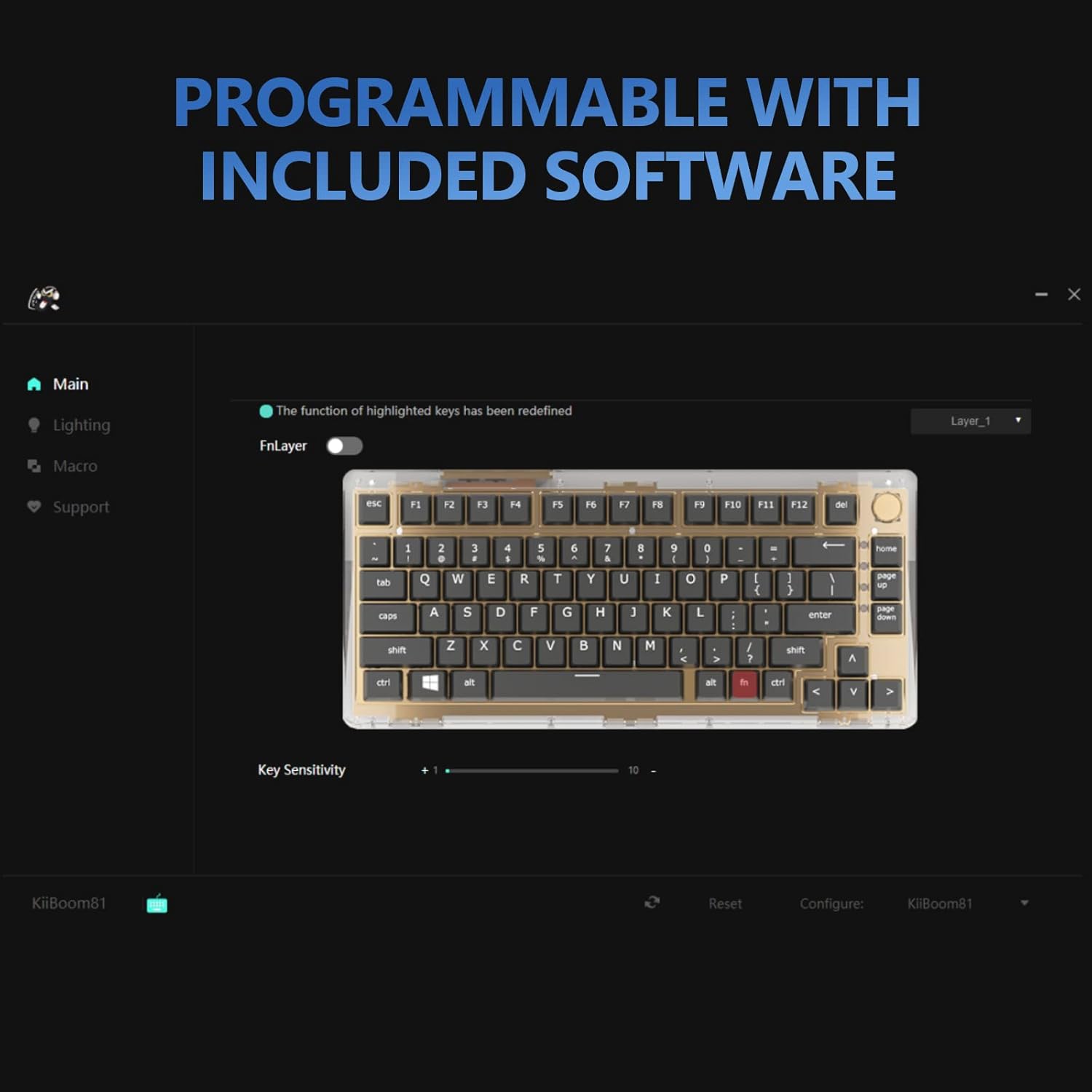
Image: Screenshot of the KiiBoom keyboard customization software interface.
Video: A short video demonstrating the 'Moonlights' LED effect on the KiiBoom Phantom 81 keyboard, highlighting its vibrant backlighting.
Video: This video displays various RGB lighting effects available on the KiiBoom Phantom 81 Clear Keyboard, showcasing its customizable illumination.
4. Maintenance
Hot-Swappable Switches
The KiiBoom Phantom 81 features a full-key hot-swappable PCB, allowing you to easily change switches without soldering. This enables customization of typing feel and sound.
- Use the provided keycap puller to gently remove the keycap.
- Use the provided switch puller to carefully extract the switch from the PCB.
- Align the pins of the new switch with the holes on the PCB and press firmly until it clicks into place.
- Reattach the keycap.
Cleaning
To clean your keyboard, power it off and disconnect it. Use a soft, lint-free cloth to wipe the surface. For deeper cleaning, remove keycaps and use compressed air to clear debris from between switches. Avoid using harsh chemicals or abrasive materials.
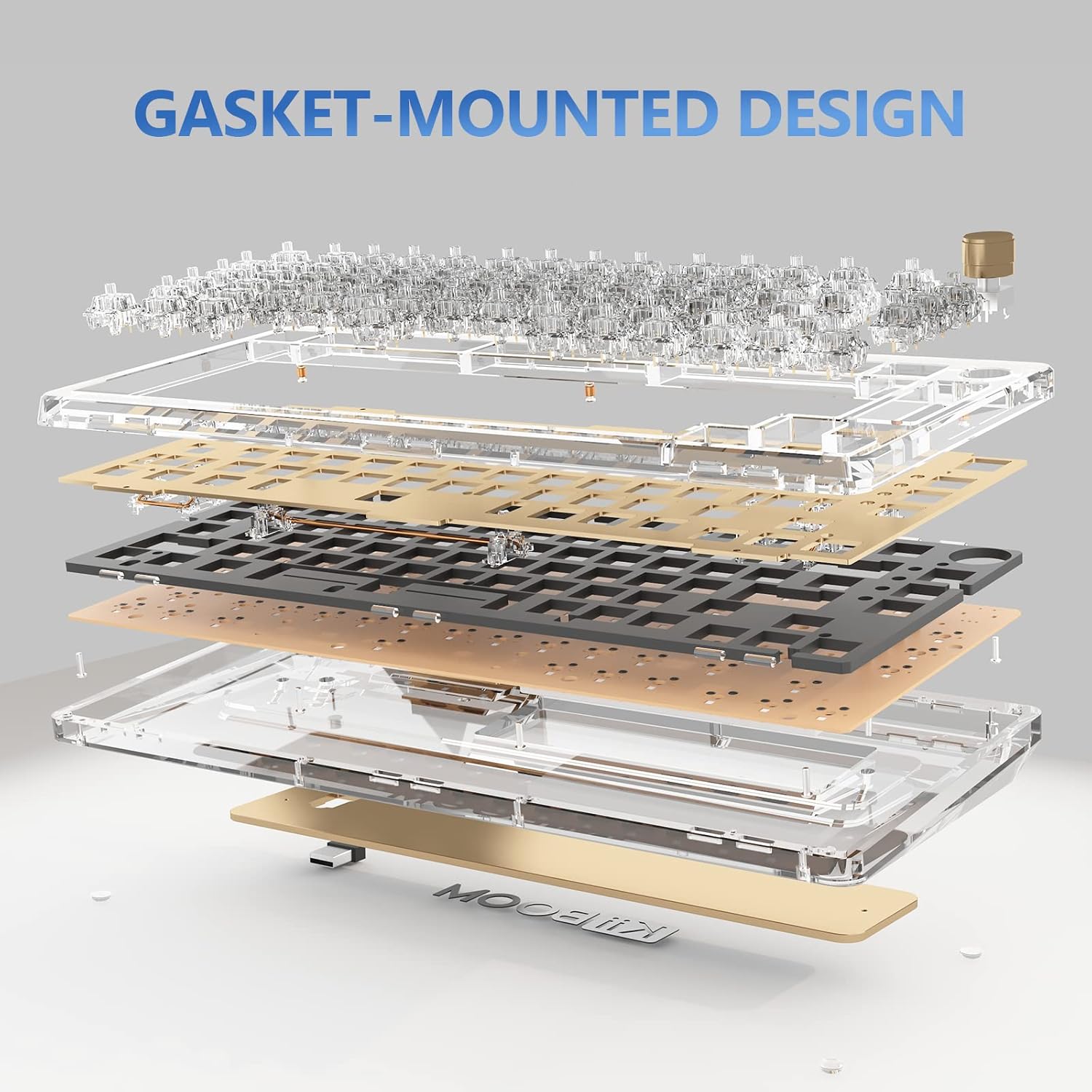
Image: A hand using a tool to remove a keycap and switch from the KiiBoom Phantom 81 keyboard, highlighting its hot-swappable feature.

Image: Exploded view of the KiiBoom Phantom 81 keyboard showing its gasket-mounted design and internal layers.
Video: An in-depth look at the KiiBoom Linear Jacaranda Keyboard Switch, detailing its design and specifications, relevant for switch replacement and maintenance.
5. Troubleshooting
Common Issues and Solutions
- Keyboard not connecting: Ensure the mode switch (Wired/BT/2.4G) is set correctly. For Bluetooth, ensure the keyboard is in pairing mode and visible to your device. For 2.4G, ensure the receiver is properly inserted. Try restarting your computer or the keyboard.
- Keys unresponsive or 'sticky': This could be due to debris under the keycap or a faulty switch. Try cleaning the area or replacing the switch using the hot-swappable feature.
- RGB lighting not working: Check the brightness settings using FN + Arrow Up. Ensure the keyboard is not in a low-power mode. If using software, verify settings there.
- Battery not charging: Ensure the USB Type-C cable is securely connected to both the keyboard and the power source. Try a different cable or USB port.
If you encounter persistent issues, please refer to the official KiiBoom support resources or contact customer service.
6. Specifications
| Feature | Detail |
|---|---|
| Product Dimensions | 12.99 x 5.91 x 1.38 inches |
| Item Weight | 4.8 pounds |
| Connectivity Technology | Bluetooth 5.0, 2.4GHz Wireless, USB Type-C Wired |
| Keyboard Description | Mechanical, 75% Layout |
| Special Features | RGB Backlit, Hot-Swappable, Rechargeable, Transparent Base, Gasket Mount, PC Plate |
| Compatible Devices | Laptop (Windows/Mac) |
| Battery Capacity | 4000mAh (V2) / 8000mAh (V3) |
| Manufacturer | KiiBoom |
| Date First Available | October 14, 2022 |
7. Warranty and Support
For warranty information and technical support, please visit the official KiiBoom website or contact their customer service. Keep your proof of purchase for warranty claims.


