
Introduction
This manual provides detailed instructions for the setup, operation, maintenance, and troubleshooting of your IOGEAR MECHLITE Nano 65% Mechanical Keyboard (GKB610R). Please read this manual thoroughly before using the product to ensure proper functionality and to prevent damage.
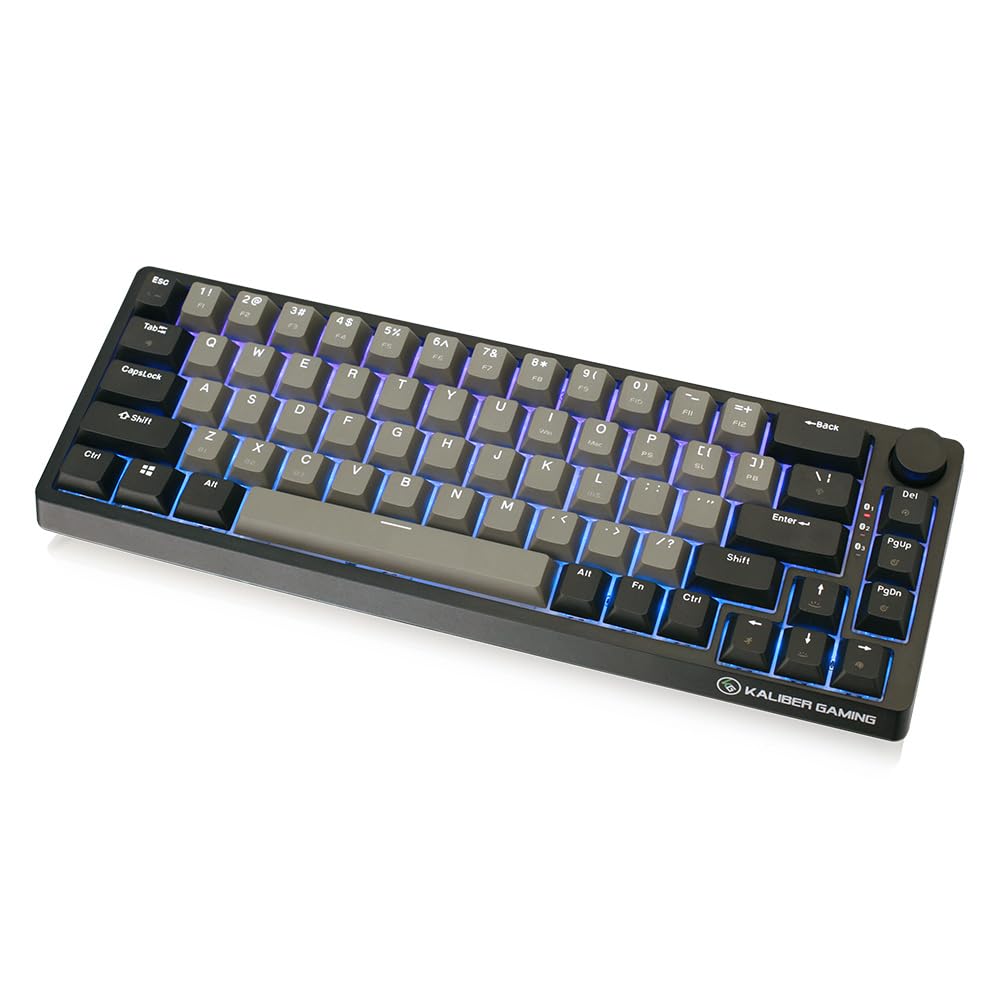
Image: The IOGEAR MECHLITE Nano 65% Mechanical Keyboard, showcasing its compact layout and RGB backlighting.
Package Contents
Verify that all items are present in the package:
- IOGEAR MECHLITE Nano 65% Mechanical Keyboard (GKB610R)
- USB-C to USB-A Cable (Detachable)
- User Manual (this document)
- Warranty Card
Product Overview
Key Features
- Compact 65% Layout: 67-key design, retaining essential keys.
- Dual Connectivity: Wireless Bluetooth 5.0 and wired USB-C.
- Mechanical Switches: Red linear mechanical switches for smooth keystrokes.
- RGB Backlighting: Per-key customizable RGB effects.
- Durable Keycaps: Premium PBT double-shot keycaps resist wear.
- Volume Control: Integrated tactile volume knob.
- Multi-Device Support: Connects up to 3 Bluetooth devices.
- Universal Compatibility: Supports Windows, macOS, iOS, Android, and gaming consoles.

Image: Overview of the keyboard highlighting its compact design, Bluetooth, and USB-C connectivity.
Components
Familiarize yourself with the keyboard's components:
- Keys: 67 PBT double-shot keycaps with laser-etched secondary functions.
- Volume Knob: Located on the top right for audio control.
- USB-C Port: For wired connection and charging, located on the rear edge.
- Indicator Lights: For Bluetooth pairing status and battery.
- Fold-in Stands: On the underside for adjustable typing angle.

Image: Detailed view of the PBT keycaps and red mechanical switches.

Image: The integrated volume control knob.

Image: The USB-C port for wired connection and charging.
Setup
Wired Connection
- Connect the provided USB-C cable to the USB-C port on the keyboard.
- Connect the USB-A end of the cable to an available USB port on your computer or device.
- The keyboard will be automatically detected and ready for use. The keyboard will also charge in wired mode.
Bluetooth Wireless Connection
The keyboard supports connecting up to three Bluetooth devices.
- Ensure the keyboard is powered on and sufficiently charged.
- Turn on the keyboard's power switch (usually located on the underside or side).
- To enter pairing mode for a specific slot (1, 2, or 3), press and hold the Fn key and one of the Bluetooth keys (1, 2, or 3) until the corresponding indicator light flashes rapidly.
- On your device (computer, tablet, phone), enable Bluetooth and search for new devices.
- Select "IOGEAR MECHLITE Nano" from the list of available devices.
- Follow any on-screen prompts to complete the pairing process. The indicator light will become solid when successfully paired.
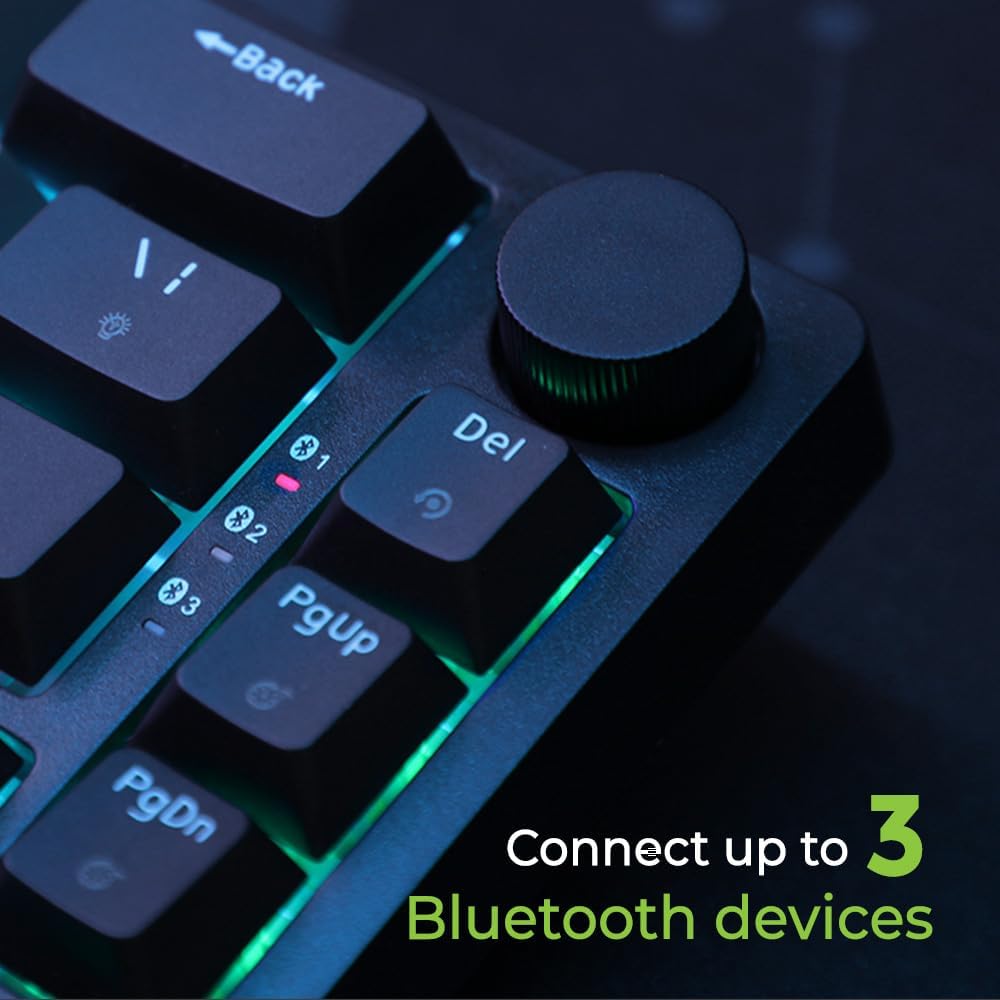
Image: Bluetooth indicator lights for multi-device pairing.
Operating Instructions
Switching Between Devices (Bluetooth)
Once multiple devices are paired, you can switch between them by pressing the Fn key and the corresponding Bluetooth key (1, 2, or 3) briefly. The indicator light will show which device is currently active.
RGB Backlighting Control
The keyboard features per-key RGB backlighting. Use the following key combinations to control the lighting effects:
- Fn + \ |: Cycle through different lighting effects.
- Fn + [ { or Fn + ] }: Adjust brightness levels.
- Fn + ; : or Fn + ' ": Adjust effect speed.
- Fn + , < or Fn + . >: Change backlight colors (for static modes).
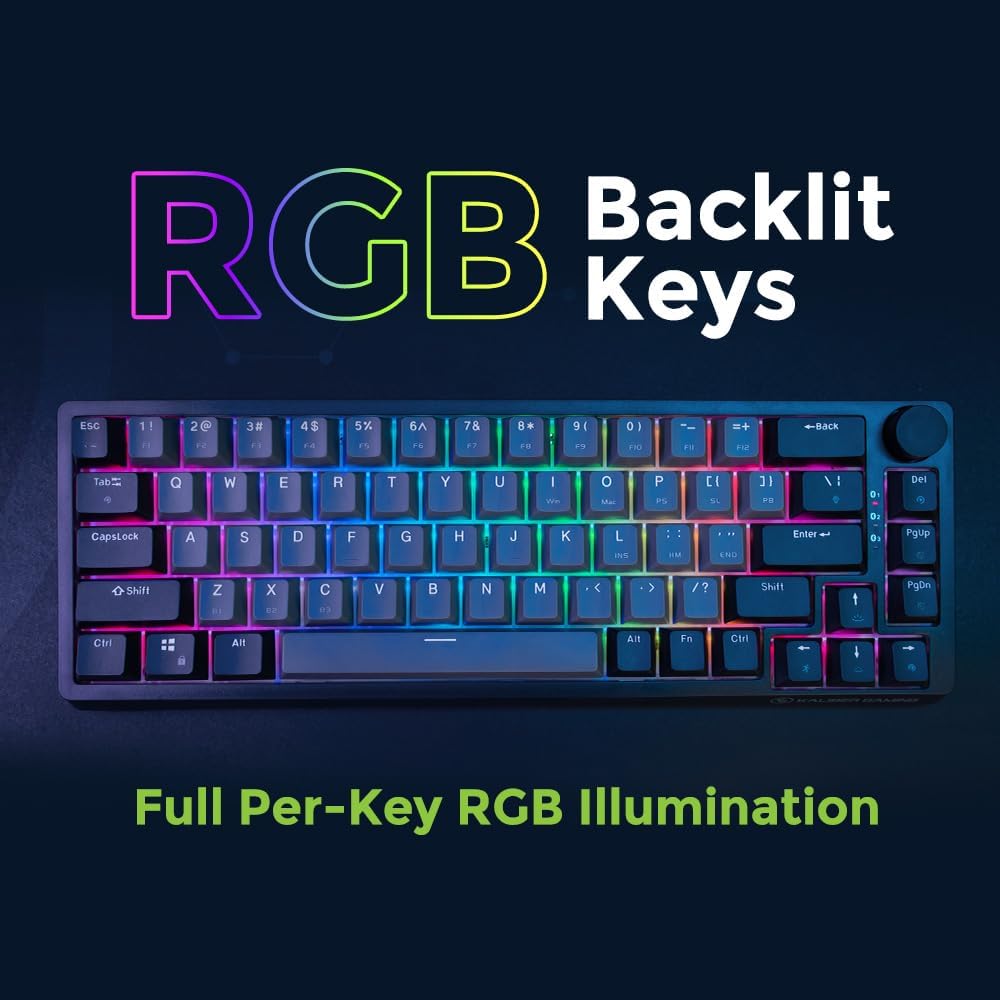
Image: The keyboard displaying its vibrant RGB backlighting.
Volume Control Knob
The dedicated volume knob allows for quick audio adjustments:
- Rotate Clockwise: Increase volume.
- Rotate Counter-clockwise: Decrease volume.
- Press Down: Mute/Unmute audio.
Maintenance
To ensure the longevity and optimal performance of your keyboard, follow these maintenance guidelines:
- Cleaning: Use a soft, dry cloth to wipe the keyboard surface. For deeper cleaning, use compressed air to remove dust and debris from between the keycaps. Avoid using liquid cleaners directly on the keyboard.
- Keycap Removal: If necessary, keycaps can be carefully removed using a keycap puller (not included) for thorough cleaning or switch replacement. Exercise caution to avoid damaging the switches.
- Storage: Store the keyboard in a cool, dry place away from direct sunlight and extreme temperatures when not in use for extended periods.
- Battery Care: For optimal battery life, avoid fully discharging the keyboard frequently. Charge the keyboard regularly, especially if it will be stored for a long time.
Troubleshooting
If you encounter issues with your keyboard, refer to the following common solutions:
| Problem | Solution |
|---|---|
| Keyboard not responding (wired) |
|
| Keyboard not connecting via Bluetooth |
|
| RGB backlighting not working or stuck |
|
| Keys not registering or double-typing |
|
Specifications
| Feature | Detail |
|---|---|
| Model Number | GKB610R |
| Brand | IOGEAR |
| Layout | 65% Compact (67 Keys), QWERTY |
| Connectivity | Bluetooth 5.0, USB-C Wired |
| Switches | Red Linear Mechanical Switches (Cherry MX Red equivalent) |
| Keycaps | PBT Double-Shot |
| Backlighting | Per-Key RGB |
| Special Features | Volume Control Knob, Multi-Device Pairing (up to 3 Bluetooth devices) |
| Compatibility | Windows, macOS, iOS, Android, Gaming Consoles |
| Power Source | Battery Powered (Internal), USB-C Charging |
| Battery Life | Up to 60 hours (with RGB backlight disabled) |
| Material | Polybutylene Terephthalate (Keycaps) |
| Weight | Approximately 2 pounds |
Warranty and Support
The IOGEAR MECHLITE Nano 65% Mechanical Keyboard (GKB610R) comes with a 2-Year Limited Hardware Warranty and Lifetime Technical Support from IOGEAR.
For warranty claims, technical assistance, or additional product information, please visit the official IOGEAR website or contact their customer support. Refer to the included Warranty Card for specific terms and conditions.
Online resources and FAQs may also be available on the IOGEAR support page: www.iogear.com/support
