
Gixxted A6S
Gixxted Bluetooth Headset User Manual
Model: A6S
Product Overview
The Gixxted Bluetooth Headset (Model A6S) is a V5.1 wireless earpiece designed for clear communication and audio playback. It features advanced environmental noise cancellation and dual microphone technology to minimize background noise during calls. The headset offers extended battery life, dual device connectivity, and a comfortable, flexible design suitable for all-day wear. It is compatible with a wide range of Bluetooth-enabled devices, including iOS and Android cellphones, computers, and laptops.

Image: The Gixxted Bluetooth Headset, showcasing its sleek black design and accompanying portable storage case.
What's in the Box
- Gixxted Bluetooth Headset
- Charging Cable (USB-C)
- Protective Case
- Ear Cushions (various sizes)
- User Manual
Setup Guide
1. Charging the Headset
Before first use, fully charge the headset. Connect the provided USB-C charging cable to the headset's charging port and the other end to a compatible USB power source. The headset requires approximately 3 hours for a full charge.

Image: A visual representation of the headset's long battery life, indicating up to 110 hours of working time, 100 hours talk time, and 90 days standby time.
2. Powering On/Off
To power on, press and hold the Multi-function Button until the LED indicator flashes. To power off, press and hold the Multi-function Button again until the LED indicator turns off.
3. Bluetooth Pairing
- Ensure the headset is fully charged and powered off.
- Press and hold the Multi-function Button for approximately 5-7 seconds until the LED indicator flashes red and blue alternately, indicating pairing mode.
- On your device (phone, PC, laptop), enable Bluetooth and search for available devices.
- Select "Gixxted A6S" (or similar name) from the list of found devices.
- Once connected, the LED indicator will flash blue slowly.
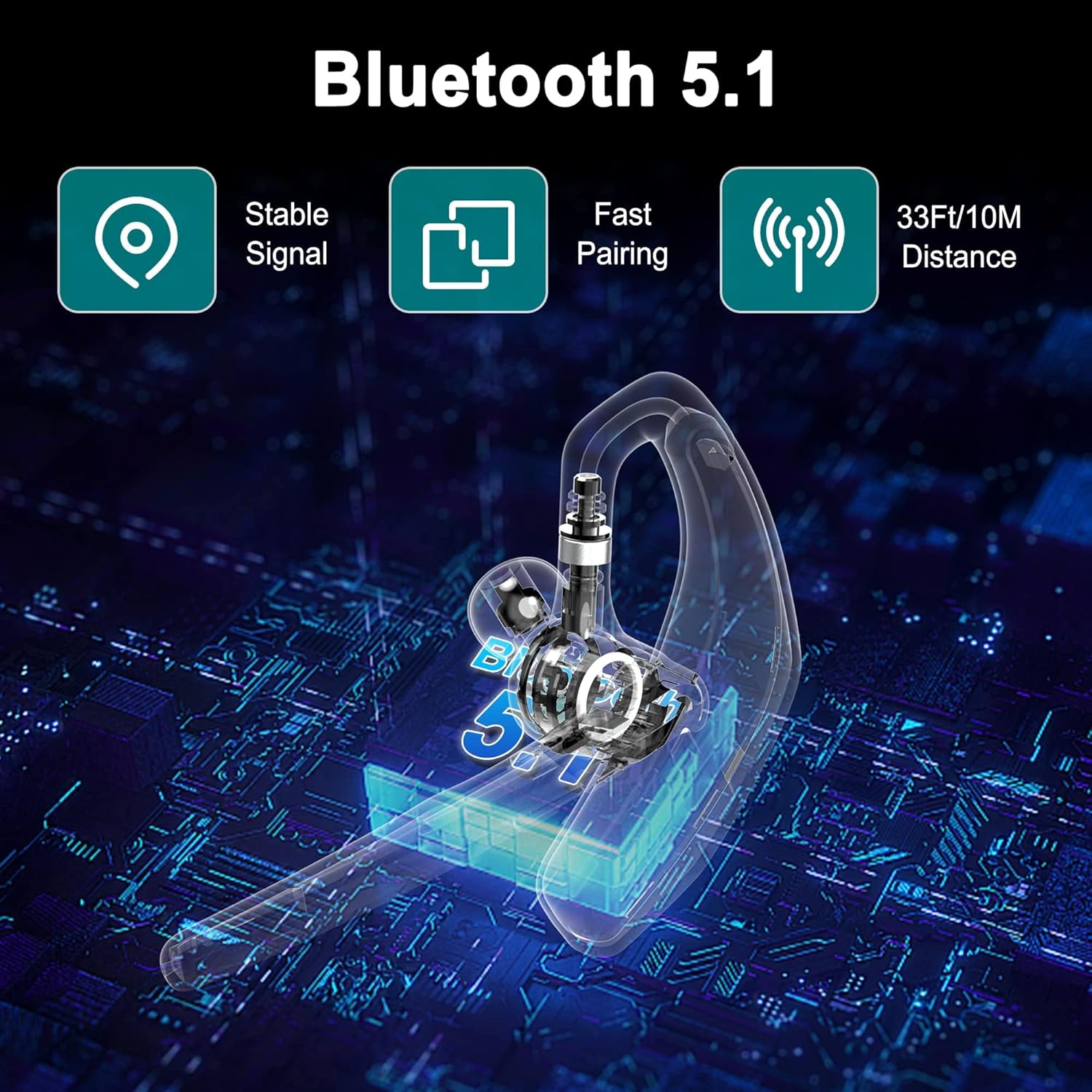
Image: An illustration highlighting the stable signal, fast pairing, and 33ft/10m distance capabilities of Bluetooth 5.1 technology.
4. Dual Device Connection
The Gixxted headset supports connecting to two Bluetooth devices simultaneously. After pairing with the first device, disable Bluetooth on that device. Then, put the headset back into pairing mode and connect to the second device. Once connected, re-enable Bluetooth on the first device. The headset should automatically connect to both. You can answer calls from either connected device.
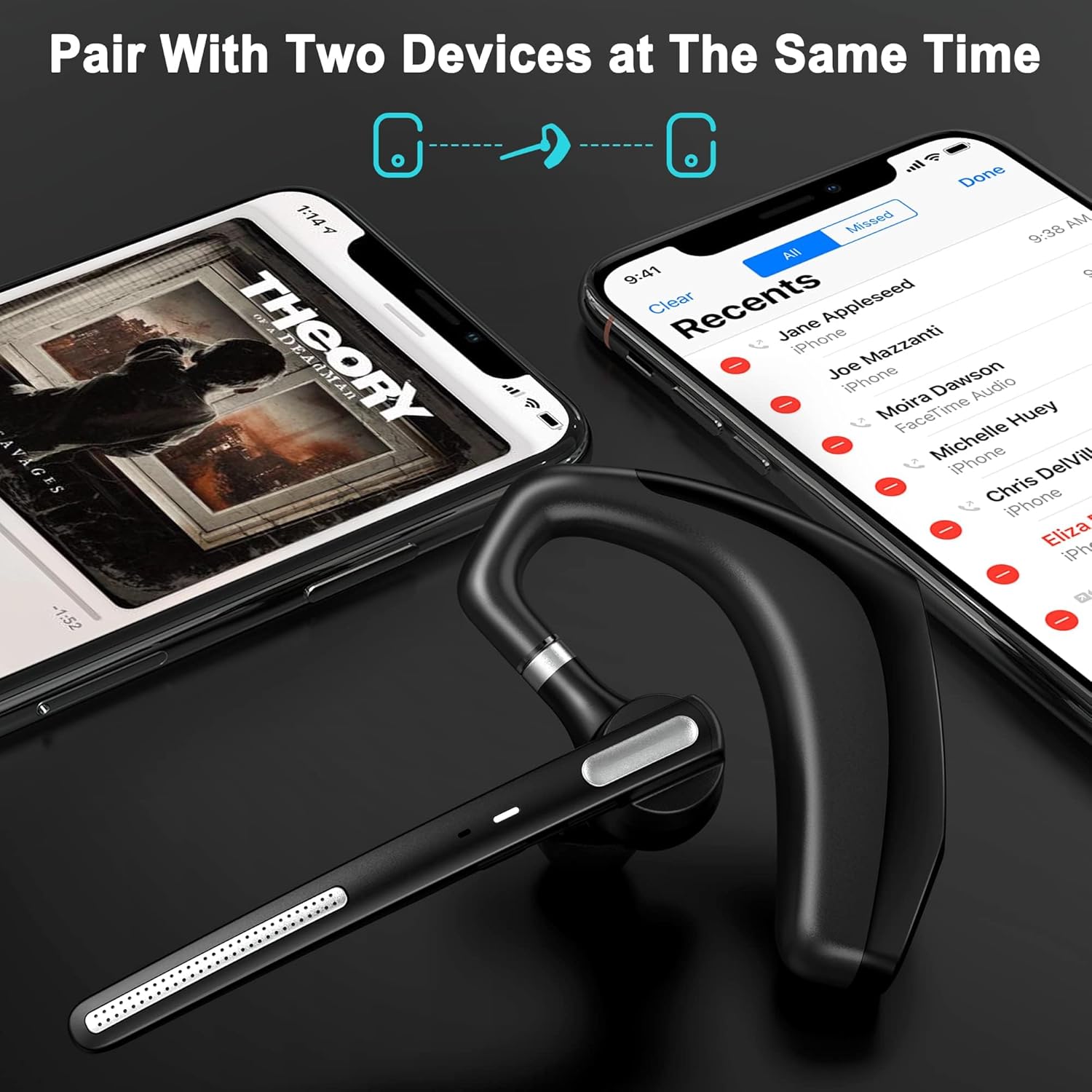
Image: Two smartphones connected to the headset, illustrating the dual device pairing feature.
Operating Instructions
1. Wearing the Headset
The headset is designed for all-day comfort and can be worn on either ear. The ear hook and boom mic can be rotated to your preferred angle for optimal fit and microphone positioning. Select the appropriate ear cushion size for a secure and comfortable fit.
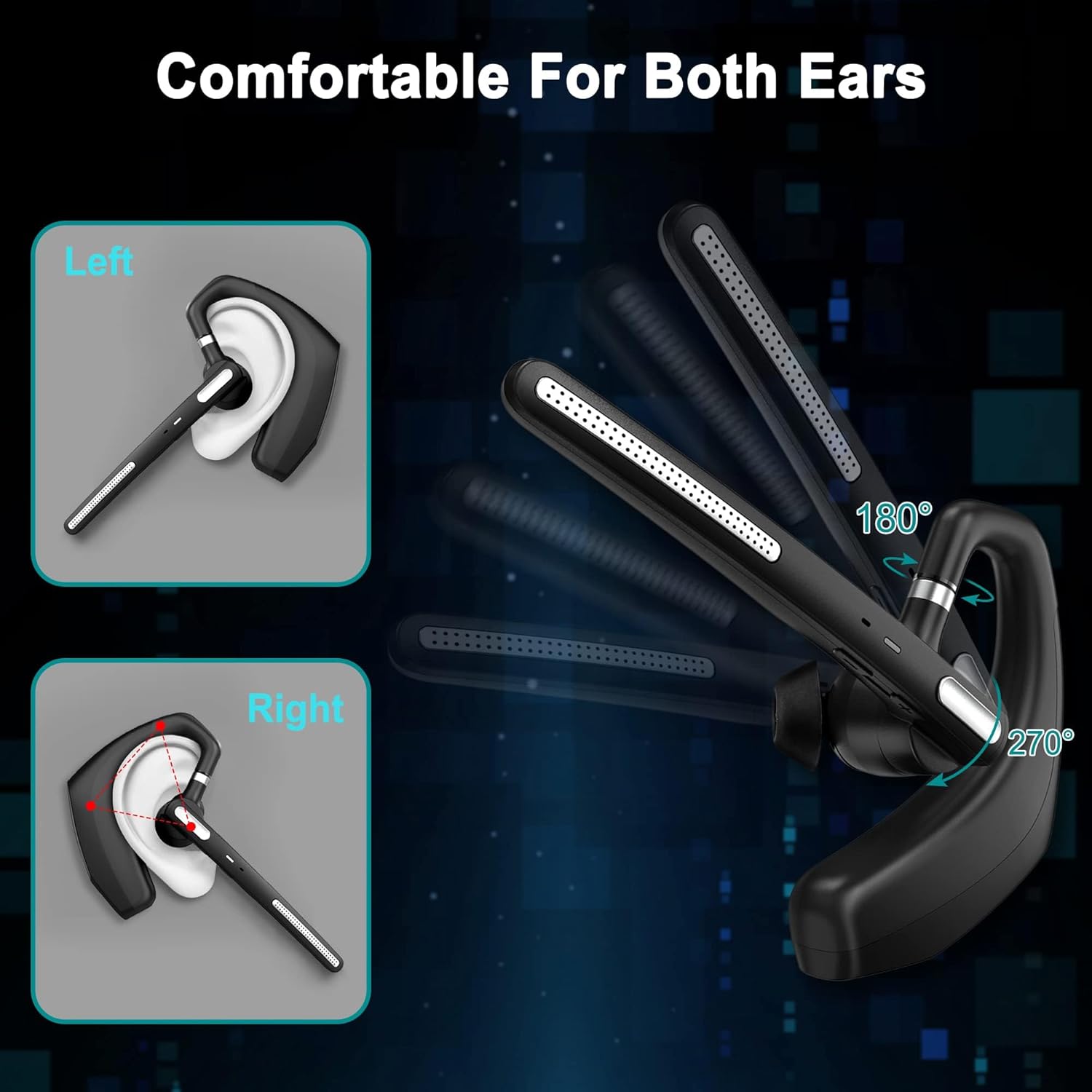
Image: Diagrams showing how the headset can be worn on the left or right ear, and the 180-degree and 270-degree rotation capabilities of the ear hook and microphone boom for customized comfort.
2. Call Management
- Answer/End Call: Press the Multi-function Button once.
- Reject Call: Press and hold the Multi-function Button for 2 seconds.
- Redial Last Number: Double-press the Multi-function Button.
- Mute/Unmute Microphone: Press the Mute Button once during a call. Note: The mute button only works for cell phones.

Image: Two individuals using the headset for hands-free communication, with icons indicating 33 feet range, mute function, and voice prompt capabilities.
3. Music Playback
- Play/Pause: Press the Multi-function Button once.
- Next Track: Press and hold the Volume Up button.
- Previous Track: Press and hold the Volume Down button.
4. Volume Control
- Increase Volume: Press the Volume Up button.
- Decrease Volume: Press the Volume Down button.
5. Voice Assistant
To activate your phone's voice assistant (Siri, Google Assistant, etc.), double-press the Multi-function Button. Wait for the prompt before speaking your command.
Maintenance
To ensure the longevity and optimal performance of your Gixxted Bluetooth Headset, follow these maintenance guidelines:
- Cleaning: Gently wipe the headset with a soft, dry cloth. Avoid using harsh chemicals, cleaning solvents, or strong detergents.
- Storage: When not in use, store the headset in its protective case to prevent damage from dust, moisture, and physical impact.
- Temperature: Avoid exposing the headset to extreme temperatures (hot or cold) or direct sunlight for prolonged periods.
- Moisture: Keep the headset dry. Do not immerse it in water or expose it to excessive humidity.
Troubleshooting
If you encounter issues with your Gixxted Bluetooth Headset, refer to the following common solutions:
- Headset not turning on:
Ensure the headset is fully charged. Connect it to a power source and allow it to charge for at least 30 minutes before attempting to power on again.
- Cannot pair with device:
Make sure the headset is in pairing mode (LED flashing red and blue). Ensure Bluetooth is enabled on your device and it is within 33 feet (10 meters) of the headset. Try restarting both the headset and your device.
- No audio or poor sound quality:
Check the volume levels on both the headset and your connected device. Ensure the headset is properly connected and not paired with another device. Move closer to your device to avoid interference.
- Microphone not working or background noise during calls:
Ensure the microphone boom is positioned correctly. Verify that the microphone is not muted. While the headset features advanced noise cancellation, extreme background noise may still be audible to the other party. Try moving to a quieter environment.
- Mute button not working on PC/Laptop:
Please note that the mute button functionality is designed primarily for cell phones and may not work with all computer or laptop applications.
- Headset not turning off when placed in case:
The provided protective case is for storage and protection only and does not automatically power off the headset. You must manually power off the headset by pressing and holding the Multi-function Button before placing it in the case.
Specifications
| Feature | Detail |
|---|---|
| Model Name | A6S |
| Connectivity Technology | Bluetooth |
| Wireless Communication Technology | Bluetooth |
| Bluetooth Version | 5.0 |
| Bluetooth Range | 33 Feet |
| Battery Life (Music) | 110 Hours |
| Battery Life (Talk) | 100 Hours |
| Standby Time | 90 Days |
| Charging Time | 3 Hours |
| Noise Control | Active Noise Cancellation |
| Control Method | Touch, Voice |
| Ear Placement | In Ear |
| Form Factor | Over Ear |
| Material | Plastic |
| Item Weight | 4.2 ounces |
Warranty and Support
For warranty information and customer support, please refer to the documentation included with your product or contact Gixxted customer service directly. A digital version of the user manual may also be available on the manufacturer's website.
For additional assistance, you may refer to the User Manual (PDF).
Related documentsA6S


Ask a question about this manual
Ask about setup, troubleshooting, compatibility, parts, safety, or missing instructions. Manuals+ will review the question and use this page’s manual context to help answer it.