
Introduction
This manual provides detailed instructions for the setup, operation, maintenance, and troubleshooting of your Gimars RGB Gaming Mouse Pad with 15W Wireless Charging. Please read this manual thoroughly before using the product to ensure optimal performance and longevity.
Product Features
- 15W Qi Wireless Charging: Integrated wireless charging pad compatible with Qi-enabled devices. Features an elevated charging platform for improved charging efficiency.
- 10 RGB LED Lighting Modes: Customizable lighting with 7 static modes and 3 dynamic effects. Includes a memory function for preferred settings.
- Large Surface Area: Measures 800x300x4mm, providing ample space for a keyboard, mouse, and other desktop items.
- Waterproof Material: Ultra-high-density micro-textured fabric surface is water-resistant and easy to clean.
- Anti-Slip Rubber Base: Natural rubber base ensures stability and prevents movement during use.
- Type-C Interface: Upgraded Type-C interface for enhanced charging performance.
- Durable Edging: High-quality double-pressed edging prevents curling and fraying.
Package Contents
Please verify that all items are present in your package:
- Gimars RGB Gaming Mouse Pad with 15W Wireless Charging
- Type-C Data Cable
- User Manual (this document)
Setup Instructions
Unpack the Mouse Pad: Carefully remove the mouse pad from its packaging. If the pad appears curled due to transportation, allow it to lay flat for 12 hours or place heavy objects on it to flatten.

Image: The mouse pad laid out on a desk, highlighting its flat design and anti-curling properties.
Connect Power: Connect the provided Type-C data cable to the mouse pad's Type-C interface. Plug the other end of the cable into a compatible USB power adapter (not included). For 15W, 10W, or 7.5W fast charging, a 9V 2A, 5V 2A, or 5V 2.4A power adapter is required, respectively.

Image: Close-up of the mouse pad showing the Type-C cable connection and a phone charging wirelessly.
Placement: Position the mouse pad on a flat, stable surface. The anti-slip rubber base will help secure it in place.

Image: The large mouse pad covering a desk area, accommodating a keyboard and mouse.
Operating Instructions
1. Wireless Charging Function
Place Device: Place your Qi-enabled device (e.g., smartphone, earbuds) on the elevated charging platform located on the mouse pad. The elevated design assists in precise positioning.

Image: A hand placing a smartphone onto the wireless charging area of the mouse pad.
Charging Indicators: Observe the LED indicators near the charging area:
- Red Light: Indicates the device is currently charging.
- Green Light: Indicates the device is fully charged.
- Yellow Light: Indicates standby mode.

Image: Visual representation of the charging indicator lights (red for charging, green for full, yellow for standby).
Compatibility: The wireless charger is compatible with Qi-enabled devices, including various iPhone models (X/XR/XS/11/11 Pro/12/13/14/15/16), Samsung Galaxy models (S22/S21/S20/S9/S8 Plus, Note 9/8), Google Pixel, and other Qi-enabled devices. Ensure your device supports Qi wireless charging.

Image: A chart illustrating the broad compatibility of the wireless charging feature with different phone brands and models.
Phone Case Friendly: The charger is designed to work with phone cases up to 4mm thick. Avoid cases with magnets, metal, grips, stands, or credit cards, as these may interfere with charging.

Image: A visual guide on phone case compatibility for wireless charging.
2. RGB LED Lighting Modes
Change Modes: Press the touch button on the mouse pad to cycle through the 10 available lighting modes. These include 7 static colors (Red, Green, Blue, Purple, Light Blue, Yellow, White) and 3 dynamic effects.

Image: The mouse pad showcasing different RGB lighting colors and effects.
Turn Off Lights: Long press the touch button for 3 seconds to turn off the RGB lighting.
Memory Function: The mouse pad will remember the last selected lighting mode when powered off and on again.
3. Mouse Pad Surface
Smooth Tracking: The micro-textured fabric surface is designed for accurate tracking and smooth mouse movements, suitable for both gaming and office tasks.
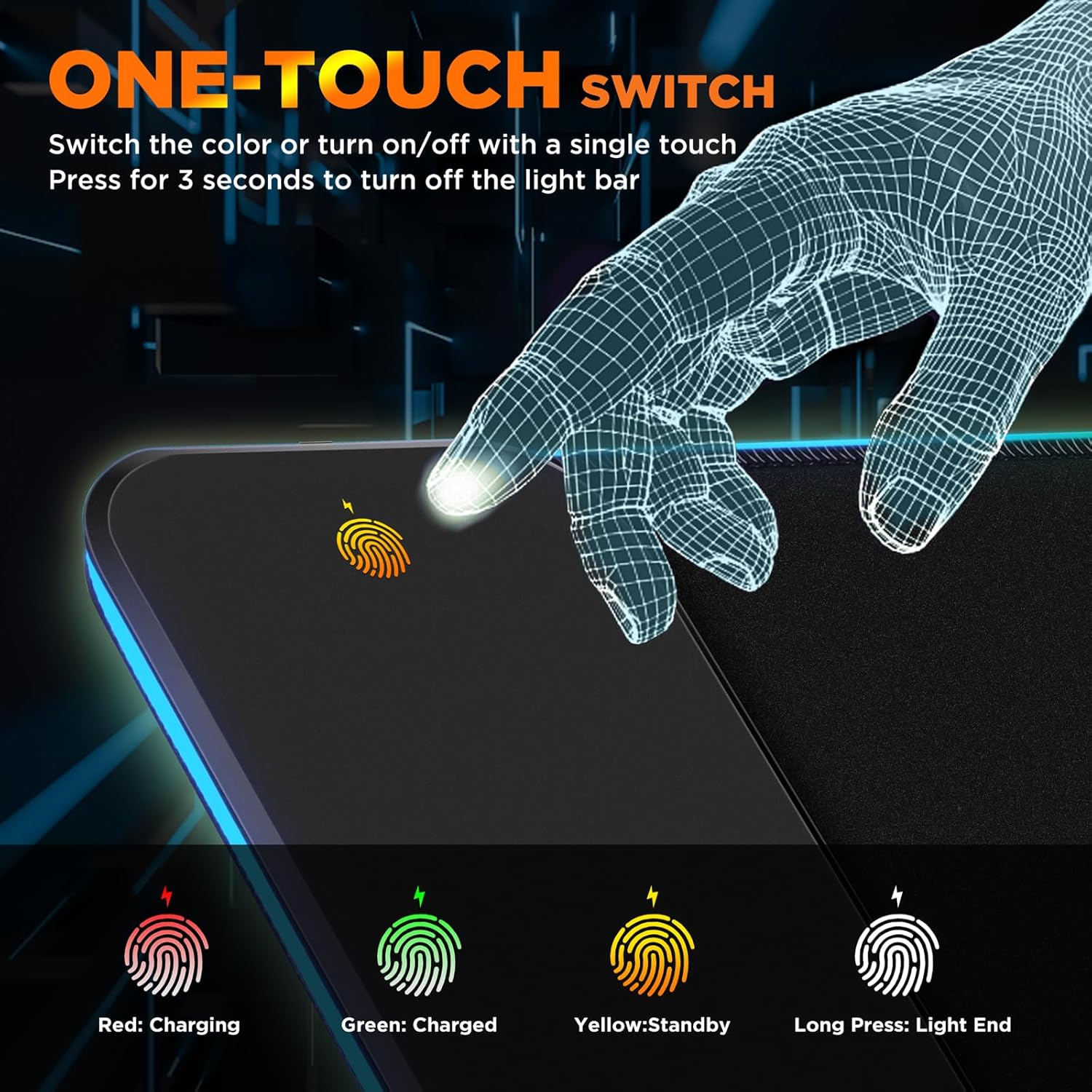
Image: A mouse moving smoothly across the micro-textured surface of the mouse pad.
Maintenance
Cleaning: The waterproof surface allows for easy cleaning. Use a damp cloth to wipe away spills or crumbs. Avoid harsh chemicals or abrasive cleaners.

Image: Water droplets on the mouse pad surface, demonstrating its waterproof quality.
Storage: When not in use, store the mouse pad flat or rolled loosely to prevent creasing. Avoid folding it tightly.
Avoid Extreme Temperatures: Do not expose the mouse pad to extreme heat or cold, as this may affect its material and electronic components.
Troubleshooting
| Problem | Possible Cause | Solution |
|---|---|---|
| Wireless charging is slow or not working. |
|
|
| RGB lighting is not turning on or changing. |
|
|
| Mouse pad edges are curling. |
|
|
Specifications
| Feature | Detail |
|---|---|
| Brand | Gimars |
| Model Number | G-RGB-W03 |
| Color | Black-RGB+Wireless Charging |
| Material | Rubber, Fabric |
| Item Dimensions (L x W) | 31.5"L x 11.8"W (800mm x 300mm) |
| Item Thickness | 4 Millimeters |
| Special Features | Non-slip, RGB, Type-C Interface, Waterproof, Wireless Charging |
| Recommended Uses | Gaming, Office |
| Wireless Charging Output | 15W (requires compatible adapter) |
| RGB Lighting Modes | 10 (7 static, 3 dynamic) |
| UPC | 850063561365 |
Warranty and Support
The Gimars RGB Gaming Mouse Pad comes with a 1-year warranty from the date of purchase.
For any questions, concerns, or technical support regarding your product, please contact Gimars customer service. We aim to respond and assist you within 24 hours.
You can visit the official Gimars store for more information and support: Gimars Store