
Introduction
This manual provides essential information for setting up, operating, and maintaining your Yoidesu P50 10.1-inch tablet. Please read this guide thoroughly to ensure optimal performance and longevity of your device. The Yoidesu P50 features a 10.1-inch 1080p display, 1GB RAM, 16GB ROM, and runs on Android 5.1 Lollipop, powered by a 4500mAh battery.
What's in the Box
Upon opening your Yoidesu P50 tablet package, you should find the following items:
- Yoidesu P50 Tablet
- Data Cable
- Power Adapter
- OTG Cable
- User Manual (this document)
Product Overview
Familiarize yourself with the physical components of your Yoidesu P50 tablet.

Figure 1: Front and back view of the Yoidesu P50 tablet, showcasing its sleek design and rear camera module.
Physical Features
- 10.1-inch Display: High-resolution screen for clear visuals.
- Front Camera: Located above the screen for video calls and selfies.
- Rear Camera: Positioned on the back for capturing photos and videos.
- Power Button: Typically on the side, used to turn the device on/off or wake/sleep.
- Volume Buttons: Adjust audio levels.
- USB Port: For charging and data transfer.
- Headphone Jack: For connecting audio devices.
- Speaker Grilles: For audio output.
- MicroSD Card Slot: For expanding storage.
- SIM Card Slot: For cellular connectivity (if applicable).

Figure 2: The Yoidesu P50 tablet running on Android 5.1, highlighting the camera and card slots.
Setup
1. Charging the Tablet
Before initial use, fully charge your tablet. Connect the provided data cable to the tablet's USB port and the power adapter to a wall outlet. The battery indicator on the screen will show charging status.
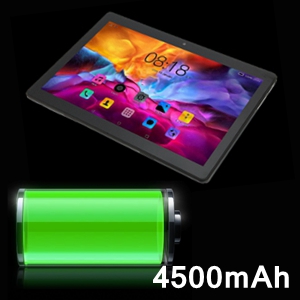
Figure 3: The tablet is equipped with a 4500mAh battery for extended use.
2. Powering On/Off
- To power on: Press and hold the Power button until the screen lights up.
- To power off: Press and hold the Power button, then select "Power off" from the options.
3. Initial Setup Wizard
Follow the on-screen instructions to complete the initial setup, which includes:
- Selecting your language.
- Connecting to a Wi-Fi network.
- Setting up your Google account (optional, but recommended for app downloads).
- Setting date and time.
4. Inserting SIM/MicroSD Card
Locate the card slot on the side of the tablet. Use the provided tool (if any) or your fingernail to open the tray. Carefully insert your SIM card (for cellular data/calls) and/or MicroSD card (for expanded storage) into the designated slots. Ensure the tray is securely closed.
Operating Your Tablet
Basic Navigation
- Tap: Select an item or open an app.
- Touch & Hold: Access contextual menus or move items.
- Swipe: Scroll through screens or lists.
- Pinch: Zoom in or out on photos and web pages.
Using the Keyboard (Optional Accessory)
If you have a compatible keyboard accessory, connect it via Bluetooth or the designated physical connector. Refer to the keyboard's specific instructions for pairing. Once connected, you can use it for typing, navigation, and shortcuts, enhancing productivity.

Figure 4: The Yoidesu P50 tablet can be paired with a keyboard and mouse for a laptop-like experience.
Camera Usage
Open the Camera app from the home screen. You can switch between the 0.3MP front camera and the 2.0MP rear camera. Tap the shutter button to take photos or switch to video mode to record. Explore settings for various modes and effects.
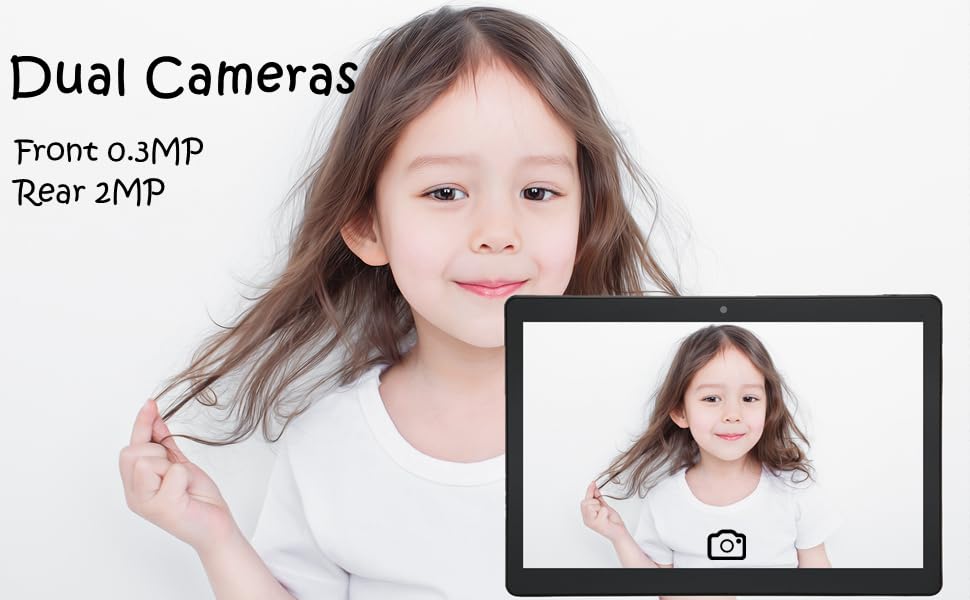
Figure 5: The tablet features dual cameras: a 0.3MP front camera and a 2.0MP rear camera.
Eye Health Mode
The tablet includes an Eye Health mode that filters blue light to reduce visual fatigue and optimizes background light for a more comfortable reading experience. Activate this mode in the display settings.

Figure 6: The tablet's Eye Health mode helps reduce eye strain during prolonged use.
Maintenance
- Cleaning: Use a soft, lint-free cloth to clean the screen and body. Avoid harsh chemicals.
- Battery Care: To prolong battery life, avoid extreme temperatures and do not let the battery fully discharge frequently.
- Software Updates: Regularly check for and install system updates to ensure optimal performance and security. Go to Settings > About tablet > System updates.
- Storage Management: Periodically clear unnecessary files and apps to maintain device speed.
Troubleshooting
Tablet Not Turning On
- Ensure the battery is charged. Connect the charger and wait a few minutes before attempting to power on again.
- Press and hold the Power button for at least 10-15 seconds to perform a forced restart.
Wi-Fi Connection Issues
- Check if Wi-Fi is enabled in Settings.
- Restart your Wi-Fi router and the tablet.
- Forget the network and reconnect, ensuring the password is correct.
Slow Performance
- Close unused applications running in the background.
- Clear cache data for apps.
- Ensure sufficient storage space is available.
- Restart the tablet periodically.
Specifications
| Feature | Detail |
|---|---|
| Brand | Yoidesu |
| Model Name | P50 |
| Operating System | Android 5.1 Lollipop |
| Screen Size | 10.1 Inches |
| Max Screen Resolution | 1960x1080 |
| Processor | 1.7 GHz (MediaTek Mali-450 MP4 Graphics Coprocessor) |
| RAM | 1 GB |
| ROM (Internal Storage) | 16 GB |
| Memory Storage Capacity | 128 GB (expandable via MicroSD) |
| Battery | 4500mAh |
| Wireless Type | 802.11g |
| Item Weight | 1.84 pounds |
| Color | Black |
Warranty and Support
For warranty information and customer support, please refer to the documentation included with your purchase or contact the retailer/manufacturer directly. Keep your proof of purchase for warranty claims.