
1. Introduction
The Maxell Sync Up True Wireless Bluetooth Earbuds provide a high-fidelity audio experience with deep bass. Designed for a secure and comfortable fit, these earbuds offer up to 12 hours of playtime with the included charging case. Integrated controls allow for music management, call handling, and voice assistant activation without needing to access your phone. The built-in microphone ensures clear communication during calls.
2. What's in the Box
- Maxell Sync Up True Wireless Bluetooth Earbuds (Left and Right)
- Wireless Charging Case
- Extra Eartips (various sizes)
- Case-to-USB Charging Cable

Image: Maxell Sync Up True Wireless Earbuds resting inside their charging case, which is open. The earbuds are black, and the case is also black with the Maxell logo visible.
3. Setup
3.1 Charging the Earbuds and Case
Before first use, fully charge the earbuds and the charging case.
- Place the earbuds into the charging case. Ensure they are correctly seated in their respective slots.
- Connect the provided USB charging cable to the charging port on the case and plug the other end into a USB power source (e.g., computer, wall adapter).
- The indicator lights on the charging case will illuminate to show charging status. Once fully charged, the lights may change color or turn off.
The charging case provides up to 12 hours of additional playtime for the earbuds.
3.2 Pairing with a Bluetooth Device
To connect your earbuds to a smartphone or other Bluetooth-enabled device:
- Ensure the earbuds are charged and inside the charging case.
- Open the charging case lid. The earbuds will automatically enter pairing mode, indicated by flashing LED lights on the earbuds.
- On your device, go to Bluetooth settings and enable Bluetooth.
- Search for available devices and select "Maxell Sync Up" from the list.
- Once connected, the earbud LED lights will stop flashing or change to a solid color.
- The earbuds will automatically reconnect to the last paired device when removed from the case and within range.
3.3 Fitting the Earbuds
For optimal sound quality and comfort, select the correct eartip size and ensure a secure fit.
- Try different eartip sizes provided to find the best seal for your ear canal.
- Insert the earbud into your ear and gently twist it forward or backward until it feels secure and comfortable. The wing tip design aids in a more secure fit.
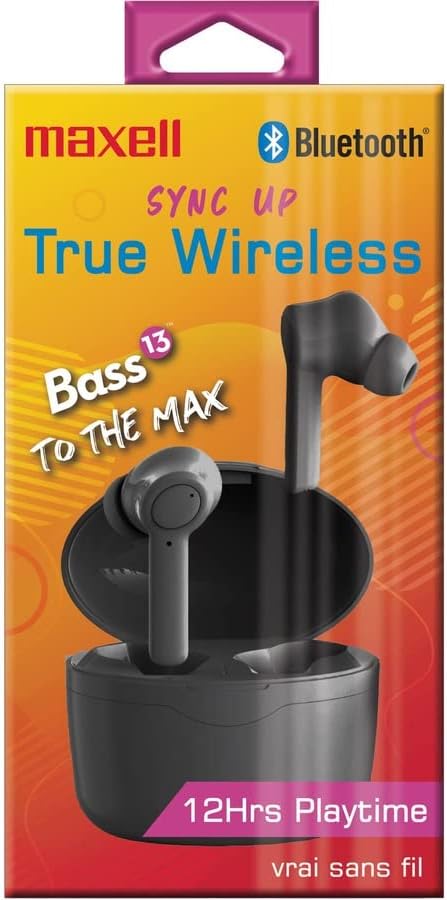
Image: The Maxell Sync Up True Wireless Earbuds shown in their retail packaging. The packaging highlights features like "True Wireless" and "12Hrs Playtime".
4. Operating Instructions
Each earbud features a multi-function button for control.
4.1 Power On/Off
- Power On: Open the charging case lid, or press and hold the multi-function button on each earbud for 3 seconds.
- Power Off: Place the earbuds back into the charging case and close the lid, or press and hold the multi-function button on each earbud for 5 seconds.
4.2 Music Control
- Play/Pause: Single press the multi-function button on either earbud.
- Next Track: Double press the multi-function button on the right earbud.
- Previous Track: Double press the multi-function button on the left earbud.
4.3 Call Control
- Answer/End Call: Single press the multi-function button on either earbud.
- Reject Call: Press and hold the multi-function button on either earbud for 2 seconds.
4.4 Voice Assistant
- Activate Voice Assistant: Triple press the multi-function button on either earbud.
5. Maintenance
5.1 Cleaning
- Regularly clean the earbuds and charging case with a soft, dry, lint-free cloth.
- Do not use abrasive cleaners, alcohol, or chemical solvents.
- Gently remove eartips and clean any earwax or debris from the earbud nozzles using a small, soft brush or cotton swab. Ensure the nozzles are dry before reattaching eartips.
5.2 Storage
- When not in use, store the earbuds in their charging case to protect them and keep them charged.
- Store the device in a cool, dry place, away from extreme temperatures and direct sunlight.
6. Troubleshooting
6.1 Earbuds Not Pairing
- Ensure both earbuds are charged.
- Make sure Bluetooth is enabled on your device.
- Place earbuds back in the case, close the lid, wait a few seconds, then open the lid to re-enter pairing mode.
- Forget "Maxell Sync Up" from your device's Bluetooth list and try pairing again.
- Ensure the earbuds are within the 10-meter Bluetooth range of your device.
6.2 No Sound or Intermittent Audio
- Check the volume level on both your device and the earbuds.
- Ensure the earbuds are properly connected to your device.
- Move closer to your device to avoid interference.
- Try playing audio from a different application or source.
6.3 Charging Issues
- Verify the charging cable is securely connected to both the case and the power source.
- Try a different USB port or power adapter.
- Ensure the charging contacts on the earbuds and inside the case are clean and free of debris.
7. Specifications
| Brand | Maxell |
| Model Number | 199899 |
| Model Name | Sync Up True Wireless Bluetooth Earbuds |
| Color | Black |
| Ear Placement | In Ear |
| Form Factor | In Ear |
| Impedance | 16 Ohms |
| Built-In Media | Wireless Charging Case |
| Battery Average Life (Earbuds) | 6 Hours |
| Battery Average Life (with Case) | 12 Hours |
| Noise Control | Sound Isolation |
| Frequency Range | 20 Hz - 20 kHz |
| Additional Features | Microphone Included |
| Control Method | Touch, Voice |
| Connectivity Technology | Wireless |
| Wireless Technology | Bluetooth |
| Bluetooth Version | 5.0 |
| Bluetooth Range | 10 Meters |
| Water Resistance Level | Not Water Resistant |
| Carrying Case Material | Plastic or Aluminum |
| Item Weight | 1 Pounds |
8. Warranty and Support
8.1 Warranty Information
This product comes with a standard manufacturer's warranty. Please refer to the warranty card included in your product packaging or visit the official Maxell website for detailed warranty terms and conditions.
8.2 Customer Support
For technical assistance, troubleshooting, or general inquiries, please contact Maxell customer support. Contact information can typically be found on the Maxell official website or within your product documentation.
You can visit the Maxell Store on Amazon for more product information.


