
1. Introduction
Thank you for choosing the Earto Magnetic Floating Keyboard Case. This manual provides essential information for setting up and operating your new keyboard case, designed to enhance your iPad experience with a responsive keyboard, precision trackpad, and versatile magnetic stand.
Package Contents:
- 1 x Earto Magnetic Floating Keyboard Case
- 1 x USB-C Charging Cable
- 1 x User Manual

Image 1.1: The Earto Magnetic Floating Keyboard Case with an iPad attached, showcasing its design and functionality.
2. Compatibility
This keyboard case is compatible with the following iPad models:
- iPad Air 13 (2024) - Models: A2898, A2899, A2900
- iPad Pro 12.9 (6th Generation, 2022) - Models: A2436, A24764, A2437, A2766
- iPad Pro 12.9 (5th Generation, 2021) - Models: A2378, A2461, A2379, A2462
- iPad Pro 12.9 (4th Generation, 2020) - Models: A2229, A2069, A2232, A2233
- iPad Pro 12.9 (3rd Generation, 2018) - Models: A1876, A2014, A1895, A1983
To verify your iPad model, navigate to Settings > General > About > Model Number on your iPad. Tap the model number to reveal the A-number (e.g., Axxxx).
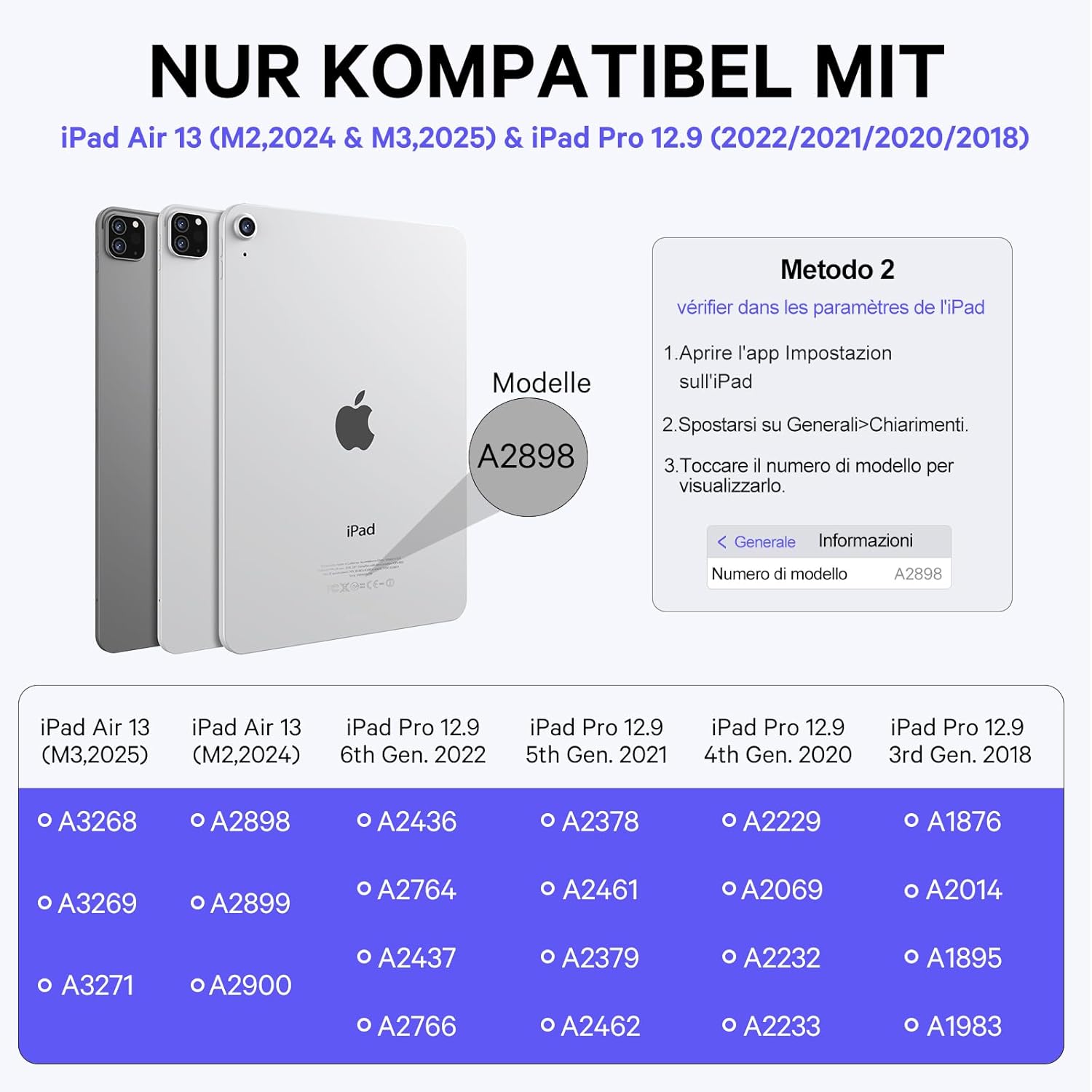
Image 2.1: A visual guide to checking your iPad's model number for compatibility with the keyboard case.
3. Setup Instructions
3.1 Initial Charging
Before first use, fully charge the keyboard for approximately 3 to 4 hours using the provided USB-C cable. Connect the cable to the keyboard's USB-C port and a power source.
3.2 Power On/Off
- To power on the keyboard, slide the power switch to the ON position.
- To power off the keyboard, slide the power switch to the OFF position.
3.3 Bluetooth Pairing
- Ensure the keyboard is powered on.
- Press and hold the Fn + B keys simultaneously on the keyboard to activate Bluetooth pairing mode. The Bluetooth indicator light will begin to flash.
- On your iPad, go to Settings > Bluetooth and turn Bluetooth ON.
- From the list of available devices, select "Bluetooth Keyboard 5.1" (or similar name).
- Once connected, the Bluetooth indicator light on the keyboard will stop flashing.
4. Operating Instructions
4.1 Magnetic Attachment and Angle Adjustment
The keyboard case features a strong magnetic back panel. Gently attach your iPad to the magnetic surface. The floating design allows for continuous adjustment of the viewing angle up to 135 degrees, providing a stable and comfortable experience similar to a laptop.

Image 4.1: The iPad magnetically attached to the keyboard case, demonstrating the stable floating design.

Image 4.2: Illustrations showing the adjustable viewing angles and the magnetic hinge mechanism.
4.2 Keyboard Usage
The keyboard utilizes a scissor-switch mechanism, providing a quiet and responsive typing experience. It includes a full range of iPad shortcut keys for quick access to media controls, volume, and other functions.

Image 4.3: A user typing on the keyboard case, highlighting the scissor-switch key structure.
4.3 Precision Trackpad with Multi-Touch Gestures
The integrated trackpad allows for precise control of your iPad. It supports multi-touch gestures for easy navigation, scrolling, and switching between applications. Ensure your iPad is updated to iOS/iPadOS 13.4.1 or later to fully utilize the trackpad functionality.

Image 4.4: A hand demonstrating interaction with the precision trackpad on the keyboard case.
4.4 7-Color Backlight and Brightness Adjustment
The keyboard features 7-color rainbow backlighting with three adjustable brightness levels. This allows for accurate typing and efficient work in various lighting conditions. Use the dedicated backlight keys to cycle through colors and adjust brightness.

Image 4.5: The keyboard with its 7-color backlight illuminated, suitable for use in low-light conditions.
5. Maintenance
5.1 Charging
The keyboard is equipped with a Type-C charging port. A full charge takes approximately 4 hours. The keyboard can operate for over 400 hours without backlighting and approximately 7 hours with backlighting enabled.
5.2 Cleaning
To clean the keyboard and case, use a soft, damp cloth. Avoid using harsh chemicals or abrasive materials that could damage the surface.
6. Troubleshooting
- Keyboard not connecting: Ensure the keyboard is charged and powered on. Re-attempt Bluetooth pairing by pressing Fn+B and selecting the keyboard from your iPad's Bluetooth settings.
- Trackpad not working: Verify your iPad's operating system is iOS/iPadOS 13.4.1 or newer. Check Bluetooth connection.
- Backlight not working: Ensure the keyboard is charged. Use the backlight control keys to activate and adjust brightness.
- Keys not responding: Check if the keyboard is properly connected via Bluetooth and has sufficient battery charge.
7. Specifications
| Brand | Earto |
| Model Number | iPad Air 13-2024 |
| Compatible Devices | iPad Air 13 (2024), iPad Pro 12.9 (2018, 2020, 2021, 2022) |
| Connectivity Technology | Bluetooth 5.1, Type-C (charging) |
| Special Features | Backlit (7 colors, 3 brightness levels), Integrated Trackpad, Magnetic Floating Design |
| Keyboard Description | Wireless, Scissor-switch mechanism |
| Battery Composition | Lithium Polymer |
| Charging Time | Approx. 4 hours |
| Operating Time (without backlight) | Over 400 hours |
| Operating Time (with backlight) | Approx. 7 hours |
| Dimensions | 28.7L x 23.2W x 1.7H cm |
| Color | Black |
8. Warranty and Support
For warranty information or technical support, please refer to the product packaging or contact Earto customer service through the retailer where the product was purchased. Please retain your proof of purchase for warranty claims.


