
1. Introduction
Thank you for choosing the GIISSMO 10-in-1 USB-C Dual Display Docking Station. This device is designed to expand the connectivity of your USB-C enabled laptop, providing multiple ports for display output, data transfer, network connection, and power delivery. This manual provides detailed instructions for setup, operation, and troubleshooting to ensure optimal performance.
2. Product Overview and Ports
The GIISSMO 10-in-1 USB-C Docking Station offers a comprehensive solution for expanding your laptop's capabilities. It features the following ports:
- 2 x HDMI Ports: Supports 4K resolution (one at 4K@60Hz, one at 4K@30Hz).
- 1 x RJ45 Ethernet Port: Provides stable 1000Mbps wired network connection.
- 1 x USB-C Data Port: High-speed data transfer up to 10Gbps.
- 1 x USB-A 3.1 Data Port: High-speed data transfer up to 10Gbps.
- 1 x USB-C Power Delivery (PD) Port: Supports up to 100W power input for laptop charging.
- 2 x USB 2.0 Ports: Ideal for connecting peripherals like keyboards and mice.
- 1 x SD Card Slot: For reading SD memory cards.
- 1 x TF Card Slot: For reading TF (Micro SD) memory cards.
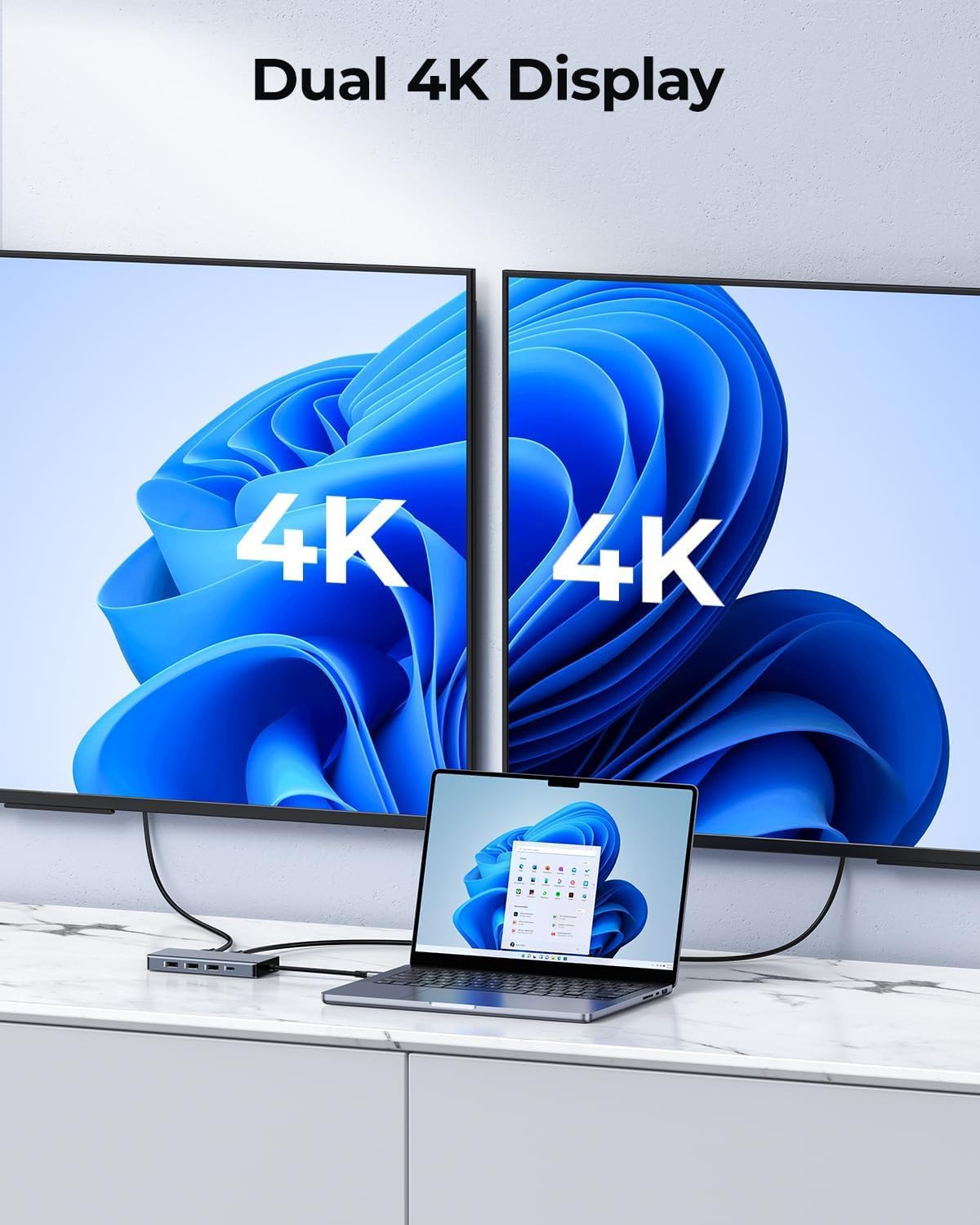
Figure 2.1: Overview of the docking station ports. Note: The product is a 10-in-1 model, this image illustrates a similar port layout.

Figure 2.2: The 10-in-1 USB-C Docking Station in a typical setup.
3. Compatibility
For full functionality, your laptop's USB-C port must support specific protocols. Please verify your laptop's USB-C port capabilities:
- Data + Display-Port Alt Mode: Required for video output and data transfer.
- Data + Power Delivery + DisplayPort Alt Mode: Required for video output, data transfer, and laptop charging via the docking station.
- Thunderbolt 3 / Thunderbolt 4: Fully compatible, supporting all features.
The docking station is not compatible with USB-C ports that only support Data Only, Data+Power Delivery (without DisplayPort Alt Mode), or Charging Only protocols.
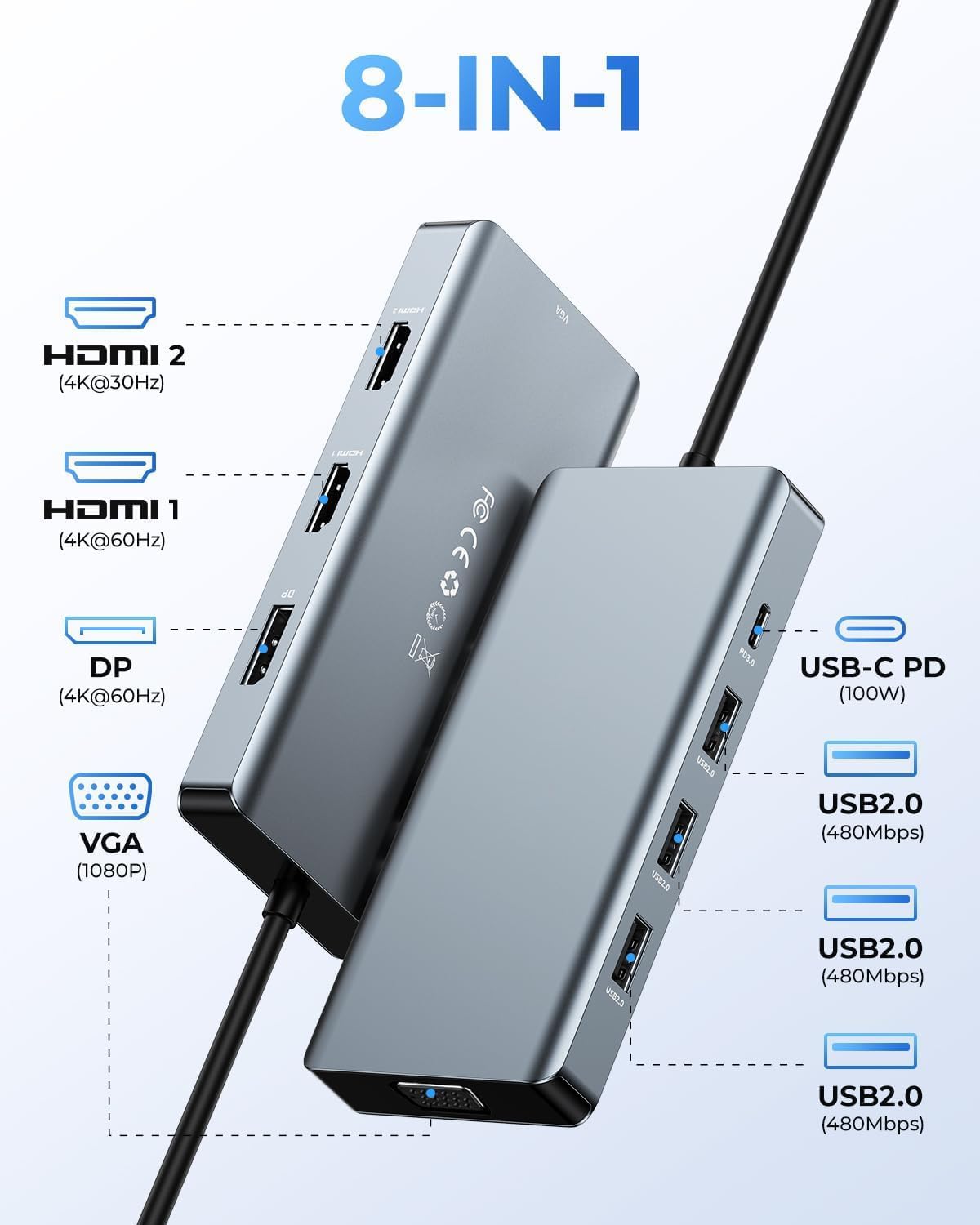
Figure 3.1: USB-C Port Compatibility Check.
4. Setup Instructions
- Connect Power (Optional): If you wish to charge your laptop via the docking station, connect your laptop's original USB-C power adapter to the USB-C PD port on the docking station.
- Connect to Laptop: Plug the integrated USB-C cable from the docking station into a compatible USB-C port on your laptop.
- Connect Displays: Connect your external monitors to the HDMI ports on the docking station using HDMI cables.
- Connect Peripherals: Plug in your USB devices (keyboard, mouse, external drives) into the available USB-A or USB-C data ports. Insert SD/TF cards into their respective slots.
- Connect Ethernet: For a wired network connection, connect an Ethernet cable from your router/modem to the RJ45 port on the docking station.
No drivers or software are required for most operating systems; the device is plug-and-play.
5. Operating Instructions
5.1. Display Modes
The docking station supports various display configurations depending on your operating system.
For Windows Operating Systems:
Windows systems support both Mirror Mode and Extend Mode across multiple displays. You can achieve up to 4K@30Hz in extended mode (BC on two monitors).
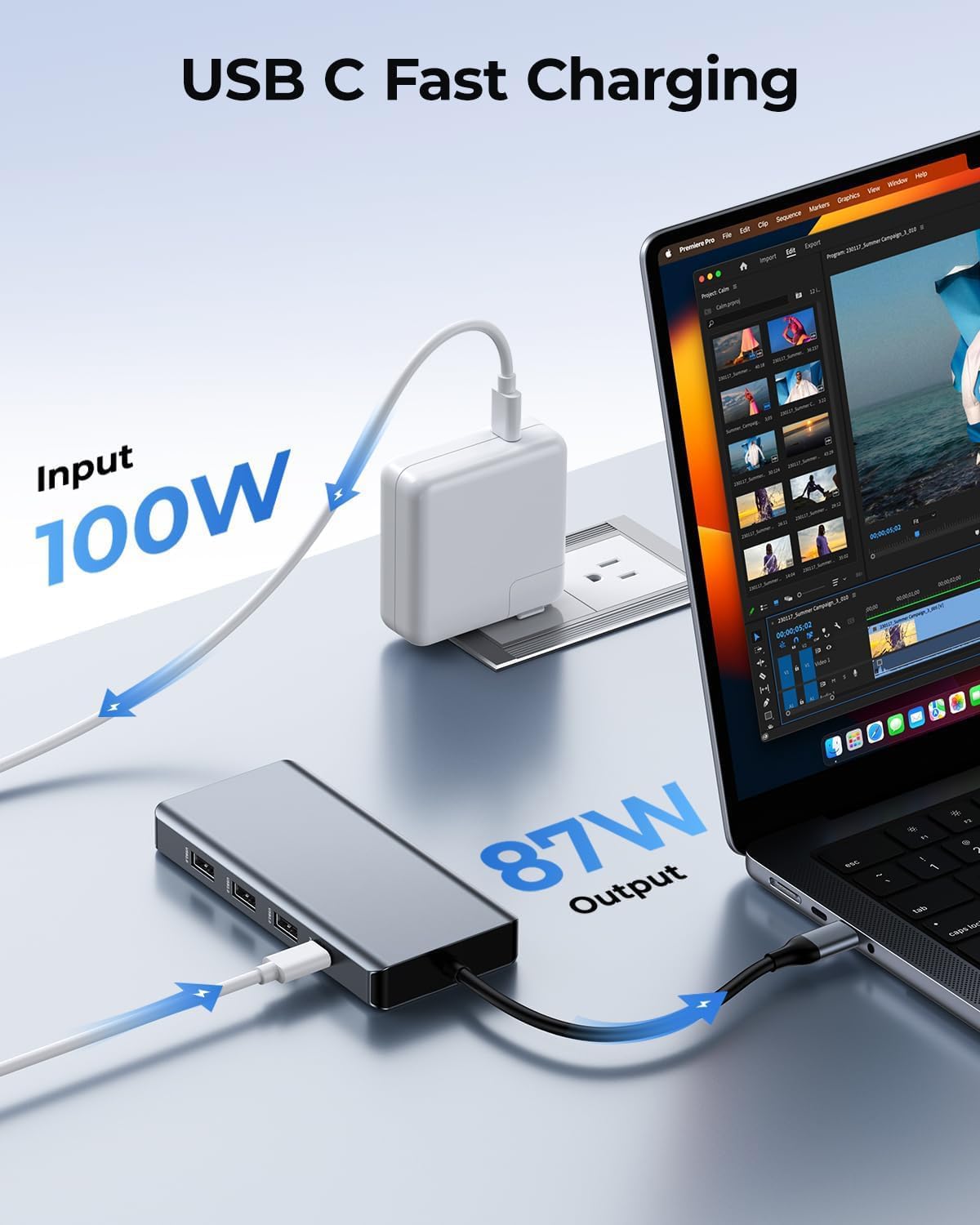
Figure 5.1: Windows Multi-Display Configurations (Mirror and Extend Modes).

Figure 5.2: Dual Display up to 1080P@60Hz for Windows.
For Mac OS Operating Systems:
Mac OS supports Mirror Mode (A=A+A) and a specific Mac Extend Mode (A=B+B) up to 4K@30Hz. Please note that Mac OS does not support Multi-Stream Transport (MST) for independent extended displays across multiple external monitors.
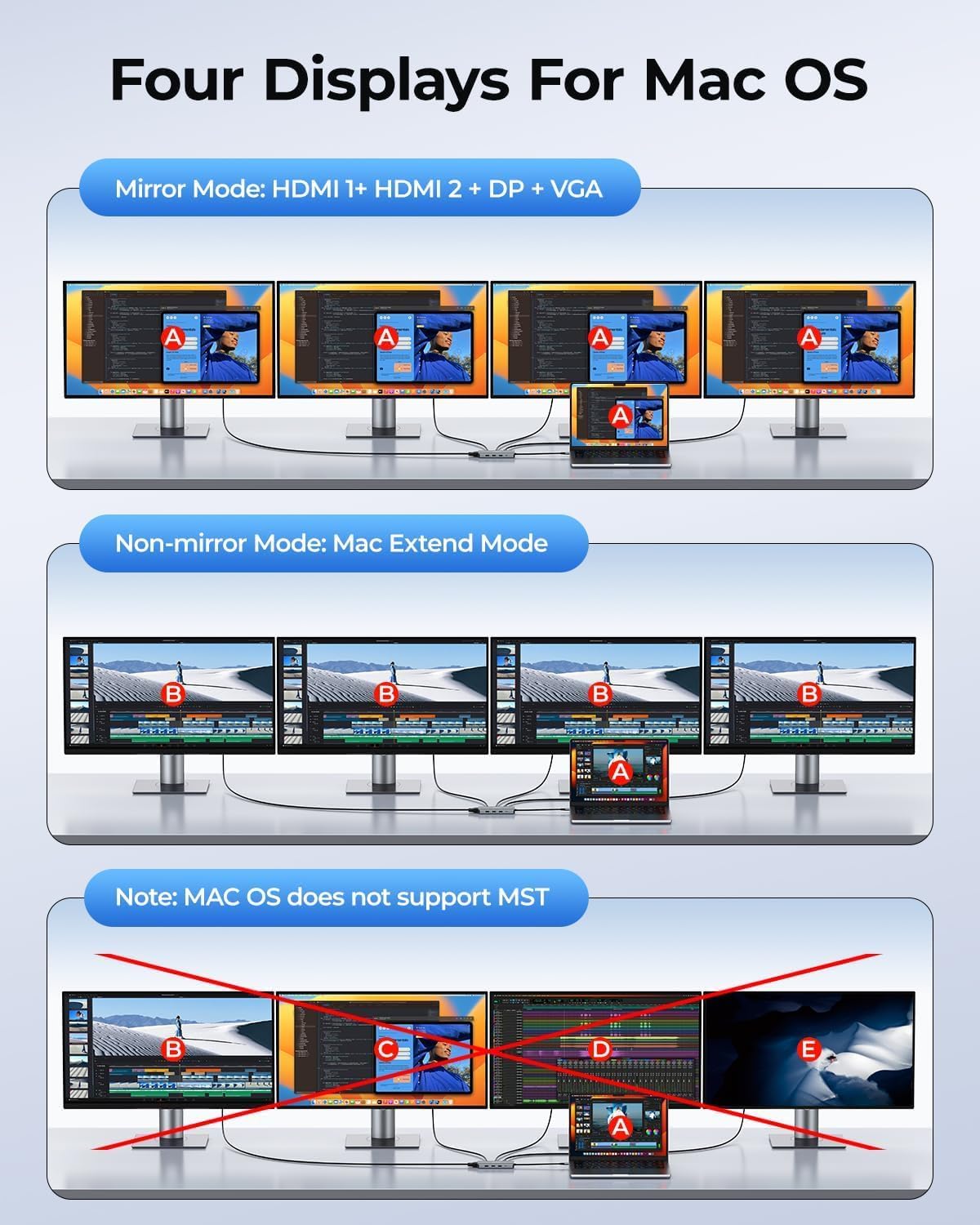
Figure 5.3: Mac OS Multi-Display Configurations (Mirror and Mac Extend Modes).

Figure 5.4: Dual Display up to 4K@30Hz for Mac OS.

Figure 5.5: Dual 4K Display Setup.
5.2. Power Delivery
The USB-C PD port supports up to 100W power input. When a 100W power adapter is connected, the docking station can deliver up to 87W to your laptop, while reserving power for its own operation and connected peripherals.
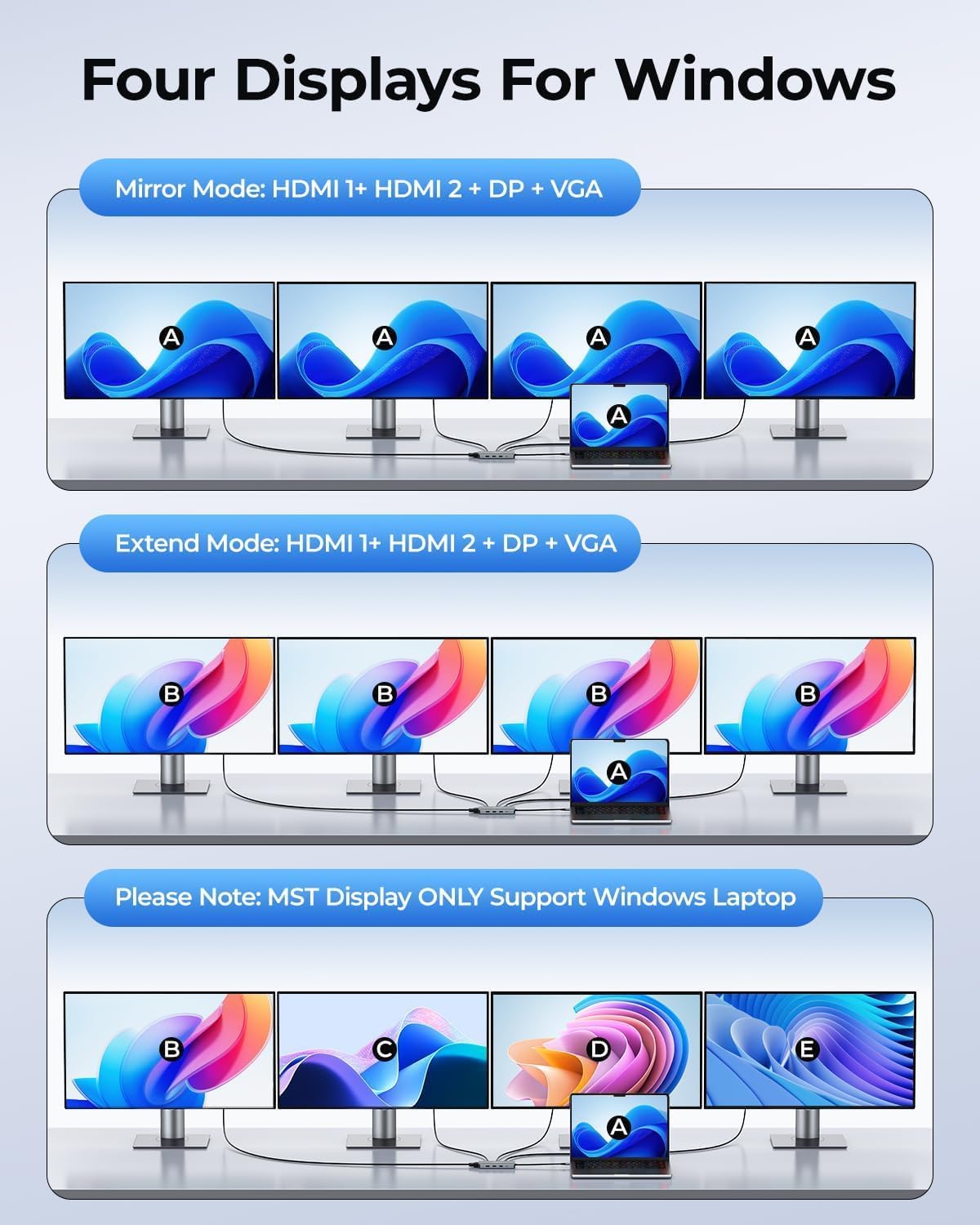
Figure 5.6: USB-C Fast Charging in action.

Figure 5.7: Power Delivery details: Max 100W Input, 85W Output.
5.3. Data Transfer
The docking station features high-speed USB-C and USB-A 3.1 ports, offering data transfer rates up to 10Gbps. The two USB 2.0 ports are suitable for connecting low-bandwidth devices.

Figure 5.8: USB-C and USB-A Data Transfer Speeds.
The integrated SD and TF card slots allow for convenient access to data from memory cards.

Figure 5.9: TF/SD Card Reading Functionality.
5.4. Ethernet Connection
The RJ45 port provides a stable and fast 1000Mbps (1 Gigabit) Ethernet connection, offering superior speed and security compared to Wi-Fi for large file transfers or streaming.

Figure 5.10: 1000Mbps RJ45 Ethernet Port.
6. Troubleshooting
- No Display Output:
- Ensure your laptop's USB-C port supports DisplayPort Alt Mode.
- Check all cable connections (USB-C to laptop, HDMI to monitor).
- Verify monitor input source is set correctly.
- Try restarting your laptop.
- Laptop Not Charging:
- Ensure your laptop's USB-C port supports Power Delivery.
- Confirm your power adapter is connected to the docking station's USB-C PD port.
- Use a power adapter with sufficient wattage (100W recommended).
- USB Devices Not Working:
- Ensure the docking station is properly connected to your laptop.
- Try connecting the USB device to a different port on the docking station.
- Check if the USB device requires external power.
- Ethernet Connection Issues:
- Verify the Ethernet cable is securely connected to both the docking station and your router/modem.
- Check your network settings on your laptop.
- Ensure your router/modem is functioning correctly.
- Overheating:
- It is normal for the docking station to become warm during heavy use.
- Ensure adequate ventilation around the device. Avoid placing it in enclosed spaces.
7. Specifications
| Brand | GIISSMO |
| Model | 3A01 |
| Material | Aluminum |
| Hardware Interface | USB Type C |
| Special Feature | Plug and Play |
| Compatible Devices | Laptops, USB Drives, Card Readers |
| Total Ports | 10 (2x HDMI, 1x RJ45, 1x USB-C 10Gbps, 1x USB-A 3.1 10Gbps, 1x USB-C PD, 2x USB 2.0, 1x SD, 1x TF) |
| Data Transfer Rate | 10000 Megabits per second (10 Gbps) |
| Power Delivery | Max 100W Input, up to 87W Output to laptop |
| Product Dimensions | 12.5L x 6.4W x 1.5H centimeters |
| Operating System | Windows, Mac OS |
8. Warranty and Support
This GIISSMO product comes with a 12-month warranty from the date of purchase. If you encounter any issues or have questions regarding your docking station, please do not hesitate to contact our customer support team. We offer 24-hour service to assist you with any concerns before or after your order.
For support, please refer to the contact information provided with your product packaging or visit the official GIISSMO website.


