
STRONG PL600TRIFR
STRONG Powerline 600 Kit (PL600TRIFR) User Manual
Trio Powerline Adapters with 600 Mbps Speed
1. Introduction
The STRONG Powerline 600 Kit provides a simple and effective solution for creating a high-speed network throughout your home using existing electrical wiring. This triple pack includes three Powerline 600 adapters, allowing you to extend your internet connection up to 600 Mbps to any room without running new cables.
Simply connect one adapter to your internet router via an Ethernet port, and the other two adapters can be plugged into any power outlet in your desired rooms to provide an instant internet connection. Each adapter features a filtered pass-through socket, ensuring you don't lose the use of your power outlet.
2. Package Contents
Please verify that all items are present in your package:
- 3x STRONG Powerline 600 Adapters
- 3x Ethernet Cables
- 1x Quick Installation Guide

Image 2.1: Package contents including three Powerline adapters and Ethernet cables.
3. Setup and Installation
The STRONG Powerline 600 Kit is designed for quick and easy plug-and-play installation without complex configuration.
3.1 Initial Setup
- Connect the First Adapter: Plug one Powerline 600 adapter into a wall power outlet near your internet router. Connect this adapter to your router's Ethernet port using one of the provided Ethernet cables.
- Connect Additional Adapters: Plug the other two Powerline 600 adapters into wall power outlets in the rooms where you need internet access.
- Connect Devices: Use the remaining Ethernet cables to connect your devices (e.g., computer, Smart TV, game console) to the Ethernet ports on the Powerline adapters.
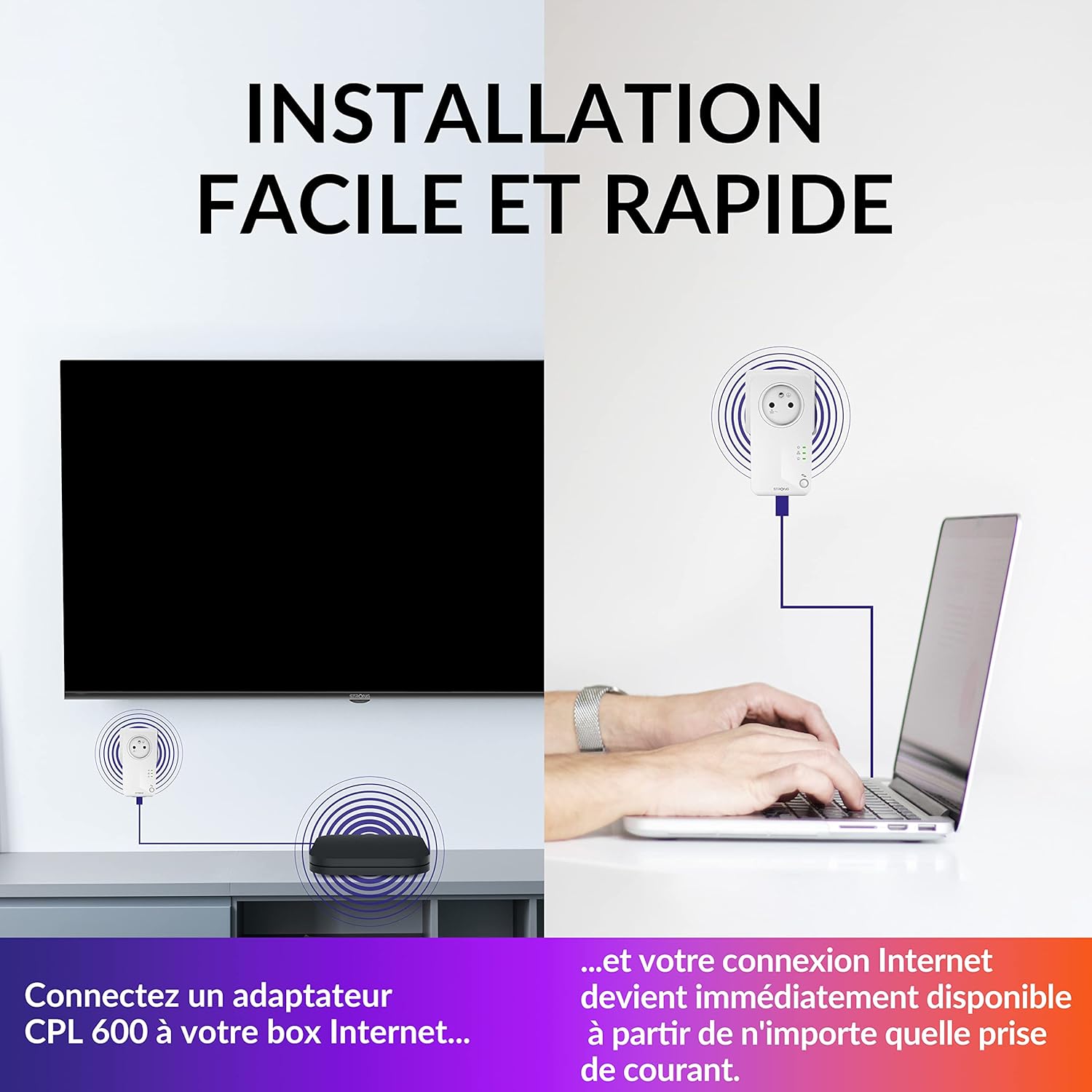
Image 3.1: Simple connection of Powerline adapters to an internet box and a laptop.

Image 3.2: Network setup showing an internet box, computer, and TV connected via Powerline adapters.
3.2 Important Considerations
- For optimal performance, plug Powerline adapters directly into wall outlets. Avoid power strips, surge protectors, or extension cords, as these can interfere with the Powerline signal.
- Ensure all adapters are on the same electrical circuit for best results. While Powerline technology can often bridge different circuits, performance may vary.
4. Operating Instructions
Once installed, your Powerline network operates automatically, providing a stable and high-speed internet connection.
4.1 High-Speed Internet Access
The Powerline 600 Kit delivers data transfer rates up to 600 Mbps, ideal for streaming HD video, online gaming, and general internet browsing. The connection is established through your home's electrical wiring, extending your network reach up to 300 meters from the router.

Image 4.1: Powerline adapter indicating high-speed internet at 600 Mbps.
4.2 Filtered Pass-Through Socket
Each Powerline adapter includes a filtered pass-through socket. This means you can plug other electrical devices into the adapter's socket without compromising the Powerline network performance or losing a valuable power outlet.

Image 4.2: The filtered pass-through socket feature, ensuring no power outlet is lost.
4.3 Energy Saving Mode
The Powerline 600 adapters feature an automatic energy-saving mode. When no active network connection is detected, the adapters will enter a standby state, reducing power consumption by up to 85%.

Image 4.3: Energy-saving mode reduces power consumption by up to 85%.
4.4 Network Security
The data transmission between Powerline 600 adapters is secured with 128-bit AES encryption, providing optimal network security and protecting your data from unauthorized access.

Image 4.4: Powerful 128-bit AES encryption for secure data transmission.
5. Maintenance
The STRONG Powerline 600 Kit requires minimal maintenance to ensure optimal performance and longevity.
- Cleaning: Gently wipe the adapters with a soft, dry cloth. Do not use liquid cleaners or aerosols.
- Ventilation: Ensure the adapters are not covered or placed in enclosed spaces that could obstruct airflow. Proper ventilation prevents overheating.
- Firmware Updates: Periodically check the STRONG website for any available firmware updates for your Powerline adapters. Updates can improve performance and security.
6. Troubleshooting
If you encounter issues with your Powerline 600 Kit, try the following troubleshooting steps:
6.1 No Connection / Slow Speed
- Direct Connection: Ensure all Powerline adapters are plugged directly into wall outlets, not into power strips, extension cords, or surge protectors.
- Check Cables: Verify that all Ethernet cables are securely connected to both the adapters and your devices/router.
- Power Cycle: Unplug all Powerline adapters and your router from their power sources. Wait for 30 seconds, then plug them back in, starting with the router, then the Powerline adapter connected to the router, and finally the other adapters.
- Interference: Large electrical appliances (e.g., washing machines, refrigerators) on the same circuit can sometimes cause interference. Try plugging the adapters into different outlets.
- Electrical Circuit: Confirm that all adapters are on the same electrical circuit. While Powerline can sometimes cross circuits, performance may be significantly reduced.
6.2 Adapter Lights Not On
- Power Supply: Ensure the adapter is firmly plugged into a working power outlet.
- Test Outlet: Try plugging another device into the same outlet to confirm it has power.
6.3 Security Pairing Issues
If you need to re-establish a secure connection or add a new adapter, refer to the quick installation guide for instructions on using the pairing button (usually a small button on the adapter) to create a secure, encrypted network.
7. Specifications
| Feature | Detail |
|---|---|
| Brand | STRONG |
| Model Number | PL600TRIFR |
| Color | White |
| Data Transfer Rate | Up to 600 Mbps |
| Data Link Protocol | Ethernet |
| Connections | Ethernet (RJ45) |
| Compatible Devices | Desktop computer, Smart TV, Game console, NAS, Android box, Internet box |
| Security | 128-bit AES Encryption |
| Power Saving | Automatic standby mode, up to 85% reduction |
| Product Dimensions (per adapter) | 6L x 3W x 11.7H cm |
8. Warranty Information
Specific warranty details for the STRONG Powerline 600 Kit are not provided in the available product information. Please refer to the warranty card included in your product packaging or visit the official STRONG website for detailed warranty terms and conditions.
9. Customer Support
For further assistance, technical support, or inquiries regarding your STRONG Powerline 600 Kit, please visit the official STRONG website or contact their customer service department. Contact information is typically available on the manufacturer's website or in the product documentation.
Related documentsPL600TRIFR


Ask a question about this manual
Ask about setup, troubleshooting, compatibility, parts, safety, or missing instructions. Manuals+ will review the question and use this page’s manual context to help answer it.