
kinstone KST102SF
Kinstone 10.1-inch Android Kids Tablet (Model KST102SF) Instruction Manual
1. Overview
This instruction manual provides essential information for the safe and effective use of your Kinstone 10.1-inch Android Kids Tablet, Model KST102SF. Designed for children, this tablet features a durable kid-proof case, parental controls, and a range of educational and entertainment applications. Please read this manual thoroughly before operating the device.

Image: Kinstone 10.1-inch Android Kids Tablet with its protective case.
2. What's in the Box
Upon opening your Kinstone Kids Tablet package, you should find the following items:
- Kinstone 10.1-inch Android Kids Tablet (Model KST102SF)
- Food-Grade Silicone Kid-Proof Case with Adjustable Stand
- Tablet Stylus Pen
- Tempered Glass Screen Film
- Tablet Charging Cable (USB Type-C)
- Tablet Adapter
- Two Cartoon Stickers
- Quick Start Guide / User Manual
3. Product Features
The Kinstone Kids Tablet is equipped with features designed for a child-friendly experience:
- Display: 10.1-inch IPS screen with 1280x800 resolution.
- Processor: Unisoc Quad-Core Processor (up to 2.0GHz) for smooth performance.
- Memory & Storage: 3GB RAM and 32GB internal storage, expandable up to 256GB via SD card.
- Operating System: Android 12, GMS certified, offering enhanced privacy and security.
- Battery: 6000mAh battery providing 10-14 hours of mixed usage.
- Cameras: 2MP front camera and 5MP rear camera.
- Connectivity: 2.4G+5G Wi-Fi (802.11ac) and Bluetooth 5.0.
- Protective Case: Durable food-grade silicone case with an adjustable stand and stylus holder.
- Accessories: Includes a stylus pen and tempered glass screen film.
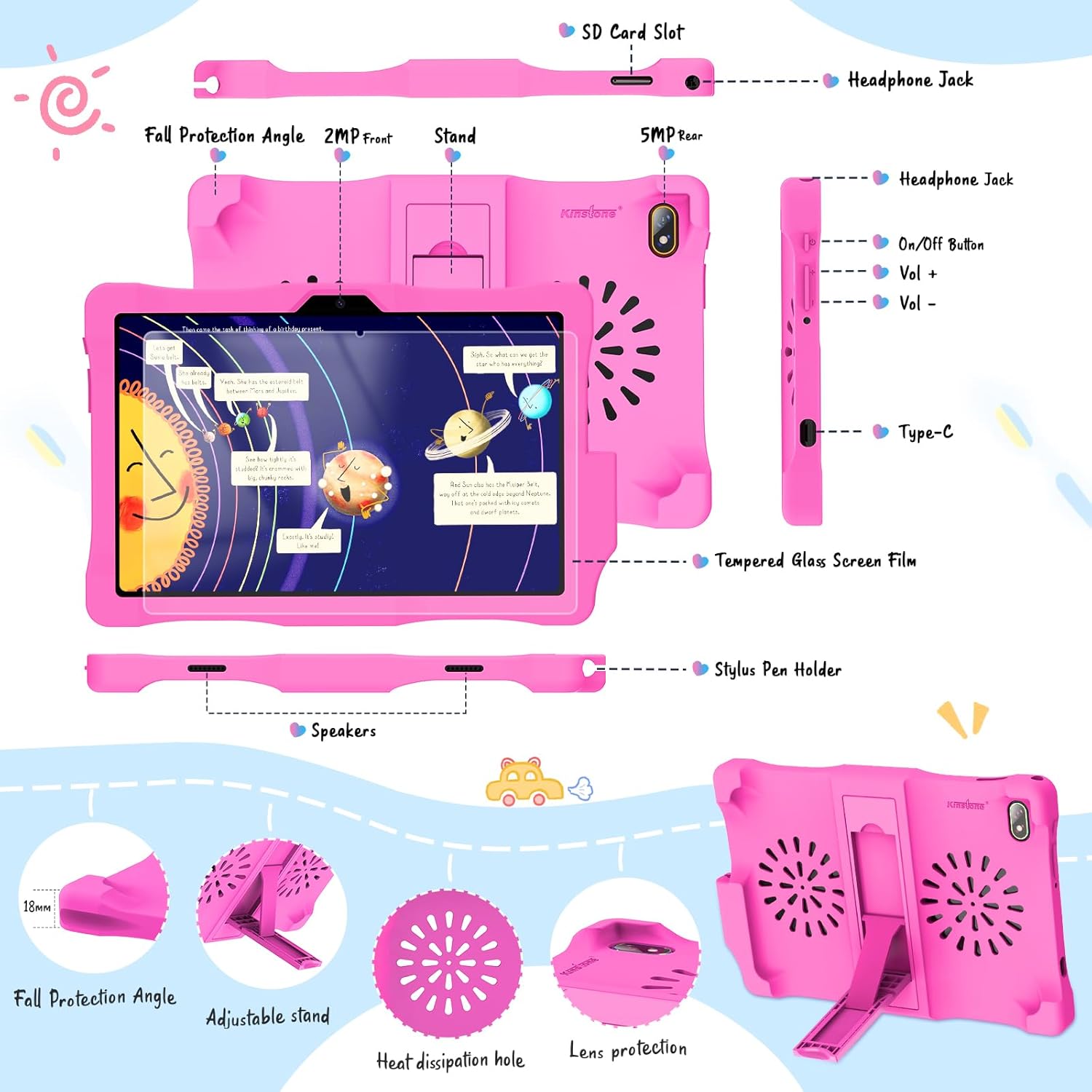
Image: Detailed diagram of the tablet's ports and features.

Image: Key features of the Kinstone Kids Tablet.
4. Setup
4.1 Initial Charging and Power On
- Connect the tablet to the power adapter using the provided USB Type-C cable.
- Allow the tablet to charge for at least 30 minutes before first use, or until the battery indicator shows sufficient charge.
- Press and hold the power button (located on the side) for a few seconds until the Kinstone logo appears on the screen.
4.2 Connecting to Wi-Fi
- Once powered on, follow the on-screen prompts to select your language and region.
- Select your Wi-Fi network from the list of available networks.
- Enter the Wi-Fi password if prompted and tap 'Connect'.
4.3 Google Account and Parental Control Setup
The tablet comes pre-installed with Google Family Link for parental controls:
- During initial setup, you will be guided to set up a Google account for your child and link it to your own Google Family Link account.
- Follow the on-screen instructions to configure screen time limits, content restrictions, app approvals, and other parental control settings.
4.4 Installing Tempered Glass Screen Film
To protect the tablet's screen, install the included tempered glass screen film:
- Clean the tablet screen thoroughly using the provided cleaning wipes (if included) to remove dust and smudges.
- Carefully align the tempered glass film with the tablet screen, ensuring proper placement around the camera and sensors.
- Gently press the center of the film, and it will adhere to the screen. Smooth out any air bubbles towards the edges.
5. Operating Instructions
5.1 Basic Navigation
- Swipe: Move your finger across the screen to navigate between home screens or scroll through content.
- Tap: Touch an icon or option once to open or select it.
- Long Press: Press and hold an item to reveal additional options or move icons.
- Pinch-to-Zoom: Use two fingers to zoom in or out on images or web pages.
5.2 Accessing Applications
Applications can be accessed from the home screen or the app drawer. Swipe up from the bottom of the screen to open the app drawer and view all installed applications.
5.3 Using the Stylus Pen
The included stylus pen can be used for drawing, writing, and precise navigation. It is stored in a dedicated holder on the protective case.

Image: Child using the stylus for creative activities.
5.4 Adjusting Volume and Brightness
- Volume: Use the physical Volume Up (+) and Volume Down (-) buttons located on the side of the tablet.
- Brightness: Swipe down from the top of the screen to access the Quick Settings panel. Adjust the brightness slider to your desired level.
5.5 Educational and Entertainment Content
The tablet is preloaded with teacher-recommended educational games and apps. You can also download more content from the Google Play Store, including apps like YouTube Kids and ABC Mouse.

Image: Child using an educational app on the tablet.
6. Parental Controls
The Kinstone Kids Tablet utilizes Google Family Link to provide comprehensive parental control features:
- Screen Time Limits: Set daily screen time limits and device bedtime schedules.
- Content Filtering: Manage the content your child can access on Google Play, YouTube, and other apps.
- App Management: Approve or block apps your child wants to download from the Google Play Store.
- Location Tracking: View your child's device location (when the device is on and connected to the internet).
- Device Lock: Remotely lock your child's device.
Access and manage these settings through the Google Family Link app on your own device.

Image: Overview of parental control features.
7. Maintenance and Care
7.1 Cleaning
- Use a soft, lint-free cloth to clean the screen. For stubborn smudges, slightly dampen the cloth with water or a screen-safe cleaner.
- Clean the silicone case with mild soap and water if necessary. Ensure the case is completely dry before reattaching it to the tablet.
7.2 Battery Care
- Charge the tablet regularly using the provided charger and cable.
- Avoid completely draining the battery frequently, as this can reduce its lifespan.
- Do not expose the tablet to extreme temperatures.
7.3 Software Updates
Periodically check for system updates to ensure optimal performance and security:
- Go to 'Settings' > 'System' > 'System Update'.
- Tap 'Check for updates' and follow the on-screen instructions if an update is available.
7.4 Storage Management
If the internal 32GB storage becomes full, you can expand it up to 256GB using a microSD card. Insert the microSD card into the designated SD card slot on the tablet.
8. Troubleshooting
Here are solutions to common issues you might encounter:
| Issue | Solution |
|---|---|
| Tablet does not turn on | Ensure the tablet is charged. Connect it to the charger for at least 30 minutes. If it still doesn't turn on, perform a hard reset by holding the power button for 10-15 seconds. |
| Wi-Fi connection issues | Check if your Wi-Fi router is working correctly. Restart the tablet and try reconnecting to the Wi-Fi network. Ensure the Wi-Fi password is correct. |
| Apps are crashing or running slowly | Close unnecessary background apps. Clear the cache of the problematic app (Settings > Apps > [App Name] > Storage > Clear Cache). Restart the tablet. Ensure sufficient storage space is available. |
| Screen is unresponsive | Restart the tablet. If the issue persists, ensure the screen is clean and free from debris. |
| Parental controls not working as expected | Verify that the Google Family Link app on your device is updated and correctly configured. Ensure the child's tablet is connected to the internet for settings to sync. |
9. Specifications
| Feature | Detail |
|---|---|
| Model Number | KST102SF |
| Screen Size | 10.1 Inches |
| Display Resolution | 1280 x 800 pixels |
| Processor | Unisoc Quad-Core, 2.0 GHz |
| RAM | 3 GB DDR4 SDRAM |
| Internal Storage | 32 GB Flash Memory (expandable to 256 GB) |
| Operating System | Android 12 |
| Battery Capacity | 6000mAh (approx. 10-14 hours usage) |
| Rear Webcam Resolution | 5 MP |
| Front Camera Resolution | 2 MP |
| Wireless Standard | 802.11ac (2.4G+5G WiFi) |
| Bluetooth | Bluetooth 5.0 |
| Dimensions (L x W x H) | 79.25 x 47.24 x 8.13 cm |
| Item Weight | 1 kg |
10. Warranty and Support
For warranty information, please refer to the Warranty Card included in your product packaging. If you encounter any issues or require technical assistance, please contact Kinstone customer support. Contact details are typically provided in the Quick Start Guide or on the manufacturer's official website.
Related documentsKST102SF

Ask a question about this manual
Ask about setup, troubleshooting, compatibility, parts, safety, or missing instructions. Manuals+ will review the question and use this page’s manual context to help answer it.