
SJOYBRING JOY-W005
SJOYBRING JOY-W005 Car Stereo User Manual
[Wireless Upgrade] Double Din Car Radio with Wireless Apple CarPlay & Android Auto
1. Introduction
This manual provides comprehensive instructions for the installation, operation, and maintenance of your SJOYBRING JOY-W005 Double Din Car Stereo. This unit features Wireless Apple CarPlay & Android Auto, Bluetooth connectivity, 4.2-Channel Audio Output, Mirror Link, a 7-inch Touchscreen, and includes a Backup Camera. Please read this manual thoroughly before use to ensure proper functionality and safety.
2. Safety Information
Always prioritize safety. Improper installation or operation can lead to accidents or damage. Observe the following:
- Ensure the vehicle's power is disconnected before installation.
- It is recommended to have the unit installed by a professional car audio technician.
- Do not operate the unit in a way that distracts you from driving.
- Working voltage: 12V. Max power output: 60W*4.
- Ensure proper ventilation around the unit.
3. Package Contents
Verify that all items are present in the package:

Image 3.1: Illustration of included package contents.
- Head Unit
- Rear View Camera
- Backup Camera Cable
- Wiring Harness
- Remote Control
- Mounting Brackets
- Screws (various types)
- User Manual (this document)
4. Product Overview
The SJOYBRING JOY-W005 is a versatile car stereo designed to enhance your driving experience with modern connectivity and audio features.

Image 4.1: SJOYBRING JOY-W005 Head Unit and Accessories.
Key Features:
- Wireless Apple CarPlay & Android Auto: Seamless smartphone integration via Wi-Fi and Bluetooth for navigation, calls, and music.
- 4.2-Channel Audio Output: Enhanced sound quality with dedicated outputs for front, rear, and two subwoofers.
- Upgraded Bluetooth System: Stable and clear calls/music streaming with independent Bluetooth module and antenna.
- Mirror Link: Display your iOS/Android phone screen on the 7-inch HD touchscreen via USB.
- 7-inch HD Touchscreen: 1024 x 600 resolution for clear visuals and 1920 x 1080P video playback.
- Backup Camera Included: HD night vision, 170° ultra-wide viewing angle, IP68 waterproof design for safer parking.
- AM/FM Radio: Standard radio functionality.
5. Setup & Installation
5.1 Pre-Installation Checks
Before beginning installation, ensure your vehicle's dashboard opening size is compatible with the stereo. The unit supports common double din sizes:
- 170 x 97mm (6.69 x 3.81 inches) - Common for US and European car series.
- 178 x 100mm (7 x 3.93 inches) - Common for Asian car series.
- 189 x 117mm (7.44 x 4.61 inches) - Other common sizes.
If your dash size does not match, an additional suitable dash kit may be required. Some cars may also need a wire harness adapter and a radio antenna adapter.
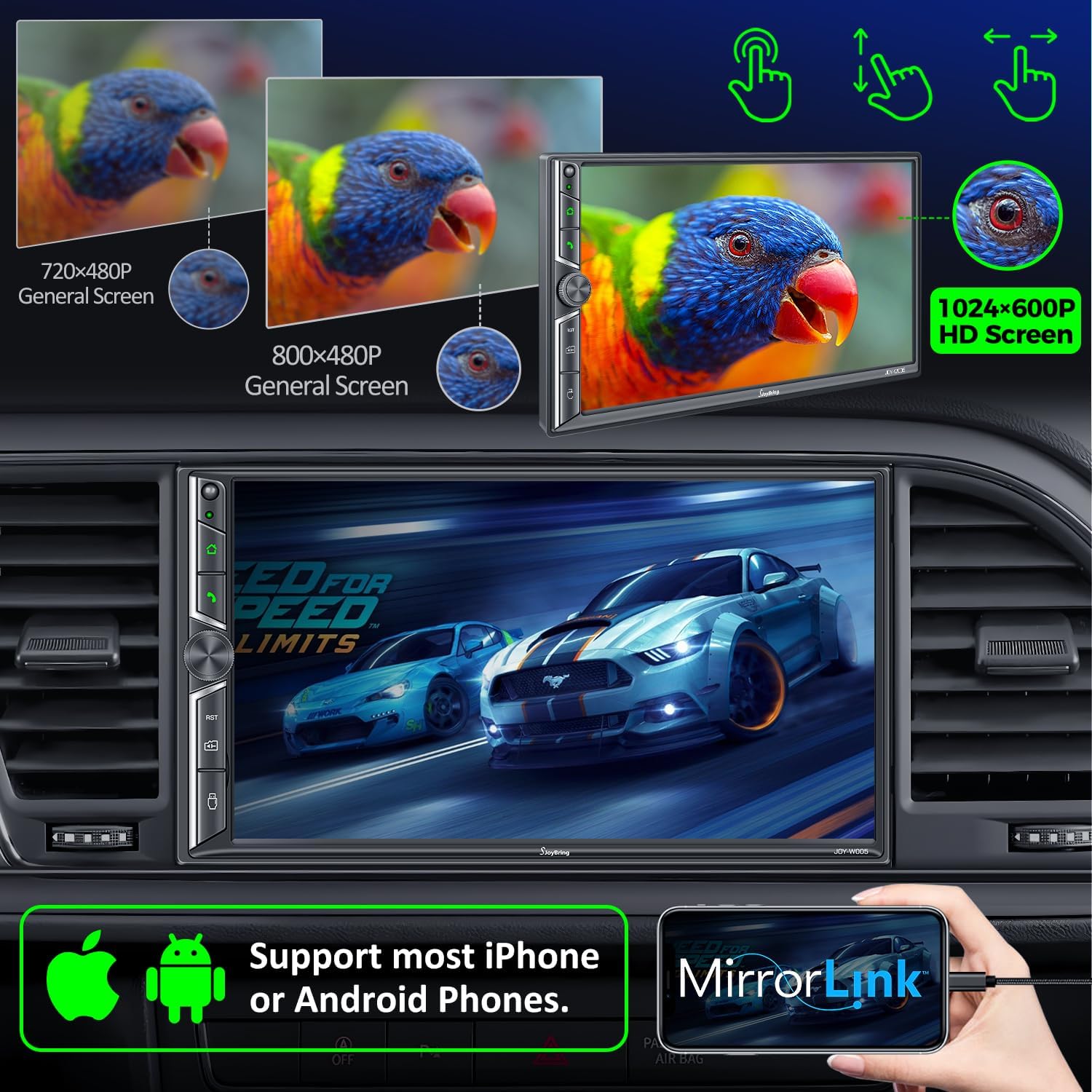
Image 5.1: Dash Size Compatibility and Wiring Diagrams.
5.2 Wiring Diagram
Refer to the following diagram for proper wiring connections. It is crucial to connect wires correctly to avoid damage to the unit or vehicle.
| Wire Color | Function |
|---|---|
| Yellow | +12V Constant Power Supply |
| Black | Ground (-) |
| Red | +12V Ignition Switch (ACC) |
| Orange | Illuminate Light |
| Blue | Power on Antenna/Amplifier |
| Grey/Black | Right Front Speaker - |
| White/Black | Left Front Speaker - |
| Green/Black | Left Rear Speaker - |
| Purple/Black | Right Rear Speaker - |
| Brown | Brake Detect |
| Pink | Back Car Control (Reverse Trigger) |
| Grey | Steering Wheel Control (1) |
| Green | Steering Wheel Control (2) |
| Black | Ground (Steering Wheel Control) |
| Pink/Black | Front View Camera Power Supply |
5.3 Rear View Camera Installation
The included HD night vision rear view camera automatically displays the image when the vehicle shifts into reverse. Connect the camera's video output to the unit's "R-CAM" input and its power to the vehicle's reverse light circuit.
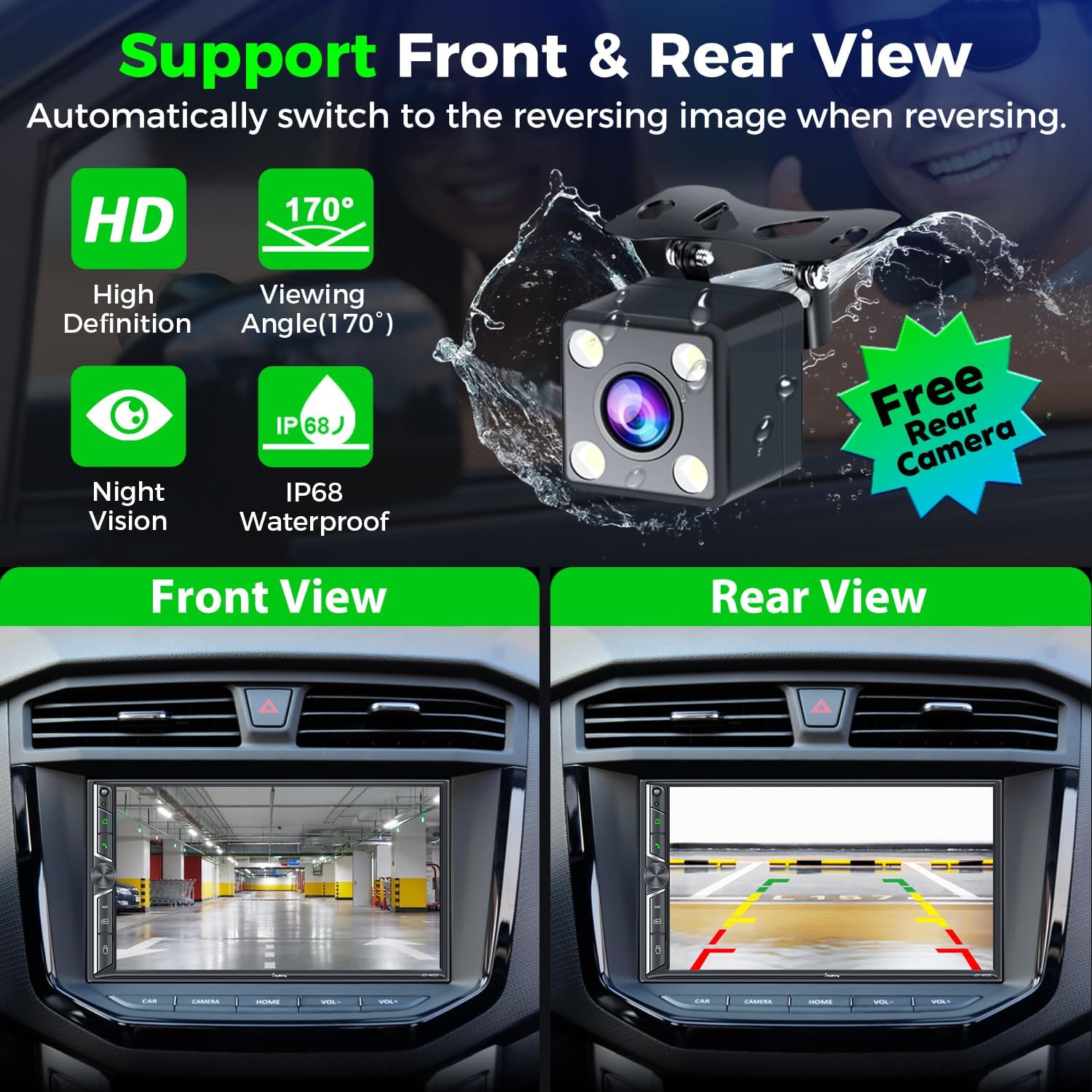
Image 5.2: Rear View Camera Functionality.
6. Operating Instructions
6.1 Wireless Apple CarPlay & Android Auto
Connect your smartphone to the car radio via Wi-Fi and Bluetooth to activate Wireless Apple CarPlay or Android Auto. This allows you to access navigation, make calls, play music, and use voice assistants (Siri, Google Assistant) safely while driving.

Image 6.1: Wireless CarPlay & Android Auto Interface.
6.2 Bluetooth System
The upgraded Bluetooth system provides a stable connection for hands-free calls and music streaming. Pair your device through the unit's Bluetooth settings. The independent Bluetooth module and antenna ensure clear communication.

Image 6.2: Bluetooth Call and Music Interface.
6.3 Mirror Link
Connect your iOS or Android smartphone via USB to mirror its screen onto the 7-inch display. This allows you to view content like Google Maps, Spotify, or YouTube directly on the car stereo (Note: Not compatible with iOS 18.0 and above).

Image 6.3: Mirror Link Functionality.
6.4 Audio Output & Equalizer
The unit supports 4.2-channel audio output, including front (FR/FL), rear (RR/RL) speaker outputs, and two subwoofer outputs (SW1/SW2). Utilize the built-in EQ bands and professional DSP to customize your sound experience.

Image 6.4: 4.2-Channel Audio Output and EQ Setup.
6.5 AM/FM Radio
Access your favorite radio stations using the integrated AM/FM tuner. Scan for stations and save presets for quick access.

Image 6.5: AM/FM Radio Interface.
6.6 Steering Wheel Control (SWC)
If your vehicle supports it, connect the steering wheel control wires to the unit. This allows you to control basic functions like volume, track skipping, and call management directly from your steering wheel.

Image 6.6: Steering Wheel Control Setup.
6.7 7 Colors LED Buttons
The physical buttons on the unit feature 7-color LED backlighting, which can be customized to match your vehicle's interior lighting or personal preference.

Image 6.7: Customizable LED Button Colors.
7. Maintenance
- Keep the touchscreen clean using a soft, lint-free cloth. Avoid abrasive cleaners.
- Ensure proper ventilation around the unit to prevent overheating.
- Regularly check wiring connections for security.
- Avoid exposing the unit to extreme temperatures or direct sunlight for prolonged periods.
8. Troubleshooting
Common Issues and Solutions:
- No Power: Check power connections (Yellow, Red, Black wires). Ensure the fuse is intact.
- No Sound: Verify speaker connections. Check audio settings (volume, mute, fader/balance). Ensure external amplifier (if used) is powered on.
- Bluetooth Connection Issues: Ensure Bluetooth is enabled on both the unit and your phone. Try unpairing and re-pairing the device. Check for interference.
- CarPlay/Android Auto Not Connecting: Ensure Wi-Fi and Bluetooth are on. For wired connection, use a high-quality USB data cable. Check phone compatibility (iOS 18.0+ not supported for Mirror Link).
- Backup Camera Not Displaying: Check camera power and video connections. Ensure the "Back Car Control" (Pink) wire is correctly connected to the reverse light trigger.
- Screen Unresponsive/Lagging: Perform a soft reset (refer to the unit's reset button, usually a small pinhole). If persistent, contact customer support.
9. Specifications
| Feature | Detail |
|---|---|
| Product Dimensions | 3.94 x 7.01 x 3.23 inches |
| Item Weight | 2.72 pounds |
| Model Number | JOY-W005 |
| Manufacturer | SJOYBRING |
| Connectivity Technology | Bluetooth, Wi-Fi, USB |
| Controller Type | iOS, Android |
| Special Features | Touchscreen, Android Auto, Apple CarPlay, AM Tuner, Built-In Wi-Fi |
| Compatible Devices | Smartphone, Speaker |
| Connector Type | USB, 3.5mm Jack |
| Audio Output Mode | Stereo |
| Surround Sound Channel Configuration | 4 Channel (4.2-channel with 2 subwoofer outputs) |
| Video Encoding | H.264, H.265/HEVC, MPEG-4 |
| Color | Black |
| Working Voltage | 12V |
| Max Power Output | 60W*4 |
10. Warranty and Support
For warranty information and technical support, please refer to the contact details provided with your purchase or visit the official SJOYBRING website. You can also refer to the full User Manual PDF for more detailed instructions:
Related documentsJOY-W005


Ask a question about this manual
Ask about setup, troubleshooting, compatibility, parts, safety, or missing instructions. Manuals+ will review the question and use this page’s manual context to help answer it.