
1. Introduction
Thank you for purchasing the Portronics Resound 5W Bluetooth Speaker. This manual provides essential information for setting up, operating, and maintaining your speaker. Please read it carefully before use to ensure optimal performance and longevity of the device.
2. Package Contents
Please check the box for the following items:
- Wireless Speaker (1N)
- Charging Cable (1N)
- User Manual (1N)
- Aux Cable (1N)
3. Product Overview
The Portronics Resound speaker is a compact and versatile audio device featuring Bluetooth 5.3 connectivity, FM radio, TWS function, and multicolor LED lights. It delivers 5 watts of audio output and is designed for portable use.

Image: Front and side view of the Portronics Resound speaker, highlighting the control panel and integrated carrying strap.
Control Buttons and Ports
- Power Button: Press and hold to turn the speaker on or off.
- Volume Up (+): Increase volume.
- Volume Down (-): Decrease volume.
- Mode Button (M): Switch between Bluetooth, FM Radio, AUX, and USB modes.
- Play/Pause Button: Play or pause audio.
- Micro USB Charging Port: For charging the speaker.
- AUX Input Port: For wired audio connection.
- USB Port: For USB flash drive playback.
- Micro SD Card Slot: For Micro SD card playback.

Image: Detailed view of the speaker's connectivity ports, including AUX, USB, and Micro SD card slot.
4. Charging the Speaker
Before first use, fully charge the speaker. Use the provided charging cable to connect the speaker's Micro USB port to a USB power source (e.g., wall adapter, computer USB port).
- The charging time is approximately 2 hours.
- A full charge provides up to 8 hours of playtime.

Image: The speaker connected to a charging cable, illustrating the charging process and its playtime capability.
5. Operating Instructions
5.1. Power On/Off
- To power on, press and hold the Power button until the LED indicator lights up.
- To power off, press and hold the Power button again until the LED indicator turns off.
5.2. Bluetooth Pairing
The speaker will automatically enter Bluetooth pairing mode when powered on for the first time or when no device is connected.
- Turn on the speaker. The LED indicator will flash, indicating it is ready for pairing.
- Enable Bluetooth on your smartphone, tablet, or laptop.
- Search for "Portronics Resound" in the list of available devices and select it to connect.
- Once connected, the LED indicator will stop flashing and remain solid.

Image: Visual representation of the speaker's multiple connectivity options, including Bluetooth 5.3, AUX, Micro SD, and USB.
5.3. True Wireless Stereo (TWS) Function
The TWS function allows you to pair two Portronics Resound speakers together for a stereo audio experience.
- Ensure both Resound speakers are powered on and not connected to any Bluetooth device.
- On one of the speakers (this will be the primary speaker), double-press the Power button. You will hear an indication sound.
- The two speakers will automatically connect to each other. Once connected, the primary speaker's LED will flash, and the secondary speaker's LED will be solid.
- Now, connect your device to the primary speaker via Bluetooth as described in section 5.2.
Image: Two Resound speakers demonstrating the TWS feature, indicating wireless pairing for enhanced sound.
5.4. FM Radio Mode
- Press the Mode (M) button repeatedly until you enter FM Radio mode.
- Connect the AUX cable to the AUX port; it acts as an antenna for better reception.
- Press the Play/Pause button to automatically scan and save available FM stations.
- Use the Volume Up (+) and Volume Down (-) buttons to navigate between saved stations.
5.5. AUX Input Mode
- Press the Mode (M) button repeatedly until you enter AUX mode.
- Connect one end of the 3.5mm AUX cable to the speaker's AUX port and the other end to your audio device's headphone jack.
- Audio will now play through the speaker. Control playback from your connected device.
5.6. USB Playback Mode
- Insert a USB flash drive into the speaker's USB port.
- The speaker will automatically switch to USB mode and begin playing audio files. If not, press the Mode (M) button to select USB mode.
5.7. Controlling Playback and Volume
- Play/Pause: Press the Play/Pause button.
- Next Track: Press and hold the Volume Up (+) button.
- Previous Track: Press and hold the Volume Down (-) button.
- Increase Volume: Short press the Volume Up (+) button.
- Decrease Volume: Short press the Volume Down (-) button.
5.8. LED Light Modes
The speaker features multicolor RGB LED lights. The lights automatically cycle through various colors to enhance the listening experience.
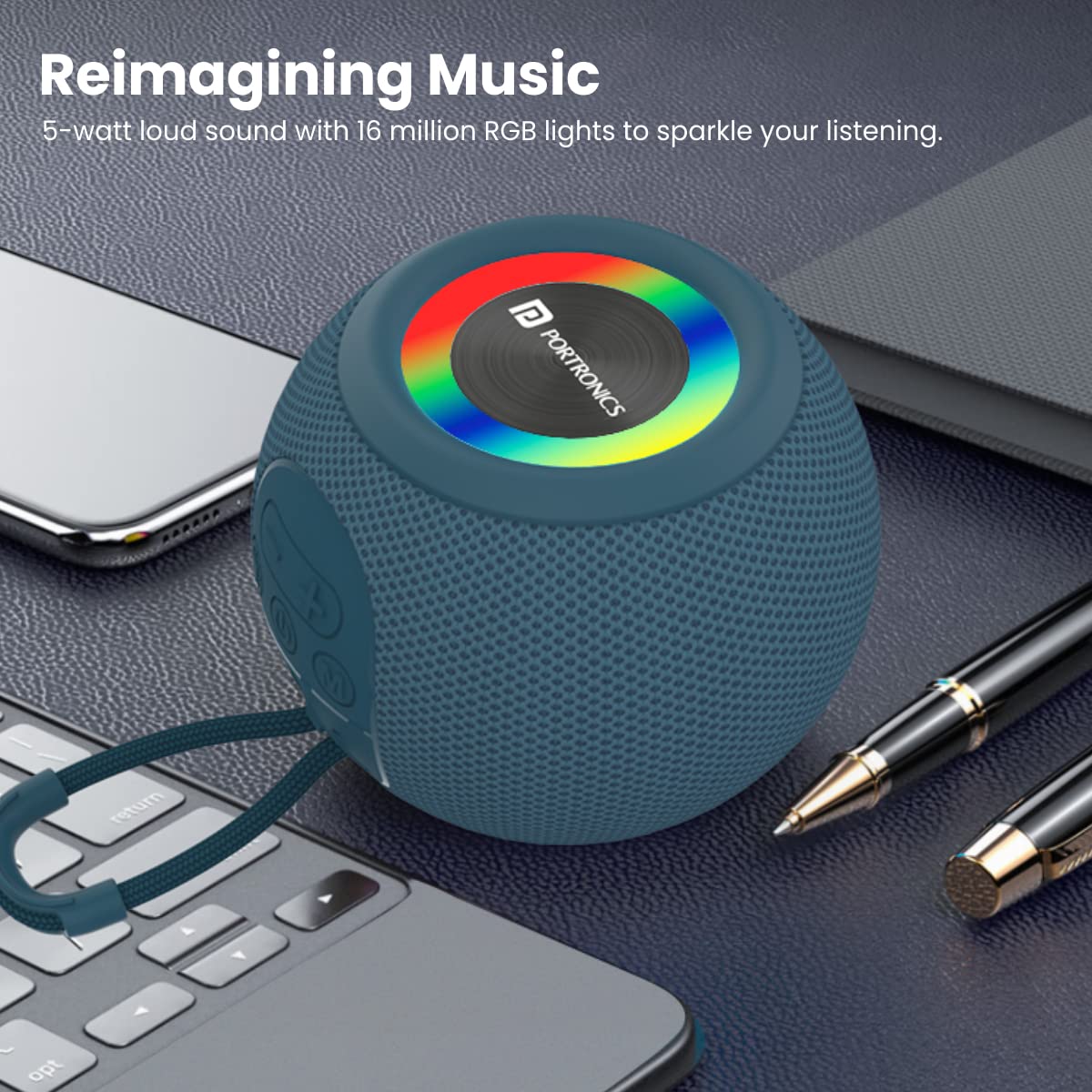
Image: The Portronics Resound speaker displaying its multicolor LED lights, illustrating the visual enhancement during music playback.
6. Compatibility
The Portronics Resound speaker is widely compatible with various devices:
- Smartphones (iOS and Android)
- Laptops
- Tablets

Image: The speaker positioned among different electronic devices, demonstrating its broad compatibility with smartphones, tablets, and laptops.
7. Maintenance
To ensure the longevity and optimal performance of your speaker, follow these maintenance guidelines:
- Keep the speaker away from extreme temperatures, direct sunlight, and humidity.
- Clean the speaker with a soft, dry cloth. Do not use abrasive cleaners or solvents.
- Avoid dropping the speaker or subjecting it to strong impacts.
- Ensure all ports are free from dust and debris.
- When not in use for extended periods, store the speaker in a cool, dry place and charge it periodically to maintain battery health.
8. Troubleshooting
If you encounter issues with your Portronics Resound speaker, refer to the following common solutions:
- No Power:
- Ensure the speaker is fully charged. Connect it to a power source and try again.
- Verify the charging cable and adapter are working correctly.
- Cannot Pair via Bluetooth:
- Make sure the speaker is in Bluetooth pairing mode (LED flashing).
- Ensure Bluetooth is enabled on your device and it is within 1 meter range of the speaker.
- Forget "Portronics Resound" from your device's Bluetooth list and try pairing again.
- Restart both the speaker and your device.
- No Sound:
- Check the volume level on both the speaker and your connected device.
- Ensure the correct mode (Bluetooth, AUX, USB, FM) is selected.
- If using AUX, ensure the cable is fully inserted and not damaged.
- FM Radio Not Working/Poor Reception:
- Ensure the AUX cable is connected to act as an antenna.
- Perform an automatic station scan again.
- Move to an area with better signal reception.
- TWS Pairing Failure:
- Ensure both speakers are not connected to any other Bluetooth device before initiating TWS pairing.
- Keep the speakers close to each other during pairing.
9. Specifications
| Feature | Specification |
|---|---|
| Model Name | Resound |
| Model Number | POR-1697 |
| Audio Output | 5 Watts |
| Bluetooth Version | 5.3 |
| Connectivity Options | Bluetooth, AUX, USB, Micro SD, FM Radio |
| Battery Type | Lithium Polymer |
| Charging Time | 2 Hours |
| Playtime | Up to 8 Hours |
| Item Weight | 332 Grams |
| Product Dimensions | 11.5D x 11.5W x 8.7H Centimeters |
| Special Features | TWS Function, Multicolor LED Lights |
10. Warranty and Support
The Portronics Resound speaker comes with a manufacturing warranty. For warranty claims, customer care, or technical support, please refer to the official Portronics support channels.
You can access instant support and warranty information by scanning the QR code below:

Image: QR code for quick access to Portronics customer care and warranty services.
Alternatively, visit: https://linktr.ee/portronicsdigital