
Introduction
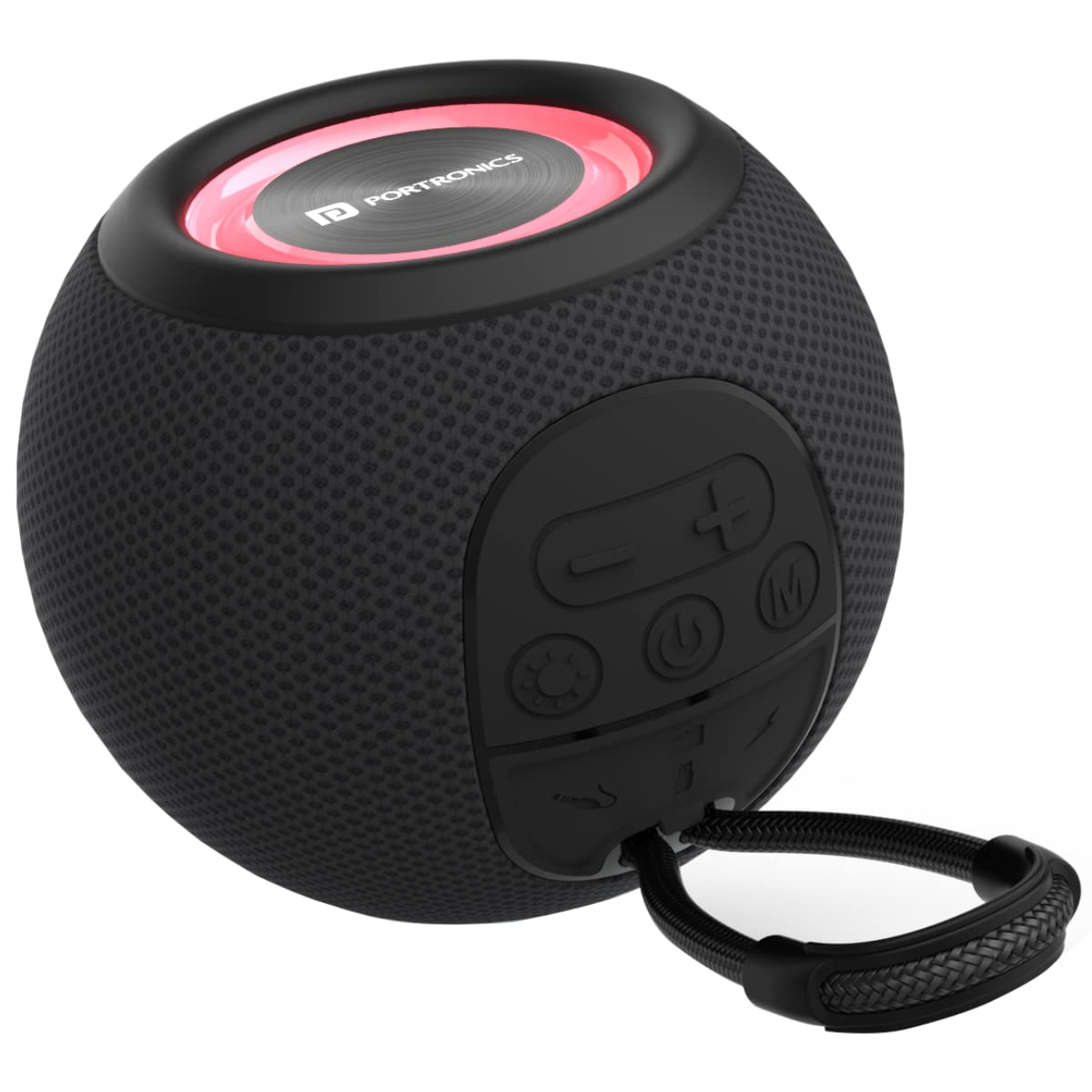
The Portronics Resound is a versatile 5W Bluetooth 5.3 wireless speaker designed to deliver clear audio with multiple connectivity options. This portable speaker features an integrated FM radio, True Wireless Stereo (TWS) functionality for pairing with another speaker, and multi-color LED lighting to enhance your listening experience. Weighing approximately 330 grams, it is ideal for indoor use and offers up to 8 hours of playtime on a single charge. This manual provides essential information for the proper setup, operation, and maintenance of your device.

The Portronics Resound speaker shown in an outdoor setting, demonstrating its portability and suitability for various environments.
Package Contents
Please check the package for the following items:
- Portronics Resound Wireless Speaker (1N)
- AUX Cable (1N)
- Charging Cable (1N)
- User Manual (1N)
Product Overview: Controls and Ports
Familiarize yourself with the buttons and ports on your Portronics Resound speaker:

A detailed view of the control panel and connectivity ports on the speaker.
- Power Button (
 ): Press and hold to power on/off. Short press to play/pause in Bluetooth mode.
 - Volume Down / Previous Track Button (-): Short press to decrease volume. Long press to go to the previous track.
- Volume Up / Next Track Button (+): Short press to increase volume. Long press to go to the next track.
- Mode Button (M): Short press to switch between Bluetooth, FM Radio, AUX, and USB modes.
- Micro USB Charging Port: For charging the speaker.
- AUX-in Port: For wired audio connection using the provided AUX cable.
- USB Port: For playing audio from a USB flash drive.
- Micro SD Card Slot: For playing audio from a Micro SD card (not explicitly mentioned in specs but common for such devices, if present).

Illustration of the various connectivity ports available on the speaker, including AUX, Micro SD, and USB.
Setup
1. Charging the Speaker
Before first use, fully charge the speaker. Connect the provided USB charging cable to the Micro USB port on the speaker and the other end to a USB power adapter (not included) or a computer's USB port. The LED indicator will show charging status and turn off or change color when fully charged.
- Charging Time: Approximately 2 hours for a full charge.
- Playtime: Up to 8 hours on a full charge (actual playtime may vary with volume and LED usage).

The speaker connected to a charging cable, illustrating the charging process while a smartphone plays music.
2. Power On/Off
To power on the speaker, press and hold the Power button () for a few seconds until you hear an audible prompt or see the LED lights activate. To power off, press and hold the Power button again.
Operating Instructions
1. Bluetooth Pairing
The speaker will automatically enter Bluetooth pairing mode when powered on for the first time or when the Bluetooth mode is selected. The LED indicator will flash, indicating it's ready to pair.
- Turn on the speaker. It will enter Bluetooth mode by default.
- Enable Bluetooth on your smartphone, tablet, or laptop.
- Search for available devices and select "Portronics Resound" from the list.
- Once connected, the speaker will indicate a successful pairing, and the LED light will stabilize.

The speaker positioned among various compatible devices such as smartphones, tablets, and laptops.
2. TWS (True Wireless Stereo) Function
The TWS function allows you to pair two Portronics Resound speakers together for a stereo sound experience.
- Ensure both Resound speakers are powered on and in Bluetooth pairing mode (not connected to any device).
- On one of the speakers (this will be the primary speaker), double-press the Power button. The speaker will search for another Resound speaker.
- Once successfully paired, you will hear an audible confirmation. The LED indicators on both speakers will synchronize.
- Now, connect your device (smartphone, etc.) to the primary speaker via Bluetooth as described in the Bluetooth Pairing section. Both speakers will play audio in stereo.

An illustration showing two Portronics Resound speakers wirelessly paired for a stereo audio experience.
3. FM Radio Operation
To use the FM radio function:
- Press the Mode button (M) repeatedly until you enter FM Radio mode.
- For better reception, connect the provided AUX cable to the AUX-in port; it acts as an external antenna.
- To auto-scan and save available stations, press and hold the Power button () for a few seconds. The speaker will scan and store stations automatically.
- Use the Volume Up (+) and Volume Down (-) buttons (short press) to switch between saved FM stations.
4. AUX Mode
To play audio via AUX cable:
- Press the Mode button (M) repeatedly until you enter AUX mode.
- Connect one end of the provided 3.5mm AUX cable to the AUX-in port on the speaker and the other end to the audio output jack of your device (e.g., smartphone, MP3 player).
- Audio will now play through the speaker. Control playback from your connected device.
5. USB Flash Drive Playback
To play music from a USB flash drive:
- Insert a USB flash drive containing audio files into the USB port on the speaker.
- Press the Mode button (M) repeatedly until you enter USB mode.
- The speaker will automatically detect and begin playing audio files from the USB drive.
- Use the Volume Up (+) and Volume Down (-) buttons (long press) to navigate tracks.
6. LED Lighting
The Portronics Resound speaker features multi-color RGB LED lights that synchronize with the audio. The lights automatically activate when the speaker is on. There is no specific button to control the LED patterns or turn them off, they are an integrated part of the listening experience.

The speaker showcasing its dynamic RGB LED lighting feature, adding a visual element to the audio experience.
7. Volume and Track Control
- Volume Adjustment: Short press the Volume Up (+) or Volume Down (-) buttons to increase or decrease the volume.
- Track Navigation: Long press the Volume Up (+) button for the next track, and long press the Volume Down (-) button for the previous track (applicable in Bluetooth and USB modes).
Maintenance
To ensure the longevity and optimal performance of your Portronics Resound speaker, follow these maintenance guidelines:
- Cleaning: Use a soft, dry cloth to wipe the speaker's surface. Do not use abrasive cleaners, alcohol, or chemical solvents, as these may damage the finish.
- Storage: Store the speaker in a cool, dry place away from direct sunlight and extreme temperatures.
- Water Resistance: This speaker is not waterproof. Avoid exposing it to water, rain, or excessive moisture.
- Handling: Handle the speaker with care. Avoid dropping it or subjecting it to strong impacts.
- Charging: Use only the provided charging cable or a certified equivalent. Do not attempt to charge the speaker with damaged cables or chargers.
Troubleshooting
If you encounter issues with your Portronics Resound speaker, refer to the following common problems and solutions:
| Problem | Possible Cause | Solution |
|---|---|---|
| Speaker does not power on. | Low battery. | Charge the speaker fully. |
| No sound. | Volume too low; incorrect mode; device not connected. | Increase volume; ensure correct mode (Bluetooth, AUX, USB, FM); re-pair Bluetooth device or check AUX/USB connection. |
| Bluetooth pairing fails. | Speaker not in pairing mode; device too far; interference. | Ensure speaker is in pairing mode (flashing LED); move device closer; turn off other Bluetooth devices. |
| Poor FM radio reception. | No antenna connected; weak signal. | Connect the AUX cable to act as an antenna; try auto-scanning again; move to an area with better signal. |
| TWS pairing fails. | Speakers already connected to a device; incorrect pairing procedure. | Ensure both speakers are disconnected from other devices; follow TWS pairing steps carefully. |
Specifications
Detailed technical specifications for the Portronics Resound speaker:

Dimensional drawing of the Portronics Resound speaker, indicating its compact size.
- Model Name: Resound
- Model Number: POR-1687
- Brand: Portronics
- Speaker Type: Portable Speaker
- Maximum Output Power: 5 Watts
- Connectivity Technology: AUX, Bluetooth, USB, Wireless
- Wireless Communication Technology: Bluetooth 5.3
- Audio Output Mode: Stereo
- Special Features: Aux-In Slot, Bluetooth V5.3, Built-in FM Radio, Micro SD Slot, TWS Function, USB Slot (Pen Drive), Multi-color LED Lighting
- Recommended Use: Indoor
- Compatible Devices: Laptop, Smartphone, Tablet
- Mounting Type: Tabletop Mount
- Control Method: Button
- Signal-to-Noise Ratio: 90 dB
- Battery Type: 1 Lithium-polymer battery (included)
- Battery Life (Playtime): Up to 8 hours
- Charging Time: 2 hours
- Product Dimensions: 11.5 x 11.5 x 8.7 cm
- Item Weight: 332 grams
- Color: Black
Warranty and Support
For warranty information or technical support, please refer to the warranty card included in your package or visit the official Portronics website. Keep your purchase receipt as proof of purchase for any warranty claims.
