
cimetech KF10
cimetech Wireless Keyboard and Mouse Combo User Manual
Model: KF10 | Brand: cimetech
Introduction
Thank you for choosing the cimetech Wireless Keyboard and Mouse Combo. This 2.4G USB full-size wireless computer keyboard and adjustable mouse are designed for comfort and efficiency, compatible with various operating systems. This manual will guide you through the setup, operation, maintenance, and troubleshooting of your new device.

Figure 1: cimetech Wireless Keyboard and Mouse Combo (Black)
Setup Guide
Package Contents
- 1 x Wireless Keyboard
- 1 x Wireless Mouse
- 1 x USB Nano Receiver (stored in mouse battery compartment)
- User Manual
Battery Installation
The keyboard requires 2 x AA batteries and the mouse requires 1 x AA battery (batteries are not included). Follow these steps to install the batteries:
- Locate the battery compartment on the underside of the keyboard and mouse.
- Open the battery cover.
- Insert the AA batteries, ensuring correct polarity (+/-).
- Close the battery cover securely.
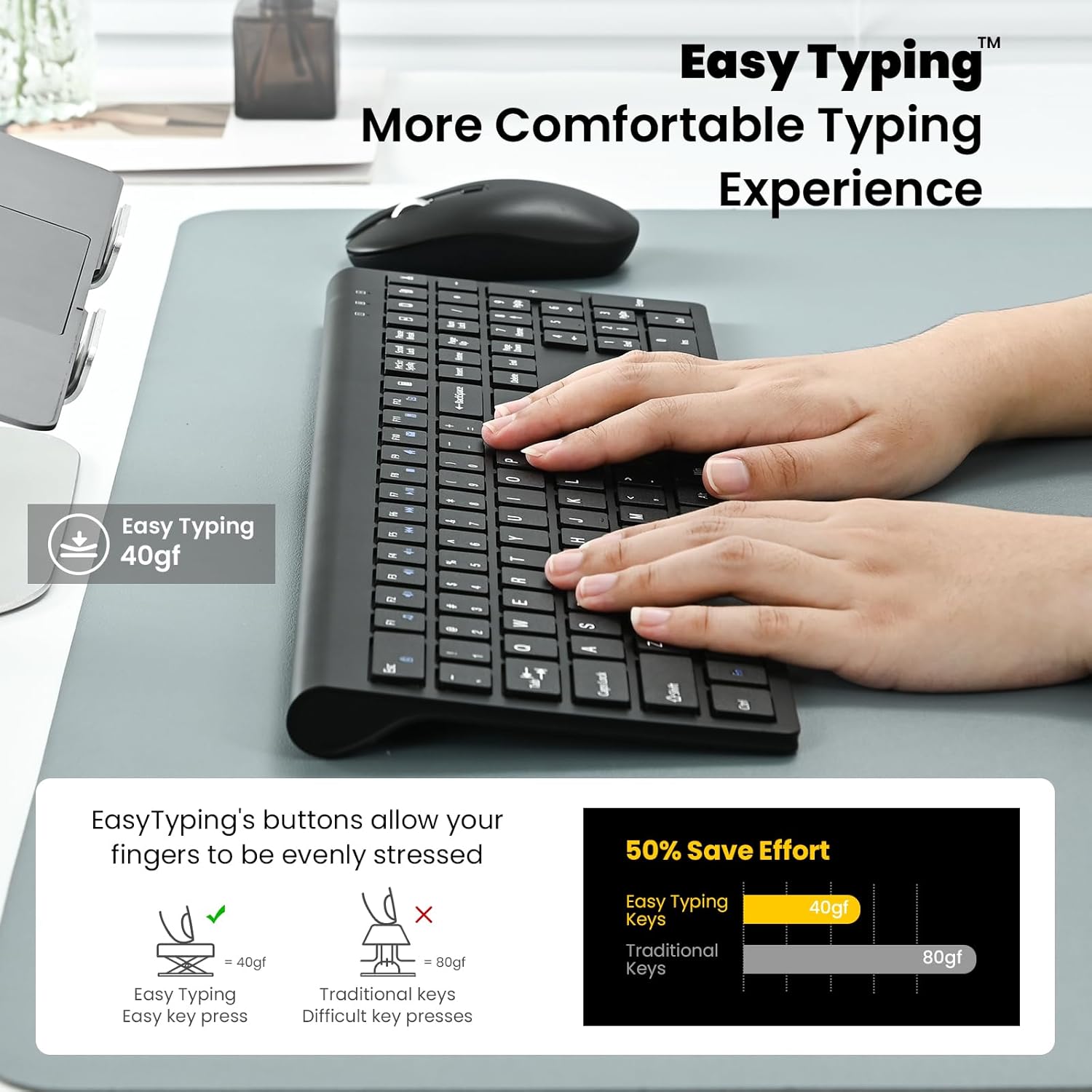
Figure 2: Mouse with battery compartment and USB receiver location
Connecting the Combo (Plug and Play)
The cimetech Wireless Keyboard and Mouse Combo uses a single USB nano receiver for both devices, providing a strong and reliable wireless connection up to 10 meters (33 ft) away.
- Remove the USB nano receiver from its storage slot in the mouse's battery compartment.
- Plug the USB nano receiver into an available USB port on your computer (PC, desktop, laptop, or notebook).
- Turn on the keyboard and mouse using their respective on/off switches.
- The devices should automatically connect to your computer. No additional software or drivers are required.

Figure 3: 2.4G Wireless Connection setup
Operating Instructions
Keyboard Features
- Slim and Ergonomic Design: The keyboard features a tilt angle for a comfortable typing position, reducing wrist and finger fatigue.
- Less Noise & Profile Keys Typing: Noise-reduced keys provide a quiet typing experience, ideal for shared environments.
- Full Size with Numeric Keypad: Includes a complete numeric keypad for efficient data entry.
- Multimedia Hot Keys: Instant access to music, internet, email, volume control, and more. (Note: Hot-keys may not be fully compatible with Mac systems).

Figure 4: Full Size Layout with Multimedia Hot Keys

Figure 5: Ergonomic design promotes healthy typing habits
Mouse Features
- Ergonomic Design: The contoured shape and skin-friendly finish provide comfortable use for hours.
- Silent Click: The mouse features silent clicks, allowing you to work without disturbing others.
- Adjustable DPI: Easily change cursor sensitivity with 3 DPI levels: 800, 1200, and 1600.
- Adjustable Polling Rate: Two polling rates are available: 125Hz and 250Hz. To adjust, press the right mouse button and the scroll wheel simultaneously for 3 seconds.

Figure 6: Full size and ultra-slim design of the keyboard and mouse
Maintenance
Battery Conservation
To maximize battery life, the keyboard and mouse feature an auto-sleeping mode. Additionally, use the on/off switches on both devices when not in use for extended periods.
Cleaning
To clean your keyboard and mouse, gently wipe them with a soft, damp cloth. Avoid using harsh chemicals or abrasive materials that could damage the surface. Ensure devices are powered off before cleaning.
Troubleshooting
- No Connection / Lag:
Ensure the USB nano receiver is securely plugged into a working USB port. Check that both the keyboard and mouse are powered on and have fresh batteries. Move the devices closer to the receiver to ensure they are within the 10-meter (33 ft) range. - Mouse Cursor Jumps or is Unresponsive:
Try adjusting the mouse DPI settings (800/1200/1600) to see if a different sensitivity improves performance. Ensure the mouse sensor is clean and free of debris. Test on a different surface. - Keyboard Keys Not Responding:
Verify that the keyboard is powered on and has sufficient battery charge. Re-insert the USB receiver. If specific keys are not working, ensure no debris is lodged beneath them. - Multimedia Hot Keys Not Working on Mac:
As noted, the hot-keys may not be fully compatible with Mac systems. This is expected behavior.
If you encounter persistent issues, please refer to the support information below.
Product Specifications
| Feature | Detail |
|---|---|
| Product Dimensions | 14.57 x 5.31 x 1.97 inches |
| Item Weight | 1.21 pounds |
| Model Number | KF10 |
| Brand | cimetech |
| Color | 6-Black |
| Connectivity Technology | Radio Frequency, USB (2.4G Wireless) |
| Special Features | Ergonomic, Lightweight, Portable |
| Compatible Devices | Laptop, Personal Computer (Windows XP / Vista / 7 / 8 /10) |
| Mouse DPI | 800/1200/1600 |
| Mouse Polling Rate | 125Hz/250Hz |
Warranty and Support
cimetech products are designed for reliability and performance. Our sales support team provides technical assistance to address any issues you may encounter.
For further assistance or to explore other cimetech products, please visit the official cimetech store:
Ask a question about this manual
Ask about setup, troubleshooting, compatibility, parts, safety, or missing instructions. Manuals+ will review the question and use this page’s manual context to help answer it.