
Introduction
This manual provides essential information for setting up, operating, maintaining, and troubleshooting your HP 17.3-inch laptop. This device is designed for business and educational use, offering robust performance and connectivity.

Figure 1: HP 17.3-inch Laptop Overview. This image displays the laptop open, revealing the large screen and full-size keyboard with a numeric keypad.
What's in the Box
Verify that all items are present in the packaging:
- HP 17.3-inch Laptop
- Power Adapter and Cable
- Quick Start Guide (may be included separately)
Setup
- Connect Power: Plug the power adapter into the laptop's power port and then into a wall outlet. Allow the battery to charge for at least 30 minutes before first use.
- Power On: Open the laptop lid and press the power button, typically located on the keyboard deck.
- Initial Windows Setup: Follow the on-screen prompts to complete the Windows 10 Pro setup, including language, region, network connection, and user account creation.
- Connect to Wi-Fi: During setup or afterward, select your Wi-Fi network from the available list and enter the password. The laptop supports Wi-Fi 5 (802.11ac).
- Fingerprint Reader Setup: If desired, configure the fingerprint reader for secure login through Windows Settings.
- Connect Peripherals: Use the available ports to connect external devices such as a mouse, keyboard, external display, or USB storage.

Figure 2: Left Side Ports. This image shows the left side of the laptop, featuring a USB 3.0 Type-A port, an HDMI port, a USB 3.0 Type-C port, and a headphone/microphone combo jack.

Figure 3: Right Side Ports. This image displays the right side of the laptop, including a USB 3.0 Type-A port, the power input, and various status indicator LEDs.
Operating Your Laptop
Power Management
- Power On/Off: Press the power button to turn the laptop on. To turn off, go to the Start Menu in Windows and select Power > Shut down.
- Sleep Mode: Close the lid or select Power > Sleep from the Start Menu to put the laptop into a low-power state.
- Restart: Select Power > Restart from the Start Menu to reboot the system.
Keyboard and Touchpad
- The laptop features a full-size keyboard with a numeric keypad.
- The touchpad supports multi-touch gestures for navigation. Refer to Windows settings for customization.
Display and Graphics
- The 17.3-inch Full HD (1920 x 1080) IPS anti-glare display provides wide viewing angles.
- Adjust display settings (brightness, resolution) through Windows Display Settings.
- The integrated AMD Radeon graphics handle visual processing.
Connectivity
- Wi-Fi: Connect to wireless networks via Wi-Fi 5 (802.11ac). Manage connections through the network icon in the taskbar.
- Bluetooth: Pair Bluetooth devices (e.g., headphones, mouse) via Windows Bluetooth settings.
- USB Ports: Utilize the USB 3.0 Type-C and Type-A ports for data transfer and connecting peripherals.
- HDMI: Connect an external monitor or projector using the HDMI port.
- Audio Jack: Use the headphone/microphone combo jack for audio output and input.
Webcam and Audio
- The TrueVision HD Camera is suitable for video calls and online meetings.
- Tuned stereo speakers provide audio output. Adjust volume via the taskbar icon or keyboard function keys.
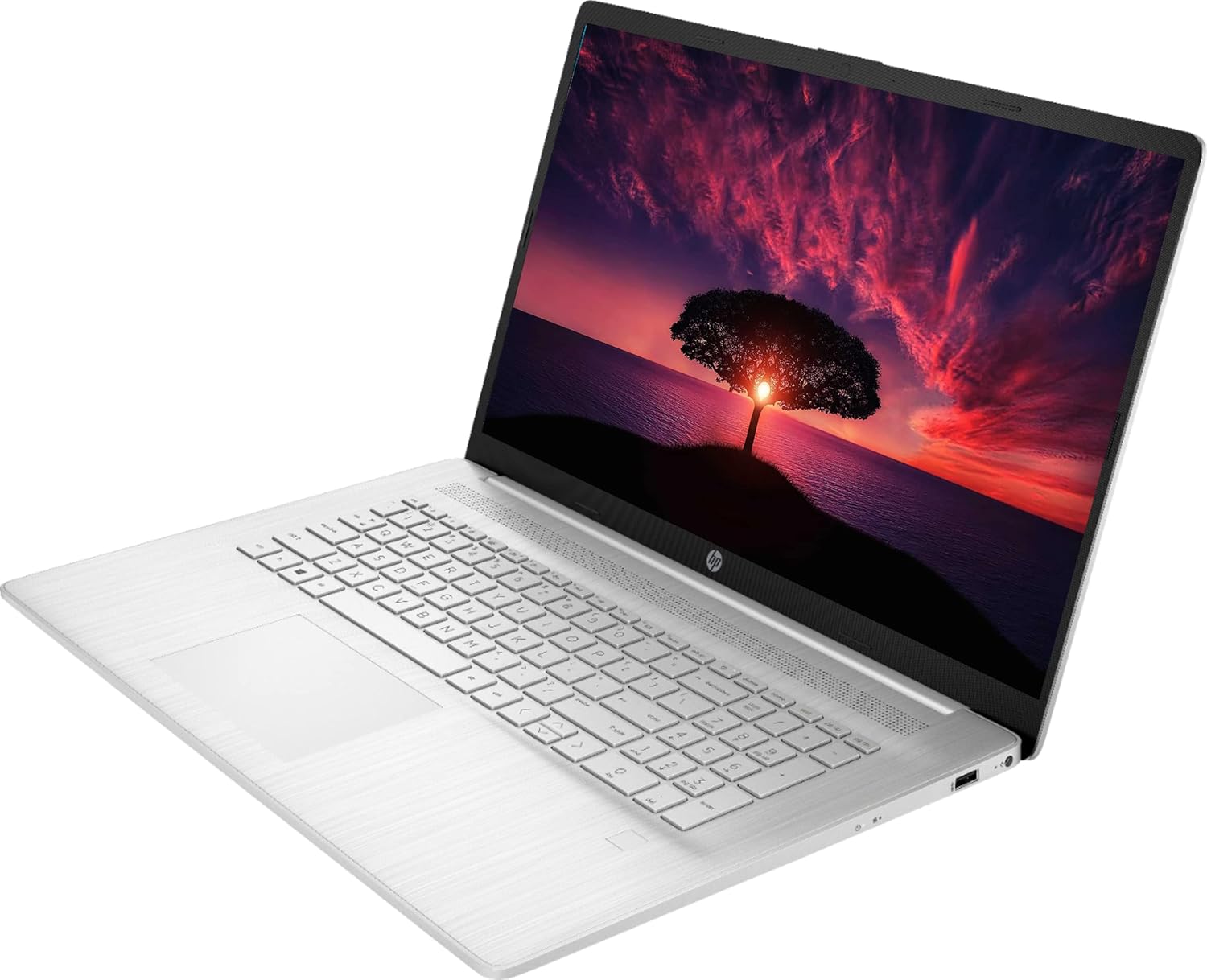
Figure 4: Laptop in Use. This image shows the HP laptop open at an angle, highlighting the display and the keyboard layout during operation.
Maintenance
Cleaning
- Screen: Use a soft, lint-free cloth lightly dampened with water or a screen cleaner. Do not spray liquid directly onto the screen.
- Keyboard and Chassis: Use a soft, dry cloth. For stubborn dirt, a slightly damp cloth with mild soap solution can be used, ensuring no liquid enters openings.
- Avoid abrasive cleaners or solvents.
Battery Care
- To prolong battery life, avoid extreme temperatures.
- Do not leave the laptop constantly plugged in at 100% charge for extended periods.
- Periodically discharge the battery to around 20% before recharging.
Software Updates
- Regularly check for and install Windows updates via Windows Settings > Update & Security.
- Ensure drivers are up-to-date. HP provides driver updates through its support website or pre-installed utility software.
Storage Management
- Periodically clean up unnecessary files and applications to maintain optimal performance of the 1TB SSD.
- Consider external storage for large backups.
Troubleshooting
| Issue | Possible Solution |
|---|---|
| Laptop does not power on. | Ensure the power adapter is securely connected to both the laptop and a working power outlet. Check if the power outlet is functional. Try a different outlet. |
| No display on screen. | Check if the laptop is powered on. Adjust screen brightness using function keys. If an external monitor is connected, ensure it's properly connected and selected as the output. |
| Wi-Fi connection issues. | Verify Wi-Fi is enabled in Windows settings. Restart your router and modem. Ensure you are within range of the Wi-Fi signal. Re-enter the Wi-Fi password. |
| Audio not working. | Check volume levels in Windows and on any connected external speakers/headphones. Ensure correct audio output device is selected in Sound settings. Update audio drivers. |
| Laptop is slow or unresponsive. | Close unnecessary applications. Check Task Manager for high CPU/RAM usage. Ensure Windows and drivers are up to date. Run a system scan for malware. Consider restarting the laptop. |
| Fingerprint reader not working. | Ensure your finger is clean and dry. Re-enroll your fingerprint in Windows Settings > Accounts > Sign-in options. Update fingerprint reader drivers. |
Specifications
| Model Name | HP 17 |
| Processor | AMD Ryzen 5 5500U (4 GHz, 6 Cores) |
| RAM | 32GB DDR4 |
| Storage | 1TB SSD |
| Display | 17.3-inch FHD (1920 x 1080) IPS Anti-Glare |
| Graphics | Integrated AMD Radeon Graphics |
| Operating System | Windows 10 Pro |
| Wireless Connectivity | Wi-Fi 5 (802.11ac), Bluetooth 4.2 |
| Ports | 2 x USB 3.0 Type-C, 1 x USB 3.0 Type-A, 1 x HDMI, 1 x Headphone/Microphone Combo Jack |
| Webcam | TrueVision HD Camera |
| Special Features | Fingerprint Reader |
| Battery Life (Average) | Up to 8.13 hours |
| Dimensions (LxWxH) | 15.78 x 0.78 x 10.15 inches |
| Weight | 7.58 pounds |
Warranty and Support
Your HP 17.3-inch laptop comes with a 1-year manufacturer warranty. For warranty claims, technical assistance, or additional support, please visit the official HP support website or contact HP customer service.
HP Support Website: support.hp.com
Please have your product's serial number ready when contacting support. The serial number is typically located on a sticker on the bottom of the laptop or can be found in the system information within Windows.


