
CAS CL5200N-15KG-P
CAS CL5200-P Barcode Label Printing Scale User Manual
Model: CL5200N-15KG-P
1. Introduction
This manual provides comprehensive instructions for the installation, operation, and maintenance of the CAS CL5200-P Barcode Label Printing Scale. Please read this manual thoroughly before using the device to ensure proper functionality and safety.
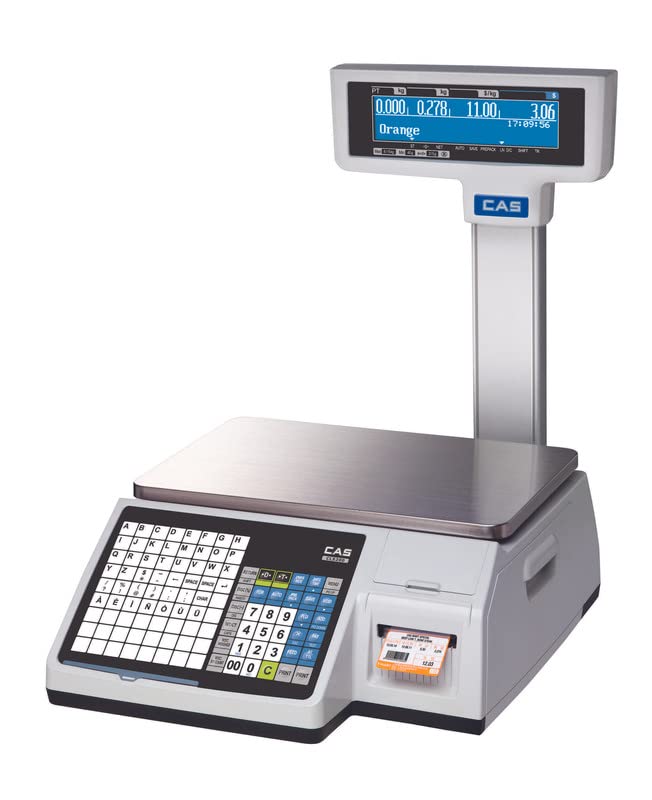
Figure 1.1: CAS CL5200-P Barcode Label Printing Scale. This image shows the complete scale unit with its weighing platter, keypad, display, and integrated label printer.
2. Safety Information
Observe the following safety precautions to prevent injury and damage to the device:
- Ensure the scale is placed on a stable, level surface.
- Do not expose the scale to excessive moisture or direct sunlight.
- Use only the power adapter supplied with the unit.
- Avoid dropping or subjecting the scale to strong impacts.
- Do not attempt to disassemble or repair the scale yourself. Refer to qualified service personnel.
- Keep hands clear of moving parts during label printing.
3. Package Contents
Verify that all items listed below are included in your package:
- CAS CL5200-P Scale
- Power Cable
- Label Roll Starter Pack
- User Manual (this document)
4. Product Overview
The CAS CL5200-P is a high-performance barcode label printing scale designed for retail environments. Key features include:
- Integrated Barcode Label Printer: Prints item-specific labels with pricing, weight, and barcodes.
- Networking Ready (LAN): Connects to your store network for central price updates and data synchronization.
- High-Speed Printing: Produces labels quickly with 202 dpi resolution.
- Dual Display: Features LCD screens for both operator and customer viewing.
- User-Friendly PLU Management: Stores up to 10,000 PLUs (Price Look-Up units) for fast item lookup.
- Retail-Focused Design: Optimized for use with fresh produce, meats, deli items, and pre-packaged goods.

Figure 4.1: Overview of CL5200-P features, highlighting its capacity, platter size, and printing speed.

Figure 4.2: The scale supports 45 pre-installed label formats for various applications.

Figure 4.3: Capability to store 10,000 PLUs and 1,000 ingredients for extensive product management.

Figure 4.4: The display shows menu codes for simplified navigation and operation.
5. Setup
- Unpacking: Carefully remove the scale and all components from the packaging. Retain packaging for future transport or storage.
- Placement: Place the scale on a firm, level, and stable surface, away from direct sunlight, vibrations, and drafts. Ensure adequate ventilation around the unit.
- Power Connection: Connect the power cable to the scale's power input port and then plug it into a suitable electrical outlet.
- Initial Power On: Press the power button. The display will illuminate, and the scale will perform a self-test.
- Network Connection (Optional): For LAN connectivity, connect an Ethernet cable from the scale's LAN port to your network router or switch. Refer to the network setup guide for detailed configuration.
- Label Roll Installation:
- Open the printer cover.
- Insert the label roll into the designated slot, ensuring the labels feed correctly.
- Pull a small length of labels out and close the cover. The scale may automatically feed the first label to align.
6. Operating Instructions
6.1 Basic Weighing
- Ensure the scale displays "0.000 kg" before placing an item. If not, press the ZERO key.
- Place the item to be weighed on the center of the weighing platter.
- The weight will be displayed on both the operator and customer LCD screens.
6.2 Tare Function
To weigh an item in a container, use the tare function:
- Place the empty container on the weighing platter.
- Press the TARE key. The display will return to "0.000 kg".
- Place the item inside the container. The display will show only the net weight of the item.
- To clear the tare, remove the container and press the TARE key again.
6.3 PLU Management and Label Printing
The CL5200-P allows for efficient management of Price Look-Up (PLU) items and printing of corresponding labels.
- Recalling a PLU:
- Enter the PLU number using the numeric keypad.
- Press the PLU key. The item name and unit price will appear on the display.
- Weighing and Printing with PLU:
- Recall the desired PLU (as above).
- Place the item on the weighing platter. The total price will be calculated.
- Press the PRINT key to print the label.
- Programming a New PLU (Advanced):
Refer to the detailed programming section in the full user manual for advanced PLU setup, including item name, unit price, tare weight, and label format assignment. This typically involves entering a programming mode and navigating through menu codes.
7. Maintenance
- Cleaning:
- Disconnect the power before cleaning.
- Wipe the scale's exterior with a soft, damp cloth. Use a mild detergent if necessary.
- Do not use abrasive cleaners, solvents, or immerse the scale in water.
- Regularly clean the weighing platter, especially after weighing food items.
- Printer Head Cleaning:
If print quality degrades, gently wipe the thermal print head with an alcohol swab. Ensure the print head is cool before cleaning.
- Label Roll Replacement:
Replace the label roll when it runs out, following the installation steps outlined in Section 5.
8. Troubleshooting
| Problem | Possible Cause | Solution |
|---|---|---|
| Scale does not power on. | No power supply; faulty power cable. | Check power cable connection; try a different outlet; ensure power button is pressed. |
| Inaccurate weight readings. | Scale not level; external vibrations; foreign objects under platter. | Ensure scale is on a level surface; remove any obstructions; recalibrate if necessary (refer to service manual). |
| Labels not printing or poor print quality. | Label roll empty or incorrectly installed; dirty print head; incorrect label format. | Replace label roll; re-install label roll correctly; clean print head (Section 7); verify label format settings. |
| Network connection issues. | Loose Ethernet cable; incorrect network settings. | Check Ethernet cable; verify network configuration (IP address, subnet mask) in scale settings. |
9. Specifications
| Feature | Detail |
|---|---|
| Model | CL5200N-15KG-P |
| Brand | CAS |
| Capacity | 15 kg |
| Accuracy (Readout) | 5g |
| Pan Size | 382x246mm (15x10 inches) |
| Display Type | LCD (Dual Display) |
| PLU Storage | Up to 10,000 PLUs |
| Label Formats | 45 fixed, 20 customized |
| Printing Resolution | 202 dpi |
| Connectivity | LAN (Networking Ready) |
| Material | Stainless Steel (platter), other components |
| Power Source | AC/DC |
| Item Weight | 3.5 kg |
| Dimensions (Package) | 30 x 20 x 10 cm |
| Country of Origin | India |
10. Warranty and Support
For warranty information, technical support, or service requests, please contact CAS Weighing India Pvt Ltd. Keep your purchase receipt and product serial number readily available when contacting support.
- Manufacturer: CAS Corporation
- Importer/Packer: CAS Weighing India Pvt Ltd
- Contact Number: 9212559707 (as per packer information)
- Online Resources: Visit the official CAS website for additional resources, FAQs, and software updates.
Ask a question about this manual
Ask about setup, troubleshooting, compatibility, parts, safety, or missing instructions. Manuals+ will review the question and use this page’s manual context to help answer it.