
Introduction
This manual provides comprehensive instructions for the setup, operation, and maintenance of your Varmilo Minilo VXH67 Eucalyptus 65% Wired Hotswap White LED Mechanical Keyboard. Please read this manual thoroughly before using the product to ensure optimal performance and longevity.

Image: The Varmilo Minilo VXH67 mechanical keyboard, featuring a compact 65% layout with white, light blue, and light green keycaps, resting on a dark table. Books and a small lamp are visible in the background.
Package Contents
- Varmilo Minilo VXH67 Mechanical Keyboard
- USB-C Cable
- Keycap Puller (for switch and keycap replacement)
- Switch Puller (for switch replacement)
- User Manual (this document)
Setup
1. Connecting the Keyboard
The Varmilo Minilo VXH67 supports both wired and Bluetooth connectivity.
Wired Connection:
- Locate the USB-C port on the keyboard.
- Connect one end of the provided USB-C cable to the keyboard.
- Connect the other end of the USB-C cable to an available USB port on your computer.
- The keyboard will be automatically recognized by your operating system.
Bluetooth Connection:
- Ensure the keyboard is charged or connected via USB-C initially.
- Turn on Bluetooth on your device (PC, tablet, smartphone).
- Put the keyboard into Bluetooth pairing mode (refer to the specific key combination for Bluetooth pairing, usually Fn + a number key for different profiles).
- On your device, search for available Bluetooth devices and select "Varmilo Minilo VXH67".
- Follow any on-screen prompts to complete the pairing process.
2. Adjusting Keyboard Height
The keyboard features adjustable kickstands on the underside to customize typing angle. There are typically multiple levels of adjustment.
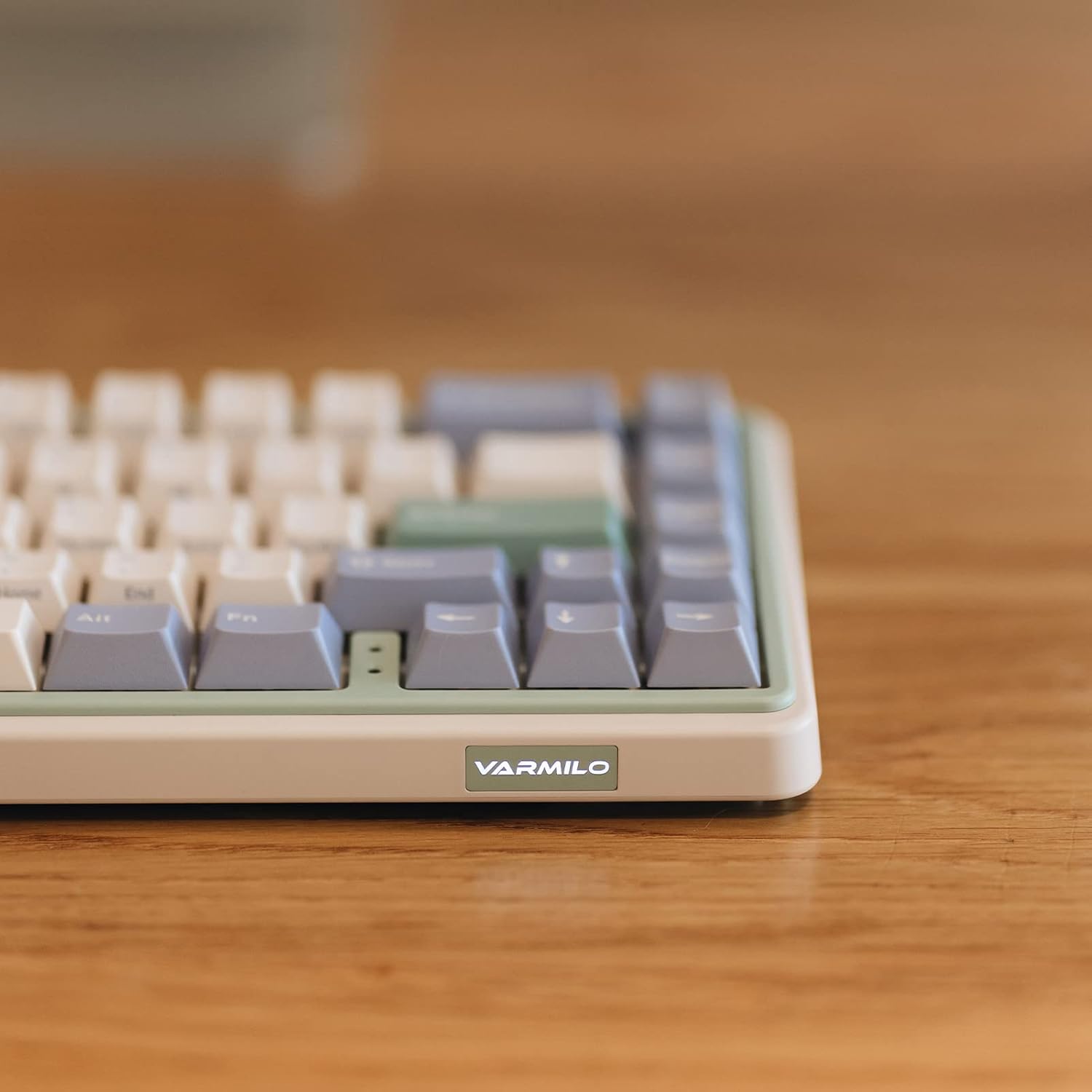
Image: A close-up view of the Varmilo Minilo VXH67 keyboard's side, highlighting the illuminated "VARMILO" logo on the front edge. The keyboard's light green and beige casing is visible.
Operating Instructions
Key Layout and Functions
The Varmilo Minilo VXH67 features a compact 65% layout with 67 keys. Many functions are accessed via the Fn key in combination with other keys.
- Caps Lock Indicator: Indicator lights are located next to the arrow keys.
- F-row Functions: Access F1-F12 functions using the Fn key in combination with the number row keys.
- Media Controls: Specific key combinations with Fn allow for media playback control (play/pause, volume up/down, track skip). Refer to the keycap legends for specific functions.
- White LED Backlighting: Adjust brightness and lighting effects using Fn key combinations.

Image: The Varmilo Minilo VXH67 keyboard positioned on a wooden desk, with a computer monitor displaying "10:13 AM" in the background. A glass of water and a small lamp are also on the desk.
Hot-Swapping Switches
The Varmilo Minilo VXH67 features hot-swappable sockets, allowing you to change mechanical switches without soldering. This model comes with Cherry MX Silver switches, which have a 45gf operation force, faster trigger speed, and shorter travel compared to red switches.
- Remove Keycap: Use the provided keycap puller to gently remove the desired keycap.
- Remove Switch: Use the provided switch puller to carefully grip the top and bottom clips of the switch and pull it straight up.
- Insert New Switch: Align the pins of the new switch with the holes on the PCB. Gently press the switch down until it clicks into place. Ensure the pins are not bent.
- Replace Keycap: Place the keycap onto the new switch stem and press down firmly.

Image: A diagram illustrating the internal structure of a Cherry MX Silver mechanical switch and its force-travel characteristics, indicating a 45gf operation force.
Maintenance
Cleaning the Keyboard
- Disconnect the keyboard from your computer before cleaning.
- Use a keycap puller to remove keycaps for thorough cleaning.
- Wipe keycaps with a damp cloth and mild soap solution, then dry completely.
- Use compressed air to remove dust and debris from between the switches.
- Wipe the keyboard case with a soft, dry cloth. Avoid harsh chemicals.
Keycap and Switch Care
The keyboard features 1.5mm thick ABS Double Shot keycaps, known for their durability. Handle keycaps and switches carefully during removal and installation to prevent damage to the stems or switch pins.
Troubleshooting
- Keyboard not responding:
- Ensure the USB-C cable is securely connected to both the keyboard and the computer.
- If using Bluetooth, verify the keyboard is paired and selected as the active device.
- Try connecting the keyboard to a different USB port or a different computer to rule out port issues.
- Keys not registering or double-typing:
- Remove the keycap and switch for the affected key. Inspect the switch pins for bends or damage. Straighten bent pins carefully if possible.
- Clean any debris from the switch socket.
- Test with a different switch if available.
- Bluetooth connection issues:
- Ensure the keyboard is fully charged.
- Remove the keyboard from your device's Bluetooth list and attempt to re-pair.
- Ensure no other devices are interfering with the Bluetooth signal.
- LED backlighting not working:
- Check if the LED brightness is set to minimum or turned off via Fn key combinations.
- Ensure the keyboard is receiving sufficient power (especially in wired mode).
Specifications
| Feature | Detail |
|---|---|
| Brand | Varmilo |
| Model Number | VXH67A046SL |
| Keyboard Layout | 65% (67 Keys), QWERTY |
| Switch Type | Cherry MX Silver (Tactile) |
| Connectivity | USB-C (Wired), Bluetooth |
| Special Feature | Hot-Swappable Sockets |
| Keycaps | 1.5mm thick ABS Double Shot |
| Backlighting | White LED |
| Material | Acrylonitrile Butadiene Styrene (ABS) |
| Power Source | USB Powered |
| Compatible Devices | PC |
Warranty and Support
For warranty information and technical support, please refer to the official Varmilo website or contact your retailer. Keep your purchase receipt for warranty claims.
Official Varmilo Website: www.varmilo.com


