
Walfront Walfrontcex2zkwogb
Walfront Electricity Usage Monitor Plug User Manual
Model: Walfrontcex2zkwogb
Introduction
This user manual provides comprehensive instructions for the Walfront Electricity Usage Monitor Plug. This intelligent outlet plug functions as a power meter and watt meter, designed to monitor the electricity consumption of connected devices. It supports AC85-265V input with a maximum current of 16A and a maximum power of 3680W. Key features include real-time monitoring, remote control via a mobile application, various timing functions, and safety alarms.
Safety Information
Please read and understand all safety warnings and instructions before using this product. Failure to follow these instructions may result in electric shock, fire, or serious injury.
- Do not disassemble or modify the device.
- Ensure the device is used within its specified voltage (AC85-265V), current (16A), and power (3680W) limits. Overloading can cause damage or fire.
- Keep the device away from water, moisture, and high temperatures.
- Do not use the device if it is damaged.
- This product is designed for indoor use only.
- Unplug the device from the power outlet before cleaning.
Product Overview
The Walfront Electricity Usage Monitor Plug features a clear display screen and a standard US plug interface. It integrates with a mobile application for enhanced control and monitoring capabilities.

Image: Front view of the Walfront Electricity Usage Monitor Plug, highlighting its integrated display screen showing various electrical parameters.
Key Components:
- Display Screen: Shows real-time voltage, current, power, energy consumption, frequency, power factor, run time, and CPU temperature.
- US Plug Interface: For connecting to a standard wall outlet.
- US Socket Interface: For connecting your appliance.
- Control Buttons: For navigating the display and settings.
- Wi-Fi Module: For connecting to your home network and mobile application.
Setup
1. Initial Connection:
- Plug the Walfront Electricity Usage Monitor Plug into a standard US wall outlet.
- The display screen will light up, showing initial readings.
- Plug the appliance you wish to monitor into the socket of the Walfront device.
2. Mobile Application Setup (Tuya/Smart Life App):

Image: The smart socket shown alongside a smartphone displaying the mobile application interface, indicating Wi-Fi connectivity.
- Download the "Tuya Smart" or "Smart Life" app from your smartphone's app store (iOS or Android).
- Register or log in to your account.
- Ensure your smartphone is connected to a 2.4GHz Wi-Fi network.
- Open the app and tap "Add Device" or the "+" icon.
- Follow the in-app instructions to connect the smart metering socket to your Wi-Fi network. This typically involves putting the device into pairing mode (refer to the device's display or manual for specific pairing instructions, often by holding a button).
- Once connected, you can rename the device and access its features through the app.
Operating Instructions
1. Real-time Monitoring:
The device's display screen provides immediate readings of your connected appliance's electricity usage. The mobile app offers a more detailed view, including historical data and graphs.
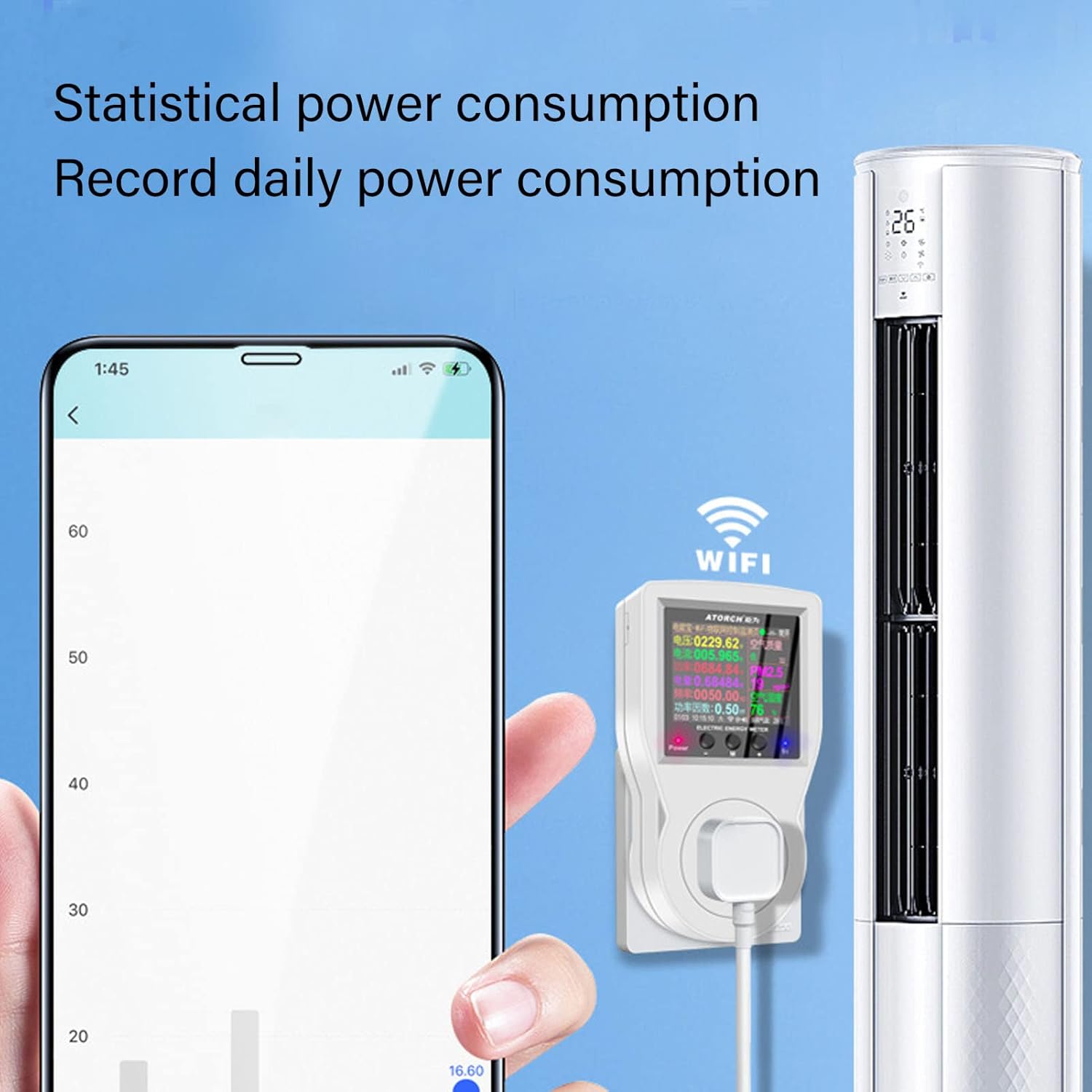
Image: A smartphone screen showing a graph of daily power consumption, demonstrating the statistical monitoring capability of the smart socket.
2. Remote Control and Telemetry:
Using the mobile app, you can remotely turn the connected appliance on or off from anywhere with an internet connection. The app also allows for telemetry, providing remote access to all monitoring data.

Image: An illustration depicting a single smartphone controlling multiple smart sockets connected to various devices throughout a home, highlighting simultaneous control and voice intelligence.
3. Timing Functions:
The smart metering socket offers various timing features to automate power management:
- Countdown Switch: Set a timer for the device to automatically power on or off after a specified duration.
- Cycle Timing: Program the device to turn on and off repeatedly at set intervals.
- Scheduled On/Off: Set specific times for the device to power on or off daily.
- Intelligent Power Off (Timer Charging): Automatically power off a device when charging is complete or after a set charging duration. Ideal for electric bikes or other rechargeable devices.

Image: The smart socket in use, demonstrating its countdown switch function for accurate power on and off, as controlled via a smartphone.

Image: The smart socket connected to an aquarium, showcasing its automatic cycle timing function for devices like pumps or lights.
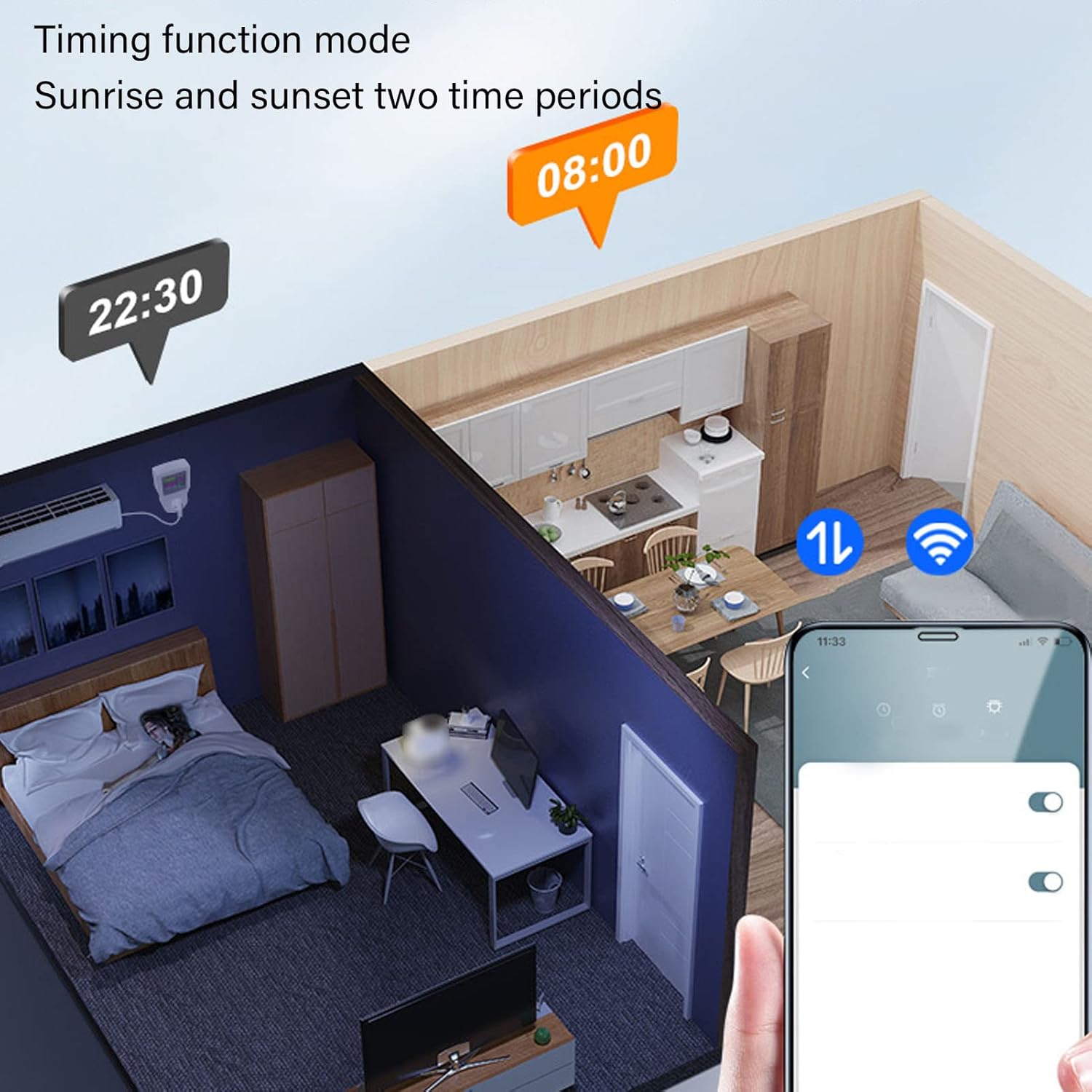
Image: A visual representation of the timing function mode, illustrating how the smart socket can be programmed for sunrise and sunset time periods.

Image: The smart socket connected to an electric bicycle, illustrating its intelligent power off function when charging is complete or after a set timer.
4. Display Alarm and Protection Functions:
The device features built-in alarms and automatic power-off functions for safety and protection:
- Over Voltage Alarm: Alerts and can automatically power off if the voltage exceeds a safe limit.
- Over Current Alarm: Alerts and can automatically power off if the current draw exceeds a safe limit.
- Over Power Alarm: Alerts and can automatically power off if the power consumption exceeds a safe limit.

Image: A compilation of various display interfaces, including settings for overcurrent, overvoltage, and overpower protection, all in English.
5. AI Voice Function:
Integrate with compatible AI voice assistants (e.g., Amazon Alexa, Google Assistant) through the mobile app to control your connected appliances using voice commands.
Maintenance
- Cleaning: Disconnect the device from power before cleaning. Use a soft, dry cloth to wipe the surface. Do not use liquid cleaners or sprays.
- Storage: Store the device in a cool, dry place when not in use.
- Firmware Updates: Periodically check the mobile application for any available firmware updates for the device to ensure optimal performance and security.
Troubleshooting
| Problem | Possible Cause | Solution |
|---|---|---|
| Device not powering on. | No power from outlet; device malfunction. | Check the wall outlet with another appliance. Ensure the device is properly plugged in. If still no power, contact support. |
| Cannot connect to Wi-Fi. | Incorrect Wi-Fi password; 5GHz network; device too far from router; pairing mode not activated. | Ensure correct 2.4GHz Wi-Fi network and password. Move device closer to router. Re-enter pairing mode as per setup instructions. |
| Appliance not responding to remote control. | Device offline; app issue; internet connectivity problem. | Check if the device is online in the app. Verify your phone's internet connection. Restart the app or the smart socket. |
| Display shows "Over Voltage/Current/Power". | Connected appliance exceeds device limits. | Unplug the appliance immediately. Ensure the appliance's power requirements are within the smart socket's specifications (Max 16A, 3680W). |
Specifications
| Parameter | Value |
|---|---|
| Model Number | Walfrontcex2zkwogb |
| Input Voltage | AC 85-265V |
| Maximum Current | 16A |
| Maximum Power | 3680W |
| Connectivity | Wi-Fi (2.4GHz) |
| App Compatibility | Tuya Smart / Smart Life |
| Dimensions | 5.55 x 3.94 x 3.19 inches (approx.) |
| Weight | 6.6 ounces (approx.) |
Warranty and Support
For warranty information and technical support, please refer to the documentation included with your purchase or visit the official Walfront website. You can also contact Walfront customer service through the contact information provided on their website or through the retailer where you purchased the product.
Manufacturer: Walfront
ASIN: B0BGSYJQK6
Ask a question about this manual
Ask about setup, troubleshooting, compatibility, parts, safety, or missing instructions. Manuals+ will review the question and use this page’s manual context to help answer it.