
1. Introduction
This manual provides detailed instructions for the installation, operation, and maintenance of your SIXWIN Android 13 Car Stereo. This unit is designed to enhance your driving experience with advanced features such as wireless CarPlay, Android Auto, Bluetooth connectivity, GPS navigation, and Wi-Fi capabilities.
Please read this manual thoroughly before installation and use to ensure proper function and safety.
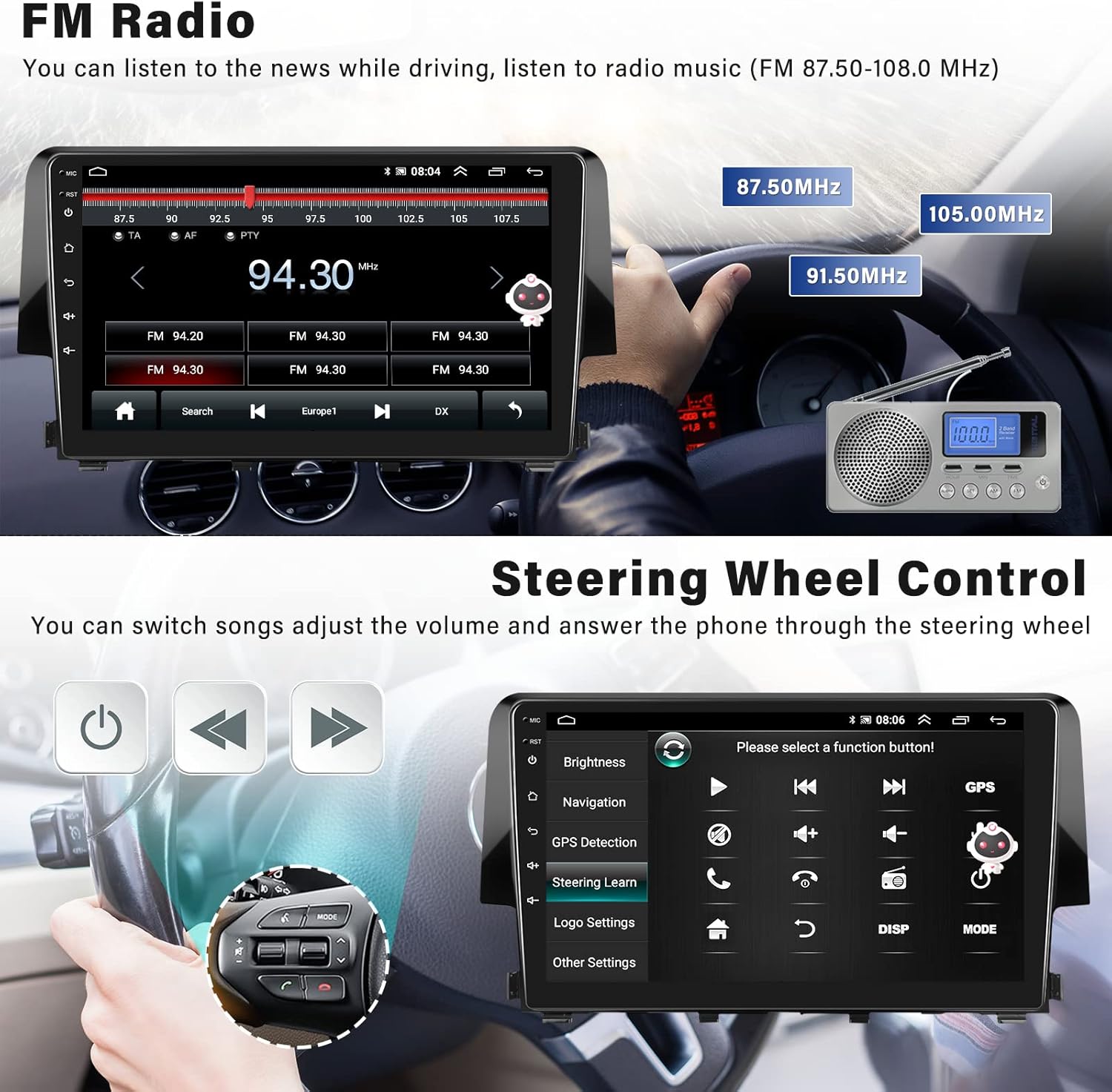
Image: SIXWIN Android 13 Car Stereo with its user interface displayed in a Honda Civic dashboard.
2. Vehicle Compatibility
This Android Car Stereo is specifically designed for Honda Civic models manufactured between 2016 and 2020. It is compatible with both basic and large screen versions of the Honda Civic.

Image: Visual guide for Honda Civic 2016-2020 center console types, showing basic, large screen, and Navi versions. Note that large screen and Navi versions may require additional harness and Canbus for full functionality.
Important Note: If your vehicle has a factory large screen, an additional harness (B0CB14L5RV) and Canbus (B0CB16N1QZ) are required to retain factory backup camera and steering wheel controls. Please contact customer support for wiring diagrams if needed.
3. What's in the Box
The package includes the following components:
- SIXWIN Android Car Stereo Unit
- Power Cord
- 2 USB Cables
- RCA Cable
- GPS Antenna
- Camera Input Cable
- Microphone (MIC)
- AHD Rear Camera (if included in package)
- Video Extension Cable
- Screws for installation
- User Manual (this document)
- Installation Tool

Image: Rear view of the car stereo unit, illustrating the various connection ports for power, USB, RCA, GPS, and camera inputs.
4. Setup and Installation
The installation process involves connecting the main unit to your vehicle's wiring harness and any additional accessories. It is recommended to seek professional assistance if you are unfamiliar with car audio installations.
4.1 Wiring Harness Connection
Connect the provided power cable and other wiring harnesses to the corresponding ports on the car stereo unit and your vehicle's existing wiring. Ensure all connections are secure.

Image: Detailed diagram illustrating how to connect the Canbus and various wiring harnesses, including video, audio, USB, and GPS antenna connections.
For vehicles with factory large screens: You will need to purchase additional harness (B0CB14L5RV) and Canbus (B0CB16N1QZ). Do not connect the power cord interface to the Canbus interface, as this may cause a short circuit. The Canbus has two interfaces (20-pin and 8-pin) that need to be connected. After connecting, set the protocol box via:
Car settings -> Factory settings (8888) -> Protocol settings -> choose your car model.
4.2 Backup Camera Installation
If installing a backup camera, connect the camera's video output to the "CCD AVIN" or "RCAM video in - CVBS IN 2" port on the stereo's wiring harness. Ensure the camera's power is connected to the reversing light positive (+12V) and ground (GND) wires.
To set up the backup camera:
Factory settings (8888) -> Protocol parameter settings -> Reverse video clarity/format.
Video: Demonstrates how to connect the wiring harness to retain factory car functions, including the backup camera and steering wheel controls. This video is provided by DZT DIRECT (Seller).
5. Operating Instructions
5.1 Wireless CarPlay & Android Auto
This unit supports both wireless and wired Apple CarPlay and Android Auto. After connecting your phone, you can access navigation, contacts, messages, music, and voice assistants (Siri/Google Assistant).
- Connect your phone to the car stereo via Bluetooth or USB adapter (use original USB cable).
- Open the "Zlink" application on the car stereo.
- Enjoy Wireless Apple CarPlay or Android Auto.
Note: Samsung phones may not be supported for wireless connection. If the connection is unsuccessful, you may need to manually connect to Wi-Fi first. Android phones require the Android Auto app to be installed on the phone.

Image: Visual guide for connecting Wireless CarPlay and Android Auto through the Zlink application, showing the steps for both Apple and Android devices.
Video: Demonstrates the process of connecting Zlink for CarPlay functionality. This video is provided by DZT DIRECT (Seller).
5.2 Bluetooth Hands-free & Music
Pair your smartphone via Bluetooth for hands-free calling and music streaming. You can answer calls, make calls, and download phonebooks directly from the stereo interface.

Image: The Bluetooth interface for hands-free calling, displaying a dial pad and options for call management.
5.3 GPS Navigation
The head unit features built-in GPS navigation, supporting both online and offline maps. The "Here We Go" app is pre-installed, allowing you to download offline maps for navigation without an internet connection.

Image: The GPS navigation screen, showing a map with a route and estimated travel time, along with icons for various navigation apps.
5.4 Wi-Fi Connection
Connect the stereo to a Wi-Fi network or mobile hotspot to access online features. This enables downloading apps from the Play Store (e.g., YouTube, TikTok, Spotify) and using online navigation.

Image: The Wi-Fi connection screen, showing available networks and a selection of popular apps that can be downloaded and used with an internet connection.
Video: Shows the user interface of the car radio, demonstrating various features including Wi-Fi connectivity, navigation, music playback, and settings. This video is provided by DZT DIRECT (Seller).
5.5 FM Radio
The FM radio provides 18 preset stations with a frequency range of 87.50-108.0 MHz. Tune into your favorite stations for news, music, and entertainment while driving.

Image: The FM radio interface, displaying current frequency, station presets, and controls for tuning.
5.6 Steering Wheel Control (SWC)
The unit supports factory steering wheel controls. You can configure these controls to switch songs, adjust volume, and answer calls directly from your steering wheel.

Image: The Steering Wheel Control (SWC) settings menu, where users can program their steering wheel buttons to control various functions of the car stereo.
5.7 Split Screen Function
Utilize the split screen feature to run two applications simultaneously, such as navigation and music playback, for enhanced multitasking.

Image: The split screen feature in action, displaying a navigation map on one side and a music player on the other, allowing simultaneous use of two applications.
5.8 HiFi Audio
Experience high-fidelity audio with the built-in HiFi function, providing enhanced sound quality for your music.

Image: The HiFi and Equalizer (EQ) settings, offering various audio presets like Custom, Classical, Jazz, and Pop, along with a graphic equalizer for fine-tuning sound.
6. Maintenance
To ensure the longevity and optimal performance of your car stereo, follow these maintenance guidelines:
- Cleaning: Use a soft, dry cloth to clean the screen and exterior. Avoid abrasive cleaners or solvents.
- Temperature: Avoid exposing the unit to extreme temperatures.
- Software Updates: Periodically check for software updates to ensure the best performance and access to new features.
7. Troubleshooting
This section addresses common issues you might encounter with your SIXWIN Android 13 Car Stereo.
| Problem | Possible Cause | Solution |
|---|---|---|
| Unit does not power on. | Incorrect wiring, blown fuse. | Check power connections and vehicle fuses. Ensure proper wiring according to the manual. |
| No sound. | Volume too low, incorrect audio output settings, speaker wiring issues. | Increase volume. Check audio settings and speaker connections. |
| Wireless CarPlay/Android Auto not connecting. | Bluetooth/Wi-Fi not enabled, Zlink app not open, phone compatibility. | Ensure Bluetooth and Wi-Fi are on. Open Zlink app. Check phone compatibility and try manual Wi-Fi connection. |
| Factory backup camera or SWC not working. | Missing Canbus/harness, incorrect Canbus settings. | Verify installation of additional Canbus (B0CB16N1QZ) and harness (B0CB14L5RV). Adjust Canbus settings in Factory Settings. |
| Screen is unresponsive or frozen. | Software glitch, temporary error. | Perform a soft reset (refer to device settings for reset option) or power cycle the vehicle. |
If you encounter issues not listed here or require further assistance, please contact customer support.
8. Specifications
| Feature | Detail |
|---|---|
| Model Number | A7205A3018A4MI2 |
| Operating System | Android 13 |
| RAM | 2 GB |
| Internal Storage | 64 GB |
| Display Resolution | 1024 x 600 |
| Display Features | Touchscreen, Wireless |
| Connectivity | Wi-Fi, Bluetooth, FM, GPS |
| Special Features | Wireless CarPlay, Android Auto, Mirror Link, HiFi, SWC |
| Product Dimensions | 1 x 1 x 1 inches |
| Item Weight | 1.13 ounces |

Image: Side profile of the car stereo unit, highlighting its compact design and installation dimensions.
9. Warranty and Support
For any questions, technical support, or warranty claims, please contact SIXWIN customer service. We offer online assistance to help with installation and troubleshooting.
Return Policy: This product is eligible for a refund/replacement within 30 days of purchase.
Protection Plans: Optional 2-Year and 3-Year protection plans are available for purchase.
Contact: For further assistance, please refer to the contact information provided with your purchase or on the official SIXWIN website.

Image: A customer service representative offering online help and support for the product.