
Introduction
This manual provides detailed instructions for the installation, operation, and maintenance of your SIXWIN Android Car Stereo, designed specifically for Honda CRV models from 2007 to 2011. Please read this manual thoroughly before installation and use to ensure proper functionality and safety.
Product Specifications
| System | Android 11 |
| Screen Size | 9 inches |
| Memory (RAM+ROM) | 2GB (RAM) + 32GB (ROM) |
| Screen Resolution | 1024*600 |
| Power Output | 4*45W |
| Radio Band | FM/RDS (87.50-108.0 MHz) |
| Reversing Input | AHD/CVBS |
| External Microphone | Supported |
| Split Screen | Supported |
| GPS | Built-in offline maps (requires internet to download data), supports online navigation |
| Connectivity | Bluetooth, WiFi, USB |
| Compatible Devices | Smartphone (Android, iOS) |
| Special Features | Touchscreen, Android Auto, Apple CarPlay, HiFi function |
Package Contents
Verify that all items listed below are included in your package:
- 1 x Car Stereo Unit (9-inch)
- 1 x Power Cable
- 1 x GPS Antenna
- 1 x Rear Camera Input Cable
- 1 x RCA Cable
- 2 x USB Cables
- 2 x Mounting Brackets
- 4 x Screws
- 1 x Instruction Manual (this document)
- 1 x Backup Camera (AHD)
- 1 x Microphone
- 1 x Radio Housing
- 1 x Installation Tool
- 1 x Video Extension Cable (for backup camera)

Image: Overview of the SIXWIN car stereo unit dimensions and all included accessories in the package.
Installation Guide
This car stereo is designed for Honda CRV models from 2007 to 2011. Professional installation is recommended. Ensure the vehicle's power is disconnected before starting installation.
- Preparation: Disconnect the negative terminal of your car battery.
- Remove Existing Unit: Carefully remove the factory radio unit from your Honda CRV. Refer to your vehicle's service manual for specific instructions on dash disassembly.
- Install Radio Housing: Mount the provided radio housing into the dashboard opening.
- Connect Wiring:
- Connect the main power cable harness from the car stereo to your vehicle's wiring.
- Connect the GPS antenna and position it in a location with a clear view of the sky (e.g., on the dashboard).
- Connect the external microphone for hands-free calling.
- If installing the backup camera, route the rear camera input cable and video extension cable from the stereo to the rear of the vehicle. Connect the backup camera and ensure its power is connected to the reverse light circuit.
- Connect any other RCA or USB cables as needed.
- Secure Stereo Unit: Attach the mounting brackets to the car stereo and secure the unit into the dashboard opening using the provided screws.
- Test Functionality: Reconnect the car battery. Turn on the vehicle and the stereo. Test all functions including radio, touch screen, Bluetooth, GPS, and backup camera (if installed).
- Final Assembly: Reassemble the dashboard trim panels.
Important Note: This unit does not support cars with built-in amplifiers, subwoofers, factory navigation, or factory cameras. Please verify your vehicle's configuration before installation.

Image: The SIXWIN Android Car Stereo installed in a Honda CRV dashboard, showing the integrated display.
Operating Instructions
1. Wireless CarPlay & Android Auto
The unit supports both wireless and wired Apple CarPlay and Android Auto. This allows you to access phone features like navigation, contacts, email, and music directly on the car stereo screen.
Wireless Apple CarPlay Connection:
- Establish a Bluetooth connection between your iPhone and the car stereo.
- Open the "Zlink" application on the car stereo.
- Enjoy wireless Apple CarPlay functionality.
Wireless Android Auto Connection:
- Download the Android Auto application on your Android phone.
- Establish a Bluetooth connection between your Android phone and the car stereo.
- Open the "Zlink" application on the car stereo.
- Enjoy wireless Android Auto functionality (Note: Not supported by some Samsung phones).

Image: Comparison of Wireless CarPlay and Wireless Android Auto interfaces displayed on the car stereo screen, showing various app icons.
2. GPS Navigation & WiFi
The unit features built-in GPS navigation and supports both online and offline maps.
- Offline Maps: The "Here We Go" app is pre-installed. To use offline, download the necessary map data via an internet connection.
- Online Navigation: Connect the stereo to a WiFi network to use online navigation services and download additional applications.

Image: Display of GPS navigation with map data and the WiFi connection interface for app downloads and online services.
3. Bluetooth Hands-free & HiFi Function
Connect your smartphone via Bluetooth for hands-free calling, music streaming, and phonebook synchronization. The HiFi function provides enhanced audio quality.
- Hands-free Calling: Answer or make calls directly from the stereo screen.
- Bluetooth Music: Stream audio from your connected device.
- Phonebook: Download your phone's contacts for easy access.
- HiFi Function: Enjoy high-definition audio quality for music playback.

Image: Screenshots of the Bluetooth call interface, Bluetooth music playback, and the HiFi equalizer settings for custom sound profiles.
4. FM Radio
Access FM radio stations with 18 preset options. The frequency range is 87.50-108.0 MHz.
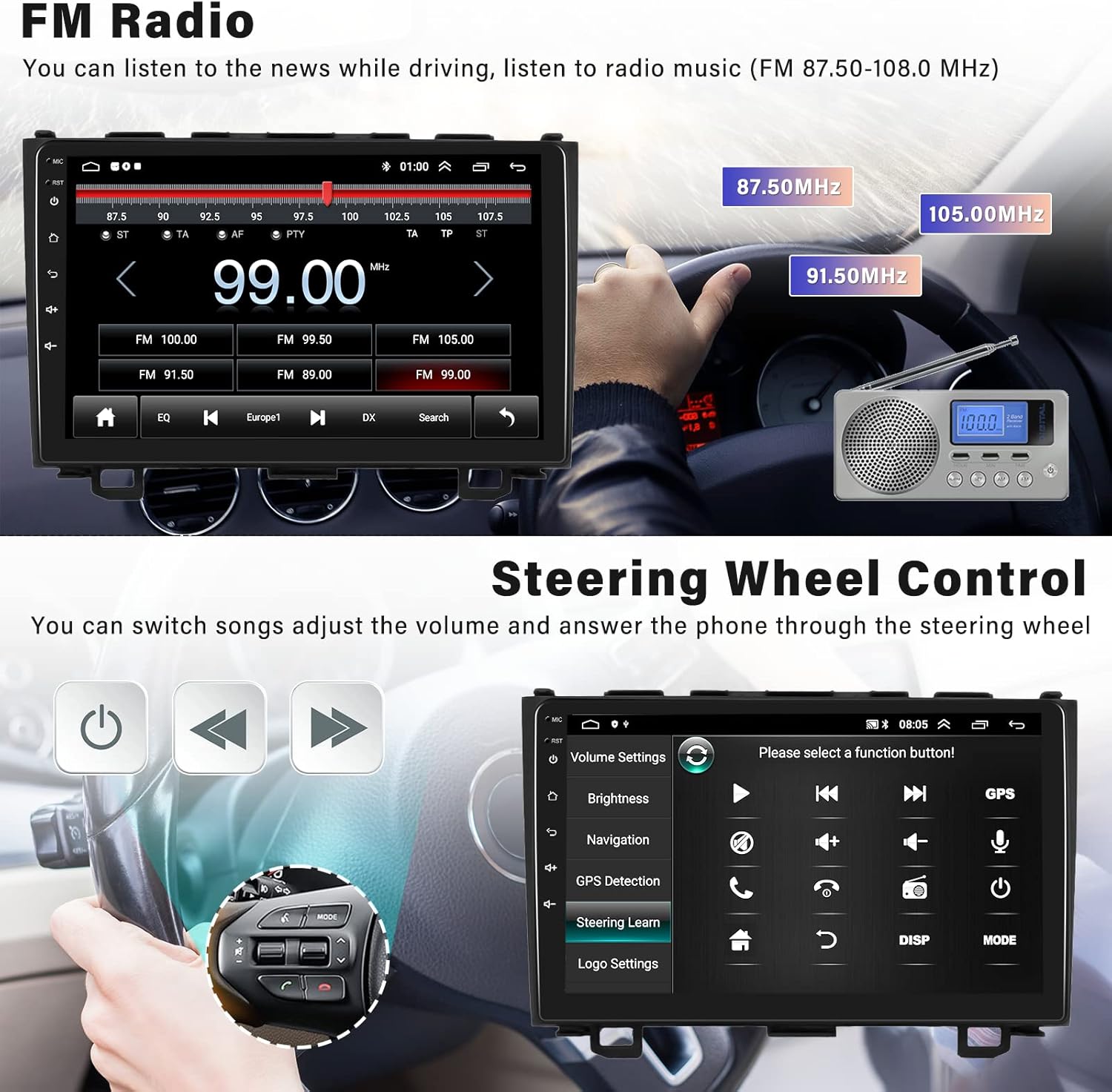
Image: The FM radio tuning interface showing available frequencies and preset stations.
5. Steering Wheel Control (SWC)
The unit supports your vehicle's existing steering wheel controls, allowing you to manage audio and calls without taking your hands off the wheel.
- Switch songs.
- Adjust volume.
- Answer or end phone calls.
To configure SWC, navigate to the "Steering Learn" option in the settings menu and follow the on-screen prompts to map your steering wheel buttons.
Image: The interface for configuring steering wheel controls, showing options like volume, track skip, and call management.
6. Backup Camera
When properly installed, the included AHD backup camera automatically displays a high-definition image on the stereo screen when the vehicle is in reverse gear, aiding in safer parking.
- Provides clear night vision.
- Features a 170° wide-angle view.
- Waterproof design.

Image: Split view demonstrating the backup camera's daytime vision and clear night vision capabilities with parking guidelines.
7. Split Screen Function
The split-screen feature allows you to run two applications simultaneously on the 9-inch display, such as navigation and music playback.
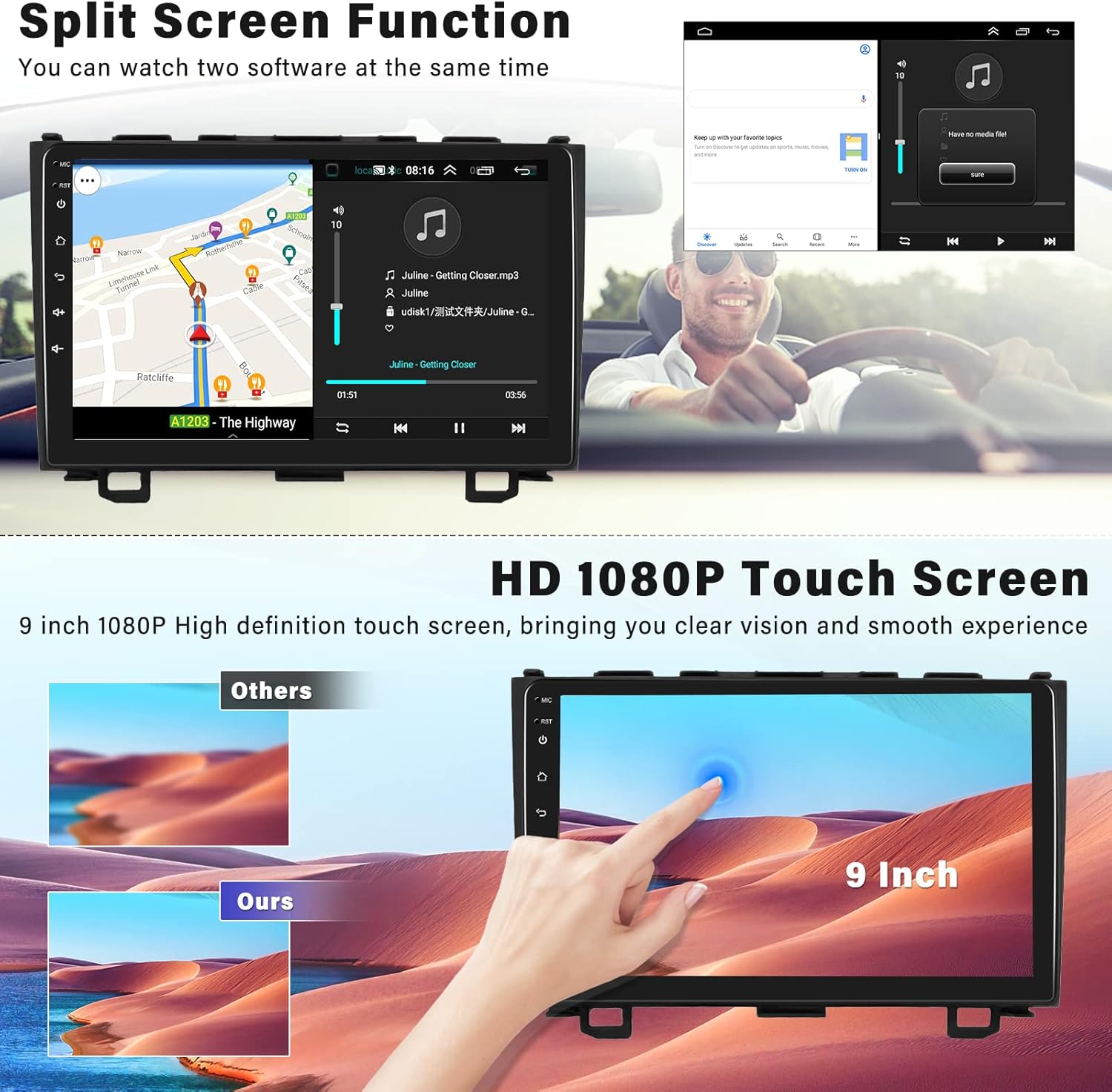
Image: The 9-inch touchscreen displaying two applications side-by-side using the split-screen function, for example, navigation and a music player.
Maintenance
To ensure the longevity and optimal performance of your SIXWIN car stereo, follow these maintenance guidelines:
- Screen Cleaning: Use a soft, lint-free cloth to gently wipe the touchscreen. Avoid abrasive cleaners or solvents that could damage the screen.
- Software Updates: Periodically check for available software updates to ensure you have the latest features and security patches. Refer to the manufacturer's website or contact support for update procedures.
- Cable Connections: Ensure all cables are securely connected. Loose connections can lead to intermittent issues.
- Environmental Conditions: Avoid exposing the unit to extreme temperatures, direct sunlight for prolonged periods, or excessive moisture.
Troubleshooting
If you encounter issues with your car stereo, refer to the following common troubleshooting steps:
| Problem | Possible Cause | Solution |
|---|---|---|
| No power/Unit does not turn on | Loose power connection, blown fuse, vehicle battery issue. | Check power cable connections. Inspect vehicle fuses. Ensure car battery is charged. |
| No sound | Volume too low, mute activated, speaker wiring issue, incorrect audio source. | Increase volume. Check if mute is active. Verify speaker connections. Select correct audio source. |
| GPS signal lost or inaccurate | GPS antenna obstructed or disconnected, outdated map data. | Ensure GPS antenna has a clear view of the sky and is securely connected. Download updated map data if available. |
| Bluetooth connection issues | Device not discoverable, incorrect pairing, interference. | Ensure Bluetooth is enabled on both devices. Delete previous pairings and re-pair. Move closer to the unit. |
| Backup camera not displaying | Camera not powered, video cable loose, incorrect input selected. | Check camera power connection (usually to reverse light). Verify video cable connection. Ensure vehicle is in reverse. |
| Microphone audio is low during calls | Microphone gain setting is too low, microphone placement. | Access the audio settings on the stereo and increase the microphone gain. Ensure the microphone is positioned optimally. |
If these steps do not resolve the issue, please contact customer support for further assistance.
Warranty and Support
SIXWIN products are designed for reliability and performance. For warranty information, please refer to the documentation included with your purchase or visit the official SIXWIN website.
For technical support, troubleshooting assistance, or inquiries regarding your product, please contact SIXWIN customer service through the platform where you purchased the product or via the contact information provided on the official SIXWIN website.