
1. Introduction
This manual provides comprehensive instructions for the setup, operation, maintenance, and troubleshooting of your UNITECH America MS836B 2D Imager Barcode Scanner. Designed for efficiency and durability, this scanner offers versatile wireless connectivity and reliable scanning performance for various applications.
2. Product Overview
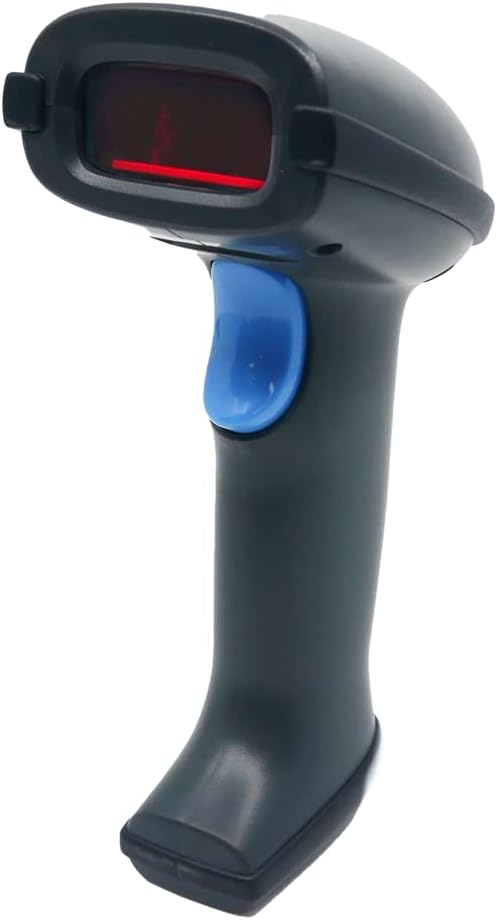
The MS836B is a high-performance 2D imager barcode scanner. It features a comfortable ergonomic design, a prominent scan trigger, and an integrated scanning window. The device is built for robust use in various environments, offering both 2.4G wireless and Bluetooth connectivity options.
Key Features:
- 2.4G Wireless Transmission: Up to 100m range (line of sight) with buffer mode for out-of-range reading.
- Superior Laser Scanning: Reads all major linear barcodes, including printed and digital.
- High-Speed Data Capture: Up to 100 scans per second.
- Long Battery Life: Up to 30 hours of continuous operation on a fully charged battery.
- Rugged Design: IP42 rated for dust and water resistance, and tested for 1.5m drops onto concrete.
- Memory: 16MB internal memory for storing scanned data.
Package Contents:
- UNITECH America MS836B Barcode Scanner
- USB Dongle (for 2.4G wireless connection)
- USB Charging Cable
- Lithium-ion 18650 Battery (pre-installed or separate)
- Quick Start Guide (this manual provides detailed information)
3. Setup
3.1. Charging the Battery
Before initial use, fully charge the scanner's Lithium-ion 2600mAh 18650 battery. Connect the scanner to a USB power source (e.g., computer USB port or USB wall adapter) using the provided USB charging cable. A full charge typically takes approximately 5 hours. The indicator light on the scanner will change to indicate charging status (refer to the scanner's LED indicator guide for specific patterns).
3.2. Connecting the Scanner
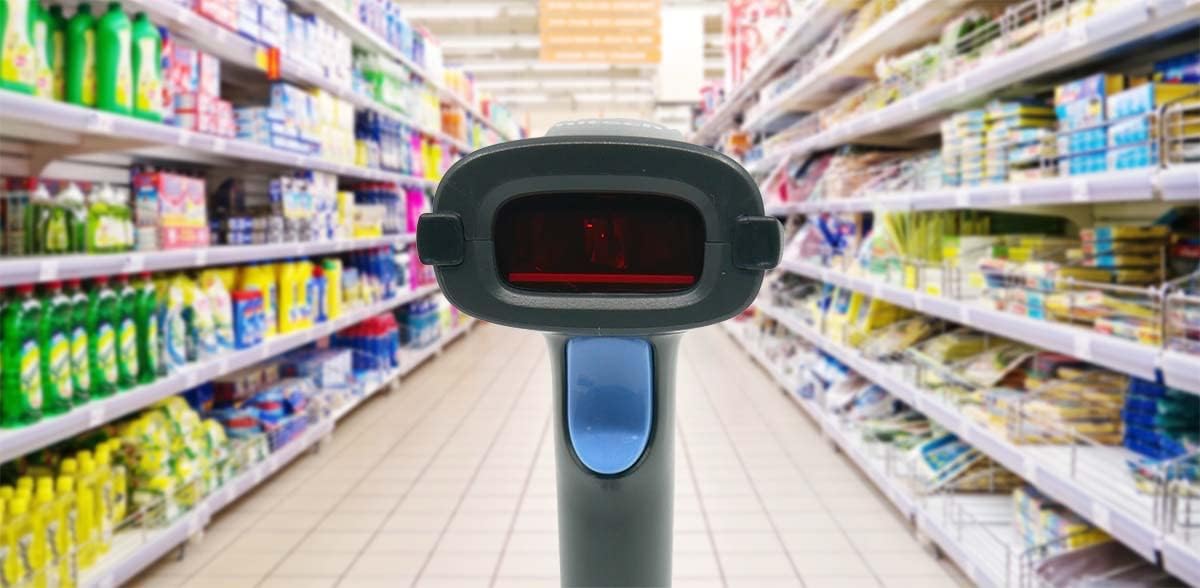
The MS836B offers two primary wireless connection methods: 2.4G Wireless via USB dongle and Bluetooth.
3.2.1. 2.4G Wireless Connection (Recommended for PC/Laptop)
- Insert the provided USB dongle into an available USB port on your computer.
- The computer will automatically install the necessary drivers.
- Turn on the MS836B scanner. It should automatically pair with the USB dongle. A successful connection is usually indicated by a specific LED pattern or beep (refer to the scanner's LED indicator guide).
- The scanner will now function as a keyboard input device, transmitting scanned barcode data directly to any active text field.
3.2.2. Bluetooth Connection (For Smartphones, Tablets, or Bluetooth-enabled PCs)
- Ensure your host device (smartphone, tablet, or PC) has Bluetooth enabled.
- Put the MS836B scanner into Bluetooth pairing mode. This usually involves scanning a specific barcode from the quick start guide or pressing a combination of buttons (refer to the quick start guide for exact instructions).
- On your host device, search for available Bluetooth devices. The scanner should appear as "UNITECH MS836B" or similar.
- Select the scanner to pair. You may be prompted to enter a PIN, which is typically "0000" or "1234", or it may pair automatically.
- Once paired, the scanner is ready for use.
4. Operating the Scanner

The MS836B is designed for intuitive operation, making barcode scanning quick and efficient in various settings, including retail and hospitality.
4.1. Scanning Barcodes
- Point the scanning window of the MS836B at the barcode you wish to scan.
- Press and hold the trigger button. A red laser line or aiming pattern will appear.
- Align the laser line or aiming pattern across the entire barcode.
- Upon successful scan, the scanner will emit a beep and/or the indicator light will flash. The barcode data will be transmitted to your connected device.
4.2. Operation Modes
The MS836B supports multiple operation modes to suit different workflows:
- Trigger Mode: Default mode where scanning is initiated by pressing the trigger button.
- Presentation Mode: The scanner continuously scans, automatically detecting and reading barcodes when presented within its field of view.
- Buffer Mode: When out of wireless range, the scanner can store scanned data in its 16MB memory. Once back in range, the stored data can be transmitted to the host device.
To switch between modes, refer to the programming barcodes in your quick start guide or the full user manual provided by Unitech.
4.3. Scanning Performance
- Scan Rate: Up to 100 times per second.
- Optical Resolution: ≥ 4mil (Code 39).
- Depth of Field: 10mm-265mm (13 mil, EAN13, PCS=90%).
- Supported 1D Barcodes: Industrial 2 of 5, Standard 25, Matrix 25, China post 25, Code 11, Codabar, MSI/Plessey, UK/Plessey, Code39 (Standard 39 & Full ASCII Code 39), Code 32, Code 93, Code128, UPCA, UPCE, EAN13, EAN8, UPC/EAN add-on 2/5, ISBN, ISSN, GS1 (RSS) RSS-14, LIMITED, EXPENDED, Include GS1 STACK.
4.4. Data Formatting
The scanner allows for customization of data output, including adding prefixes, suffixes, and Code IDs. These settings are typically configured by scanning specific programming barcodes found in the full user manual.
5. Maintenance
5.1. Cleaning the Scanner
To ensure optimal performance, keep the scanning window clean. Use a soft, lint-free cloth lightly dampened with water or a mild, non-abrasive cleaner. Do not use harsh chemicals or abrasive materials, as they can damage the scanner's surface or optical components.
5.2. Battery Care
- Always use the original or a certified replacement Lithium-ion 18650 battery.
- Avoid exposing the battery to extreme temperatures.
- If the scanner will not be used for an extended period, store it with a partial charge (around 50%) and recharge it every few months to maintain battery health.
5.3. Storage
Store the scanner in a cool, dry place away from direct sunlight and extreme temperatures. Protect it from dust and physical impact when not in use.
6. Troubleshooting
If you encounter issues with your MS836B scanner, please refer to the following common problems and solutions:
| Problem | Possible Cause | Solution |
|---|---|---|
| Scanner not turning on | Low or depleted battery | Charge the battery fully. Ensure the battery is correctly inserted. |
| Scanner not connecting to host device | Out of range, pairing issue, or incorrect mode | Ensure scanner is within range. Re-pair the scanner with the host device. Verify the correct connection mode (2.4G or Bluetooth) is selected. |
| Scanner not reading barcodes | Barcode damaged, scanning window dirty, or incorrect symbology enabled | Clean the scanning window. Try scanning a different, known-good barcode. Ensure the barcode type is enabled in the scanner's settings (refer to programming guide). |
| Slow scanning performance | Poor lighting, damaged barcode, or scanner settings | Ensure adequate lighting. Try scanning a clear, undamaged barcode. Reset scanner to factory defaults if necessary (refer to programming guide). |
7. Specifications
| Feature | Specification |
|---|---|
| Model Number | MS836-SUBB0D-SG |
| Memory | 16MB |
| Sensor | 1D Laser Engine |
| Aiming Element | Laser |
| Ambient Light | 0-100,000 Lux |
| Scan Rate | 100 times per second |
| Skew Angle | ±60° |
| Optical Resolution | ≥ 4mil (Code 39) |
| Depth of Field | 10mm-265mm (13 mil, EAN13, PCS=90%) |
| Radio | 2.4G Wireless |
| Wireless Coverage | 2.4G 100M (line of sight) |
| Protocol | 2.4G USB Bluetooth HID, BLE, SPP |
| Host Interface Supported | USB |
| Operation Mode | Trigger Mode, Presentation Mode, Buffer Mode |
| Battery | Lithium-ion, 2600mAh 18650 battery |
| Charging Time | Fully charged in 5 hours |
| Operation Time | 30 hours (continuous working) |
| Mechanical Shock | 1.5m onto concrete (scanner only) |
| IP Rating | IP42 |
| Product Dimensions | 6.85 x 2.83 x 3.8 inches |
| Item Weight | 11.7 ounces |
| Manufacturer | Unitech |
| First Available Date | January 1, 2020 |
8. Warranty and Support
The UNITECH America MS836B Barcode Scanner is backed by Unitech's commitment to quality. For specific warranty terms and conditions, please refer to the warranty card included with your product or visit the official Unitech website.
For technical support, troubleshooting assistance beyond this manual, or service inquiries, please contact Unitech customer support through their official channels. Keep your product model number (MS836-SUBB0D-SG) and purchase information ready when contacting support.
Unitech is dedicated to providing reliable products and excellent customer service.


