
Introduction
The KRUX Neo PRO White RGB Wireless 60% Mechanical Keyboard is designed for users who require a compact keyboard, often referred to as a 'Sixty' layout, to maximize desk space. This keyboard offers both wired and wireless connectivity options, making it suitable for various computing environments, including computer and console gaming setups. It features durable Gateron switches and double injection keycaps for a reliable typing experience.
Package Contents
- KRUX Neo PRO White RGB Wireless 60% Mechanical Keyboard
- USB Cable (for wired connection and charging)
Setup
Wired Connection
- Connect the provided USB cable to the USB-C port on the keyboard.
- Connect the other end of the USB cable to an available USB port on your computer.
- The keyboard will be automatically recognized by your operating system (e.g., Windows 10) and will begin charging.
Wireless (Bluetooth) Connection
- Ensure the keyboard is charged or connected via USB for initial setup.
- Locate the power/mode switch on the back of the keyboard. Switch it to the Bluetooth mode.
- On your computer or device, navigate to the Bluetooth settings.
- Enable Bluetooth and search for new devices.
- Select "KRUX Neo PRO" (or similar name) from the list of available devices to pair.
- If prompted, enter the pairing code displayed on your screen.
- Once paired, the keyboard is ready for wireless use.

Figure 1: Back view of the KRUX Neo PRO keyboard. Note the product label with model number KRX0113 and the mode switch for wired/wireless operation.
Operating Instructions
60% Layout Functionality
The 60% keyboard layout omits the numeric keypad, function row, navigation cluster, and arrow keys to achieve a compact size. These functions are typically accessed via a Function (Fn) key combination. Refer to the keyboard's specific keycap legends or included quick guide for exact Fn key combinations for F-keys, arrow keys, Home, End, PgUp, PgDn, etc.
RGB Backlighting Control
The KRUX Neo PRO features RGB backlighting. Specific key combinations (often involving the Fn key and other designated keys like 'P' or 'L') are used to:
- Change lighting modes (e.g., static, breathing, wave).
- Adjust brightness levels.
- Change lighting colors.
- Adjust animation speed.
Consult the keyboard's quick start guide for detailed instructions on RGB control.
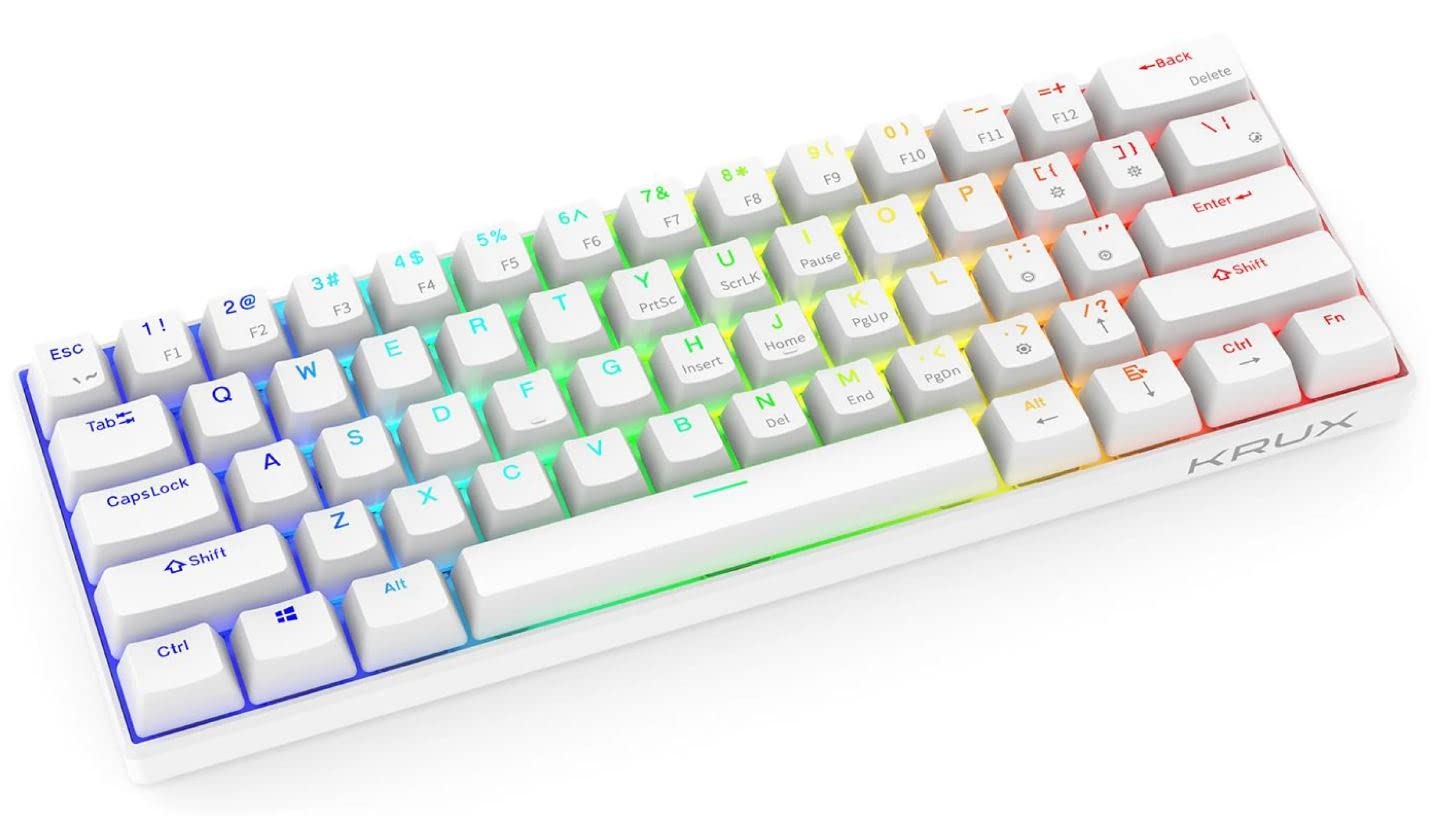
Figure 2: Close-up view of the KRUX Neo PRO keyboard, highlighting the white keycaps and the yellow Gateron mechanical switches beneath them.
Maintenance
Cleaning
- Disconnect the keyboard from your computer before cleaning.
- Use a soft, dry cloth to wipe the surface of the keyboard.
- For stubborn dirt, slightly dampen the cloth with water or a mild, non-abrasive cleaner. Avoid excessive moisture.
- Use compressed air to remove dust and debris from between the keycaps.
- Do not immerse the keyboard in water or any cleaning solution.
Storage
Store the keyboard in a cool, dry place away from direct sunlight and extreme temperatures. If storing for an extended period, ensure the battery is partially charged (around 50%) to prolong its lifespan.
Troubleshooting
Keyboard Not Responding (Wired)
- Ensure the USB cable is securely connected to both the keyboard and the computer.
- Try connecting the keyboard to a different USB port on your computer.
- Test the keyboard on another computer to rule out a computer-specific issue.
Keyboard Not Responding (Wireless)
- Check if the keyboard's battery is charged. Connect it via USB to charge if necessary.
- Ensure the keyboard's mode switch is set to Bluetooth.
- Verify that Bluetooth is enabled on your computer/device.
- Try re-pairing the keyboard with your device. Remove the existing pairing and initiate a new connection.
- Ensure no other devices are interfering with the Bluetooth signal.
RGB Lighting Not Working
- Check the keyboard's brightness settings using the appropriate Fn key combinations.
- Ensure the keyboard is receiving sufficient power (especially in wired mode).
- If using wireless, ensure the battery has enough charge to power the lighting.
Specifications
| Feature | Specification |
|---|---|
| Brand | KRUX |
| Model | KRX0113 |
| Keyboard Layout | 60% |
| Switch Type | Gateron Mechanical |
| Keycap Technology | Double Injection |
| Connectivity | Wired (USB), Wireless (Bluetooth) |
| Backlighting | RGB |
| Compatible Operating System | Windows 10 |
| Compatible Devices | PC (Personal Computer) |
| Product Dimensions | 29.1 x 10.1 x 3.95 cm |
| Weight | 580 g |
| Battery Type | 1 Lithium-ion |
| Included Components | USB Cable |
| First Available Date | October 1, 2022 |
Warranty and Support
For warranty information and technical support, please refer to the documentation provided with your purchase or visit the official KRUX website. Keep your proof of purchase for warranty claims.


