
1. Introduction
This manual provides essential information for the safe and effective operation, setup, and maintenance of your Genmitsu 3018-PROVer V2 CNC Milling Machine. Please read this manual thoroughly before using the machine to ensure proper functionality and to prevent damage or injury.
2. Safety Information
Operating a CNC machine involves potential hazards. Always follow these safety guidelines:
- Wear appropriate personal protective equipment (PPE), including safety glasses, hearing protection, and dust masks.
- Ensure the work area is well-ventilated and clear of obstructions.
- Keep hands and loose clothing away from moving parts and cutting tools.
- Always disconnect power before performing maintenance or changing tools.
- Familiarize yourself with the emergency stop button location and function.
- Do not operate the machine unattended.
- Securely clamp all workpieces to prevent movement during operation.
3. Product Overview
The Genmitsu 3018-PROVer V2 is a desktop CNC milling machine designed for precision carving and engraving. It features an upgraded Z-axis, aluminum spoilboard, and enhanced safety features.

Figure 3.1: The Genmitsu 3018-PROVer V2 CNC Milling Machine, showcasing its compact design and blue aluminum frame.
Key Features:
- Best Entry-Level: Ideal for beginners in CNC machining, offering value for crafting, personalized gifts, or small business projects.
- User-Friendly Setup: Semi-preinstalled components and a one-piece machined aluminum spoilboard allow for setup in approximately 35 minutes. Compatible with CAD/CAM software like Carveco, Fusion360, and Easel.
- Upgraded Features: Includes quiet Toshiba TB6S109 drivers with 32-bit chips, additional function ports, and a redesigned Z-Axis Carriage for superior engraving accuracy.
- Comprehensive Accessories: The machine is designed for upgrades with a wide range of available accessories to meet evolving requirements.

Figure 3.2: Working area dimensions of the Genmitsu 3018-PROVer V2, measuring 284 x 180 x 40mm (11.2 x 7.1 x 1.6 inches).
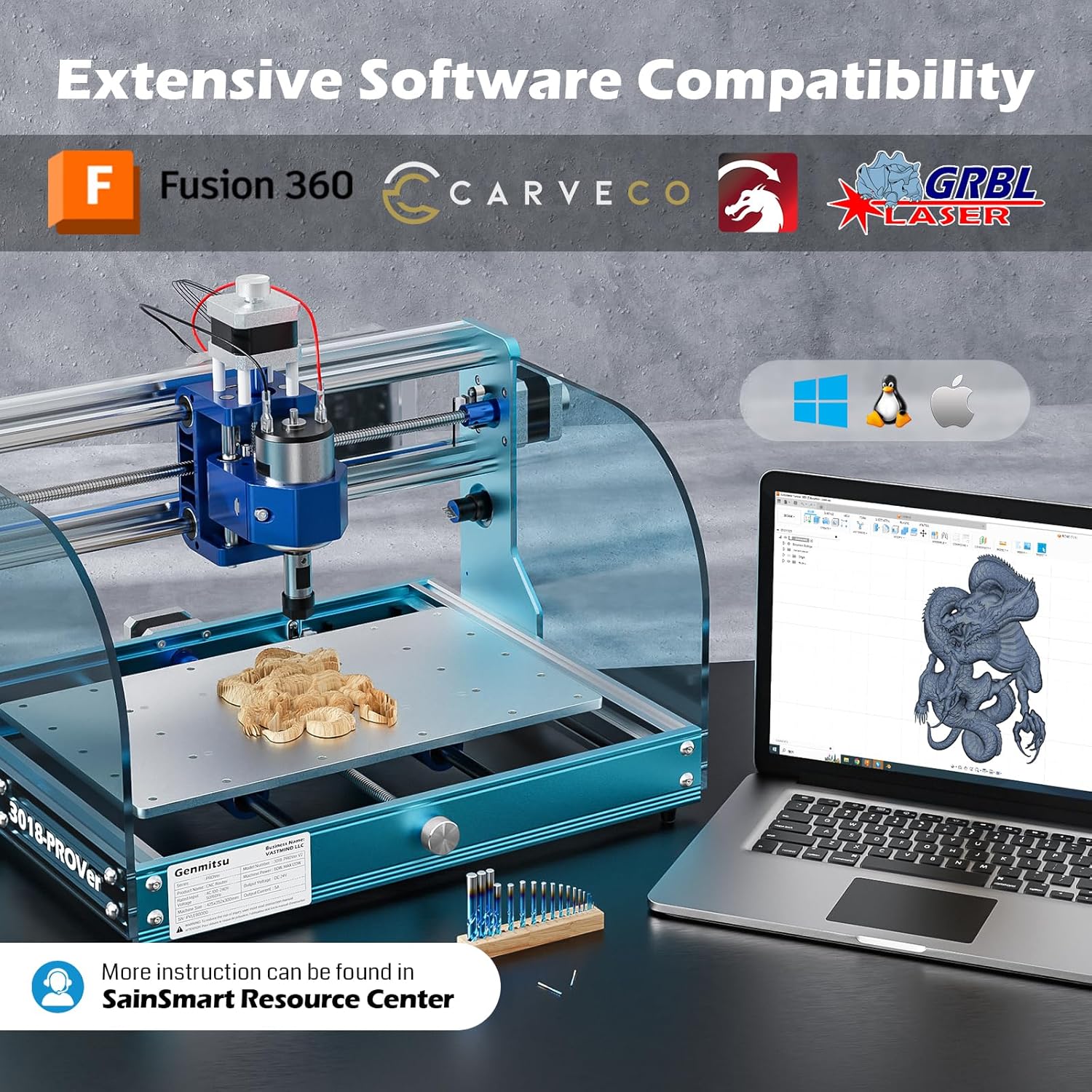
Figure 3.3: Close-up of the one-piece molded aluminum spoilboard, compatible with most CNC clamps.

Figure 3.4: Acrylic baffles included with the machine to help contain debris during operation.

Figure 3.5: The machine's compatibility with various CAD/CAM software, including Fusion 360, Carveco, and GRBL-Laser, across Windows, Linux, and Apple operating systems.
4. Setup Instructions
The Genmitsu 3018-PROVer V2 is designed for quick assembly due to its semi-preinstalled components. Follow the included instructions for detailed steps.
4.1 Assembly
The machine comes largely pre-assembled, including the machine frame, emergency-stop button, limit switches, and cable management. Most users can have it operational in about 35 minutes. The thoughtful cable management, with cable sleeves, special cutouts, and labeled tags, simplifies the wiring process significantly.
Video 4.1: Official installation guide for the Genmitsu 3018-PROVer V2 CNC Machine, demonstrating the assembly process.
4.2 Initial Power-Up and Connection
After assembly, connect the power supply and the USB cable to your computer. Ensure all connections are secure before powering on the machine.
5. Operating Instructions
The Genmitsu 3018-PROVer V2 can be operated via computer software like Candle or through its dedicated GRBL Offline Controller.
5.1 Using Candle Software
Candle is a common software for controlling GRBL-based CNC machines. To begin:
- Install the necessary drivers from the provided TF card.
- Open the Candle application.
- Load your G-code file (e.g., a test file from the TF card).
- Observe the origin position in the G-code preview to determine the project's actual origin.
- Use the blue arrow buttons in the 'Jog' section to adjust the X-axis (left/right) and Y-axis (forward/backward).
- Use the white arrow buttons to adjust the Z-axis (up/down).
- Adjust the 'Step' value to control the movement distance per click (larger value = greater distance).
- Adjust the 'Feed' value to control the movement speed (higher value = faster speed).
- Move the bit to the desired lower-left corner of your material.
- Click the 'ZERO XY' button to set the new origin for your project.
- Click 'Send' to start the carving process.
Video 5.1: Tutorial on how to use Candle software for controlling the CNC machine, including driver installation, G-code loading, and axis jogging.
5.2 Using the GRBL Offline Controller
The machine features a dedicated GRBL Offline Controller, offering a more feature-rich and easier-to-navigate interface compared to standard controllers. This allows for operation without a direct computer connection. It also includes convenient jog wheels for manually setting your work zero point.
6. Maintenance
Regular maintenance ensures the longevity and performance of your CNC machine:
- Cleaning: After each use, clean the machine thoroughly to remove dust, chips, and debris. Pay special attention to the lead screws, guide rails, and spindle area.
- Lubrication: Periodically lubricate the lead screws and guide rails with appropriate lubricant to ensure smooth movement and prevent wear.
- Inspection: Regularly inspect all components for wear, damage, or loose connections. Tighten any loose screws or bolts.
- Tool Care: Keep cutting tools sharp and clean. Replace dull or damaged bits promptly to maintain cut quality and prevent strain on the machine.
7. Troubleshooting
Here are some common issues and their solutions:
| Problem | Possible Cause | Solution |
|---|---|---|
| Machine not responding | Loose connections, driver issues, emergency stop engaged | Check all cables, reinstall drivers, ensure emergency stop is disengaged. |
| Poor carving quality | Dull bit, incorrect feed/speed, loose workpiece | Replace bit, adjust feed/speed settings, secure workpiece. |
| Machine crashes into limits | Incorrect origin setting, G-code error | Verify G-code origin, check limit switch functionality. The machine's built-in limit switches help prevent this. |
8. Specifications
| Attribute | Detail |
|---|---|
| Brand | Genmitsu |
| Model Number | 3018PV2L |
| Material | Aluminum |
| Product Dimensions | 11.4"W x 1.6"H (Working Area: 284 x 180 x 40mm) |
| Voltage | 240 Volts |
| Item Weight | 9.24 Kilograms (20.3 pounds) |
| Base Type | Fixed |
| Included Components | CNC Machine |
| UPC | 816550027905 |
9. Warranty and Support
Genmitsu, a leading brand in the consumer CNC sector, is committed to delivering quality and reliability. For any questions or assistance, please refer to the SainSmart Resource Center or contact their customer service team. Their customer service team is ready to assist with any questions you may have.


