
Unitech MS652 Plus
Unitech MS652 Plus Wearable Ring Scanner User Manual
Model: MS652-AUDB00-SG
1. Introduction
This manual provides essential instructions for the proper setup, operation, and maintenance of your Unitech MS652 Plus Wearable Ring Scanner. The MS652 Plus is a compact, high-performance 2D imager designed for efficient data collection in various environments. Its wearable design enhances user mobility and productivity.
Please read this manual thoroughly before using the device to ensure safe and optimal performance.
2. Package Contents
Verify that all items are present in your package. If any item is missing or damaged, contact your vendor immediately.
- Unitech MS652 Plus Wearable Ring Scanner
- Two-Finger Ring Strap
- USB Cable (for charging and data transfer)
- Rechargeable Lithium Ion Battery (pre-installed or separate)
- Quick Start Guide (if applicable)
3. Product Overview
The Unitech MS652 Plus is engineered for comfort and efficiency, featuring a lightweight design and flexible connectivity options.
3.1 Key Features
- Lightweight and unique wearable ring design for hands-free operation.
- One-push rotate design for easy switching between right and left-hand use.
- Wireless flexibility with up to 100M operation range via Bluetooth.
- Rugged construction with IP42 rating and 1.5m drop specification.
- Bluetooth Low Energy 4.2 / classic V2.1 Class1 and NFC technology for easy pairing with iOS/Android devices.
- Changeable and rechargeable battery pack providing up to 13 hours of full-shift operation.
- Mountable on two fingers or one finger for enhanced operational stability.
- Instant decoding feedback through LED, Buzzer, and Vibrator indicators.
- Companion "Unitech Scanner Utility" Android application for configuration and data retrieval (Android 5.0+).
3.2 Device Components

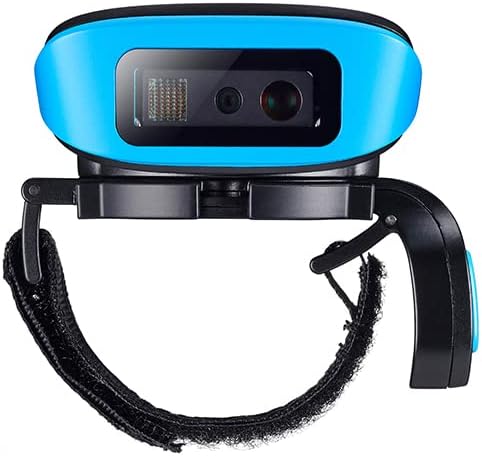


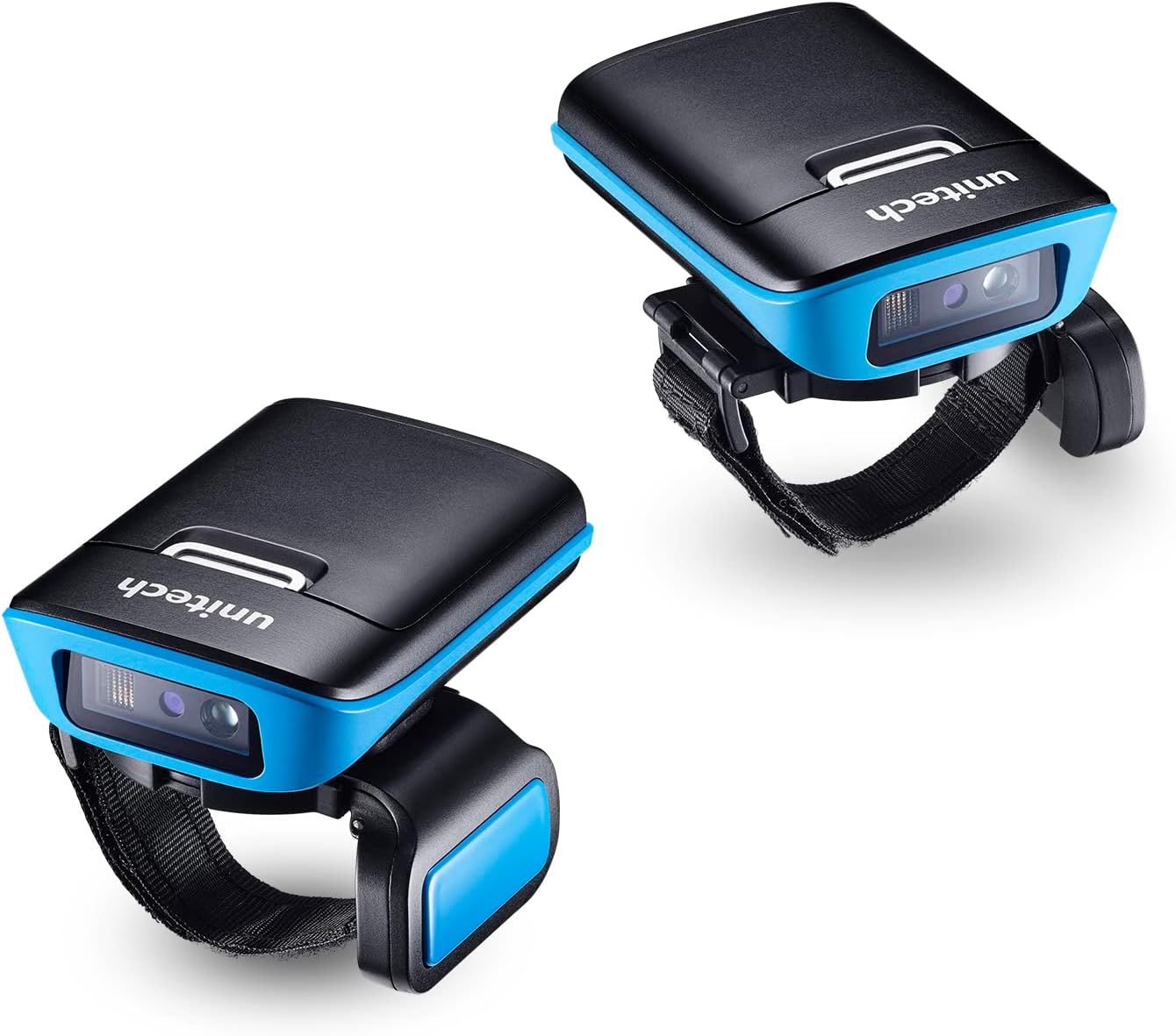
4. Setup
4.1 Charging the Battery
- Connect the supplied USB cable to the Micro USB port on the scanner.
- Connect the other end of the USB cable to a power adapter or a computer's USB port.
- The charging indicator LED on the scanner will illuminate to show charging status. Allow approximately 3-4 hours for a full charge.
- A fully charged battery provides up to 13 hours of operation.
4.2 Attaching the Ring Strap
- Align the scanner module with the ring strap attachment points.
- Securely fasten the scanner to the strap. The design allows for rotation to accommodate both left and right-hand users.
- Adjust the strap to fit comfortably on one or two fingers, ensuring stability during use.
4.3 Pairing with a Host Device (Bluetooth)
The MS652 Plus can be paired with various host devices (smartphones, tablets, computers) via Bluetooth.
- Power On: Press and hold the power button on the scanner until it powers on.
- Enter Pairing Mode: Refer to the Quick Start Guide or the scanner's specific pairing barcode (usually found in the full manual or on a setup card) to put the scanner into Bluetooth pairing mode. The Bluetooth indicator LED will typically flash.
- Enable Bluetooth on Host Device: On your smartphone, tablet, or computer, go to the Bluetooth settings and ensure Bluetooth is enabled.
- Scan for Devices: Your host device will search for available Bluetooth devices. Select "Unitech MS652 Plus" (or similar name) from the list.
- Confirm Pairing: Follow any on-screen prompts to confirm the pairing. Once successfully paired, the Bluetooth indicator LED on the scanner will typically turn solid.
- NFC Pairing (if supported by host device): For devices with NFC, simply tap the scanner against the NFC area of your host device to initiate pairing.
For advanced configuration and management on Android devices, download the "Unitech Scanner Utility" application from the Google Play Store.
5. Operating Instructions
5.1 Scanning Barcodes
- Ensure the scanner is powered on and successfully paired with your host device.
- Point the scanner's imaging window at the barcode you wish to scan.
- Press the trigger button (usually located on the side or top of the scanner).
- A successful scan will be indicated by an audible beep, a vibrator feedback, and an LED indicator. The decoded data will be transmitted to your host device.
- Adjust the distance and angle to the barcode for optimal scanning performance. The scanner supports 1D and 2D barcodes.
5.2 Operation Modes
The MS652 Plus supports several operation modes to suit different workflows:
- Trigger Mode: Requires a manual press of the trigger button for each scan.
- Presentation Mode: The scanner continuously looks for barcodes and scans them automatically when presented within its field of view.
- Auto Mode: Similar to presentation mode, but may have specific triggers or conditions for automatic scanning.
- Batch Mode: Scans and stores barcodes in the scanner's internal memory (7.5MB) when not connected to a host device. Data can be uploaded later.
Refer to the full user manual or the "Unitech Scanner Utility" for instructions on how to switch between these modes.
6. Maintenance
6.1 Cleaning the Scanner
- Ensure the scanner is powered off before cleaning.
- Use a soft, lint-free cloth lightly dampened with water or a mild, non-abrasive cleaning solution to wipe the exterior.
- For the scanning window, use a lens cleaning cloth or a cotton swab with a small amount of lens cleaner. Avoid harsh chemicals or abrasive materials that could scratch the lens.
- Do not immerse the scanner in any liquid.
6.2 Battery Care and Replacement
- Always use the original Unitech battery and charging cable.
- Avoid exposing the battery to extreme temperatures.
- If the battery needs replacement, ensure the scanner is powered off. Carefully remove the old battery and insert a new, genuine Unitech replacement battery. Dispose of old batteries according to local regulations.
6.3 Firmware Updates
Periodically check the Unitech website for firmware updates for your MS652 Plus scanner. Firmware updates can improve performance, add new features, or resolve issues. Follow the instructions provided with the firmware update package carefully.
7. Troubleshooting
| Problem | Possible Cause | Solution |
|---|---|---|
| Scanner does not power on. | Battery is depleted or not properly inserted. | Charge the battery. Ensure the battery is correctly seated. |
| Cannot pair with host device. | Bluetooth is off on host device; scanner not in pairing mode; out of range. | Ensure Bluetooth is enabled. Put scanner in pairing mode. Move scanner closer to host device. Restart both devices. |
| Scanner does not read barcodes. | Barcode damaged or poor quality; scanner lens dirty; incorrect symbology enabled; scanner not in correct mode. | Try scanning a different barcode. Clean the scanner lens. Check scanner configuration for enabled symbologies. Ensure scanner is in Trigger or Presentation mode. |
| Scanned data is incorrect or incomplete. | Poor barcode quality; incorrect data formatting settings. | Ensure barcode is clear. Check scanner configuration for data formatting rules (e.g., prefixes, suffixes). |
| Short battery life. | Battery degradation; frequent use; high power consumption settings. | Ensure battery is fully charged. Consider replacing the battery if it's old. Adjust power-saving settings if available. |
If the problem persists after attempting these solutions, please contact Unitech technical support or your vendor for further assistance.
8. Specifications
| Feature | Detail |
|---|---|
| Model Name | MS652 Plus |
| Scanner Type | 2D Imager (CMOS sensor, 640 x 400 pixels) |
| Aiming Element | 1 Hyper Red 660nm LED |
| Ambient Light | Max 107,639 lux (direct sunlight) |
| Connectivity | Bluetooth Low Energy 4.2 / classic V2.1 Class1, NFC |
| Host Interface | Micro USB |
| Memory | 7.5MB (for batch mode) |
| Battery | 1 Lithium Ion battery (included), up to 13 hours operation |
| Durability | IP42 rated, 1.5m drop specification |
| Dimensions | 2.8 x 2 x 0.8 inches |
| Item Weight | 8.3 ounces |
| Supported 1D Barcodes | All major symbologies and PDF417 |
| Supported 2D Barcodes | QR Code, Data Matrix, Aztec Code, PDF417, Macro PDF417, Micro PDF417, MaxiCode, Codablock A, Codablock F, GS1 Composite, Han XinCode, Australian Post, British Post, Canadian Post, InfoMail, Intelligent Mail Bar Code, Japanese Post, KIX (Netherlands) Post, KoreaPost, Planet Code, Postal, Postnet |
| Minimum System Requirements | Windows 7 (for PC connection) / Android 5.0+ (for utility app) |
9. Warranty and Support
Unitech products are designed for reliability and performance. For specific warranty terms and conditions, please refer to the warranty card included with your product or visit the official Unitech website.
For technical support, troubleshooting assistance, or service inquiries, please contact Unitech customer support through their official website or the contact information provided in your product documentation.
Manufacturer: Unitech
Related documentsMS652 Plus


Ask a question about this manual
Ask about setup, troubleshooting, compatibility, parts, safety, or missing instructions. Manuals+ will review the question and use this page’s manual context to help answer it.