
Introduction
This manual provides detailed instructions for the zheozeig 4K 48MP Autofocus Vlogging Camera, Model DC101. This camera is designed for photography and video recording, offering features such as 4K video resolution, 48MP image resolution, autofocus, 16X digital zoom, and a 180-degree flip screen. Please read this manual thoroughly to ensure proper use and to maximize your camera's capabilities.
What's in the Box
- 1 x 4K Digital Camera
- 1 x Charging Stand
- 2 x Rechargeable Batteries
- 1 x 32GB SD Card
- 1 x Power Adapter
- 1 x USB Cable
- 1 x HDMI Cable
- 1 x Camera Bag
- 1 x Wrist Strap
- 1 x User Manual

Figure 1: Camera and Included Accessories
The package includes the 4K Digital Camera unit, a charging stand, two rechargeable batteries, a 32GB SD card, a power adapter, USB cable, HDMI cable, camera bag, wrist strap, and this user manual.
Setup
1. Charging the Batteries
Before initial use, fully charge both included Lithium Ion batteries. Insert a battery into the charging stand and connect the stand to the power adapter using the USB cable. Plug the power adapter into a wall outlet. The indicator light on the charger will show charging status. Alternatively, you can charge the battery directly inside the camera by connecting the camera to the power adapter via the USB cable.
Figure 2: Dual Charging Mode
The camera supports dual charging modes, allowing batteries to be charged directly in the camera via USB or using the included external charging stand.
2. Inserting the SD Card
Locate the SD card slot on the side of the camera. Ensure the camera is powered off. Insert the provided 32GB SD card (or another compatible SD card up to 128GB, Class 10 or higher) into the slot with the metal contacts facing down until it clicks into place. To remove, gently push the card in until it springs out.

Figure 3: SD Card Insertion
The camera's SD card slot is located on the side. Insert the 32GB SD card into this slot for storage of photos and videos.
Operating the Camera
1. Powering On/Off
Press and hold the Power button located on the top of the camera to turn it on or off. The LCD screen will illuminate upon startup.
2. Autofocus Function
The camera features an autofocus function to ensure sharp images. To focus on a subject, gently press the shutter button halfway down. The camera will automatically adjust the focus. Once focused, fully press the shutter button to capture the photo or start recording.

Figure 4: Autofocus in Action
This image demonstrates the camera's autofocus capability, ensuring subjects are sharp and clear.
3. Using the 180-Degree Flip Screen
The 3.0-inch LCD screen can be flipped 180 degrees, making it ideal for self-portraits, vlogging, or group selfies where you want to see yourself while composing the shot. Simply rotate the screen outwards and then pivot it to face the front.

Figure 5: 180-Degree Flip Screen
The camera's flip screen allows for easy self-recording and monitoring during vlogging sessions.
4. Digital Zoom (16X)
To zoom in or out, use the W (Wide) and T (Telephoto) buttons on the camera. The camera supports up to 16X digital zoom, allowing you to magnify distant subjects. Note that digital zoom may affect image quality at higher magnifications.
Figure 6: 16X Digital Zoom
The camera offers 16X digital zoom for capturing distant details.
5. Video Recording and Pause Function
To begin video recording, press the dedicated Record button. The camera supports 4K video resolution. During recording, you can press the Pause button to temporarily stop the recording and then press it again to resume, creating a single continuous video file without interruption.

Figure 7: Video Recording with Pause
The pause function allows for seamless video recording without creating multiple clips.
6. Webcam and HDMI Output
The camera can function as a webcam. Connect it to your computer using the provided USB cable. Select 'PC Camera' mode on the camera's menu. This allows for video calls, online teaching, or live streaming. For viewing content on a larger display, connect the camera to a TV or monitor using the included HDMI cable.

Figure 8: Webcam and HDMI Connectivity
Connect the camera to a computer for webcam use or to a TV via HDMI for content playback.
7. Special Features
The camera includes several additional features to enhance your shooting experience:
- Time-Lapse: Capture events over an extended period and condense them into a short video.
- Slow Motion: Record videos at a higher frame rate for smooth slow-motion playback.
- Continuous Shooting: Capture a rapid sequence of photos by holding down the shutter button.
- Anti-Shake: Digital image stabilization helps reduce blur from camera movement.
- Smile & Face Detection: Automatically detects faces and smiles for optimal focus and exposure.
- Beauty Face: Enhances facial features in photos for a more polished look.

Figure 9: Overview of Camera Features
Explore the camera's diverse features such as anti-shake, slow motion, continuous shooting, and time-lapse.
Maintenance
1. Cleaning the Camera
Use a soft, lint-free cloth to clean the camera body. For the lens, use a specialized lens cleaning cloth and solution. Avoid using abrasive materials or harsh chemicals that could damage the lens coating or camera body.
2. Battery Care
To prolong battery life, avoid extreme temperatures. Store batteries in a cool, dry place when not in use. Fully charge batteries before extended periods of storage and recharge them every few months to prevent deep discharge.
3. Storage
When not in use, store the camera in the provided camera bag to protect it from dust, scratches, and minor impacts. Remove batteries if storing for a long period.
Troubleshooting
| Problem | Solution |
|---|---|
| Camera won't turn on | Ensure batteries are fully charged and correctly inserted. |
| Images are blurry | Check autofocus by half-pressing the shutter button. Ensure lens is clean. Adjust lighting conditions. |
| Video quality is poor | Verify recording resolution settings. Ensure sufficient lighting. Use anti-shake feature if needed. |
| SD card error | Reinsert the SD card. Format the SD card (this will erase all data). Try a different SD card. |
| No sound in video | Check microphone settings. Ensure volume is not muted during playback. |
Specifications
| Feature | Detail |
|---|---|
| Video Resolution | 4K (2160p) |
| Photo Resolution | 48 MP |
| Digital Zoom | 16x |
| Display Screen | 3.0 inch 180 degree flip screen |
| Storage | SD card up to 128GB (32GB included) |
| File Format | JPG/AVI |
| Connectivity | USB, HDMI |
| Battery Type | Lithium Ion (2 included) |
| Weight | 0.07 Pounds |
| Model Name | DC101 |
| Brand | zheozeig |
Warranty and Support
The zheozeig 4K Digital Camera comes with a 1-year hassle-free warranty. For technical support, troubleshooting assistance, or any inquiries regarding your product, please contact our customer support team. We are committed to providing prompt and helpful service.
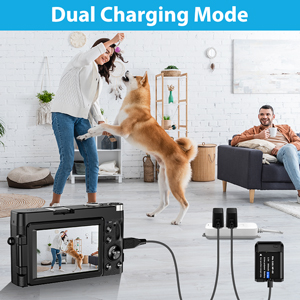
Figure 10: Customer Support Information
For any questions or support needs, please contact our customer service. We offer a 1-year hassle-free warranty and 24-hour online support.