
TP-Link TL-WPA7517KIT
TP-Link Powerline WiFi Extender User Manual
Model: TL-WPA7517KIT | Brand: TP-Link
Introduction
The TP-Link TL-WPA7517KIT Powerline WiFi Extender is designed to extend your internet connection to every room of your house using your home's existing electrical wiring. It provides stable, high-speed data transfer rates up to 1000 Mbps and features dual-band 802.11ac Wi-Fi for seamless streaming and gaming. With its Plug, Pair, and Play design, setting up a secure powerline network is quick and easy.

Image: The TP-Link TL-WPA7517KIT kit, featuring the larger Wi-Fi extender and the smaller powerline adapter.
What's in the Box
Verify that all components are present in your package:
- AV1000 Powerline Wi-Fi Kit: TL-WPA7517 (Wi-Fi Extender) & TL-PA7017 (Powerline Adapter)
- Ethernet Cable × 2
- Quick Installation Guide

Image: All components included in the TL-WPA7517KIT package: the Wi-Fi extender, powerline adapter, and two Ethernet cables.
Setup
Follow these steps for initial setup:
- Connect the TL-PA7017 (Powerline Adapter): Plug the smaller TL-PA7017 unit into a wall outlet near your router. Connect it to your router's LAN port using one of the provided Ethernet cables.
- Connect the TL-WPA7517 (Wi-Fi Extender): Plug the larger TL-WPA7517 unit into a wall outlet in the room where you need extended Wi-Fi coverage.
- Pair the Devices:
- Within 2 minutes of plugging in the TL-WPA7517, press the Pair button on the TL-PA7017 (the smaller unit).
- Then, within 2 minutes, press the Pair button on the TL-WPA7517 (the larger unit).
- The Powerline LED on both devices should turn solid, indicating a successful connection.
- Wi-Fi Auto-Sync (Optional): To copy your router's Wi-Fi settings (SSID and password) to the TL-WPA7517, press the Wi-Fi Clone button on the TL-WPA7517. Then, within 2 minutes, press the WPS button on your router. The Wi-Fi settings will be synchronized.

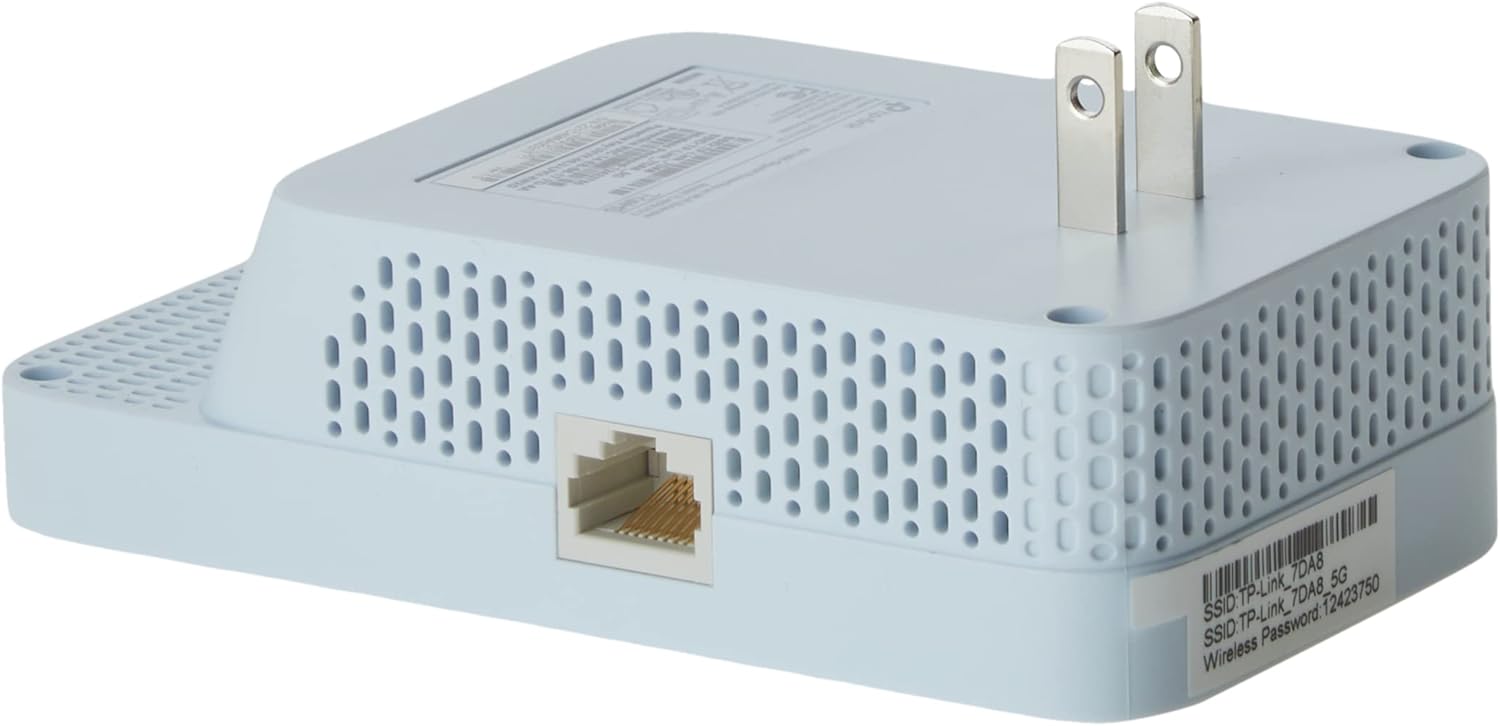
Image: Details of the powerline adapter (left) and Wi-Fi extender (right), highlighting their Ethernet ports and buttons for setup.
Operating
Once set up, the Powerline WiFi Extender operates automatically. Here's how to utilize its features:
- Extended Wi-Fi Coverage: Devices can connect to the Wi-Fi network broadcast by the TL-WPA7517. If you used Wi-Fi Auto-Sync, the network name and password will be the same as your router's. Otherwise, refer to the label on the TL-WPA7517 for default Wi-Fi credentials.
- Gigabit Ethernet Ports: The TL-WPA7517 features Gigabit Ethernet ports. You can connect wired devices such as game consoles, smart TVs, or NAS devices directly to these ports for a stable, high-speed wired connection.
- OneMesh Compatibility: If you have a OneMesh-compatible TP-Link router, the TL-WPA7517KIT can integrate into a unified mesh network, providing seamless roaming throughout your home.
Maintenance
To ensure optimal performance and longevity of your Powerline WiFi Extender:
- Direct Wall Outlet Connection: Always plug the powerline adapters directly into a wall outlet. Avoid power strips, surge protectors, or extension cords, as these can interfere with powerline communication.
- Keep Ventilated: Ensure the devices are placed in well-ventilated areas and not covered, to prevent overheating.
- Clean Gently: Use a soft, dry cloth to clean the devices. Do not use liquid or aerosol cleaners.
- Firmware Updates: Periodically check the TP-Link official website for firmware updates for your model to ensure the best performance and security.
Troubleshooting
If you encounter issues, try the following solutions:
| Problem | Solution |
|---|---|
| No Powerline Connection (Powerline LED off) |
|
| Poor Speed or Intermittent Connection |
|
| Wi-Fi Not Broadcasting or Incorrect Settings |
|
Specifications
| Feature | Detail |
|---|---|
| Model | TL-WPA7517KIT (TL-WPA7517 & TL-PA7017) |
| Brand | TP-Link |
| Data Transfer Rate | Up to 1000 Mbps (Powerline), AC750 (Wi-Fi: 433Mbps on 5GHz & 300Mbps on 2.4GHz) |
| Standards | Homeplug AV2, IEEE 802.11ac/n/a/b/g, IEEE 802.3, IEEE 802.3u, IEEE 802.3ab |
| Hardware Interface | Gigabit Ethernet Port |
| Range | Up to 300 meters (984 feet) over electrical circuit |
| Product Dimensions (Kit) | 8"L x 5"W x 4"H (8 x 5 x 4 inches) |
| Item Weight (Kit) | 14 ounces |
| UPC | 657768098536 |
Warranty and Support
For warranty information and technical support, please refer to the official TP-Link website or the documentation included with your product. You can also find FAQs, drivers, and firmware updates on their support pages.
TP-Link Official Website: www.tp-link.com
Related documentsTL-WPA7517KIT


Ask a question about this manual
Ask about setup, troubleshooting, compatibility, parts, safety, or missing instructions. Manuals+ will review the question and use this page’s manual context to help answer it.