
Introduction
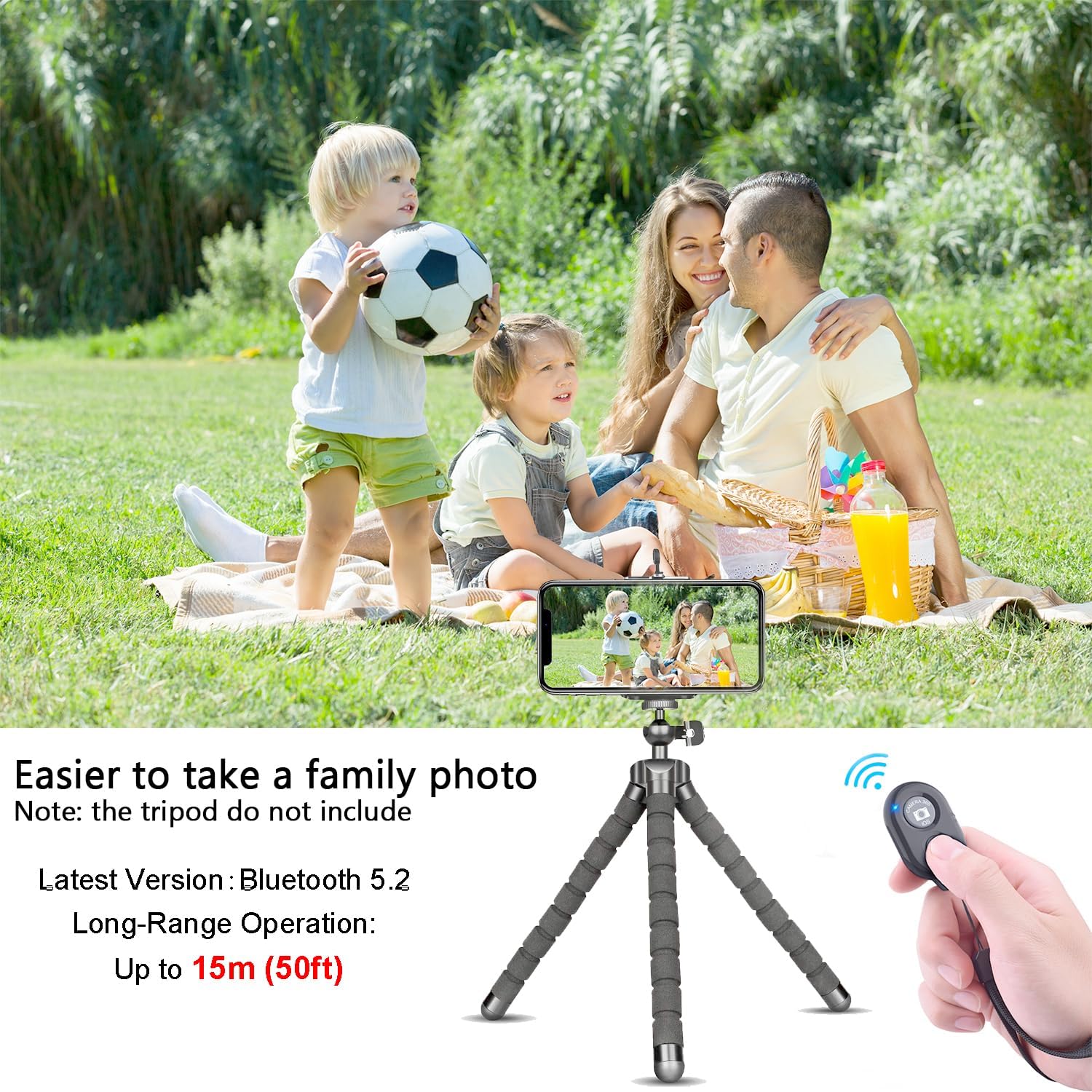
Thank you for choosing the EszkozTA Wireless Remote Shutter. This device allows you to remotely control your smartphone or tablet camera, enabling you to capture photos and videos from a distance. It is compatible with most iOS and Android devices, making it ideal for selfies, group photos, and stable tripod shots.
Package Contents
- 3 x Wireless Remote Shutter
- 3 x Adjustable Wrist Strap
- 1 x 12 Months Warranty Card
Setup
- Battery Installation: The remote shutter comes with a pre-installed CR2032 battery. If replacement is needed, gently open the battery compartment on the back of the remote and insert a new CR2032 battery with the positive (+) side facing up.
- Power On: Locate the ON/OFF switch on the side of the remote. Slide the switch to the "ON" position. The LED indicator light will begin to flash, indicating it is ready for pairing.

Bluetooth Pairing
Follow these steps to pair your remote shutter with your device:
- Ensure the remote shutter is powered on (switch to "ON"). The LED indicator will flash.
- On your smartphone or tablet, go to Settings > Bluetooth and turn Bluetooth "ON".
- In the list of available devices on your Bluetooth screen, select "AB Shutter 3" to pair. (It may temporarily appear as "keyboard".)
- Once successfully paired, your device will display "Connected" next to "AB Shutter 3".
Note for Android Users: Do not rename the Bluetooth device, as this may cause the remote to malfunction. Also, ensure text input is not turned on for the remote in Bluetooth settings.

Operating Instructions
After successful pairing, open your device's built-in camera application.
- For Photos: Press the appropriate button on the remote (one is marked for iOS/Camera 360 App, the other for Android) to capture a photo.
- For Videos (Android): Press and hold the Android button to start recording a video. Release the button to stop recording.
- For Videos (iOS): The iOS button typically functions as a shutter for photos. For video recording, you may need to manually start/stop recording on your device's camera app or use a compatible third-party app.
Attaching the Wrist Strap
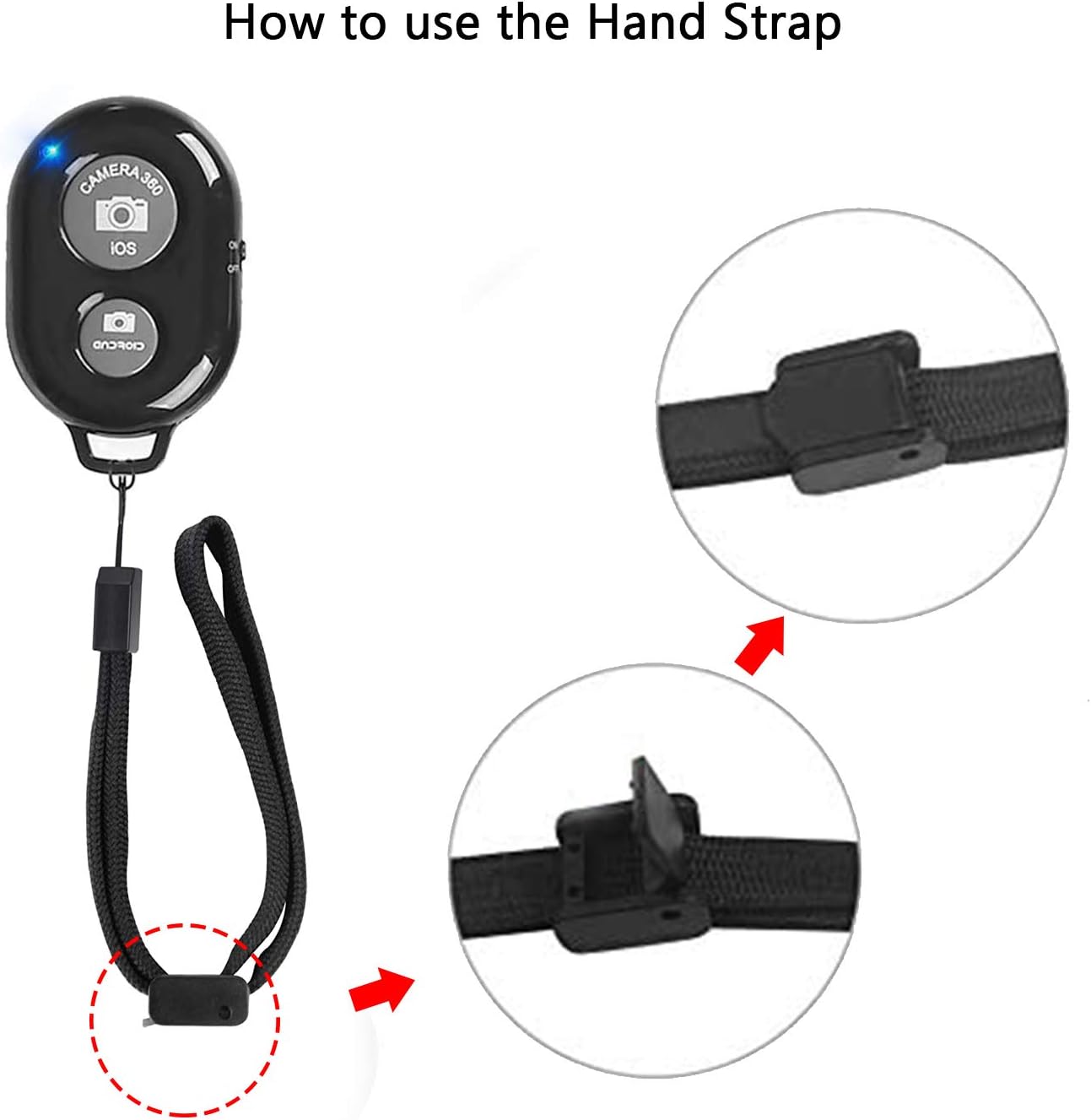
To attach the adjustable wrist strap:
- Locate the small loop on the remote shutter.
- Thread the thin loop end of the wrist strap through the remote's loop.
- Pass the larger strap end through the thin loop you just created and pull gently to secure.
- Adjust the strap's length using the plastic slider for a comfortable fit on your wrist.
Troubleshooting
- Remote not taking pictures with built-in camera app: If your device's native camera app does not respond, try downloading a compatible third-party camera application such as "Camera 360" (for Apple App Store) or "A Better Camera" (for Google Play Store for Android).
- Video recording issues on Android: If you can take pictures but have difficulty starting or stopping video on your Android device, consider using "A Better Camera" from the Google Play Store for video recording.
- Remote only adjusts volume: If the remote only controls your phone's volume after connection, navigate to your phone's camera settings and look for an option to change the function of the volume buttons to take photos.
- Connection issues: Ensure Bluetooth is enabled on your device and the remote is powered on. Try unpairing and re-pairing the device if connection problems persist.
Specifications
| Product Dimensions | 3.94 x 2.36 x 2.36 inches |
| Item Weight | 1.44 ounces |
| Item Model Number | CH-7 |
| Batteries | 1 CR2032 battery required (included) |
| Special Feature | Smartphone camera photo control |
| Max Number of Supported Devices | 1 |
| Compatible Devices | Cellphone, Tablet, iPhone |
Warranty and Support
This product includes a 12-month warranty from the date of purchase.
If you encounter any issues or have questions regarding the use of your EszkozTA Wireless Remote Shutter, please contact our customer support team for assistance. Refer to your warranty card for contact details.