
Introduction
This manual provides instructions for the setup, operation, and troubleshooting of your REDSTORM Wireless USB Receiver Dongle, model VG-C349. This device is designed to connect your REDSTORM 9124 Wireless Controller to compatible systems.
Setup
- Driver Installation (Windows 7 and Older): For computers running Windows 7 or older operating systems, driver installation may be required. Please refer to your operating system's documentation or the REDSTORM support website for specific driver download and installation instructions. Windows 8 and newer typically install drivers automatically.
- Connect the Receiver: Insert the REDSTORM Wireless USB Receiver Dongle into an available USB port on your computer or compatible device.

Image: The REDSTORM Wireless USB Receiver Dongle, a black USB device with a central button.
Operating Instructions
This USB Receiver is specifically designed for use with the REDSTORM 9124 Wireless Controller.
- Power On Controller: Ensure your REDSTORM 9124 Wireless Controller is powered on.
- Initiate Pairing: On your 9124 controller, simultaneously press and hold the Y button and the Home button.
- Wait for Connection: The controller's indicator lights will flash, indicating it is searching for the receiver. Once successfully paired, the lights will stabilize.

Image: An example of the REDSTORM 9124 Wireless Controller, featuring a white design with red splatter accents.
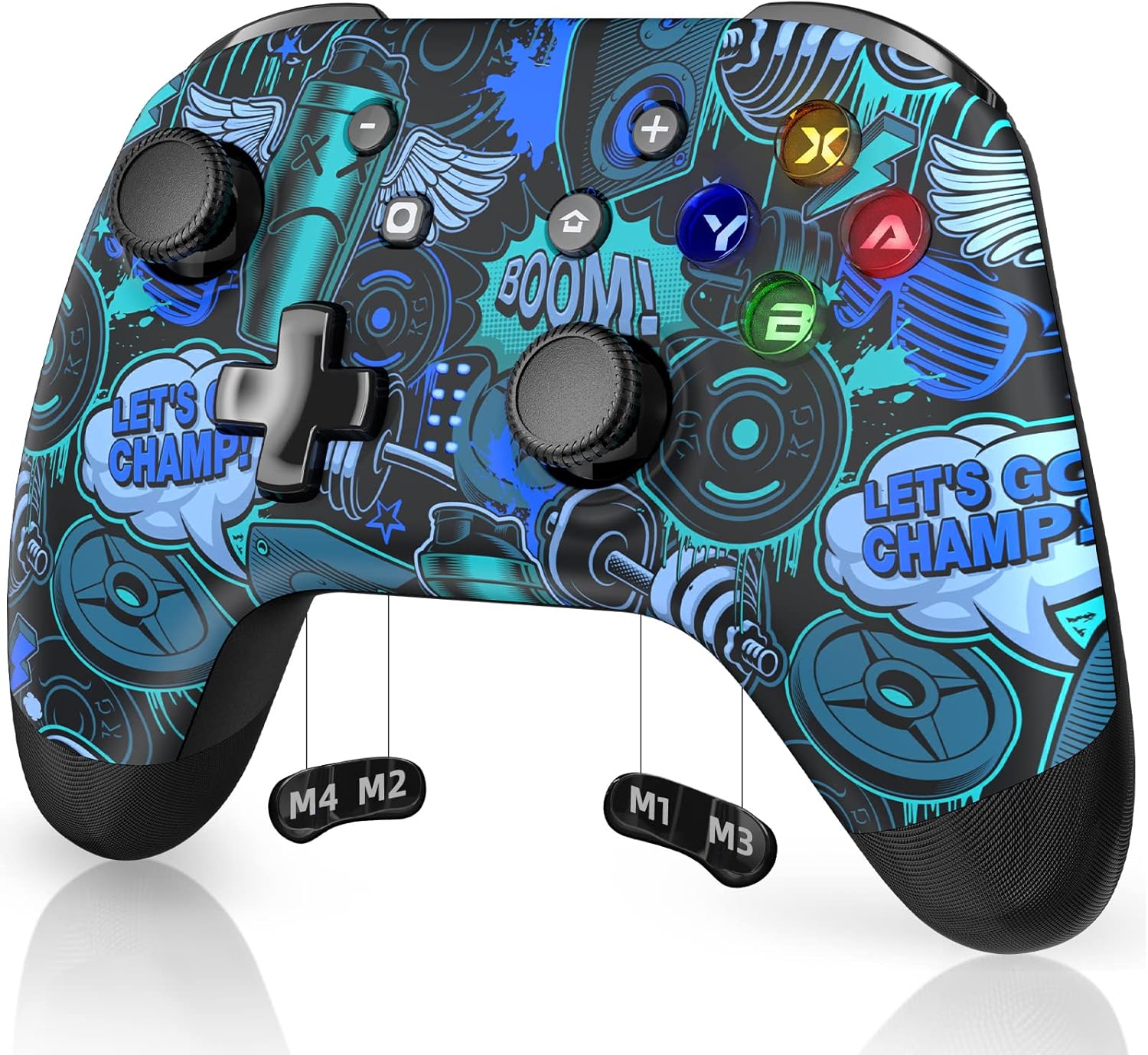
Image: Another example of the REDSTORM 9124 Wireless Controller, featuring a blue and black graphic design.
Maintenance
- Keep the receiver dongle clean and free from dust. Use a soft, dry cloth for cleaning.
- Avoid exposing the device to extreme temperatures or moisture.
- Store the dongle in a safe place when not in use to prevent physical damage.
Troubleshooting
- Controller Not Pairing:
- Ensure the receiver is securely plugged into a working USB port.
- Confirm the controller is a REDSTORM 9124 model.
- Re-attempt the pairing process by pressing Y+Home on the controller after it is powered on.
- Try plugging the receiver into a different USB port.
- No Response After Pairing:
- Verify that the correct drivers are installed, especially for Windows 7 and older systems.
- Restart your computer or device.
- Check if the controller's battery is charged.
- Intermittent Connection:
- Ensure there are no significant obstructions between the controller and the receiver.
- Minimize interference from other wireless devices.
- Try moving the receiver to a more open location or using a USB extension cable.
Specifications
| Feature | Detail |
|---|---|
| Model Number | VG-C349 |
| Brand | REDSTORM |
| Product Dimensions | 2.5 x 1 x 0.5 inches |
| Item Weight | 0.317 ounces (0.01 Kilograms) |
| Hardware Interface | USB |
| Data Link Protocol | USB |
| Compatible Devices | Desktop computers |
| Compatible OS Family | Windows (Driver required for Windows 7 and older) |
| Color | Black |
| ASIN | B0BG614DTF |
Warranty and Support
For warranty information, technical support, or further assistance, please visit the official REDSTORM website or contact their customer service department. Details can typically be found on the product packaging or the brand's online presence.
You can visit the REDSTORM store on Amazon for more products and support information: REDSTORM Store