
Introduction
The QLIFE Automatic Pet Feeder is designed to provide scheduled and portion-controlled dry food dispensing for your cats and dogs. This device offers convenience through its dual power supply, voice recording feature, and remote control via a smartphone application. Ensure your pet is fed consistently, whether you are at home or away.
What's in the Box
- QLIFE Automatic Pet Feeder Unit (4L capacity)
- Stainless Steel Food Bowl
- Plastic Bowl Holder
- Power Adapter (USB)
- Desiccant Bag
- Instruction Manual
Setup
1. Power Supply
The feeder supports a dual power supply mode to ensure continuous operation. You can power the device using the included USB power adapter or by installing three D-batteries (not included) as a backup power source. This ensures your pet is fed even during power outages.

Image: The feeder can be powered by the included adapter or three D-batteries for backup.
2. Food Loading
Open the top lid of the feeder. Insert the desiccant bag into its designated compartment to keep the dry food fresh and free from moisture. Fill the food hopper with dry pet food. The feeder has a 4L capacity.

Image: Open the top lid and fill the food hopper with dry pet food.
3. Bowl Assembly
Place the stainless steel food bowl into the plastic bowl holder. Attach the assembled bowl to the main feeder unit, ensuring it is securely in place beneath the food dispensing outlet.

Image: The detachable stainless steel bowl fits into a plastic holder and attaches to the feeder.
4. App Connection (2.4GHz WiFi)
Download the Smart Life app (or Tuya app) to your smartphone. Scan the QR code provided in the manual or on the product packaging to quickly find the app. Ensure your phone is connected to a 2.4GHz WiFi network, as 5GHz signals and public WiFi are not supported. Follow the in-app instructions to connect your feeder to the app.

Image: Scan this QR code to download the companion app for your feeder. Download App Here

Image: Visual guide for connecting the feeder to the app and setting up schedules.
Operating Instructions
1. Voice Recording Reminder
Record a 10-second voice message to call your pet at feeding times. This personalized reminder can help attract your pet to the feeder when food is dispensed.

Image: Customize a 10-second recording to call your pet for meals.
2. Manual Feeding
Press the "Feed" button on the feeder's control panel to dispense a single portion of food immediately. This is useful for extra treats or to test the dispenser.
3. Scheduled and Remote Feeding (via App)
Using the connected app, you can set up a feeding plan with up to 10 meals per day. Each meal can be customized with 1 to 12 portions. The app also allows for remote feeding on demand, giving you control from anywhere.
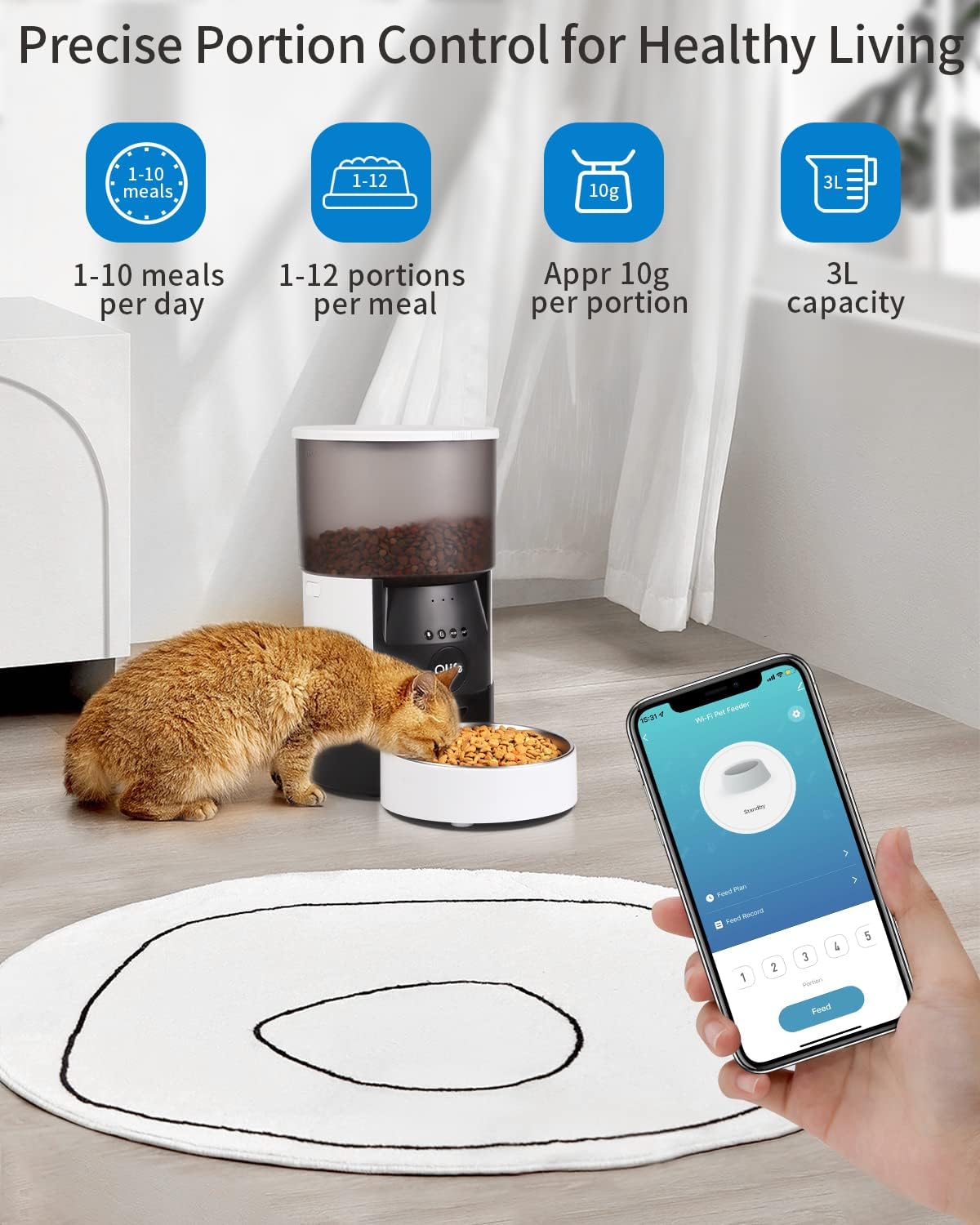
Image: Set precise portion control and feeding schedules through the app.

Image: The automatic feeder ensures your pet is fed anytime, anywhere, providing peace of mind.
The feeder is designed for dry food with a kibble size between 2-12mm. Using kibble outside this range may cause dispensing issues.

Image: Recommended kibble size is 2-12mm for optimal performance.
Maintenance
Regular cleaning of the food bowl and hopper is essential for your pet's health and the feeder's longevity. The stainless steel food bowl is detachable and can be hand washed. Ensure all parts are completely dry before reassembling.

Image: The food-grade stainless steel bowl is easy to clean by hand washing.
Troubleshooting
- Feeder not connecting to app: Ensure your smartphone is connected to a 2.4GHz WiFi network. 5GHz networks are not supported. Restart the feeder and your router if issues persist.
- Food not dispensing: Check if the food hopper is sufficiently filled. Verify that the kibble size is within the recommended 2-12mm range. Larger kibble may cause blockages.
- Voice recording not playing: Ensure the recording was saved correctly. Check the app settings to confirm the voice playback is enabled for scheduled feedings.
- Feeder losing power: If using battery backup, ensure D-batteries are installed correctly and are not depleted. If using the adapter, check the power connection and outlet.
Specifications
| Feature | Detail |
|---|---|
| Brand | QLIFE |
| Model Number | Automatic Cat Feeder-4L |
| Capacity | 4 Liters |
| Material | Stainless Steel (bowl) |
| Power Source | AC Adapter (included), 3x D-batteries (not included) |
| Connectivity | 2.4GHz WiFi (5GHz not supported) |
| Feeding Schedule | Up to 10 meals per day |
| Portion Control | 1-12 portions per meal (approx. 10g per portion) |
| Voice Recording | 10-second customizable message |
| Recommended Kibble Size | 2-12mm |
| Dimensions (LxWxH) | 7.8 x 7.8 x 13.4 inches |
| Item Weight | 3.86 Pounds |
Warranty and Support
For warranty information and customer support, please refer to the contact details provided on the product packaging or the official QLIFE website. Keep your purchase receipt for any warranty claims.


