Introduction
This manual provides detailed instructions for setting up, operating, and maintaining your T-Wolf Q5 Wireless Gaming Mouse. Please read this manual carefully before using the product to ensure optimal performance and longevity.
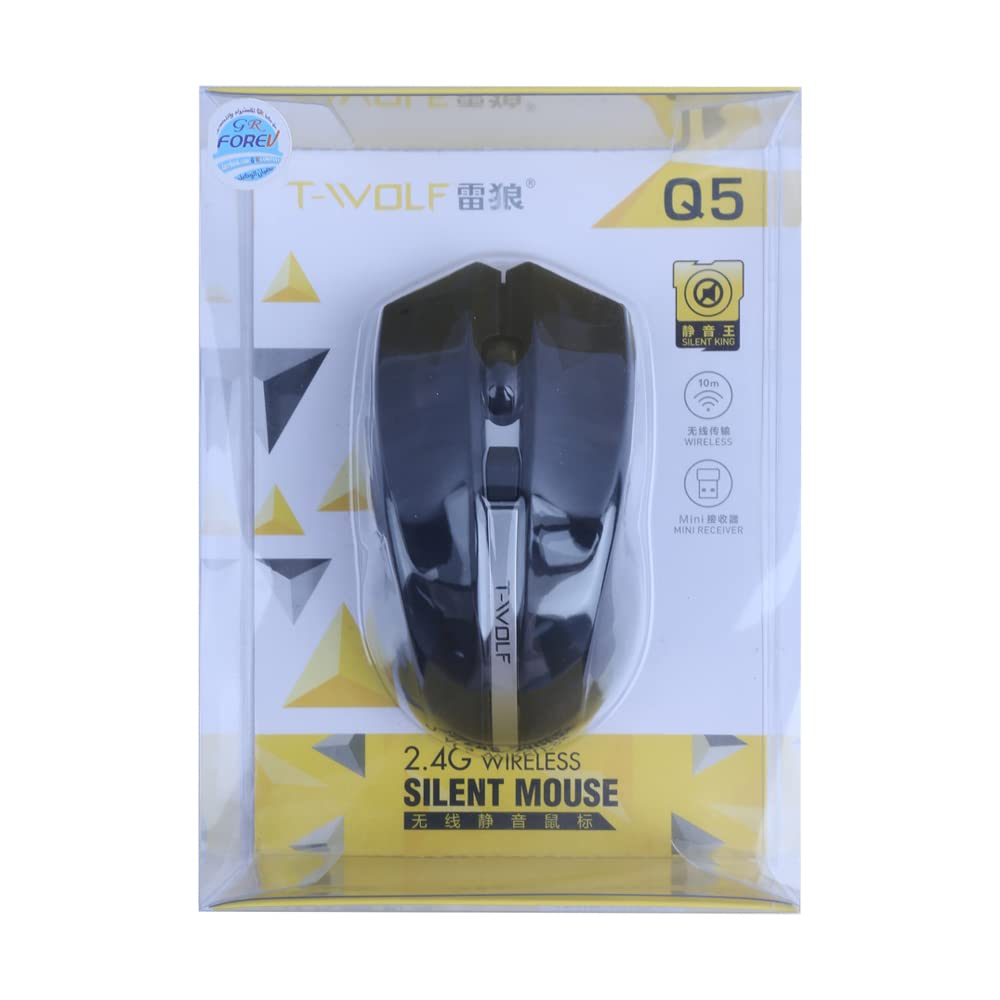
Image: T-Wolf Q5 Features Overview. This diagram highlights key features such as 2.4GHz wireless, mini receiver, silent click, durability, and ergonomic design.
Package Contents
Please verify that all items are present in your package:
- 1 x T-Wolf Q5 Wireless Gaming Mouse
- 1 x Mini USB Receiver
- 2 x AAA Alkaline Batteries (Note: Batteries are not included with all packages; please check your specific product packaging.)
Setup Guide
Follow these steps to set up your T-Wolf Q5 Wireless Gaming Mouse:
- Install Batteries: Open the battery compartment on the underside of the mouse. Insert two AAA alkaline batteries, ensuring correct polarity as indicated inside the compartment.
- Connect USB Receiver: Locate the mini USB receiver, typically stored in a dedicated slot on the underside of the mouse. Plug the receiver into an available USB port on your computer.
- Power On: Turn on the mouse using the power switch, usually located on the underside. The mouse should automatically connect to the receiver within a few seconds.
- Driver Installation: The T-Wolf Q5 mouse is designed for plug-and-play functionality and generally does not require additional driver installation for basic operation on compatible operating systems.
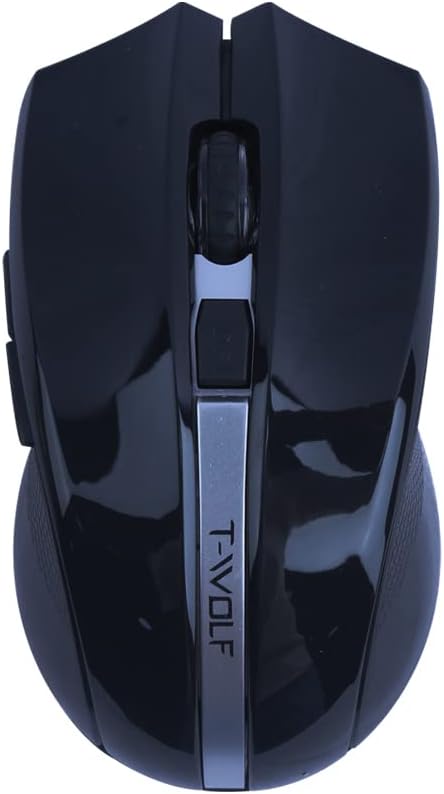
Image: Mini USB Receiver. This compact receiver enables wireless connectivity between the mouse and your computer. Ensure it is securely plugged into a USB port.
Operating Instructions
Basic Functions
- Left Click: Used for primary actions, selecting items, and activating functions.
- Right Click: Used to open context menus or perform secondary actions.
- Scroll Wheel: Rotate to scroll up or down through documents and web pages. The scroll wheel can also be clicked for middle-click functionality.
- Silent Click Design: The main left and right click buttons feature a silent click design, providing a quiet user experience without disruptive clicking sounds.
DPI Adjustment
The T-Wolf Q5 mouse features adjustable DPI (Dots Per Inch) settings, allowing you to change cursor sensitivity on the fly. This is particularly useful for adapting to different tasks, such as precise graphic design work or fast-paced gaming.
Press the DPI button, typically located behind the scroll wheel, to cycle through the available DPI settings. The mouse supports a range of DPI values, including up to 1800 DPI, providing more effective control and responsiveness.

Image: Top View of T-Wolf Q5 Mouse. This view clearly shows the scroll wheel and the dedicated DPI button for quick sensitivity adjustments.
Power Saving Mode
To maximize battery life, the T-Wolf Q5 mouse incorporates an intelligent power-saving system:
- The mouse will enter a smart sleep mode after a short period of inactivity.
- If the mouse is not moved for approximately 5 minutes, it will automatically transition into a deeper sleep mode to further conserve power.
- To reactivate the mouse from any sleep mode, simply move it slightly or click any button.

Image: Side View of T-Wolf Q5 Mouse. This angle showcases the ergonomic contour designed for comfortable use during extended periods.
Maintenance
Proper care and maintenance will ensure the longevity and optimal performance of your mouse:
- Cleaning: Use a soft, dry, lint-free cloth to gently clean the exterior of the mouse. Avoid using harsh chemicals, solvents, or abrasive materials, as these can damage the surface.
- Battery Replacement: Replace the AAA batteries when the mouse's performance degrades, the cursor becomes erratic, or it stops responding. Always use new, high-quality alkaline batteries.
- Storage: When not in use for extended periods, it is recommended to turn off the mouse using the power switch and store it in a dry, cool environment away from direct sunlight and extreme temperatures.
Troubleshooting
If you encounter any issues with your T-Wolf Q5 Wireless Gaming Mouse, please refer to the following troubleshooting steps:
- Mouse not responding or erratic cursor movement:
- Ensure the mouse is powered on. Check the power switch on the underside.
- Verify that the batteries are correctly installed and have sufficient charge. Replace them with new AAA alkaline batteries if necessary.
- Confirm that the mini USB receiver is securely plugged into a working USB port on your computer.
- Try plugging the USB receiver into a different USB port on your computer.
- Restart your computer to refresh the USB connections.
- Ensure there are no significant obstructions between the mouse and the USB receiver.
- Intermittent connection or lag:
- Ensure the mouse is within the optimal 10-meter operating range of the receiver.
- Move the mouse closer to the USB receiver.
- Avoid using the mouse on highly reflective, transparent, or uneven surfaces, which can interfere with the optical sensor's tracking.
- Minimize potential sources of 2.4GHz interference, such as Wi-Fi routers, cordless phones, or other wireless devices, by moving them further away.
- Buttons not clicking or feeling unresponsive:
- Ensure no debris is lodged under the buttons.
- If the issue persists after checking batteries and connection, the mouse may require servicing or replacement.
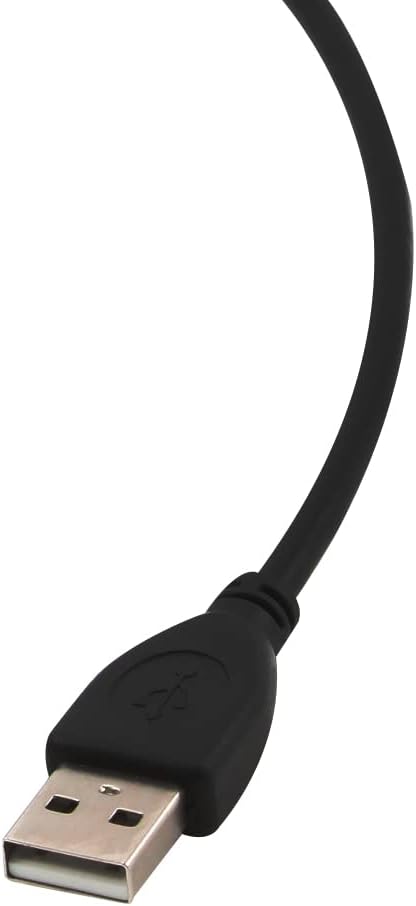
Image: Standard USB-A Connector. While this mouse is wireless and battery-powered, a USB-A port is required for its receiver. This image shows a typical USB-A connector.
Specifications
| Feature | Detail |
|---|---|
| Brand | T-Wolf |
| Model | Q5 |
| Connectivity | 2.4GHz Wireless |
| Wireless Range | Up to 10 meters |
| DPI Settings | Adjustable, up to 1800 DPI |
| Buttons | Silent mechanical buttons, rated for 10 million clicks |
| Hand Orientation | Ambidextrous |
| Power Source | 2 x AAA Batteries (not included) |
| Operating System Compatibility | Windows (8 and above), Mac OS, Linux |
| Item Weight | 50 grams |
| Shipping Dimensions | 30 x 15 x 10 cm |
Warranty and Support
Specific warranty information for the T-Wolf Q5 Wireless Gaming Mouse is not provided within this manual. Please refer to the product packaging, the retailer's website, or your purchase receipt for detailed warranty terms and conditions.
For technical support, product inquiries, or further assistance, please contact the manufacturer or your point of purchase directly. Contact information can usually be found on the product packaging or the brand's official website.


