
1. Introduction
The UtechSmart D6919 18-in-1 USB-C Docking Station is designed to expand the connectivity of your laptop, providing a comprehensive solution for multiple peripherals, external displays, and power delivery. This docking station supports triple monitor setups at 4K@60Hz, offers various USB ports for data transfer, an Ethernet connection, and charging capabilities for your host laptop and other devices.
2. Key Features
- Triple Monitor Support: Connect up to three external monitors via 3x HDMI and 3x DisplayPort outputs, supporting resolutions up to 4K@60Hz or a single 5K@30Hz display.
- 18-in-1 Connectivity: Features 3x HDMI, 3x DisplayPort, SD/TF Card Reader, USB-C Data Transfer, Gigabit Ethernet, 100W Power Delivery (PD), 2x USB 3.0 ports, 2x USB 2.0 ports, and 2x 3.5mm audio jacks.
- High-Speed Data Transfer: USB 3.0 ports offer data transfer speeds up to 5Gbps.
- Power Delivery: Provides up to 100W power delivery to the host laptop and 15W to other USB-C devices.
- Gigabit Ethernet: Ensures stable and fast wired internet connectivity at 1000Mbps.
- Wide Compatibility: Compatible with Thunderbolt 3/4, USB-C 3.1/3.2 Gen 2 laptops, including MacBook Pro/Air (M1/M2), Windows laptops (e.g., HP Spectre, Lenovo ThinkPad, Dell XPS/Latitude), and more.
3. Package Contents
Verify that all items are present in your package:

Image: Contents of the UtechSmart D6919 Docking Station package.
- UtechSmart D6919 18-in-1 Docking Station
- USB 3.1 C to C Superspeed Cable
- Power Adapter (20V 6.5A)
- User Manual
4. Product Diagram
Familiarize yourself with the ports and components of your docking station:

Image: Front and rear view of the UtechSmart D6919 Docking Station, highlighting all 18 ports and their functions.
- Front Panel: Power Button, 15W USB-C Port, SD Card Slot, TF Card Slot, 2x USB 2.0 Ports, 2x USB 3.0 Ports, Microphone Port, Earphone Port.
- Rear Panel: DC Power In (20V), 100W USB-C In (Host Connection), LAN (Gigabit Ethernet), DisplayLink 1 (HDMI1/DP1, Video 2), DisplayLink 2 (HDMI2/DP2, Video 3), Alt Mode (HDMI3/DP3).
5. Setup Guide
Follow these steps to set up your UtechSmart D6919 Docking Station:
- Install DisplayLink Driver: For optimal performance and multi-display functionality, especially with macOS and certain Windows configurations, download and install the latest DisplayLink driver from the official DisplayLink website or UtechSmart support page.
- Connect Power: Connect the provided power adapter to the DC Power In port on the rear of the docking station, then plug the adapter into a power outlet.
- Connect to Host Laptop: Use the supplied USB-C to USB-C cable to connect the 100W USB-C In port on the docking station to a compatible USB-C or Thunderbolt port on your laptop.
- Connect Monitors: Connect your external monitors to the available HDMI and/or DisplayPort outputs on the docking station. The docking station supports up to three external displays.
- Connect Peripherals: Plug in your USB devices (keyboard, mouse, external drives) into the USB 2.0 or USB 3.0 ports. Connect your Ethernet cable to the LAN port for wired internet. Connect headphones or a microphone to the 3.5mm audio jacks.
The docking station is now ready for use. Press the power button on the front panel to turn it on.
Video: An overview of the UtechSmart D6919 Docking Station, demonstrating its features and connectivity options.
6. Operating Instructions
6.1 Power On/Off
Press the power button on the front of the docking station to turn it on or off. An indicator light will confirm its status.
6.2 Display Modes
Once connected, your operating system should automatically detect the external displays. You can configure display settings (extend, mirror, primary display) through your computer's display settings:
- Windows: Right-click on the desktop, select 'Display settings'.
- macOS: Go to 'System Settings' (or 'System Preferences'), then 'Displays'.
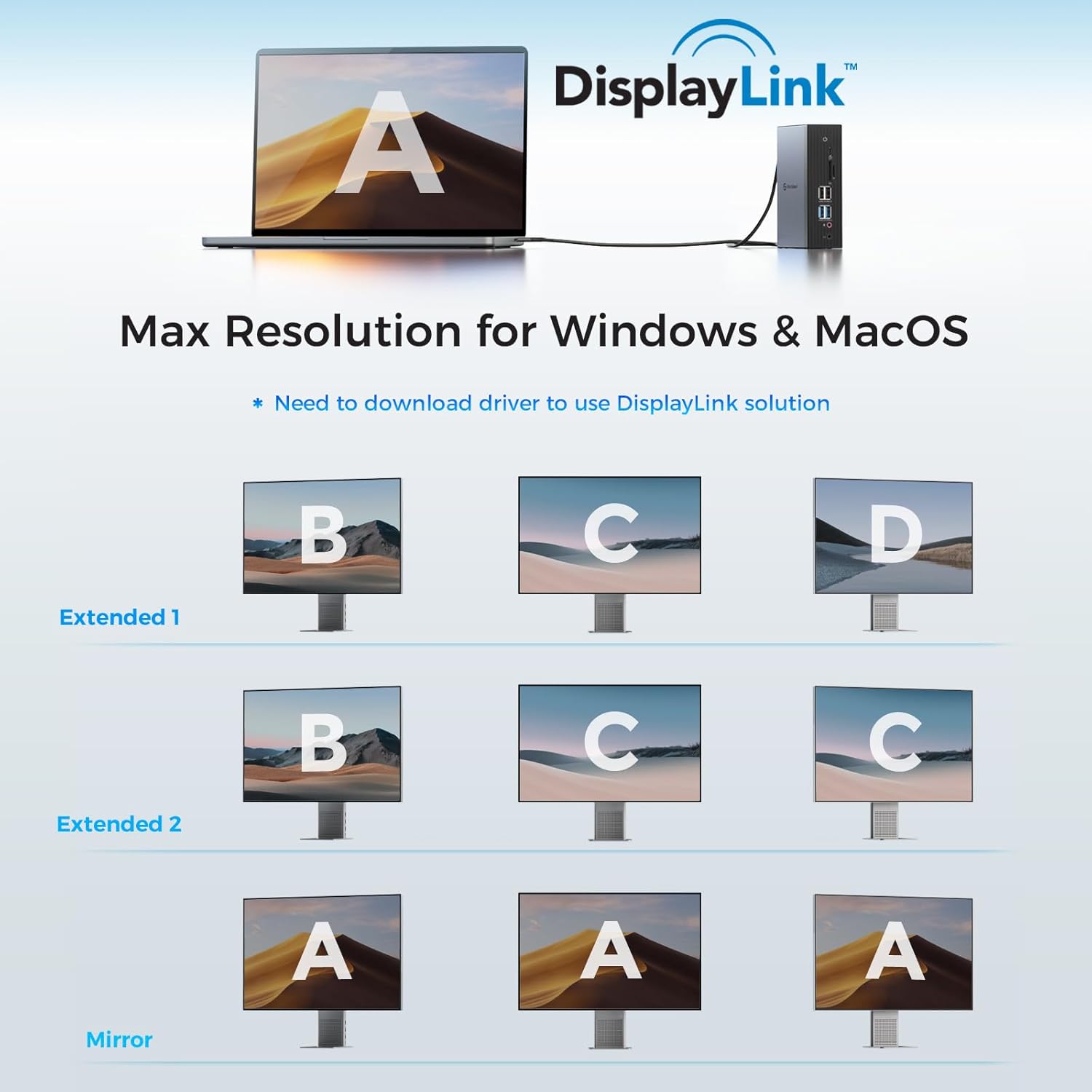
Image: Illustrates various display configurations (extended and mirrored) for Windows and macOS using DisplayLink technology.

Image: A visual representation of a triple display setup, emphasizing increased productivity.
6.3 Charging Capabilities
The docking station provides power to your host laptop via the 100W USB-C In port. Additionally, the front USB-C port can deliver up to 15W for charging smaller devices like smartphones or tablets.

Image: The docking station providing 100W power to a laptop and 15W to other mobile devices.
6.4 Data Transfer
Utilize the USB 3.0 ports for high-speed data transfer up to 5Gbps, ideal for external hard drives, SSDs, and other demanding peripherals. The USB 2.0 ports are suitable for keyboards, mice, and other less bandwidth-intensive devices.

Image: Demonstrates the 5Gbps data transfer speed of USB 3.0 ports and the 100W power input capability.
7. Display Configuration
The UtechSmart D6919 supports various display configurations:
- Triple 4K@60Hz Displays: Connect three monitors using any combination of HDMI and DisplayPort outputs. Ensure your host laptop supports USB-C 3.1/3.2 Gen 2 or Thunderbolt 3/4 for full functionality, especially for Video 3 (Alt Mode port).
- Single 5K@30Hz Display: A single monitor can be connected at 5K resolution at 30Hz.
- DisplayLink Technology: The docking station utilizes DisplayLink technology for multi-display output. Ensure the DisplayLink driver is installed on your operating system for proper function.
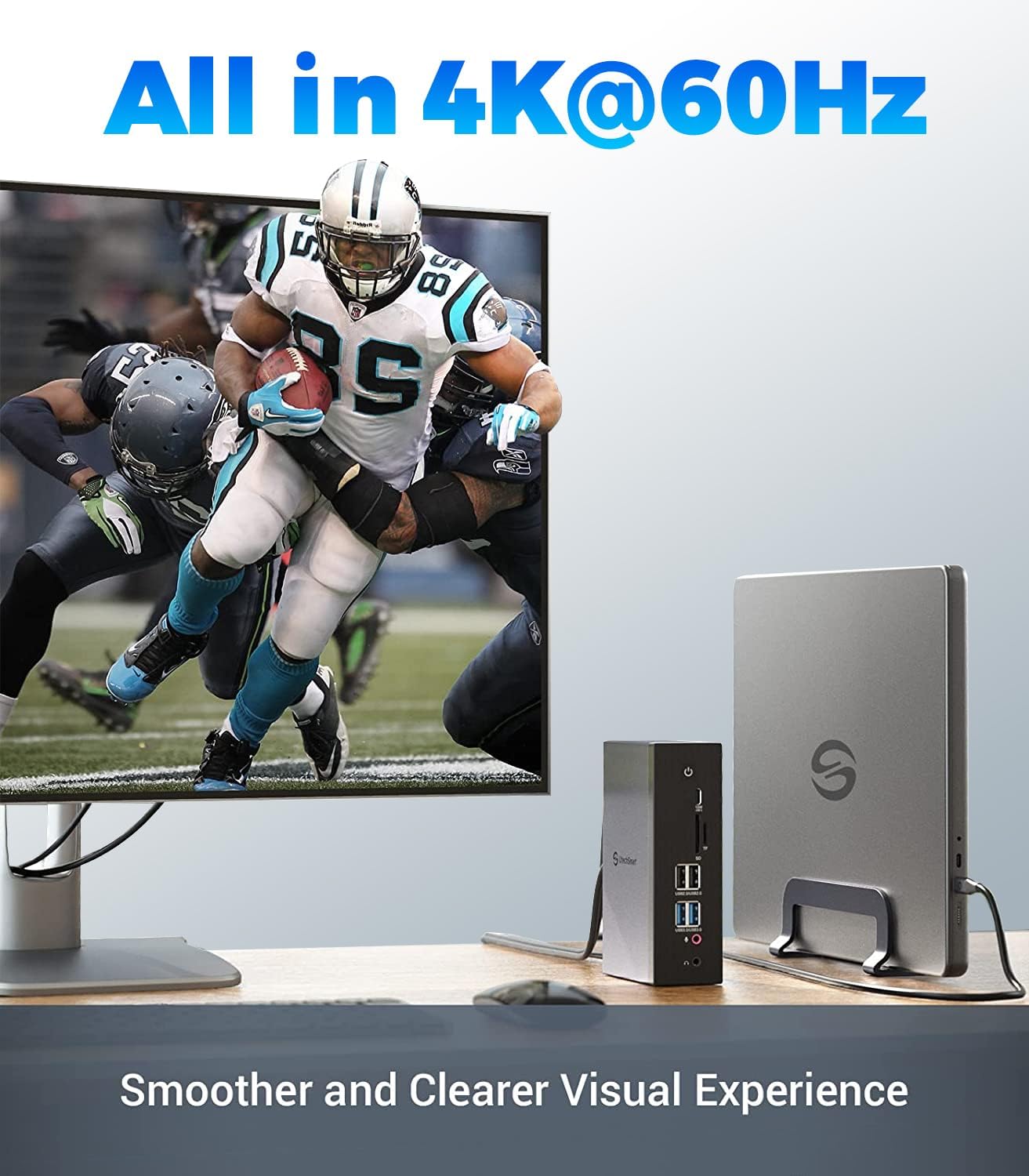
Image: A monitor displaying high-resolution content at 4K@60Hz, demonstrating visual clarity.
8. Maintenance
To ensure the longevity and optimal performance of your docking station:
- Keep the device in a cool, dry place away from direct sunlight and heat sources.
- Clean the exterior with a soft, dry cloth. Avoid using liquid cleaners or solvents.
- Ensure proper ventilation around the docking station to prevent overheating.
- Avoid placing heavy objects on top of the docking station.
9. Troubleshooting
If you encounter issues, refer to the following common solutions:
- No Display Output:
- Ensure the DisplayLink driver is installed and up to date.
- Verify all cables (USB-C to host, HDMI/DP to monitors, power) are securely connected.
- Check your laptop's display settings to ensure external monitors are detected and configured correctly (extend/mirror).
- Try restarting your laptop and the docking station.
- Intermittent Connectivity/Display Flickering:
- Ensure the docking station is receiving adequate power from the original power adapter.
- Check for updated DisplayLink drivers or graphics drivers for your laptop.
- Reduce the number of connected peripherals or external displays to isolate the issue.
- Ensure the docking station is placed in a well-ventilated area to prevent overheating.
- USB Devices Not Recognized:
- Reconnect the USB device.
- Try a different USB port on the docking station.
- Ensure the docking station is powered on and properly connected to the host laptop.
- Laptop Not Charging:
- Confirm the host laptop's USB-C port supports Power Delivery (PD).
- Ensure the docking station's power adapter is correctly connected and functioning.
- Verify the USB-C cable connecting the laptop to the dock supports PD.
10. Specifications
| Model | D6919 |
| Brand | UtechSmart |
| Product Dimensions | 3.7 x 1.7 x 5.78 inches |
| Item Weight | 1.12 pounds |
| Hardware Interface | USB |
| Total USB Ports | 4 (2x USB 3.0, 2x USB 2.0) + 1x USB-C Data Transfer |
| Video Output | 3x HDMI, 3x DisplayPort (supports up to 3 external displays) |
| Max Resolution | 4K@60Hz (Triple Display), 5K@30Hz (Single Display) |
| Power Delivery | 100W to Host, 15W to USB-C device |
| Ethernet | Gigabit (1000Mbps) |
| Card Reader | SD/TF Card Slots |
| Audio | 3.5mm Microphone, 3.5mm Earphone |
| Compatible Devices | Thunderbolt 3/4 MacBook Pro & Air, M1/M2 Macs, USB-C: Pro 7 / Go & Go 2 / Book 2 & 3 / Laptop 2 & 3, HP Spectre x360 series, Lenovo ThinkPad T series (T470, T480, T490), Huawei Dell XPS 13 & XPS 15 (9300 9310 9350 9360 9370 9380 9550 9560 9570 7390 +more) / Latitude (5580 7280 7400 7490 +more), MateBook Pro, LG Gram, Samsung Galaxy |
11. Warranty & Support
UtechSmart products come with a standard manufacturer's warranty. For detailed warranty information, product registration, or technical support, please visit the official UtechSmart website or contact their customer service. Keep your purchase receipt for warranty claims.
UtechSmart Official Website: www.utechsmart.com


