
1. Overview
The Logicool MX MASTER 3S for Mac is a high-performance wireless mouse designed for Apple ecosystems. It features silent clicks, an 8000 DPI Darkfield sensor for precise tracking on various surfaces, and a MagSpeed electromagnetic scroll wheel capable of scrolling 1,000 lines per second. This model offers enhanced Bluetooth connectivity stability specifically for Mac and iPad devices. It also supports multi-device connectivity and customization through Logi Options+ software.

Figure 1: Logicool MX MASTER 3S for Mac Wireless Mouse (Pale Gray).

Figure 2: Key features of the MX MASTER 3S for Mac, highlighting silent operation, 8000 DPI tracking, and compatibility with macOS 10.15+ and iPadOS 14+.
2. Setup
2.1. Charging the Mouse
The MX MASTER 3S for Mac is equipped with a rechargeable battery. Use the included USB-C to USB-C charging cable to connect the mouse to a power source (e.g., your Mac, a USB wall adapter). A full charge takes approximately 2 hours and provides up to 70 days of use. Rapid charging allows for 3 hours of use with a 1-minute charge or 8 hours with a 3-minute charge.

Figure 3: Connecting the USB-C charging cable to the mouse.
2.2. Connecting to Your Device
The MX MASTER 3S for Mac primarily connects via Bluetooth. It is optimized for stable Bluetooth connectivity with Apple products.
- Power On: Ensure the mouse is powered on using the switch on its underside.
- Activate Pairing Mode: Press and hold the Easy-Switch button on the bottom of the mouse for 3 seconds until the LED indicator starts blinking rapidly.
- Connect via Bluetooth:
- On your Mac: Go to System Settings > Bluetooth and select "MX MASTER 3S for Mac" from the list of available devices.
- On your iPad: Go to Settings > Bluetooth and select "MX MASTER 3S for Mac" from the list of available devices.
- Logi Bolt (Optional): While not included, a Logi Bolt USB receiver (sold separately) can also be used for connection. Unifying receivers are not supported.
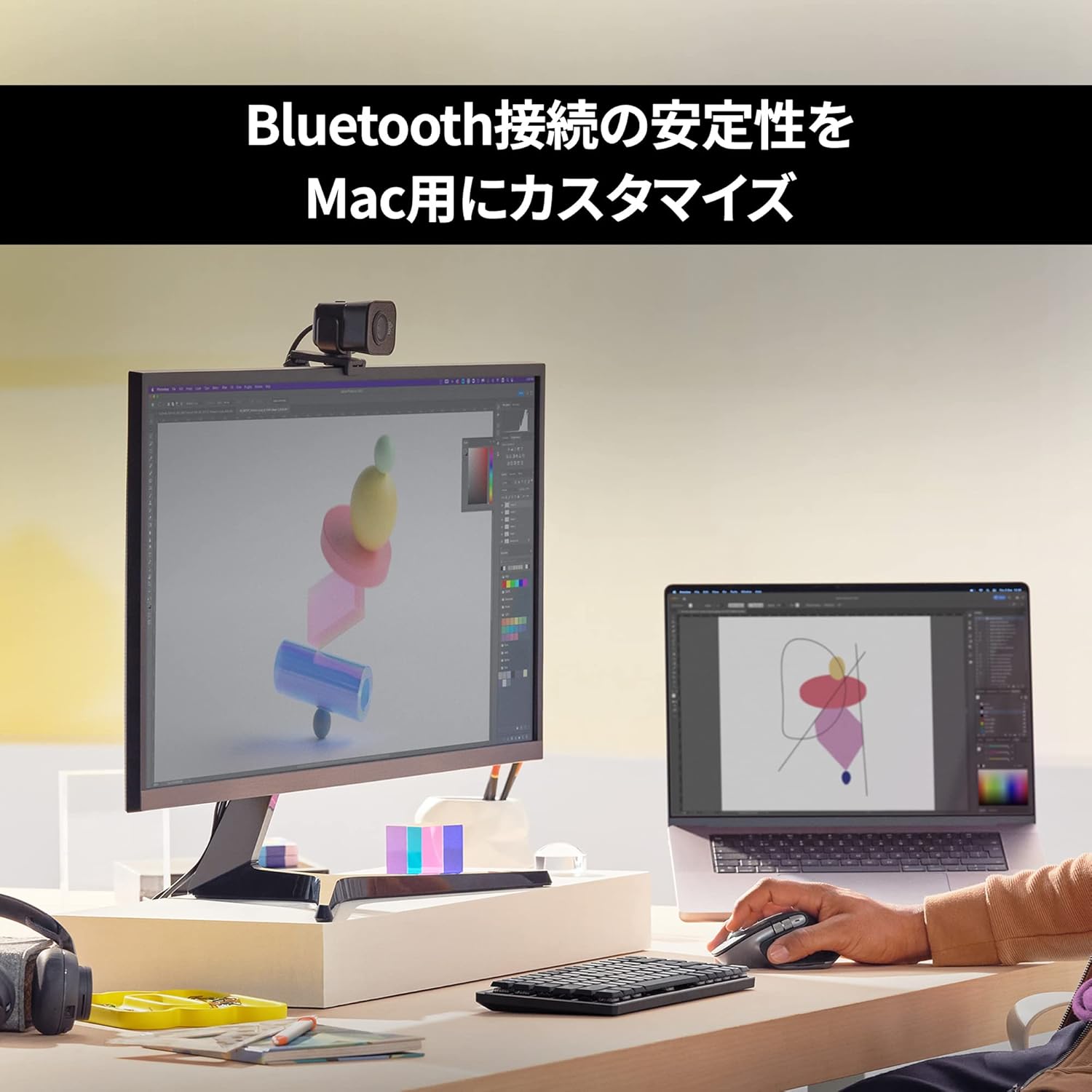
Figure 4: Establishing a Bluetooth connection with a Mac.
2.3. Install Logi Options+ Software
To unlock the full customization potential of your MX MASTER 3S for Mac, download and install the free Logi Options+ software from the official Logicool website. This software allows you to customize buttons, adjust tracking speed, and enable advanced features like Flow.
- Download Logi Options+ from: Logicool Official Homepage
3. Operating the Mouse
3.1. Basic Functions
- Left/Right Click: Standard mouse clicks for selection and interaction.
- MagSpeed Scroll Wheel: The main scroll wheel offers two modes: a precise, ratcheted mode and a super-fast, free-spinning mode for rapid document navigation. It automatically switches between modes based on your scrolling speed.
- Thumb Wheel: Located on the side, this wheel provides horizontal scrolling, ideal for navigating spreadsheets or timelines.

Figure 5: Detailed view of the MagSpeed scroll wheel and the side thumb wheel.

Figure 6: The MagSpeed scroll wheel enables ultra-fast scrolling, up to 1,000 lines per second.
3.2. Advanced Features with Logi Options+
Logi Options+ software allows for extensive customization and enables advanced features:
- Button Customization: Assign specific functions or application-specific shortcuts to the four customizable buttons (forward/back buttons, gesture button, mode shift button).
- DPI Adjustment: Customize tracking precision up to 8000 DPI for optimal sensitivity.
- Logi Flow: Seamlessly control multiple computers (up to 3) with a single MX MASTER 3S for Mac. Move your cursor to the edge of one screen, and it automatically appears on the next, allowing you to transfer text, images, and files between Windows and macOS operating systems by simply dragging and dropping.

Figure 7: Customizing mouse operations using the Logi Options+ application.

Figure 8: The Logi Options+ interface allows users to assign custom functions to mouse buttons.
3.3. Easy-Switch Function
The Easy-Switch button on the bottom of the mouse allows you to quickly switch between up to three paired devices. Simply press the button to cycle through the connected devices.

Figure 9: The Easy-Switch button on the mouse's underside, alongside an illustration of the Flow feature for multi-computer control.
4. Maintenance
4.1. Cleaning
To maintain optimal performance, regularly clean your mouse. Use a soft, lint-free cloth, slightly dampened with water or an electronics-safe cleaning solution, to wipe the surface. Avoid harsh chemicals or abrasive materials. For the sensor, use a dry cotton swab to gently remove any dust or debris.
4.2. Battery Care
To prolong battery life, avoid fully discharging the mouse frequently. Charge it when the battery indicator is low. Store the mouse in a cool, dry place when not in use for extended periods.
5. Troubleshooting
5.1. Connection Issues
- Mouse not connecting via Bluetooth:
- Ensure the mouse is powered on and fully charged.
- Verify Bluetooth is enabled on your Mac/iPad.
- Put the mouse into pairing mode by pressing the Easy-Switch button until the LED blinks.
- Remove the mouse from your device's Bluetooth list and attempt to re-pair.
- Try connecting to a different Bluetooth channel using the Easy-Switch button.
- Intermittent connection:
- Ensure the mouse is within range of your device (typically up to 10 meters).
- Minimize interference from other wireless devices.
- Update your device's operating system and Bluetooth drivers.
5.2. Tracking Issues
- Cursor erratic or not moving:
- Clean the Darkfield sensor on the bottom of the mouse.
- Ensure you are using the mouse on a suitable surface. The Darkfield sensor works on most surfaces, including glass (minimum 4mm thick).
- Check battery level.
5.3. Software Issues (Logi Options+)
- Customizations not applying:
- Ensure Logi Options+ is running in the background.
- Restart the Logi Options+ application.
- Reinstall Logi Options+.
6. Specifications
| Feature | Detail |
|---|---|
| Model Number | MX2300MPG |
| Connectivity | Bluetooth (Logi Bolt USB receiver sold separately) |
| Tracking Technology | Darkfield High Precision |
| DPI Range | 200 to 8000 DPI (customizable in 50 DPI increments) |
| Scroll Wheel | MagSpeed Electromagnetic Scrolling (1,000 lines/second) |
| Buttons | 7 buttons (Left/Right click, Back/Forward, App-Switch, Wheel mode-shift, Middle click) |
| Battery Type | Rechargeable Li-Po (500 mAh) |
| Battery Life | Up to 70 days on a single full charge |
| Charging Port | USB-C |
| Dimensions | 8.43 x 12.49 x 5.1 cm |
| Weight | 141 g |
| Compatible OS | macOS 10.15 or later, iPadOS 14 or later |
| Environmental Features | Recycled plastic in product body (Pale Gray: 22%), FSC-certified packaging |
7. Warranty and Support
7.1. Manufacturer's Warranty
The Logicool MX MASTER 3S for Mac comes with a 2-year manufacturer's warranty. Please retain your proof of purchase for warranty claims.
7.2. Product Support
For further assistance, technical support, or to download the latest version of Logi Options+ software, please visit the official Logicool support website.
- Logicool Support: support.logicool.co.jp


