
Introduction
This manual provides detailed instructions for the Riworal RG03 USB RGB Gaming Computer Microphone. Please read this manual thoroughly before using the product to ensure proper operation and to maximize its performance. Keep this manual for future reference.
Safety Information
- Do not expose the microphone to water or excessive moisture.
- Avoid dropping or subjecting the microphone to strong impacts.
- Do not attempt to disassemble or repair the microphone yourself. Contact qualified personnel for service.
- Keep the microphone away from heat sources and direct sunlight.
- Use only the provided USB cable for connection.
Package Contents
- Riworal RG03 USB RGB Gaming Computer Microphone
- Desktop Stand
- USB-C to USB-A Cable
- User Manual (this document)
Product Overview
The Riworal RG03 microphone features a cardioid polar pattern, RGB lighting, a touch-sensitive mute button, and a gain adjustment knob for optimal audio capture. It also includes a 3.5mm headphone jack for real-time monitoring.

Figure 1: Riworal RG03 USB RGB Gaming Computer Microphone with desktop stand and USB cable.

Figure 2: Diagram illustrating the cardioid polar pattern, designed to capture sound directly in front of the microphone while minimizing background noise.

Figure 3: Top view of the microphone highlighting the quick touch mute button with LED status indicator.
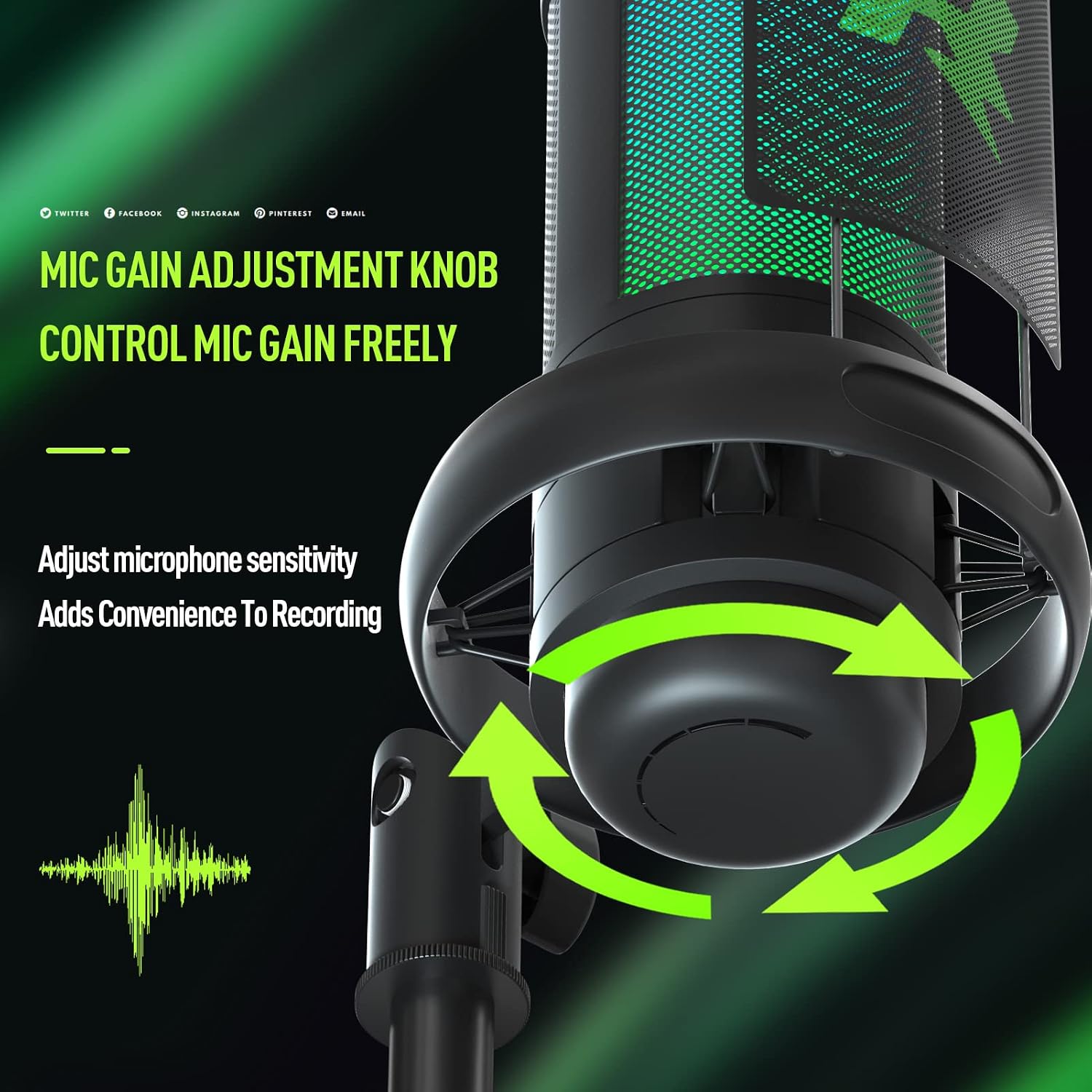
Figure 4: Underside of the microphone showing the mic gain adjustment knob for controlling sensitivity.

Figure 5: Illustration of two mounting options: on the metal desktop stand or mounted on a 5/8" nut microphone stand.

Figure 6: Side view of the microphone showing the 3.5mm headphone jack for real-time audio monitoring.
Setup
1. Connecting the Microphone
- Place the microphone on a stable surface using the provided desktop stand, or attach it to a compatible 5/8" microphone arm.
- Connect the USB-C end of the provided cable to the USB-C port on the microphone.
- Connect the USB-A end of the cable to an available USB port on your computer (PC or Mac) or PlayStation console.
- The microphone is plug-and-play and typically does not require additional drivers. Your operating system should automatically detect and install the device.
Video 1: Demonstrates the setup process, including connecting the USB-C cable to the microphone and computer, showcasing RGB lighting, mute function, volume control, angle adjustment, and headphone connection.
2. Connecting Headphones for Monitoring
For real-time audio monitoring, connect your headphones to the 3.5mm headphone jack located on the microphone.

Figure 7: Illustrates the plug-and-play compatibility with Windows, Mac OS, and PlayStation 4/5, showing USB-A and USB-C connections.
Operating the Microphone
1. Mute Function
Tap the touch-sensitive button on the top of the microphone to mute or unmute the audio input. An LED indicator will change color to show the mute status.
2. Gain Adjustment
Rotate the gain adjustment knob located at the bottom of the microphone to control the microphone's sensitivity. Adjust this to achieve optimal audio levels and prevent distortion.
3. RGB Lighting
The microphone features gradient RGB lighting that cycles through various colors, enhancing the aesthetic of your setup.

Figure 8: The microphone displaying its gradient RGB lighting feature.
4. Real-Time Monitoring
When headphones are connected to the 3.5mm jack, you can monitor your audio input in real-time without latency.
Video 2: Showcases the microphone's features including recording capability, touch mute, volume control, and real-time monitoring via the headphone jack.
Maintenance
- Clean the microphone's exterior with a soft, dry cloth. Do not use liquid cleaners or solvents.
- Ensure the USB port and headphone jack are free from dust and debris.
- Store the microphone in a clean, dry environment when not in use.
Troubleshooting
No Sound Output/Input:
- Ensure the USB cable is securely connected to both the microphone and your device.
- Check your computer's sound settings to confirm the Riworal RG03 is selected as the default input and output device.
- Verify the microphone is not muted (check the LED indicator on the mute button).
- Adjust the microphone gain knob to an audible level.
- Try connecting the microphone to a different USB port or another computer to rule out port or system issues.
Distorted Audio:
- Reduce the microphone gain using the adjustment knob.
- Ensure you are not speaking too close to the microphone. Maintain an appropriate distance.
- Check for any software-based audio enhancements or effects that might be causing distortion and disable them if necessary.
Specifications
| Feature | Detail |
|---|---|
| Model Number | RG03 |
| Brand | Riworal |
| Polar Pattern | Unidirectional (Cardioid) |
| Connectivity | USB-C to USB-A |
| Frequency Response | 20 KHz |
| Audio Sensitivity | 30 Decibels |
| Signal-to-Noise Ratio | 58 dB |
| Hardware Platform | Laptop, PC, PlayStation |
| Item Weight | 13.4 ounces |
| Product Dimensions | 8.07 x 6.1 x 3.54 inches |
| Special Features | RGB Lighting, Touch Mute, Gain Control, Headphone Monitoring |
Warranty Information
Riworal products are manufactured to high-quality standards. For specific warranty details, please refer to the warranty card included with your purchase or contact Riworal customer support. The warranty typically covers defects in materials and workmanship under normal use.
Support
If you encounter any issues or have questions regarding your Riworal RG03 microphone, please contact Riworal customer support through the official website or the contact information provided in your product packaging. Please have your model number (RG03) and purchase details ready when contacting support.