
Introduction
This manual provides detailed instructions for the setup, operation, and maintenance of your Riworal Gaming Microphone Kit USB. Designed for high-quality audio capture, this microphone is ideal for gaming, streaming, podcasting, and various recording applications on PC, Mac, smartphones, and gaming consoles like PS4/PS5.
What's in the Box
- 1 Condenser Microphone with Shock Absorber
- 1 Metal Microphone Boom Arm
- 1 Metal Pop Filter
- 1 Desktop Mount Clip
- 1 1.5m USB Cable
- 1 Type-C Adapter
- 4 Cable Ties
- 1 Instruction Manual

Image: All components included in the Riworal Gaming Microphone Kit, neatly arranged.
Product Overview and Features
- Plug and Play: No complicated settings or additional drivers required. Compatible with PC, Mac, PS4/5, and smartphones via USB.
- Gain Control Knob: Easily adjust the input volume of the microphone for optimal sound.
- One-Button Mute: Conveniently mute or unmute with a single tap. An LED indicator shows the mute status.
- RGB Lighting: Features a two-color automatic gradient RGB effect. Long press the mute button for 3 seconds to turn off the RGB lighting.
- Real-Time Monitoring: A 3.5mm headphone jack allows for direct, real-time audio monitoring.
- High-Fidelity Sound: 192kHz/24-Bit high sampling rate ensures clear and professional audio quality.
- Cardioid Pickup Pattern: Captures clear sound directly from the source, reducing unwanted background noise.
- Sturdy Boom Arm: Flexible and adjustable metal boom arm with 270° metal adapter, 180° arm shaft, and 360° sturdy base for precise positioning.
- Desktop Mount Clip: C-shaped clamp with an anti-scratch pad protects your desk surface.
- Cable Management: Includes cable ties to keep your USB cable neat and organized.
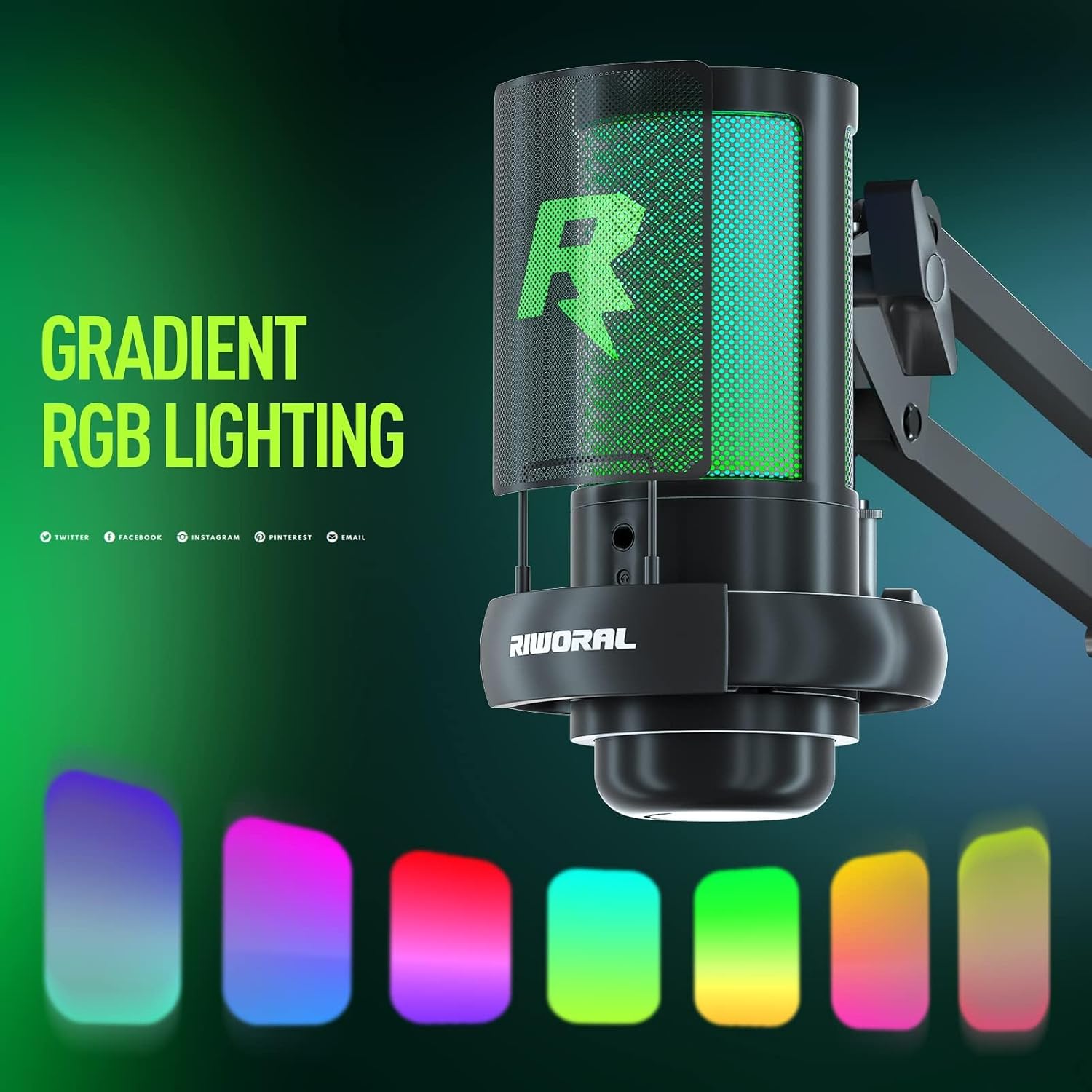
Image: The microphone showcasing its gradient RGB lighting effect.

Image: Diagram illustrating the cardioid polar pattern for clearer recordings.
Setup Instructions
- Assemble the Boom Arm: Attach the desktop mount clip to the edge of your desk. Insert the boom arm into the clip and tighten securely.
- Mount the Microphone: Screw the condenser microphone onto the boom arm's connector. Ensure it is firmly attached.
- Attach Pop Filter: Position the metal pop filter in front of the microphone and secure it to the boom arm.
- Connect USB Cable: Plug the USB-C end of the provided cable into the microphone. Connect the USB-A end to an available USB port on your computer, PS4/PS5, or smartphone (using the Type-C adapter if necessary).
- System Configuration: Your device should automatically recognize the microphone. If not, navigate to your system's sound settings and select the Riworal microphone as your default input device.

Image: The microphone showing its USB-C connection and compatibility with various devices via USB-A and Type-C adapter.

Image: Detailed diagram illustrating the dimensions and adjustable points of the microphone boom arm, including 270° metal adapter, 180° arm shaft, and 360° sturdy base.
Video: Official Riworal video demonstrating the setup and features of the Gaming Mic Kit RG04.
Operating Instructions
- Power On/Off: The microphone powers on automatically when connected via USB. Disconnect the USB cable to power off.
- Mute Function: Tap the button on the top of the microphone to toggle mute on or off. The LED indicator will change color to show the mute status.
- Adjust Gain: Rotate the gain control knob located on the bottom of the microphone to increase or decrease the input sensitivity.
- RGB Lighting Control: Long press the mute button on top for 3 seconds to turn the RGB lighting effect on or off.
- Real-Time Monitoring: Plug your headphones into the 3.5mm jack on the microphone to monitor your audio input in real-time.

Image: Close-up of the microphone's quick touch mute button with LED status indicator.
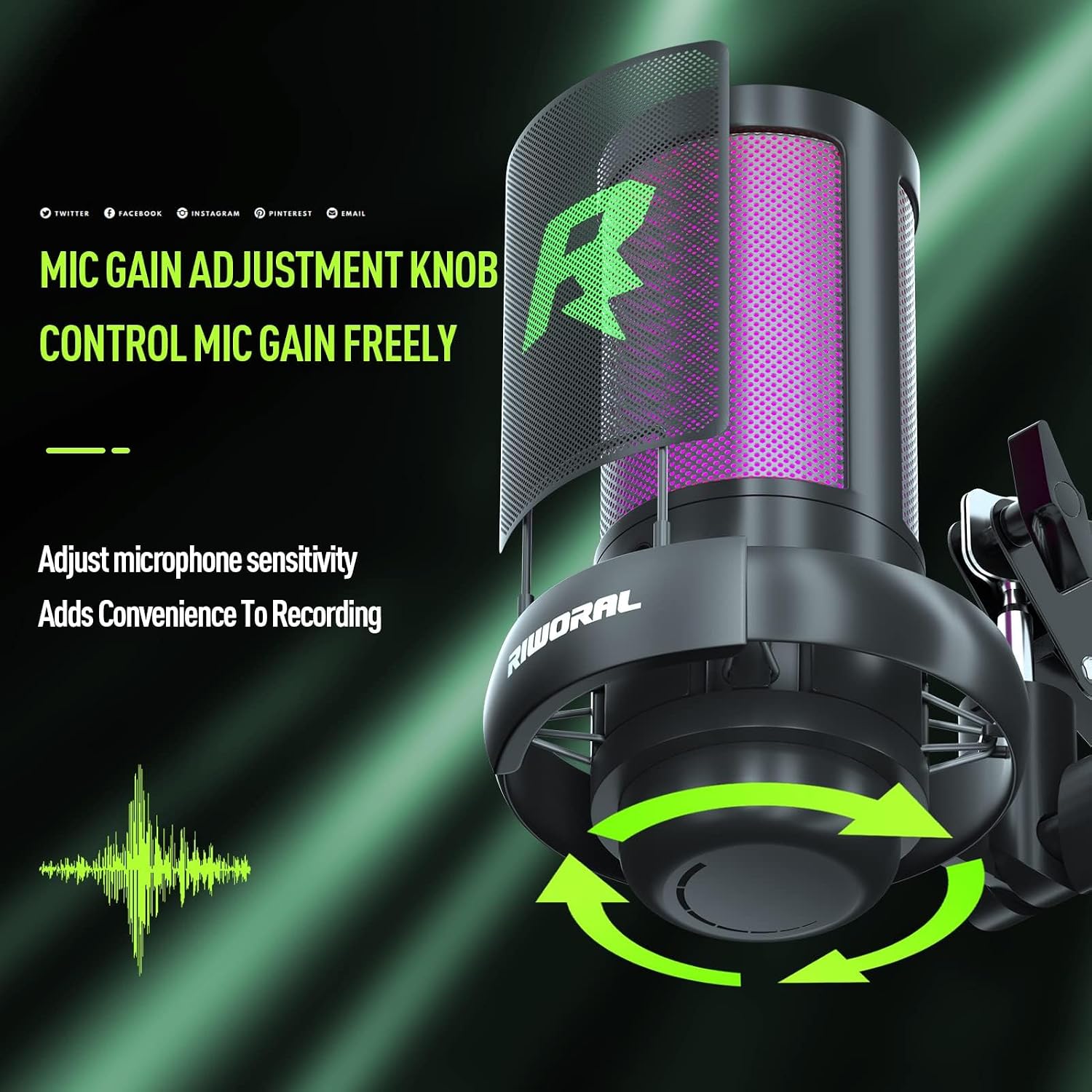
Image: The microphone's gain adjustment knob, used to control microphone sensitivity.

Image: The microphone with headphones connected to its 3.5mm jack for real-time audio monitoring.
Maintenance
- Cleaning: Use a soft, dry cloth to clean the microphone and boom arm. Avoid liquid cleaners or abrasive materials.
- Storage: Store the microphone in a cool, dry place away from direct sunlight and extreme temperatures.
- Handling: Handle the microphone and boom arm gently. Avoid dropping or subjecting them to strong impacts.
- Cable Care: Ensure the USB cable is not kinked, pinched, or excessively bent to prevent damage. Use the provided cable ties for neat organization.
Troubleshooting
- No Sound / Microphone Not Recognized:
- Ensure the USB cable is securely connected to both the microphone and your device.
- Verify that the microphone is selected as the default input device in your operating system's sound settings.
- Check the gain control knob on the microphone to ensure it is not set to minimum.
- Confirm that the mute function is not active (check LED indicator).
- Poor Sound Quality / Distortion:
- Adjust the gain control knob to an appropriate level. Too high can cause distortion, too low can result in weak audio.
- Ensure the pop filter is correctly positioned between your mouth and the microphone to reduce plosive sounds.
- Minimize environmental background noise.
- Ensure you are speaking directly into the front of the microphone, utilizing its cardioid pickup pattern.
Specifications
| Feature | Detail |
|---|---|
| Brand | Riworal |
| Model Name | usb microphone |
| Item Model Number | RG03/RG04 |
| Connectivity Technology | USB |
| Connector Type | USB |
| Microphone Form Factor | Boundary |
| Polar Pattern | Unidirectional (Cardioid) |
| Audio Sensitivity | 70 Decibels |
| Signal-to-Noise Ratio | 60 dB |
| Power Source | Corded Electric |
| Material | Metal |
| Item Weight | 2.01 pounds |
| Product Dimensions | 16.93 x 7.01 x 3.54 inches |
| Recommended Uses | Streaming |
| Compatible Devices | Personal Computer |
Warranty and Support
Specific warranty details are not provided in the product information. For any questions, concerns, or technical support regarding your Riworal Gaming Microphone Kit, please contact Riworal customer support directly through your Amazon order page. They are available to assist you with any issues before or after purchase.