
Redragon K635WBR-RGB-PRO
Redragon K635 Mechanical Keyboard User Manual
Model: K635WBR-RGB-PRO
Introduction
The Redragon K635 is a versatile and compact mechanical keyboard designed for gaming and everyday use. Featuring a 78-key layout, it offers a balance of compactness and functionality, including dedicated arrow keys, multimedia controls, and macro keys. This keyboard supports multiple connection modes and boasts customizable RGB backlighting, hot-swappable switches, and durable construction. This manual provides detailed instructions for setting up, operating, maintaining, and troubleshooting your Redragon K635 keyboard.
Product Overview

Figure 1: Redragon K635 Mechanical Keyboard with RGB backlighting.
The Redragon K635 keyboard features a durable metal top plate and a 78-key layout, providing a compact yet functional design. It is equipped with Outemu Red switches, known for their linear travel and smooth keypresses, and supports hot-swapping for easy switch customization.

Figure 2: Dimensions of the Redragon K635 Mechanical Keyboard, highlighting its compact 75% layout.
Setup and Connectivity
The Redragon K635 keyboard offers three versatile connection modes: 2.4G wireless, Bluetooth, and USB-C wired. This allows for broad compatibility with various devices.

Figure 3: Illustration of the three connection modes: Bluetooth, 2.4G Wireless, and Detachable USB-C Cable.
1. USB-C Wired Connection
- Connect the provided USB-C cable to the keyboard's USB-C port.
- Connect the other end of the USB-C cable to an available USB port on your computer.
- The keyboard will be automatically recognized and ready for use. This mode also charges the keyboard's internal battery.
2. 2.4G Wireless Connection
- Locate the 2.4G USB dongle, typically stored in a compartment on the keyboard.
- Plug the USB dongle into an available USB port on your computer.
- Ensure the keyboard's mode switch (if present) is set to 2.4G wireless. The keyboard should automatically connect.
3. Bluetooth Connection
The keyboard supports connecting up to three Bluetooth devices (BT1, BT2, BT3).
- Ensure the keyboard's mode switch is set to Bluetooth.
- Press and hold Fn + BT1 (or BT2/BT3) for 3-5 seconds until the corresponding indicator light flashes rapidly, indicating pairing mode.
- On your device (computer, tablet, smartphone), open Bluetooth settings and search for new devices.
- Select "Redragon K635" (or similar name) from the list of available devices to pair.
- Once paired, the indicator light will stop flashing and remain solid.
- To switch between paired Bluetooth devices, simply press Fn + BT1/BT2/BT3.
Operating Instructions
RGB Backlighting
The K635 features 20 pre-set RGB backlight effects and per-key customizable RGB. You can adjust brightness, speed, and color directly on the keyboard or through the software.

Figure 4: Overview of RGB backlight modes and customization options.
- Switch Backlight Modes: Use specific key combinations (refer to keyboard legends or software) to cycle through 20 pre-set modes.
- Change Color: For certain modes, you can change the color (7 single colors + 1 mixed color mode).
- Adjust Speed/Brightness: Control the speed of dynamic effects and the overall brightness of the backlighting.
- Per-Key Customization: Utilize the Redragon software for advanced per-key RGB customization.
Multimedia Controls
The keyboard includes a dedicated volume roller and media buttons for convenient control of audio and backlight brightness.
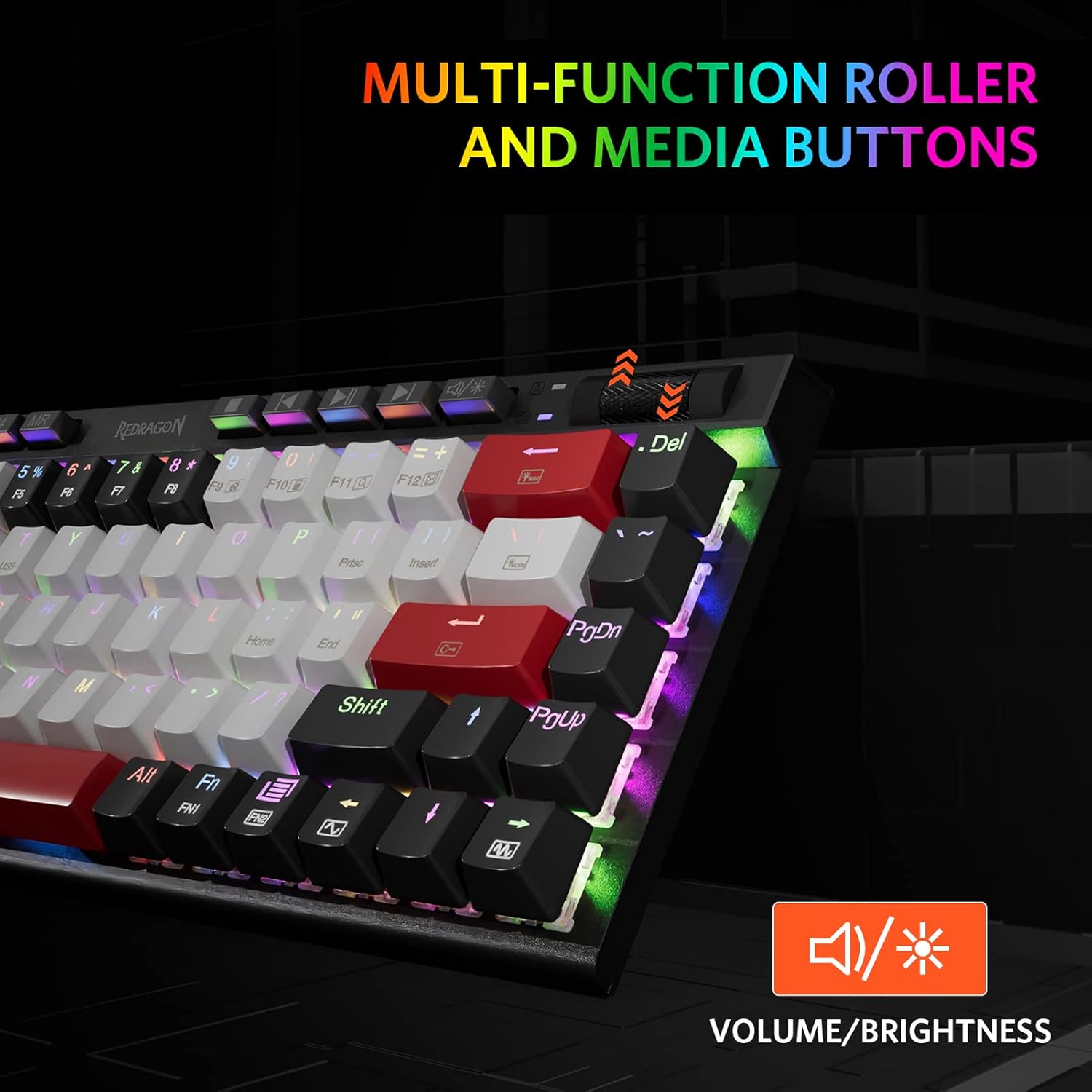
Figure 5: Dedicated multimedia roller and buttons for volume and brightness control.
- Volume Roller: Rotate to adjust volume up or down.
- Media Buttons: Play/Pause, Previous Track, Next Track.
- Brightness Control: Some media keys may double as brightness controls when used with the Fn key.
Programmable Macro Keys
The keyboard features 5 programmable macro keys (G1-G5) that can be programmed on the fly without software.
- Recording a Macro: Press MR (Macro Record) key, then press the desired G-key (G1-G5). Type your desired key sequence, then press MR again to save.
- Executing a Macro: Simply press the programmed G-key.
Software Customization
For advanced customization of RGB lighting, key assignments, and macros, download the professional software from the official Redragon website. The software functions primarily in wired connection mode.
Video 1: Redragon K635 Mechanical Keyboard overview, demonstrating features like RGB lighting, hot-swappable switches, and software customization.
Maintenance
Cleaning the Keyboard
- Disconnect the keyboard from your computer before cleaning.
- Use a soft, dry cloth to wipe down the keycaps and frame.
- For deeper cleaning, you can use a can of compressed air to remove dust and debris from between the keys.
- Avoid using harsh chemicals or abrasive materials.
Hot-Swappable Switches
The K635 features hot-swappable sockets, allowing you to easily change switches without soldering. This supports most 3-pin and 5-pin mechanical switches.

Figure 6: Demonstration of hot-swappable switches on the Redragon K635 keyboard.

Figure 7: Close-up view of the hot-swappable sockets and compatible switches.
- Removing a Switch: Use the provided switch puller tool to gently grip the top and bottom clips of the switch. Pull straight up to remove the switch from the socket.
- Installing a Switch: Align the pins of the new switch with the holes in the PCB. Gently push the switch down until it clicks into place. Ensure the pins are not bent.
Troubleshooting
- Keyboard not responding:
• Ensure the USB cable is securely connected or the 2.4G dongle is properly inserted.
• For Bluetooth, check if the keyboard is paired and selected as the active device. Try re-pairing.
• Check the keyboard's power switch (if applicable) and battery level. - RGB lighting not working or inconsistent:
• Ensure the keyboard is powered on.
• Try cycling through different RGB modes using the keyboard shortcuts.
• If using the software, ensure settings are applied and the keyboard is in wired mode for full customization. - Wireless connection issues (lag, disconnections):
• For 2.4G wireless, ensure the dongle is close to the keyboard and not obstructed by metal objects.
• For Bluetooth, ensure no other devices are interfering with the signal.
• Charge the keyboard fully, as low battery can affect wireless performance. - Keys not registering or double-typing:
• This could indicate a faulty switch. Utilize the hot-swappable feature to replace the problematic switch.
• Ensure keycaps are properly seated. - Software not detecting keyboard:
• Ensure the keyboard is connected via USB-C cable.
• Download the latest software version from the official Redragon website.
• Temporarily disable antivirus/firewall if it's blocking the software.
Specifications
| Feature | Detail |
|---|---|
| Model Number | K635WBR-RGB-PRO |
| Product Dimensions | 12.36 x 4.97 x 1.33 inches |
| Item Weight | 2.03 pounds |
| Connectivity Technology | Bluetooth 5.0 & 3.0 / 2.4G Wireless / USB-C Wired |
| Number of Keys | 68 (plus 10 dedicated keys) |
| Switch Type | Outemu Red Switches (Hot-Swappable) |
| Backlighting | RGB (20 pre-set effects, per-key customizable) |
| Compatible Devices | Laptop, Gaming Console, PC (Windows XP/Vista/7/8/10/11; Mac OS X, Linux, Android) |
| Special Features | Spill Proof, Ergonomic, Volume Roller, Backlit, Hotkeys and Media Keys |
| Battery | 1 Lithium Polymer battery (included) |
What's in the Box
- Redragon K635 Mechanical Keyboard
- USB-C Cable
- 2.4G USB Dongle (typically stored in keyboard)
- Switch Puller Tool
- Keycap Puller Tool
- User Manual (this document)
Warranty and Support
Redragon products typically come with a manufacturer's warranty. Please refer to the warranty card included with your product or visit the official Redragon website for specific warranty terms and conditions. For technical support, driver downloads, or further assistance, please visit the Redragon support page or contact their customer service.
Redragon Official Website: www.redragonzone.com
Related documentsK635WBR-RGB-PRO


Ask a question about this manual
Ask about setup, troubleshooting, compatibility, parts, safety, or missing instructions. Manuals+ will review the question and use this page’s manual context to help answer it.