1. Introduction
This manual provides detailed instructions for the Nulea Wireless Ergonomic Keyboard, Model RT05. This keyboard is designed to enhance typing comfort and efficiency through its split, splayed, and curved layout, integrated wrist rest, and versatile connectivity options. It features a 7-color adjustable backlight and convenient USB-C charging.

Figure 1.1: Nulea Wireless Ergonomic Keyboard (Model RT05)
This image displays the Nulea Wireless Ergonomic Keyboard from a top-down perspective, highlighting its split design, integrated wrist rest, and full key layout including a numeric keypad. The keyboard is black with yellow accents on the spacebar area.
2. Package Contents
Verify that all items are present in the package:
- Ergonomic Keyboard x1
- USB Cable x1
- User Manual x1
3. Setup
3.1 Initial Charging
Before first use, fully charge the keyboard using the provided USB-C cable. The keyboard features a 2000mAh internal battery for extended operation.
- Connect the USB-C end of the cable to the keyboard's charging port.
- Connect the USB-A end to a compatible USB power source (e.g., computer USB port, wall adapter).
- The battery indicator light will provide charging status. Recharge when the battery level is below 10% (backlight will turn off to conserve power).

Figure 3.1: USB-C Quick Charging
This image illustrates the Nulea keyboard being charged via a USB-C cable, with a graphic indicating a 2000mAh built-in rechargeable battery. The image emphasizes the convenience of USB-C charging.
3.2 Wireless Connectivity
The Nulea keyboard supports both Bluetooth and 2.4G USB connectivity, allowing connection to up to three devices simultaneously.
2.4G USB Connection:
- Locate the 2.4G USB receiver (usually stored in a compartment on the keyboard).
- Plug the USB receiver into an available USB port on your computer.
- Turn on the keyboard. It should automatically connect to the receiver.
Bluetooth Connection:
- Turn on the keyboard.
- Press the Fn key simultaneously with either Q (for 2.4G), W (for Bluetooth 1), or E (for Bluetooth 2) to select the desired connection channel. For Bluetooth pairing, select W or E.
- Hold the selected Fn + W or Fn + E key combination for 3-5 seconds until the indicator light flashes rapidly, indicating pairing mode.
- On your device (computer, smartphone, tablet), go to Bluetooth settings and search for new devices.
- Select "Nulea Keyboard" or a similar name from the list of available devices to complete the pairing process.
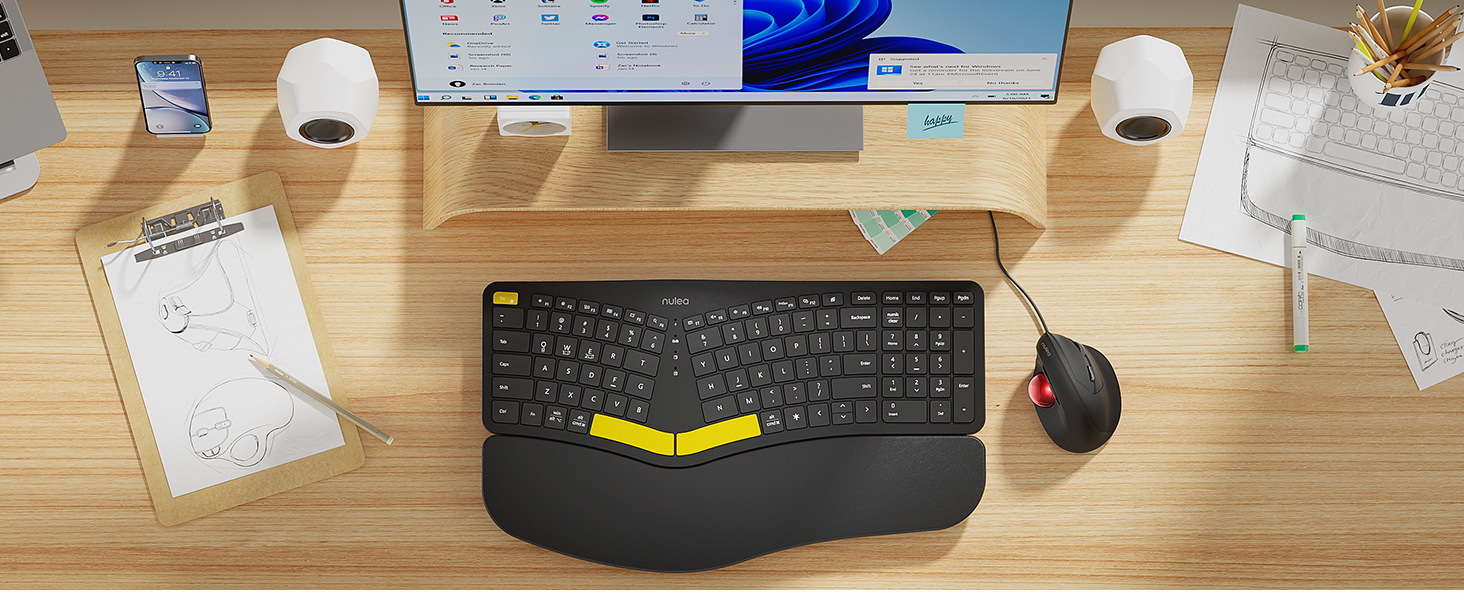
Figure 3.2: Wireless Connectivity Setup
This diagram illustrates the three connectivity options for the Nulea keyboard: 2.4G USB connection via a dongle, and two separate Bluetooth connections. It shows how to switch between devices using Fn + Q/W/E keys.
4. Operating Instructions
4.1 Power On/Off
Locate the power switch on the keyboard (typically on the top edge or underside) and slide it to the 'ON' or 'OFF' position.
4.2 Switching Between Connected Devices
Once multiple devices are paired, you can switch between them instantly:
- Press Fn + Q to switch to the 2.4G USB connected device.
- Press Fn + W to switch to Bluetooth Device 1.
- Press Fn + E to switch to Bluetooth Device 2.

Figure 4.1: Easy Device Switching
This image shows the Nulea keyboard connected to a desktop monitor, a laptop, and a smartphone, illustrating its ability to easily switch between up to three paired devices with a single tap.
4.3 Backlight Control
The keyboard features a 7-color backlight with 3 brightness levels. You can customize the lighting to your preference:
- To cycle through backlight colors (blue, green, red, cyan, purple, yellow, white), press the backlight control key (refer to keyboard layout for specific key).
- To adjust brightness levels, use the dedicated brightness control keys (refer to keyboard layout).
- Note: When the battery level drops below 10%, the backlight will automatically turn off to preserve basic keyboard functionality.

Figure 4.2: Adjustable 7-Color Backlight
This image displays the Nulea keyboard in a dimly lit environment, showcasing its illuminated keys with a vibrant backlight. The image highlights the 7 available backlight colors and 3 brightness levels.
4.4 Adjustable Tilt Legs
The keyboard is equipped with 4 adjustable tilt legs, allowing you to set the keyboard at 3 different angles for optimal wrist comfort and posture.
- Gently pull out the tilt legs located on the underside of the keyboard to adjust the angle.
- Experiment with different tilt levels to find the most comfortable position for your typing style.

Figure 4.3: Adjustable Tilt Legs
This image shows a side view of the Nulea keyboard on a desk, with its adjustable tilt legs extended to demonstrate the ergonomic angle. The image emphasizes how the tilt legs help maintain a comfortable wrist position.
4.5 Typing Experience
The keyboard features spherical-dished key shapes designed to conform to your fingertips, promoting effortless and comfortable typing.

Figure 4.4: Spherical-Dished Keys
This close-up image focuses on the keys of the Nulea keyboard, highlighting their spherical-dished shape designed for comfortable and precise typing.
5. Maintenance
5.1 Cleaning
To maintain the keyboard's appearance and functionality:
- Disconnect the keyboard from all devices and power sources before cleaning.
- Use a soft, lint-free cloth slightly dampened with water or a mild cleaning solution to wipe the surface.
- Avoid using harsh chemicals, abrasive cleaners, or solvents.
- Use compressed air to remove dust and debris from between the keys.
5.2 Battery Care
To prolong battery life:
- Recharge the keyboard when the battery low indicator appears.
- Avoid completely draining the battery frequently.
- If storing the keyboard for an extended period, charge it to approximately 50% before storage.
6. Troubleshooting
6.1 Keyboard Not Responding
- Ensure the keyboard is powered on.
- Check battery level and recharge if necessary.
- For 2.4G connection, ensure the USB receiver is securely plugged into the device. Try a different USB port.
- For Bluetooth connection, ensure Bluetooth is enabled on your device and the keyboard is paired. Try re-pairing the keyboard.
- Ensure you are on the correct connection channel (Fn + Q/W/E).
6.2 Backlight Not Working
- Check the battery level. The backlight automatically turns off when the battery is below 10%. Recharge the keyboard.
- Ensure the backlight is turned on and brightness is adjusted using the dedicated keys.
6.3 Connectivity Issues / Lag
- Move the keyboard closer to your device to reduce interference.
- Avoid placing the keyboard near other wireless devices that may cause interference (e.g., Wi-Fi routers, cordless phones).
- Ensure your device's operating system and Bluetooth drivers are up to date.
7. Specifications
| Feature | Detail |
|---|---|
| Model Name | RT05 |
| Product Dimensions | 16.5"L x 9.6"W x 1.3"H (41.9 x 24.4 x 3.3 cm) |
| Item Weight | 3.5 pounds (1.59 kg) |
| Manufacturer | Nulea |
| Batteries | 1 Lithium Ion battery (included) |
| Connectivity Technology | 2.4G USB, Bluetooth |
| Compatible Devices | Laptop, PC, Smartphone, Tablet |
| Special Features | Backlit, Rechargeable, Split Keyset Design, Adjustable Tilt Legs |
| Color | Black |
8. Warranty and Support
For warranty information, technical support, or service inquiries, please refer to the contact information provided on the Nulea official website or contact the seller directly. Keep your purchase receipt for warranty claims.
This user manual is included with your product for future reference.


