Introduction
Thank you for purchasing the JLab JBuds Wireless Keyboard. This manual provides detailed instructions on how to set up, operate, maintain, and troubleshoot your new keyboard. Please read this manual thoroughly to ensure optimal performance and longevity of your device.
What's in the Box
- JLab JBuds Wireless Keyboard
- 2.4GHz USB Wireless Dongle
- USB-C Charging Cable
- Quick Start Guide

Image: The JLab JBuds Wireless Keyboard shown alongside its charging cable and USB dongle, illustrating the complete package contents.
Setup
Initial Charging
Before first use, fully charge your JBuds Wireless Keyboard using the provided USB-C charging cable. Connect the USB-C end to the keyboard's charging port and the USB-A end to a compatible USB power source (e.g., computer USB port, wall adapter). The charging indicator light will show the charging status.
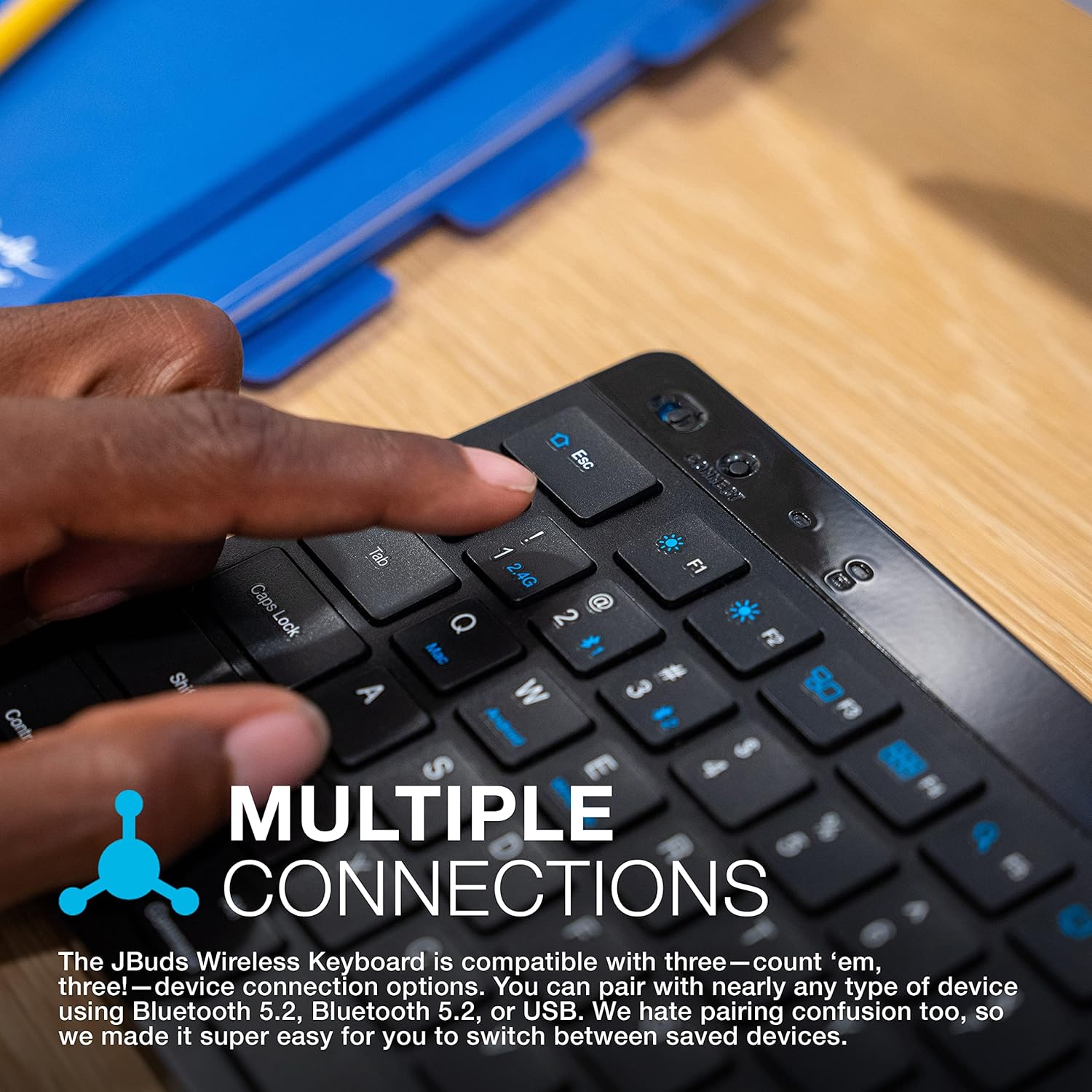
Image: A close-up view of the JLab JBuds Wireless Keyboard showing the USB-C charging cable plugged into its port, highlighting the rechargeable battery feature.
Connecting Your Keyboard
The JBuds Wireless Keyboard offers flexible connection options: Bluetooth 5.2 and 2.4GHz USB wireless dongle. You can connect up to three devices and easily switch between them.
Image: A user's finger pressing the connection toggle button on the JLab JBuds Wireless Keyboard, demonstrating its multi-device connectivity feature.
2.4GHz USB Wireless Dongle Connection:
- Insert the 2.4GHz USB wireless dongle into an available USB port on your computer or device.
- Turn on the keyboard.
- Press the Fn key and the 1 key simultaneously to select the 2.4G connection mode. The indicator light above the '1' key will illuminate.
- The keyboard should automatically connect to your device.
Bluetooth Connection (up to 2 devices):
- Turn on the keyboard.
- Press the Fn key and either the 2 or 3 key simultaneously to select a Bluetooth channel. The indicator light above the chosen number will flash, indicating pairing mode.
- On your device (computer, tablet, smartphone), go to Bluetooth settings and search for "JLab JBuds Keyboard".
- Select the keyboard to pair. The indicator light on the keyboard will become solid once connected.
- Repeat for a second Bluetooth device using the other available Bluetooth channel (2 or 3).

Image: An illustration showing the JLab JBuds Wireless Keyboard's compatibility with various operating systems, including Mac, Windows, Android, and Linux.
Operating Your Keyboard
Multi-Device Toggle
Once paired with multiple devices, you can switch between them by pressing Fn + 1 (for 2.4G USB), Fn + 2 (for Bluetooth Device 1), or Fn + 3 (for Bluetooth Device 2). This allows seamless transition between your computer, tablet, or smartphone.
Soft Touch Keys
The JBuds Wireless Keyboard features low-profile, soft-touch keys designed for a quiet and comfortable typing experience. This design minimizes typing noise, making it suitable for shared environments.

Image: A person's hands are shown actively typing on the JLab JBuds Wireless Keyboard, emphasizing the comfortable and quiet soft-touch keys.
Smart Media Knob
The integrated Media Knob provides quick and convenient control over your audio.
- Rotate: Adjust volume up or down.
- Press: Play/Pause media.

Image: A close-up shot of a hand turning the Smart Media Knob on the JLab JBuds Wireless Keyboard, demonstrating its intuitive audio control function.
Custom User Profiles (JLab Work App)
Utilize the JLab Work App to program hotkeys and create custom user profiles. This allows you to set shortcuts for frequently used functions within your applications, enhancing productivity. You can save up to three unique profiles and switch between them as needed.
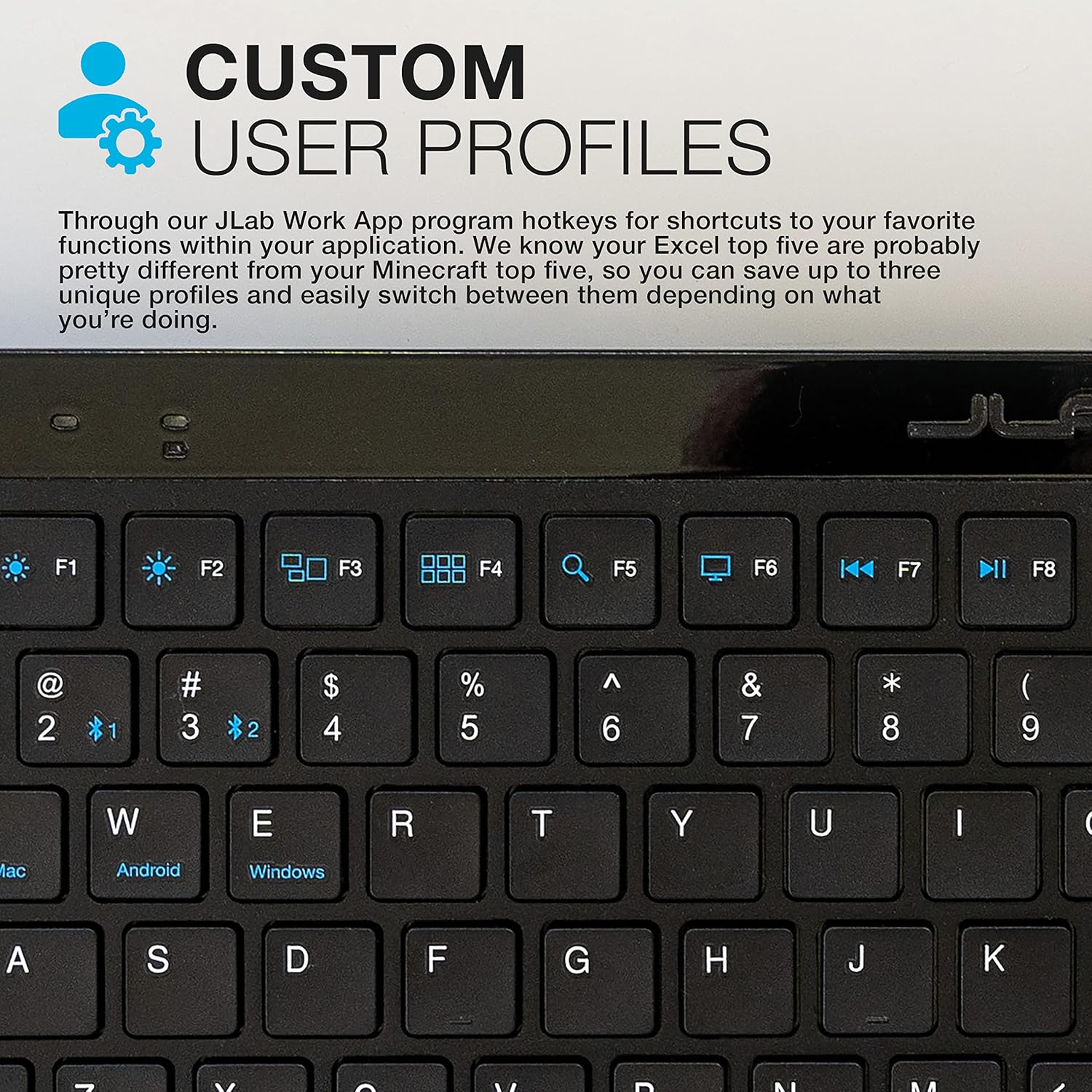
Image: The JLab JBuds Wireless Keyboard displayed with an overlay highlighting the "Custom User Profiles" feature, explaining how the JLab Work App allows programming hotkeys.
Compact Layout
With 95 keys, the keyboard maintains a compact footprint while still including a full numerical pad and a complete set of function keys. This design is efficient for desktop space and portability.
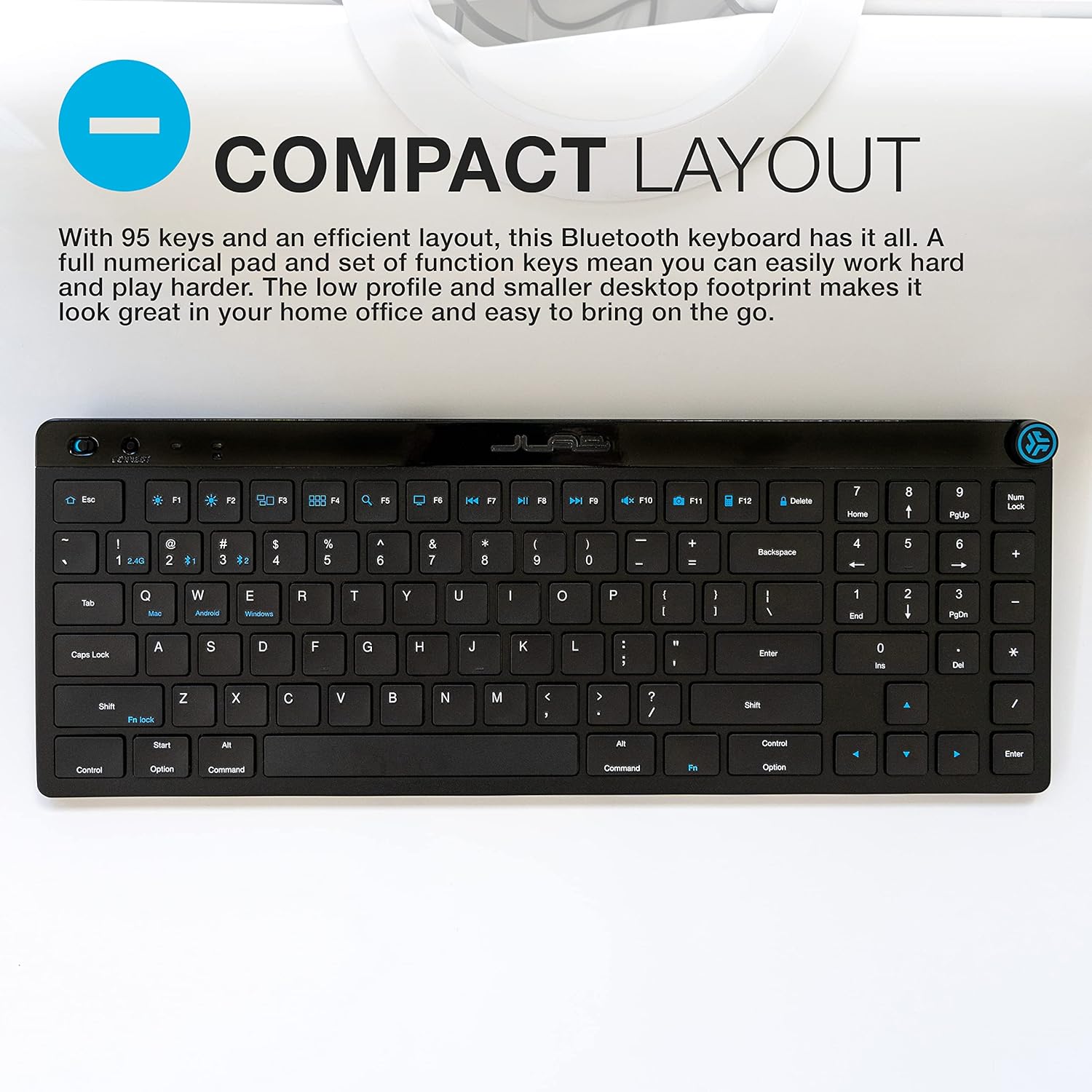
Image: An overhead shot of the JLab JBuds Wireless Keyboard, illustrating its compact 95-key layout, including a full numerical pad, designed for efficiency and portability.
Maintenance
Battery Life and Recharging
The JBuds Wireless Keyboard features a convenient rechargeable battery, eliminating the need for disposable batteries. A full charge can provide over 10 months of battery life, depending on usage. Recharge the keyboard using the provided USB-C cable when the battery indicator light signals low power.
Image: The JLab JBuds Wireless Keyboard is shown connected to its charging cable, with text emphasizing its "10+ Months Battery Life" and "Rechargeable Battery" features.
Cleaning Instructions
To clean your keyboard, gently wipe the surface with a soft, dry, lint-free cloth. For stubborn dirt, slightly dampen the cloth with water or a mild, non-abrasive cleaning solution. Avoid excessive moisture and do not spray cleaners directly onto the keyboard.
Troubleshooting
- Keyboard not connecting or frequently disconnecting:
- Ensure the keyboard is fully charged.
- Verify that the correct connection mode (2.4G, Bluetooth 1, or Bluetooth 2) is selected using Fn + 1/2/3.
- For 2.4GHz connection, ensure the USB dongle is securely inserted into a working USB port. Try a different USB port.
- For Bluetooth connection, ensure Bluetooth is enabled on your device and the keyboard is within range (typically up to 30 feet).
- Try unpairing and re-pairing the keyboard with your device.
- If using Bluetooth, ensure no other strong wireless signals are causing interference.
- Restart your computer/device and the keyboard.
- Keys not responding or typing incorrectly:
- Check battery level.
- Ensure the keyboard is properly connected to your device.
- Clean around the affected keys to remove any debris.
- If the issue persists, try connecting the keyboard to a different device to determine if the problem is with the keyboard or the original device.
- Media Knob not functioning:
- Ensure the keyboard is connected and active.
- Verify that media is playing on your device.
- Check if any software or application on your device is overriding media controls.
Specifications
| Feature | Detail |
|---|---|
| Product Dimensions | 14.5 x 5.5 x 0.96 inches |
| Item Weight | 1.39 pounds |
| Model Number | KJBUDSKEYRBLK4 |
| Batteries | 1 Lithium Ion battery (included) |
| Connectivity Technology | Bluetooth 5.2, 2.4GHz USB Wireless Dongle |
| Keyboard Description | Wireless |
| Compatible Devices | Laptop, PC, Smart TV, Smartphone, Tablet |
| Special Feature | Rechargeable, Smart Media Knob, Custom User Profiles |
| Color | Black |
| Included Components | Keyboard, 2.4G USB dongle, Charging Cable, Quick Start Guide |
Warranty and Support
For warranty information and customer support, please refer to the official JLab website or contact JLab customer service directly. Details are typically provided in the Quick Start Guide included with your product or on the manufacturer's website.
JLab Official Website: www.jlab.com